> ## Documentation Index
> Fetch the complete documentation index at: https://docs.kwebby.com/llms.txt
> Use this file to discover all available pages before exploring further.
# Footer
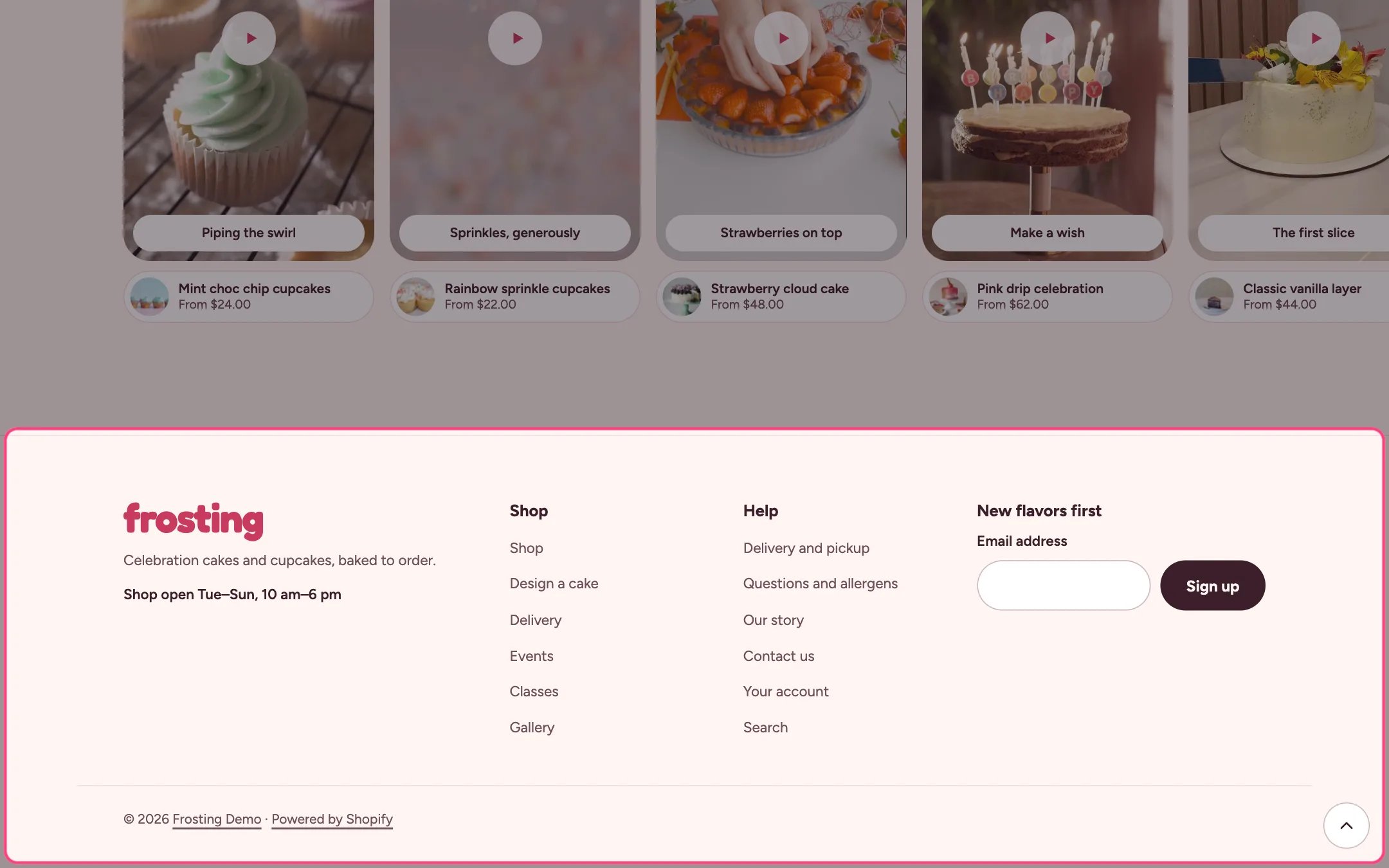
> The bottom of every page: your name, a short about text, opening hours, social links, menus, an email sign-up, and the country, language and payment details.
 ## Where to find it
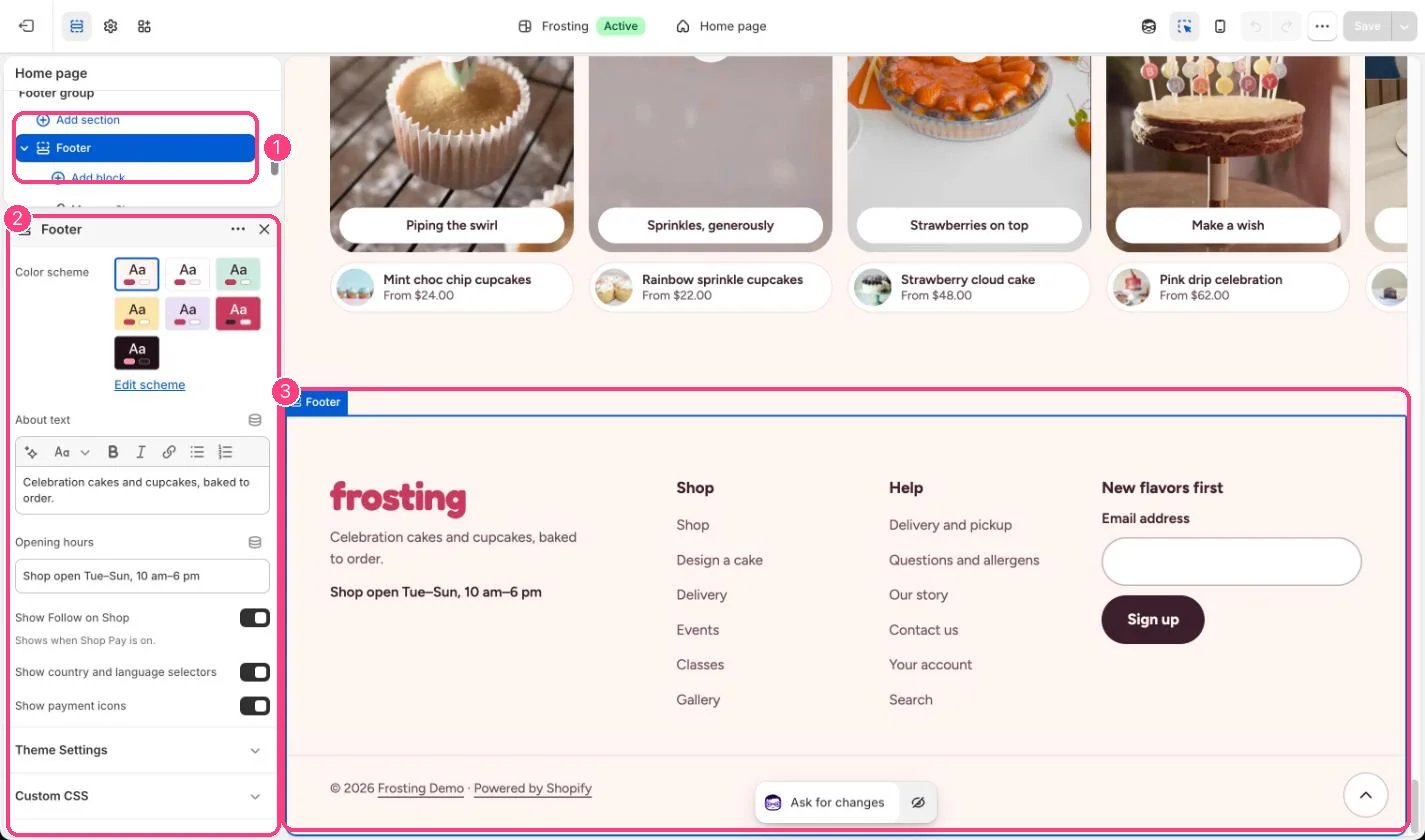
Every page. In the theme editor open any page, then select Footer in the Footer area of the sidebar.
## How it works
* The footer always shows your name as text: the Logo text from Theme settings, Layout, or the store name.
* Social links come from Theme settings, Social media, and open in a new tab.
* Menu blocks each show a heading and the links of one menu.
* The Email sign-up block (one per footer) saves shoppers as customers tagged newsletter and footer, then shows a thank-you message.
* Follow on Shop shows only when Shop Pay is turned on.
* Country and language selectors appear when you sell in more than one market or language.
## Where to find it
Every page. In the theme editor open any page, then select Footer in the Footer area of the sidebar.
## How it works
* The footer always shows your name as text: the Logo text from Theme settings, Layout, or the store name.
* Social links come from Theme settings, Social media, and open in a new tab.
* Menu blocks each show a heading and the links of one menu.
* The Email sign-up block (one per footer) saves shoppers as customers tagged newsletter and footer, then shows a thank-you message.
* Follow on Shop shows only when Shop Pay is turned on.
* Country and language selectors appear when you sell in more than one market or language.
 ## Edit it
* Edit About text and Opening hours.
* Add a Menu block per column and choose its menu. The defaults are your main menu and footer menu.
* Add the Email sign-up block and give it a heading.
* Turn the payment icons and country and language selectors on or off.
* Add your social links in Theme settings, Social media.
## Settings
| Setting | What it does |
| - | - |
| **Color scheme** | Color scheme for this area (edit the schemes in Theme settings → Colors). Default: Scheme 1. |
| **About text** | Formatted text. |
| **Opening hours** | Text. Default: Shop open Tue–Sun, 10 am–6 pm. |
| **Show Follow on Shop** | On or off. Shows when Shop Pay is on. Default: on. |
| **Show country and language selectors** | On or off. Default: on. |
| **Show payment icons** | On or off. Default: on. |
## Blocks
Add a block with **Add block** under the section in the sidebar; drag blocks to reorder them.
### Menu
| Setting | What it does |
| - | - |
| **Heading** | Text. Default: Shop. |
| **Menu** | Choose a menu. Default: footer. |
### Email sign-up (up to 1)
| Setting | What it does |
| - | - |
| **Heading** | Text. Default: New flavors first. |
This documentation is built and hosted on [Mintlify](https://mintlify.com), a developer documentation platform.
## Edit it
* Edit About text and Opening hours.
* Add a Menu block per column and choose its menu. The defaults are your main menu and footer menu.
* Add the Email sign-up block and give it a heading.
* Turn the payment icons and country and language selectors on or off.
* Add your social links in Theme settings, Social media.
## Settings
| Setting | What it does |
| - | - |
| **Color scheme** | Color scheme for this area (edit the schemes in Theme settings → Colors). Default: Scheme 1. |
| **About text** | Formatted text. |
| **Opening hours** | Text. Default: Shop open Tue–Sun, 10 am–6 pm. |
| **Show Follow on Shop** | On or off. Shows when Shop Pay is on. Default: on. |
| **Show country and language selectors** | On or off. Default: on. |
| **Show payment icons** | On or off. Default: on. |
## Blocks
Add a block with **Add block** under the section in the sidebar; drag blocks to reorder them.
### Menu
| Setting | What it does |
| - | - |
| **Heading** | Text. Default: Shop. |
| **Menu** | Choose a menu. Default: footer. |
### Email sign-up (up to 1)
| Setting | What it does |
| - | - |
| **Heading** | Text. Default: New flavors first. |
This documentation is built and hosted on [Mintlify](https://mintlify.com), a developer documentation platform.