> ## Documentation Index
> Fetch the complete documentation index at: https://docs.kwebby.com/llms.txt
> Use this file to discover all available pages before exploring further.
# Header
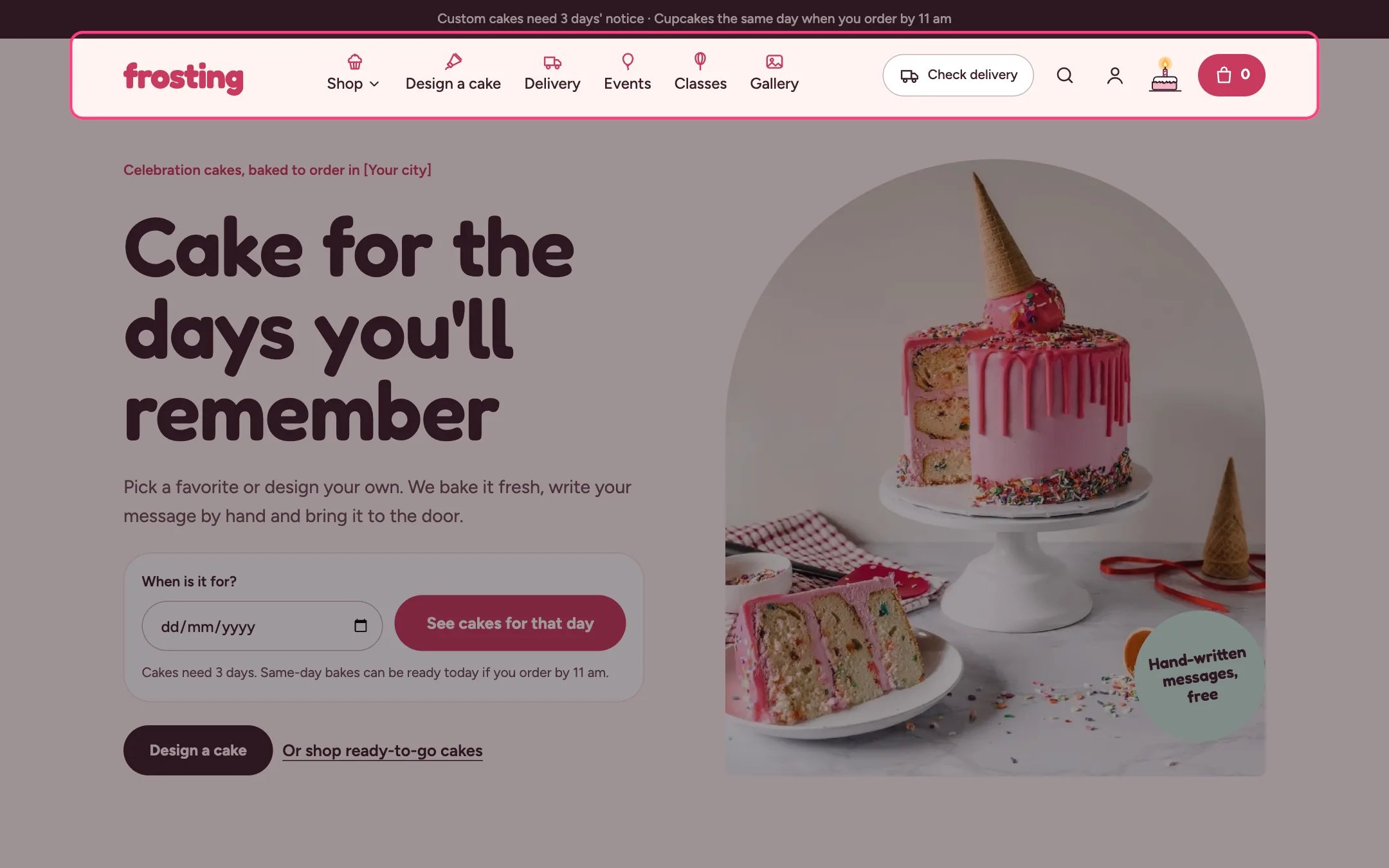
> The logo, main menu with mega menus and menu icons, delivery check, search, account, the candle dark mode toggle and the cart.
 ## Where to find it
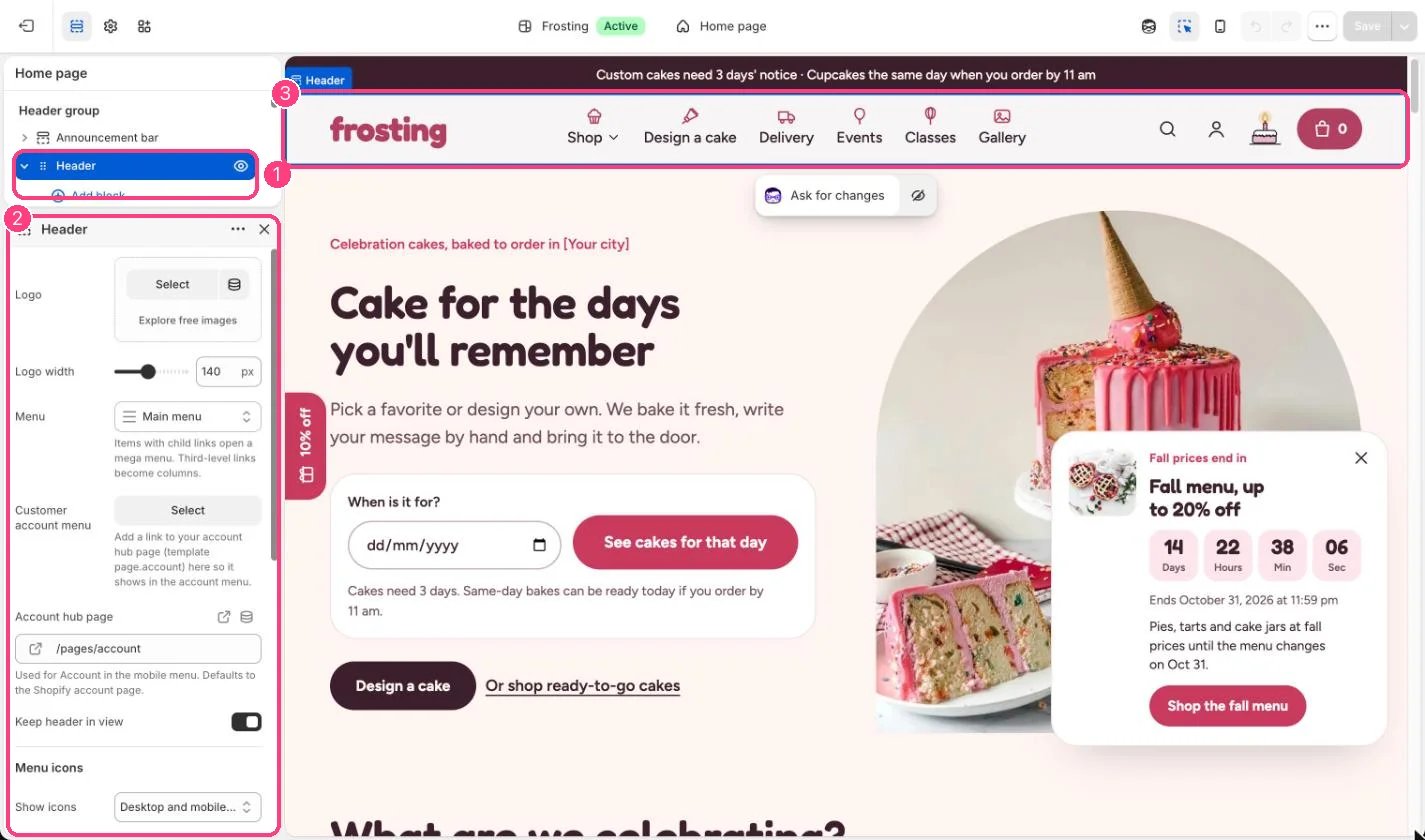
Every page. In the theme editor open any page, then select Header in the Header area of the sidebar.
## How it works
* Top-level menu items with child links open a mega menu on hover or click. Third-level links become columns, and a Menu promo block adds a picture card to one dropdown.
* Menu icons sit above each label on desktop and as small tiles in the mobile menu. Icons are picked from the words in each title, and a Menu icon block changes or removes one.
* The Check delivery button opens a postcode check. It shows the zone, fee, same-day option and first delivery date, and remembers the postcode on that device so the button then reads, for example, Zone A · 78704.
* The header never wraps onto a second line. When the logo, menu and buttons do not fit, the delivery button first shrinks to its icon, then the menu moves into the menu drawer. Below about 1060 px wide the menu always lives in the drawer.
* The search button opens a search box with your popular searches and live suggestions.
* With Keep header in view on, the header stays at the top while shoppers scroll.
* With no logo image, the header shows the Logo text from Theme settings, Layout, or your store name.
## Where to find it
Every page. In the theme editor open any page, then select Header in the Header area of the sidebar.
## How it works
* Top-level menu items with child links open a mega menu on hover or click. Third-level links become columns, and a Menu promo block adds a picture card to one dropdown.
* Menu icons sit above each label on desktop and as small tiles in the mobile menu. Icons are picked from the words in each title, and a Menu icon block changes or removes one.
* The Check delivery button opens a postcode check. It shows the zone, fee, same-day option and first delivery date, and remembers the postcode on that device so the button then reads, for example, Zone A · 78704.
* The header never wraps onto a second line. When the logo, menu and buttons do not fit, the delivery button first shrinks to its icon, then the menu moves into the menu drawer. Below about 1060 px wide the menu always lives in the drawer.
* The search button opens a search box with your popular searches and live suggestions.
* With Keep header in view on, the header stays at the top while shoppers scroll.
* With no logo image, the header shows the Logo text from Theme settings, Layout, or your store name.
 ## Edit it
* Upload a logo and set Logo width (60 to 240 px). Leave the logo empty to use text.
* Pick the menu under Menu. Build it in Online Store, Navigation.
* Under Menu icons choose Off, Mobile menu only, or Desktop and mobile menus, and tick Choose icons from item titles for automatic icons.
* Add a Menu icon block, type the top-level item title exactly as it appears in Navigation, and pick an icon or No icon.
* Add a Menu promo block and type the title of the dropdown it belongs to, for example Shop, then add an image, heading, text and link.
* Set Delivery page to your delivery page so the check links to all delivery areas.
* Add a link to your account hub page in the Customer account menu, and set Account hub page so the mobile menu's Account link goes there.
* Type Popular searches as a comma-separated list.
## Settings
| Setting | What it does |
| - | - |
| **Logo** | Image: upload one or choose from Content → Files. |
| **Logo width** | Slider from 60 to 240 px, in steps of 5. Default: 140 px. |
| **Menu** | Choose a menu. Items with child links open a mega menu. Third-level links become columns. Default: main-menu. |
| **Customer account menu** | Choose a menu. Add a link to your account hub page (template page.account) here so it shows in the account menu. |
| **Account hub page** | Link: a page, product, collection or web address. Used for Account in the mobile menu. Defaults to the Shopify account page. |
| **Keep header in view** | On or off. Default: on. |
**Menu icons**
| Setting | What it does |
| - | - |
| **Show icons** | Options: Off, Mobile menu only, Desktop and mobile menus. Default: Desktop and mobile menus. |
| **Choose icons from item titles** | On or off. Matches words such as Shop, Design, Delivery, Events, Classes, Gallery, About and Contact. Add a Menu icon block to change or remove one icon. Default: on. |
**Delivery check**
| Setting | What it does |
| - | - |
| **Show delivery check** | On or off. Delivery areas come from the Local business section. Default: on. |
| **Delivery page** | Link: a page, product, collection or web address. |
**Search**
| Setting | What it does |
| - | - |
| **Popular searches** | Text. Comma separated. Default: birthday, chocolate, gluten-free, cupcakes. |
## Blocks
Add a block with **Add block** under the section in the sidebar; drag blocks to reorder them.
### Menu icon
| Setting | What it does |
| - | - |
| **Menu item title** | Text. A top-level item in the menu, spelled as in Navigation. Default: Shop. |
| **Icon** | Options: No icon, Cupcake, Cake with candle, Piping bag, Whisk, Balloon, Gift, Delivery van, Shop front, Map pin, Calendar, Clock, Photo, Heart, Speech bubble, Information, Book, Leaf, Home, Person. Default: Cupcake. |
### Menu promo
| Setting | What it does |
| - | - |
| **Menu item title** | Text. Shown in the dropdown of the menu item with this title. Default: Shop. |
| **Image** | Image: upload one or choose from Content → Files. |
| **Heading** | Text. Default: Design your own cake. |
| **Text** | Text. Default: Shape, sponge, frosting and toppings, with a live preview. |
| **Link** | Link: a page, product, collection or web address. |
The delivery check needs the Local business section in the Overlay group. Without delivery areas every postcode gets the no-delivery answer.
On screens about 1060 to 1320 px wide the Check delivery button is hidden from the header. Shoppers on those screens can still check a postcode in the Delivery map section and in the cake builder.
The account icon only shows when customer accounts are turned on in Settings, Customer accounts.
This documentation is built and hosted on [Mintlify](https://mintlify.com), a developer documentation platform.
## Edit it
* Upload a logo and set Logo width (60 to 240 px). Leave the logo empty to use text.
* Pick the menu under Menu. Build it in Online Store, Navigation.
* Under Menu icons choose Off, Mobile menu only, or Desktop and mobile menus, and tick Choose icons from item titles for automatic icons.
* Add a Menu icon block, type the top-level item title exactly as it appears in Navigation, and pick an icon or No icon.
* Add a Menu promo block and type the title of the dropdown it belongs to, for example Shop, then add an image, heading, text and link.
* Set Delivery page to your delivery page so the check links to all delivery areas.
* Add a link to your account hub page in the Customer account menu, and set Account hub page so the mobile menu's Account link goes there.
* Type Popular searches as a comma-separated list.
## Settings
| Setting | What it does |
| - | - |
| **Logo** | Image: upload one or choose from Content → Files. |
| **Logo width** | Slider from 60 to 240 px, in steps of 5. Default: 140 px. |
| **Menu** | Choose a menu. Items with child links open a mega menu. Third-level links become columns. Default: main-menu. |
| **Customer account menu** | Choose a menu. Add a link to your account hub page (template page.account) here so it shows in the account menu. |
| **Account hub page** | Link: a page, product, collection or web address. Used for Account in the mobile menu. Defaults to the Shopify account page. |
| **Keep header in view** | On or off. Default: on. |
**Menu icons**
| Setting | What it does |
| - | - |
| **Show icons** | Options: Off, Mobile menu only, Desktop and mobile menus. Default: Desktop and mobile menus. |
| **Choose icons from item titles** | On or off. Matches words such as Shop, Design, Delivery, Events, Classes, Gallery, About and Contact. Add a Menu icon block to change or remove one icon. Default: on. |
**Delivery check**
| Setting | What it does |
| - | - |
| **Show delivery check** | On or off. Delivery areas come from the Local business section. Default: on. |
| **Delivery page** | Link: a page, product, collection or web address. |
**Search**
| Setting | What it does |
| - | - |
| **Popular searches** | Text. Comma separated. Default: birthday, chocolate, gluten-free, cupcakes. |
## Blocks
Add a block with **Add block** under the section in the sidebar; drag blocks to reorder them.
### Menu icon
| Setting | What it does |
| - | - |
| **Menu item title** | Text. A top-level item in the menu, spelled as in Navigation. Default: Shop. |
| **Icon** | Options: No icon, Cupcake, Cake with candle, Piping bag, Whisk, Balloon, Gift, Delivery van, Shop front, Map pin, Calendar, Clock, Photo, Heart, Speech bubble, Information, Book, Leaf, Home, Person. Default: Cupcake. |
### Menu promo
| Setting | What it does |
| - | - |
| **Menu item title** | Text. Shown in the dropdown of the menu item with this title. Default: Shop. |
| **Image** | Image: upload one or choose from Content → Files. |
| **Heading** | Text. Default: Design your own cake. |
| **Text** | Text. Default: Shape, sponge, frosting and toppings, with a live preview. |
| **Link** | Link: a page, product, collection or web address. |
The delivery check needs the Local business section in the Overlay group. Without delivery areas every postcode gets the no-delivery answer.
On screens about 1060 to 1320 px wide the Check delivery button is hidden from the header. Shoppers on those screens can still check a postcode in the Delivery map section and in the cake builder.
The account icon only shows when customer accounts are turned on in Settings, Customer accounts.
This documentation is built and hosted on [Mintlify](https://mintlify.com), a developer documentation platform.