> ## Documentation Index
> Fetch the complete documentation index at: https://docs.kwebby.com/llms.txt
> Use this file to discover all available pages before exploring further.
# Hero
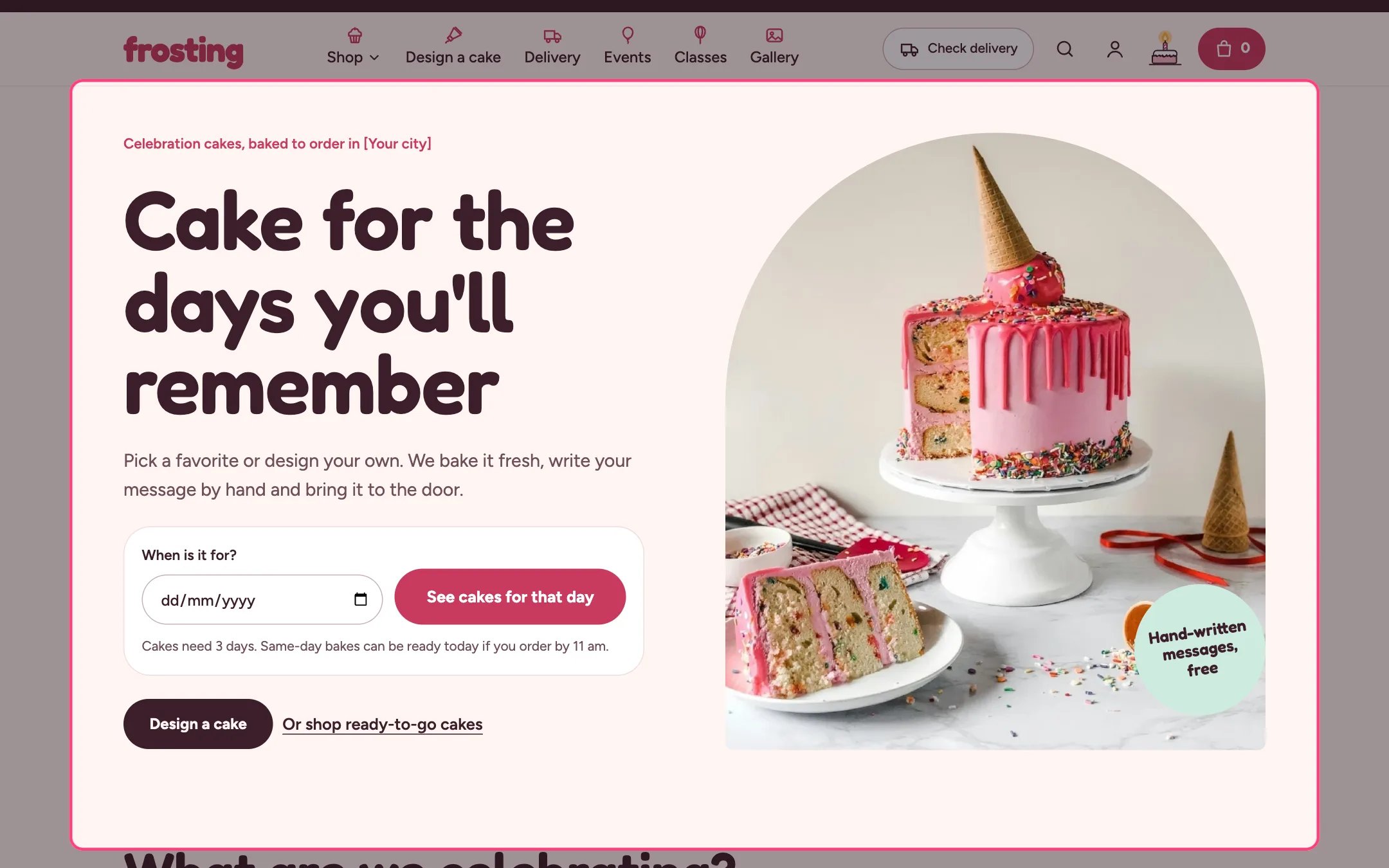
> The big opening section with your headline, a photo, a sticker, two calls to action and an optional date check that answers what can be ready on a given day.
 ## Where to find it
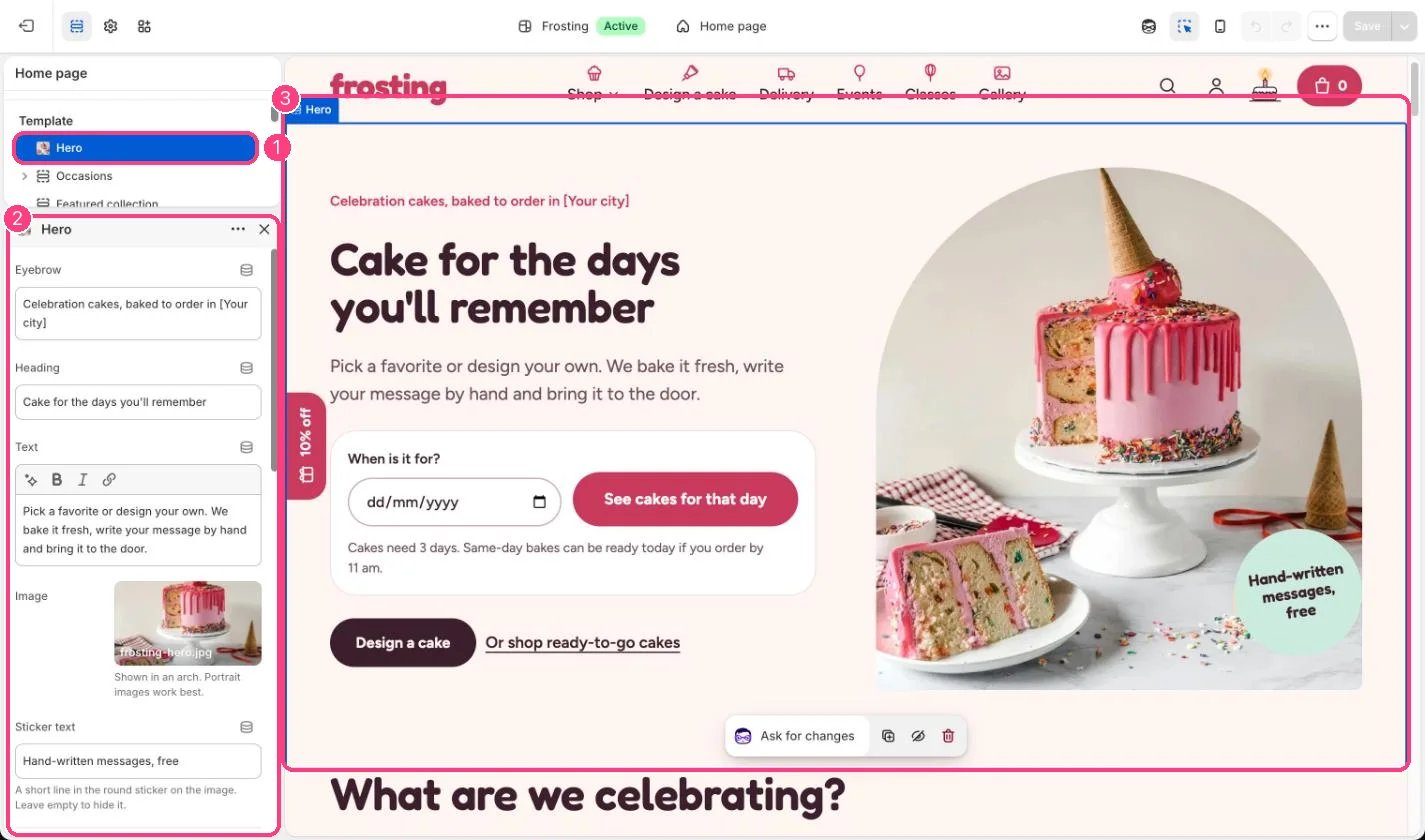
Home page, first section. In the theme editor choose Home page in the page selector at the top, then select Hero. It can be added to other pages with Add section.
## How it works
* When it is the first section on a page, its heading is the page's main heading and the photo loads first.
* The date check asks When is it for? and replies straight away: everything can be ready, only same-day bakes can be ready (with the first cake date), or the kitchen is closed that day.
* Pressing See cakes for that day opens the results page with that date, and collection pages then hide products that cannot be ready in time.
* The date check uses the rules in Theme settings, Delivery and pickup: default notice, same-day cut-off, closed day and closed dates.
* The first button is a dark button and the second is a text link.
* On screens up to 1080 px wide the photo sits right under the heading, followed by the text, date check and buttons.
## Where to find it
Home page, first section. In the theme editor choose Home page in the page selector at the top, then select Hero. It can be added to other pages with Add section.
## How it works
* When it is the first section on a page, its heading is the page's main heading and the photo loads first.
* The date check asks When is it for? and replies straight away: everything can be ready, only same-day bakes can be ready (with the first cake date), or the kitchen is closed that day.
* Pressing See cakes for that day opens the results page with that date, and collection pages then hide products that cannot be ready in time.
* The date check uses the rules in Theme settings, Delivery and pickup: default notice, same-day cut-off, closed day and closed dates.
* The first button is a dark button and the second is a text link.
* On screens up to 1080 px wide the photo sits right under the heading, followed by the text, date check and buttons.
 ## Edit it
* Replace \[Your city] in the eyebrow with your town.
* Upload a landscape or square photo. The sticker text sits on the photo; leave it empty to hide it.
* Point the first button at the cake builder and the second link at your main collection.
* Untick Show the date check to hide it, or set Results page to the collection that should be filtered.
## Settings
| Setting | What it does |
| - | - |
| **Eyebrow** | Text. Default: Celebration cakes, baked to order in \[Your city]. |
| **Heading** | Text. Default: Cake for the days you'll remember. |
| **Text** | Formatted text (one line). |
| **Image** | Image: upload one or choose from Content → Files. Shown in an arch. Portrait images work best. |
| **Sticker text** | Text. A short line in the round sticker on the image. Leave empty to hide it. Default: Hand-written messages, free. |
**Buttons**
| Setting | What it does |
| - | - |
| **First button label** | Text. Default: Design a cake. |
| **First button link** | Link: a page, product, collection or web address. |
| **Second link label** | Text. Default: Or shop ready-to-go cakes. |
| **Second link** | Link: a page, product, collection or web address. Default: /collections/all. |
**Date check**
| Setting | What it does |
| - | - |
| **Show the date check** | On or off. Shoppers pick a date and see what can be ready that day. It uses the notice and cut-off from Theme settings > Delivery and pickup. Default: on. |
| **Results page** | Link: a page, product, collection or web address. Usually a collection. The chosen date is added to the link so the collection can show what is ready that day. Default: /collections/all. |
**Colors**
| Setting | What it does |
| - | - |
| **Color scheme** | Color scheme for this area (edit the schemes in Theme settings → Colors). Default: Scheme 1. |
This documentation is built and hosted on [Mintlify](https://mintlify.com), a developer documentation platform.
## Edit it
* Replace \[Your city] in the eyebrow with your town.
* Upload a landscape or square photo. The sticker text sits on the photo; leave it empty to hide it.
* Point the first button at the cake builder and the second link at your main collection.
* Untick Show the date check to hide it, or set Results page to the collection that should be filtered.
## Settings
| Setting | What it does |
| - | - |
| **Eyebrow** | Text. Default: Celebration cakes, baked to order in \[Your city]. |
| **Heading** | Text. Default: Cake for the days you'll remember. |
| **Text** | Formatted text (one line). |
| **Image** | Image: upload one or choose from Content → Files. Shown in an arch. Portrait images work best. |
| **Sticker text** | Text. A short line in the round sticker on the image. Leave empty to hide it. Default: Hand-written messages, free. |
**Buttons**
| Setting | What it does |
| - | - |
| **First button label** | Text. Default: Design a cake. |
| **First button link** | Link: a page, product, collection or web address. |
| **Second link label** | Text. Default: Or shop ready-to-go cakes. |
| **Second link** | Link: a page, product, collection or web address. Default: /collections/all. |
**Date check**
| Setting | What it does |
| - | - |
| **Show the date check** | On or off. Shoppers pick a date and see what can be ready that day. It uses the notice and cut-off from Theme settings > Delivery and pickup. Default: on. |
| **Results page** | Link: a page, product, collection or web address. Usually a collection. The chosen date is added to the link so the collection can show what is ready that day. Default: /collections/all. |
**Colors**
| Setting | What it does |
| - | - |
| **Color scheme** | Color scheme for this area (edit the schemes in Theme settings → Colors). Default: Scheme 1. |
This documentation is built and hosted on [Mintlify](https://mintlify.com), a developer documentation platform.