> ## Documentation Index
> Fetch the complete documentation index at: https://docs.kwebby.com/llms.txt
> Use this file to discover all available pages before exploring further.
# Promo banner
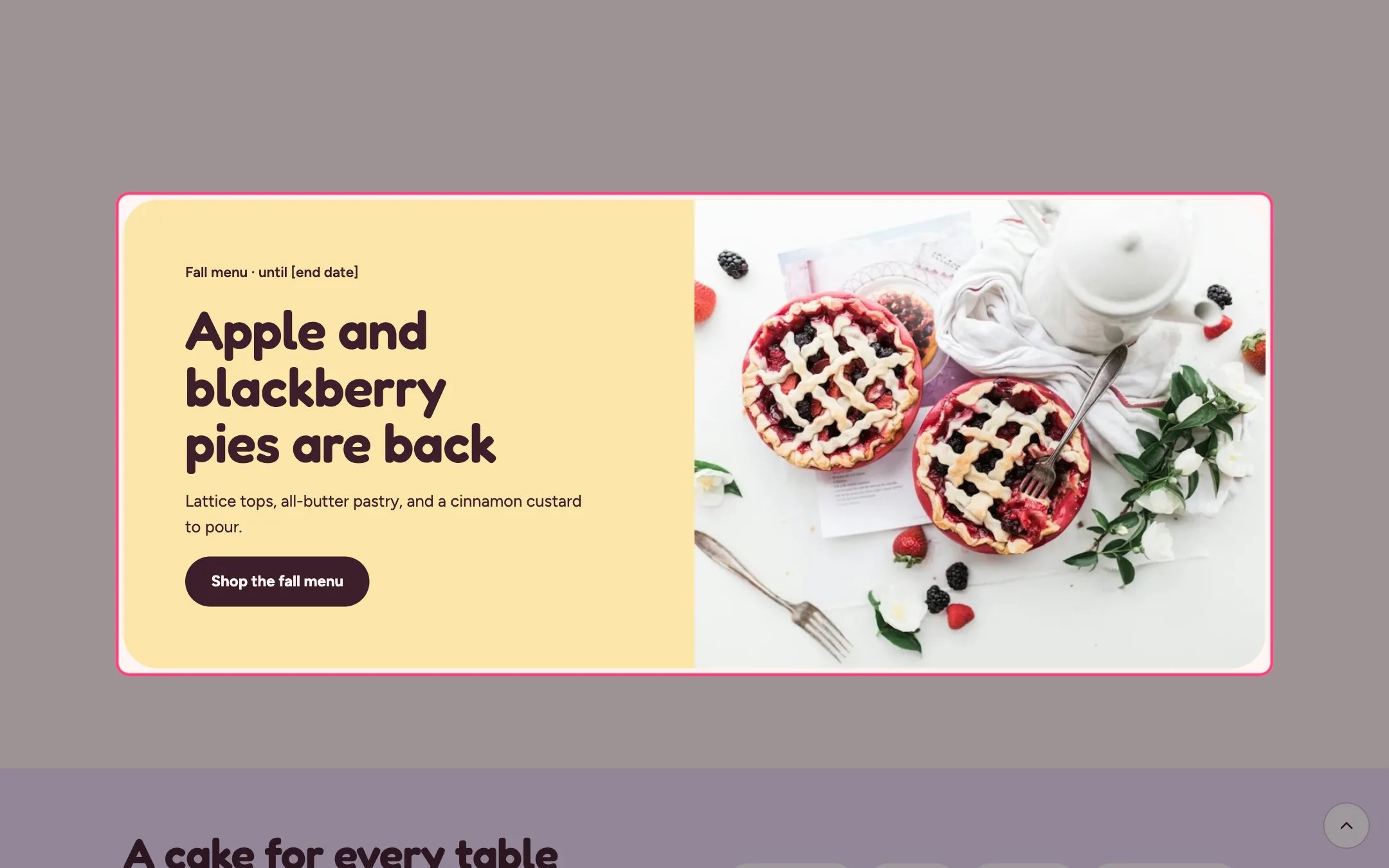
> A colored banner with a photo for a seasonal menu, a sale or a visit to the shop.
 ## Where to find it
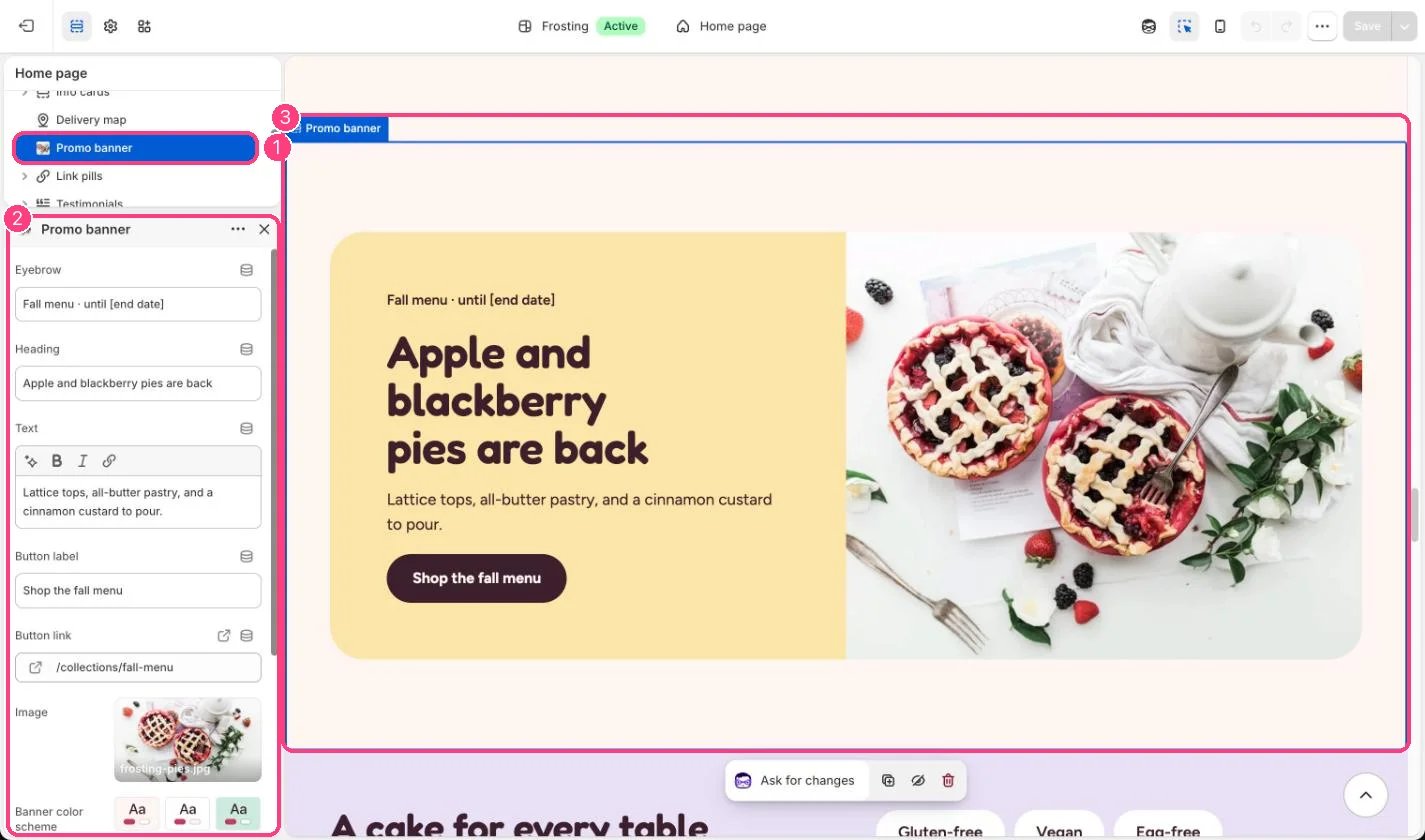
Home page and the about page. In the theme editor choose Home page, then select Promo banner. Can be added to any page.
## How it works
* The banner color comes from Banner color scheme; the space around it keeps the page background.
* The photo sits beside the text on wide screens and stacks on phones.
* Without a photo, a placeholder drawing shows until you add one.
## Where to find it
Home page and the about page. In the theme editor choose Home page, then select Promo banner. Can be added to any page.
## How it works
* The banner color comes from Banner color scheme; the space around it keeps the page background.
* The photo sits beside the text on wide screens and stacks on phones.
* Without a photo, a placeholder drawing shows until you add one.
 ## Edit it
* Replace \[end date] in the eyebrow with the real date.
* Link the button to the matching collection, for example your seasonal menu.
* Pair it with the Sale timer when the offer has a real end time.
## Settings
| Setting | What it does |
| - | - |
| **Eyebrow** | Text. Default: Fall menu · until \[end date]. |
| **Heading** | Text. Default: Apple and blackberry pies are back. |
| **Text** | Formatted text (one line). |
| **Button label** | Text. Default: Shop the fall menu. |
| **Button link** | Link: a page, product, collection or web address. |
| **Image** | Image: upload one or choose from Content → Files. |
| **Banner color scheme** | Color scheme for this area (edit the schemes in Theme settings → Colors). Colors the banner. The space around it keeps the page background. Default: Scheme 1. |
This documentation is built and hosted on [Mintlify](https://mintlify.com), a developer documentation platform.
## Edit it
* Replace \[end date] in the eyebrow with the real date.
* Link the button to the matching collection, for example your seasonal menu.
* Pair it with the Sale timer when the offer has a real end time.
## Settings
| Setting | What it does |
| - | - |
| **Eyebrow** | Text. Default: Fall menu · until \[end date]. |
| **Heading** | Text. Default: Apple and blackberry pies are back. |
| **Text** | Formatted text (one line). |
| **Button label** | Text. Default: Shop the fall menu. |
| **Button link** | Link: a page, product, collection or web address. |
| **Image** | Image: upload one or choose from Content → Files. |
| **Banner color scheme** | Color scheme for this area (edit the schemes in Theme settings → Colors). Colors the banner. The space around it keeps the page background. Default: Scheme 1. |
This documentation is built and hosted on [Mintlify](https://mintlify.com), a developer documentation platform.