> ## Documentation Index
> Fetch the complete documentation index at: https://docs.kwebby.com/llms.txt
> Use this file to discover all available pages before exploring further.
# Sale timer
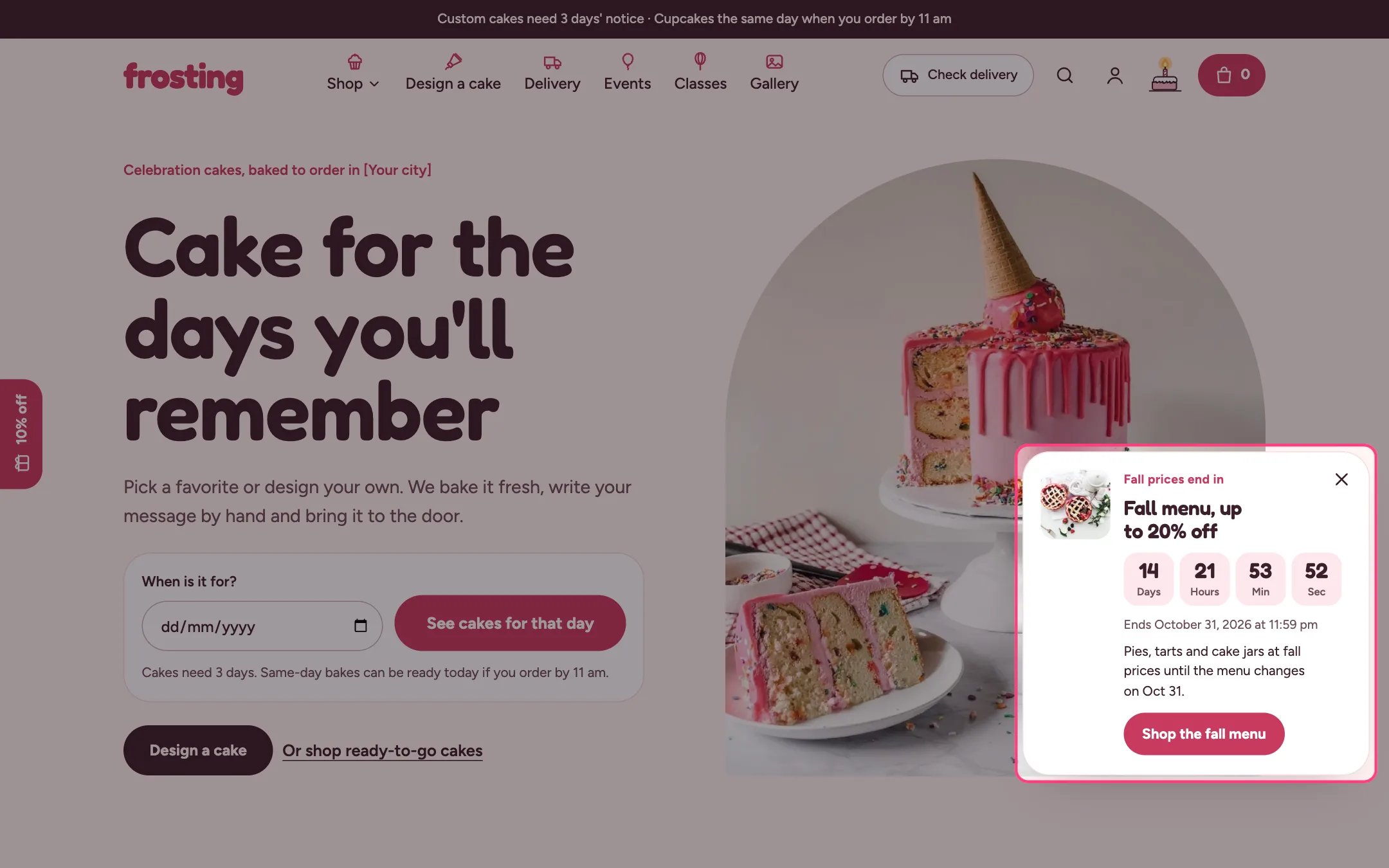
> A card that slides in from the right with a countdown to the real end of a sale or seasonal menu, with an optional discount code.
 ## Where to find it
Every page, all shop pages or the home page only, in the Overlay group. In the theme editor select Sale timer under Overlay group; selecting it opens the card for preview. It is off by default.
## How it works
* Counts down to the end date and time you set, in your store's time zone. It shows only between the start and end dates.
* It never restarts and is never reset per visitor, so it is honest urgency.
* The card slides in after the delay, and waits while another window is open or the shopper is typing.
* Closing the card leaves a small tab on the right edge that keeps counting; the choice lasts for the browsing session.
* When the time runs out the whole timer removes itself.
* The optional code has a Copy button.
## Where to find it
Every page, all shop pages or the home page only, in the Overlay group. In the theme editor select Sale timer under Overlay group; selecting it opens the card for preview. It is off by default.
## How it works
* Counts down to the end date and time you set, in your store's time zone. It shows only between the start and end dates.
* It never restarts and is never reset per visitor, so it is honest urgency.
* The card slides in after the delay, and waits while another window is open or the shopper is typing.
* Closing the card leaves a small tab on the right edge that keeps counting; the choice lasts for the browsing session.
* When the time runs out the whole timer removes itself.
* The optional code has a Copy button.
 ## Edit it
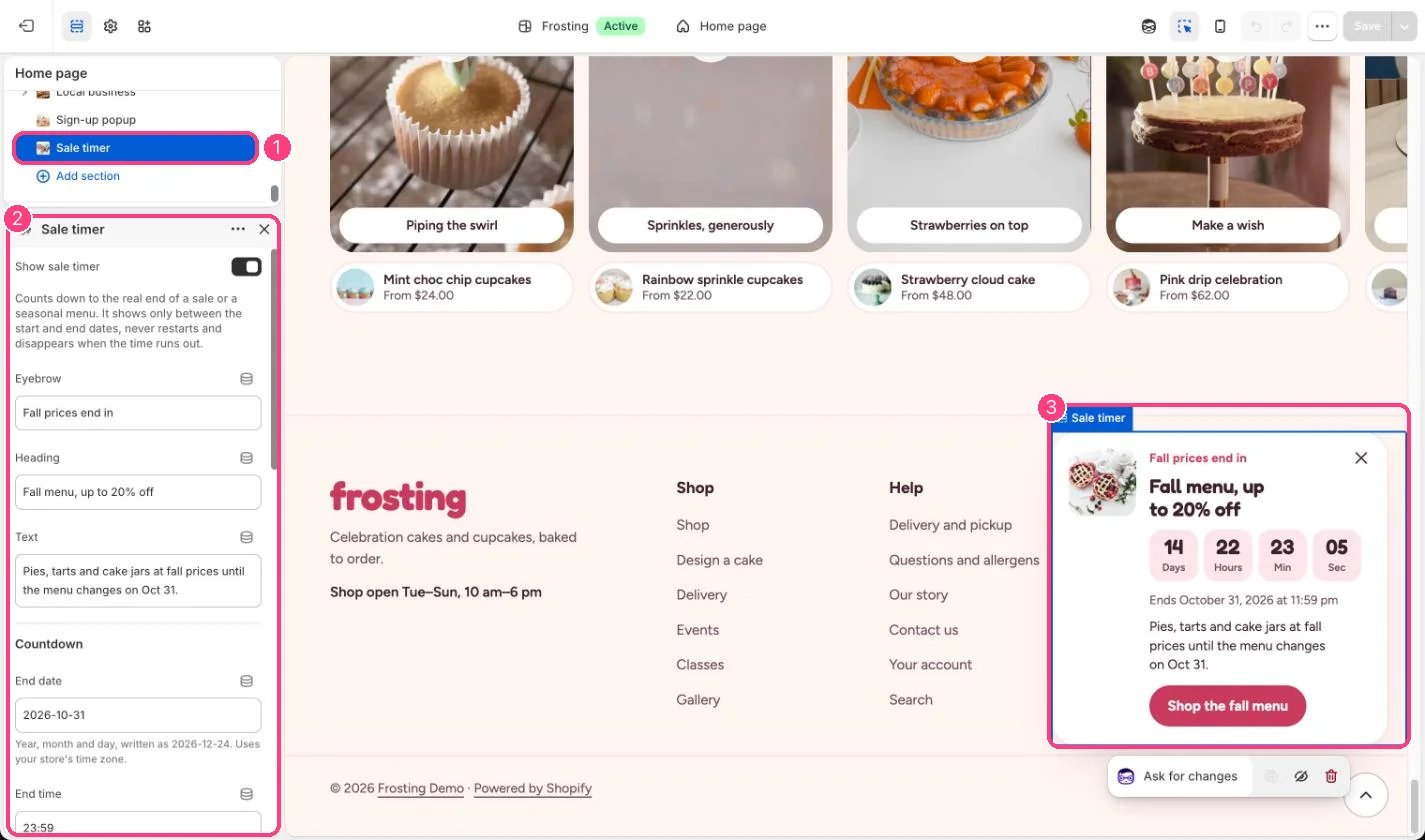
* Tick Show sale timer.
* Type End date as 2026-12-24 and End time on the 24-hour clock, such as 18:00. Add a Start date if the sale starts later.
* Create the discount in Shopify admin with the same end date, then add its code.
* Link the button to the sale collection and add a small image.
* Choose Show on: All pages, Home, collection, product and search pages, or Home page only, and set Slide in after (0 to 30 s).
## Settings
| Setting | What it does |
| - | - |
| **Show sale timer** | On or off. Default: off. |
Counts down to the real end of a sale or a seasonal menu. It shows only between the start and end dates, never restarts and disappears when the time runs out.
| Setting | What it does |
| - | - |
| **Eyebrow** | Text. Default: Sale ends in. |
| **Heading** | Text. Default: Our seasonal sale. |
| **Text** | Text. Default: Tell shoppers what is on sale and for how long. |
**Countdown**
| Setting | What it does |
| - | - |
| **End date** | Text. Year, month and day, written as 2026-12-24. Uses your store's time zone. |
| **End time** | Text. 24-hour clock, for example 18:00. Default: 23:59. |
| **Start date** | Text. Optional. Leave empty to show the timer right away. |
**Offer**
| Setting | What it does |
| - | - |
| **Discount code** | Text. Optional. Create the discount in Shopify admin first, with the same end date. |
| **Button label** | Text. Default: Shop the sale. |
| **Button link** | Link: a page, product, collection or web address. |
| **Image** | Image: upload one or choose from Content → Files. |
**Display**
| Setting | What it does |
| - | - |
| **Show on** | Options: All pages, Home, collection, product and search pages, Home page only. Default: All pages. |
| **Slide in after** | Slider from 0 to 30 s. Default: 3 s. |
| **Color scheme** | Color scheme for this area (edit the schemes in Theme settings → Colors). Default: Scheme 2. |
The timer only counts down. Prices change only through your compare-at prices or discounts.
This documentation is built and hosted on [Mintlify](https://mintlify.com), a developer documentation platform.
## Edit it
* Tick Show sale timer.
* Type End date as 2026-12-24 and End time on the 24-hour clock, such as 18:00. Add a Start date if the sale starts later.
* Create the discount in Shopify admin with the same end date, then add its code.
* Link the button to the sale collection and add a small image.
* Choose Show on: All pages, Home, collection, product and search pages, or Home page only, and set Slide in after (0 to 30 s).
## Settings
| Setting | What it does |
| - | - |
| **Show sale timer** | On or off. Default: off. |
Counts down to the real end of a sale or a seasonal menu. It shows only between the start and end dates, never restarts and disappears when the time runs out.
| Setting | What it does |
| - | - |
| **Eyebrow** | Text. Default: Sale ends in. |
| **Heading** | Text. Default: Our seasonal sale. |
| **Text** | Text. Default: Tell shoppers what is on sale and for how long. |
**Countdown**
| Setting | What it does |
| - | - |
| **End date** | Text. Year, month and day, written as 2026-12-24. Uses your store's time zone. |
| **End time** | Text. 24-hour clock, for example 18:00. Default: 23:59. |
| **Start date** | Text. Optional. Leave empty to show the timer right away. |
**Offer**
| Setting | What it does |
| - | - |
| **Discount code** | Text. Optional. Create the discount in Shopify admin first, with the same end date. |
| **Button label** | Text. Default: Shop the sale. |
| **Button link** | Link: a page, product, collection or web address. |
| **Image** | Image: upload one or choose from Content → Files. |
**Display**
| Setting | What it does |
| - | - |
| **Show on** | Options: All pages, Home, collection, product and search pages, Home page only. Default: All pages. |
| **Slide in after** | Slider from 0 to 30 s. Default: 3 s. |
| **Color scheme** | Color scheme for this area (edit the schemes in Theme settings → Colors). Default: Scheme 2. |
The timer only counts down. Prices change only through your compare-at prices or discounts.
This documentation is built and hosted on [Mintlify](https://mintlify.com), a developer documentation platform.