> ## Documentation Index
> Fetch the complete documentation index at: https://docs.kwebby.com/llms.txt
> Use this file to discover all available pages before exploring further.
# Colors
> The color schemes every section uses, and the scheme that colors the whole store in dark mode.
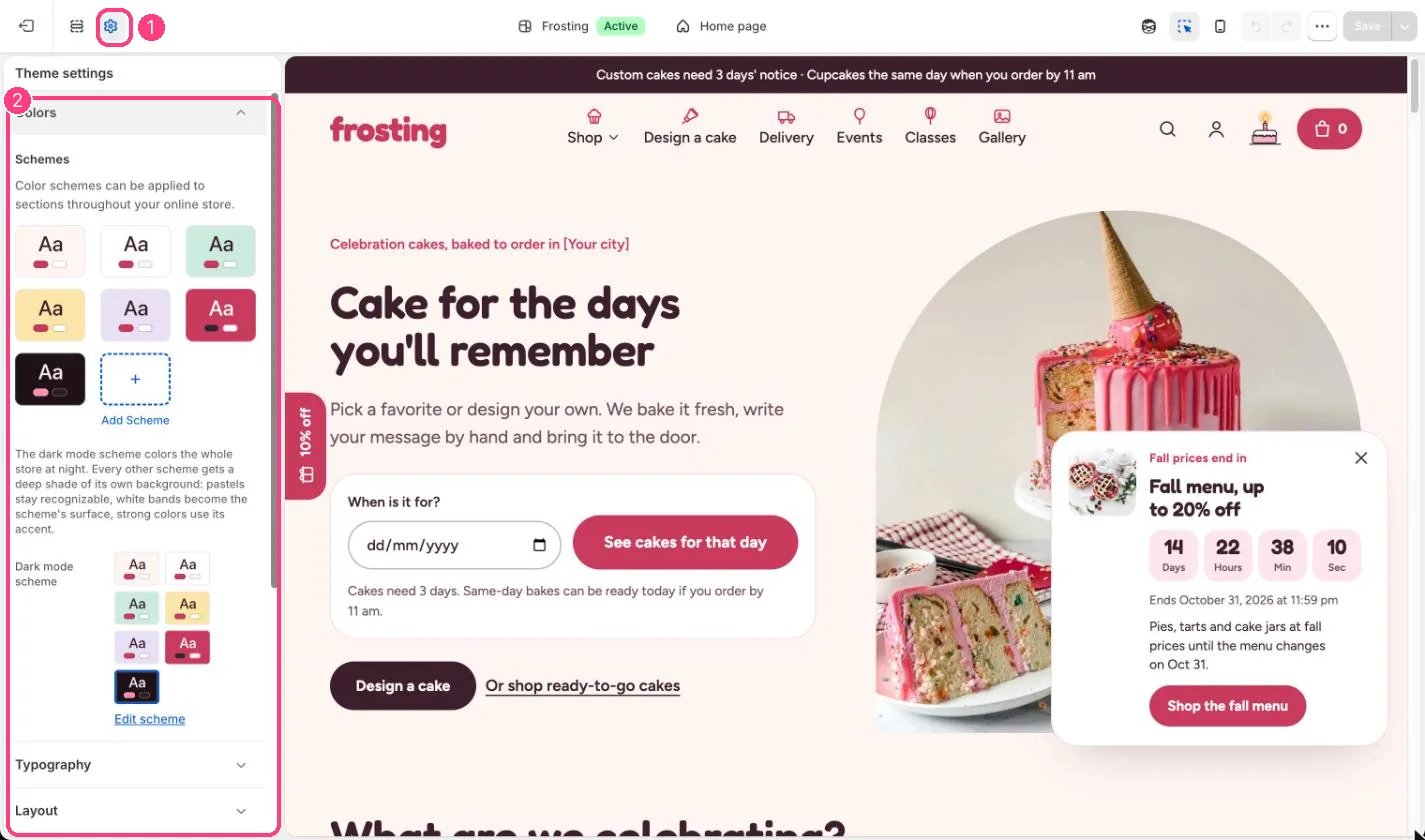
**Where:** in the theme editor, open **Theme settings** (the gear icon at the top of the left sidebar) and choose **Colors**.
 ## How it works
* Frosting starts with seven schemes: blush page, white, mint, butter, lilac, strawberry and night.
* Each scheme sets the background, an optional background gradient, cards and fields, a soft highlight, text, secondary text, borders, the accent and primary button, and the dark button.
* Each section picks a scheme with its Color scheme setting.
* In dark mode the Dark mode scheme colors the page. Every other scheme gets a deep shade of its own: near-white page tints become the night background, white bands become the night surface, pastels become a deep shade of their own color, and strong colors use the night accent.
* Background gradients are not used in dark mode.
## Edit it
* Change Accent and primary button in every light scheme to your brand color, and check that button labels stay readable.
* Keep the night scheme for dark mode; using it as a section's color in light mode shows a dark band.
* Pick a different Dark mode scheme only if you have built your own dark scheme.
## Settings
| Setting | What it does |
| - | - |
| **color\_schemes** | The color schemes themselves. |
The dark mode scheme colors the whole store at night. Every other scheme gets a deep shade of its own background: pastels stay recognizable, white bands become the scheme's surface, strong colors use its accent.
| Setting | What it does |
| - | - |
| **Dark mode scheme** | Color scheme for this area (edit the schemes in Theme settings → Colors). Default: Scheme 7. |
This documentation is built and hosted on [Mintlify](https://mintlify.com), a developer documentation platform.
## How it works
* Frosting starts with seven schemes: blush page, white, mint, butter, lilac, strawberry and night.
* Each scheme sets the background, an optional background gradient, cards and fields, a soft highlight, text, secondary text, borders, the accent and primary button, and the dark button.
* Each section picks a scheme with its Color scheme setting.
* In dark mode the Dark mode scheme colors the page. Every other scheme gets a deep shade of its own: near-white page tints become the night background, white bands become the night surface, pastels become a deep shade of their own color, and strong colors use the night accent.
* Background gradients are not used in dark mode.
## Edit it
* Change Accent and primary button in every light scheme to your brand color, and check that button labels stay readable.
* Keep the night scheme for dark mode; using it as a section's color in light mode shows a dark band.
* Pick a different Dark mode scheme only if you have built your own dark scheme.
## Settings
| Setting | What it does |
| - | - |
| **color\_schemes** | The color schemes themselves. |
The dark mode scheme colors the whole store at night. Every other scheme gets a deep shade of its own background: pastels stay recognizable, white bands become the scheme's surface, strong colors use its accent.
| Setting | What it does |
| - | - |
| **Dark mode scheme** | Color scheme for this area (edit the schemes in Theme settings → Colors). Default: Scheme 7. |
This documentation is built and hosted on [Mintlify](https://mintlify.com), a developer documentation platform.