> ## Documentation Index
> Fetch the complete documentation index at: https://docs.kwebby.com/llms.txt
> Use this file to discover all available pages before exploring further.
# Dark mode
> The candle-on-a-cake switch in the header and how the store looks on a shopper's first visit.
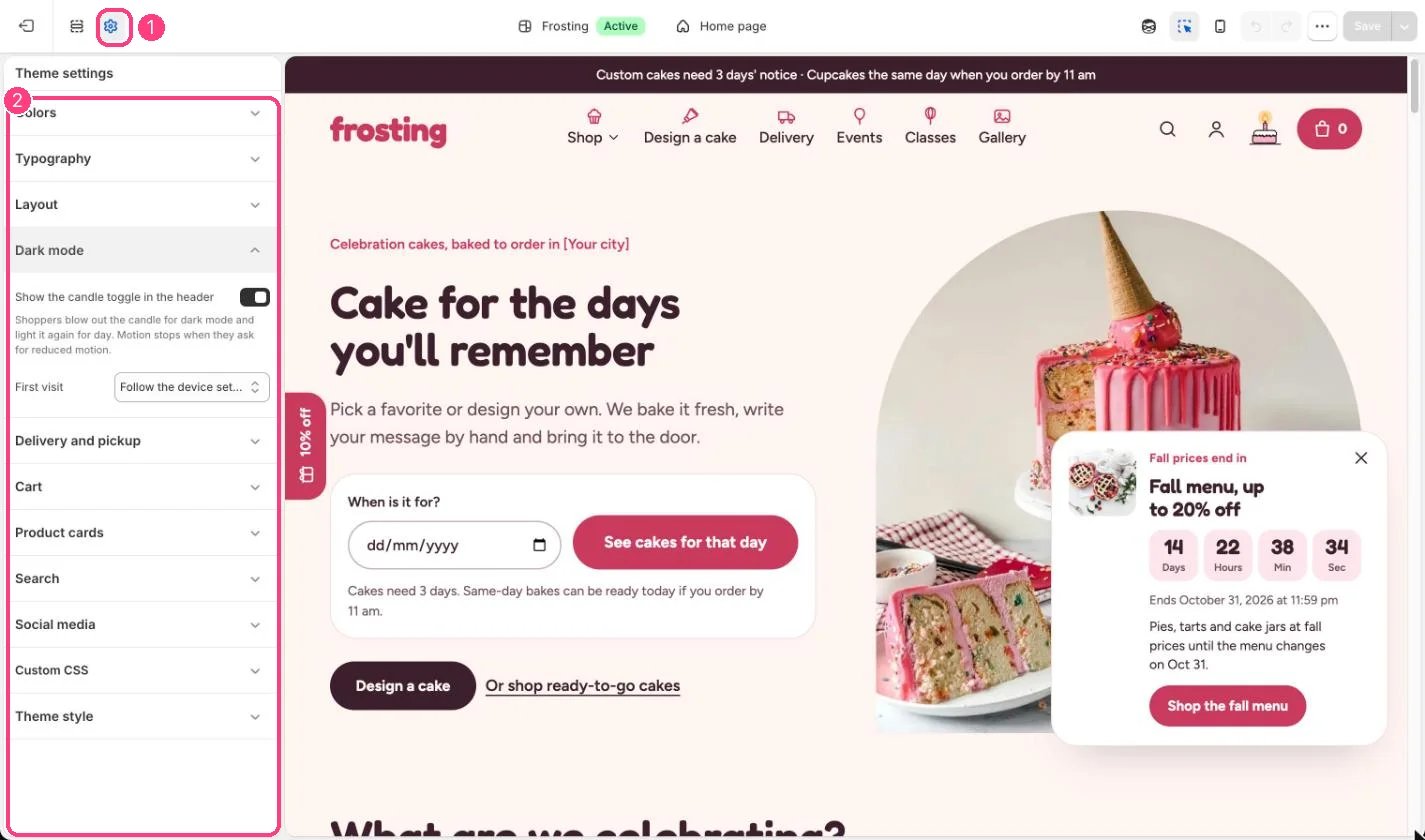
**Where:** in the theme editor, open **Theme settings** (the gear icon at the top of the left sidebar) and choose **Dark mode**.
 ## How it works
* Shoppers blow out the candle for dark mode and light it again for day. The new look spreads out from the candle where the browser supports it.
* The choice is remembered on that device.
* First visit can be Light, Dark, or Follow the device setting. With Follow the device setting, the store changes along with the device until the shopper picks a side.
* Motion stops for shoppers who ask for reduced motion; the switch then changes instantly.
## Edit it
* Untick Show the candle toggle in the header to remove the switch. Shoppers then always see the First visit appearance.
* Set the dark colors in Colors, Dark mode scheme.
## Settings
| Setting | What it does |
| - | - |
| **Show the candle toggle in the header** | On or off. Shoppers blow out the candle for dark mode and light it again for day. Motion stops when they ask for reduced motion. Default: on. |
| **First visit** | Options: Light, Dark, Follow the device setting. Default: Follow the device setting. |
This documentation is built and hosted on [Mintlify](https://mintlify.com), a developer documentation platform.
## How it works
* Shoppers blow out the candle for dark mode and light it again for day. The new look spreads out from the candle where the browser supports it.
* The choice is remembered on that device.
* First visit can be Light, Dark, or Follow the device setting. With Follow the device setting, the store changes along with the device until the shopper picks a side.
* Motion stops for shoppers who ask for reduced motion; the switch then changes instantly.
## Edit it
* Untick Show the candle toggle in the header to remove the switch. Shoppers then always see the First visit appearance.
* Set the dark colors in Colors, Dark mode scheme.
## Settings
| Setting | What it does |
| - | - |
| **Show the candle toggle in the header** | On or off. Shoppers blow out the candle for dark mode and light it again for day. Motion stops when they ask for reduced motion. Default: on. |
| **First visit** | Options: Light, Dark, Follow the device setting. Default: Follow the device setting. |
This documentation is built and hosted on [Mintlify](https://mintlify.com), a developer documentation platform.