> ## Documentation Index
> Fetch the complete documentation index at: https://docs.kwebby.com/llms.txt
> Use this file to discover all available pages before exploring further.
# Layout
> The page width, the browser tab icon and the text logo.
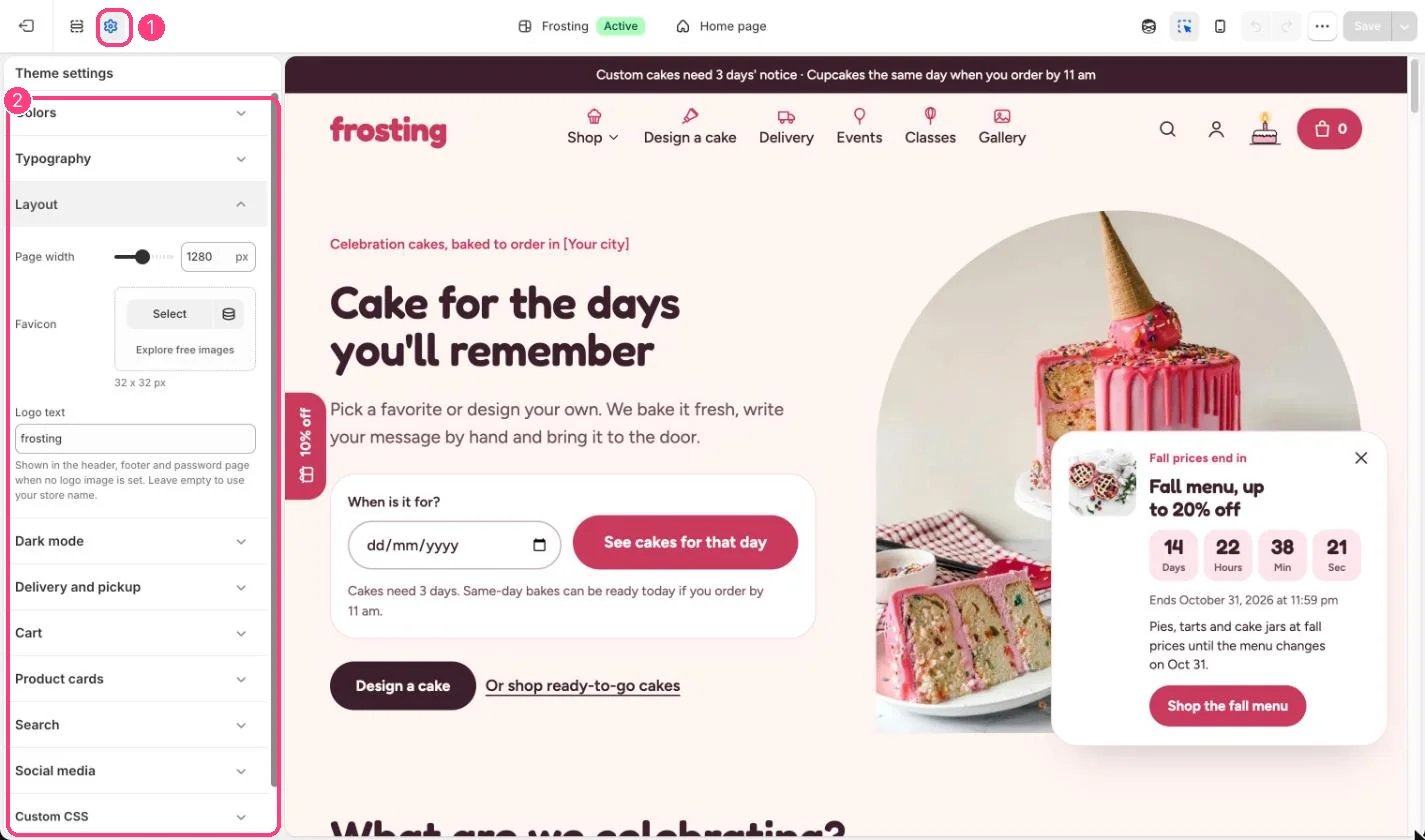
**Where:** in the theme editor, open **Theme settings** (the gear icon at the top of the left sidebar) and choose **Layout**.
 ## How it works
* Page width sets the widest the content gets, from 1000 to 1600 px (default 1280).
* Without a favicon, a built-in icon shows in the browser tab.
* Logo text replaces the store name in the header, footer and password page when no logo image is set.
## Edit it
* Upload a 32 x 32 px favicon.
* Type a short Logo text, for example a lowercase wordmark, or leave it empty to use your store name.
## Settings
| Setting | What it does |
| - | - |
| **Page width** | Slider from 1000 to 1600 px, in steps of 20. Default: 1280 px. |
| **Favicon** | Image: upload one or choose from Content → Files. 32 x 32 px. |
| **Logo text** | Text. Shown in the header, footer and password page when no logo image is set. Leave empty to use your store name. |
This documentation is built and hosted on [Mintlify](https://mintlify.com), a developer documentation platform.
## How it works
* Page width sets the widest the content gets, from 1000 to 1600 px (default 1280).
* Without a favicon, a built-in icon shows in the browser tab.
* Logo text replaces the store name in the header, footer and password page when no logo image is set.
## Edit it
* Upload a 32 x 32 px favicon.
* Type a short Logo text, for example a lowercase wordmark, or leave it empty to use your store name.
## Settings
| Setting | What it does |
| - | - |
| **Page width** | Slider from 1000 to 1600 px, in steps of 20. Default: 1280 px. |
| **Favicon** | Image: upload one or choose from Content → Files. 32 x 32 px. |
| **Logo text** | Text. Shown in the header, footer and password page when no logo image is set. Leave empty to use your store name. |
This documentation is built and hosted on [Mintlify](https://mintlify.com), a developer documentation platform.