> ## Documentation Index
> Fetch the complete documentation index at: https://docs.kwebby.com/llms.txt
> Use this file to discover all available pages before exploring further.
# Social media
> Links to your social profiles, shown in the footer.
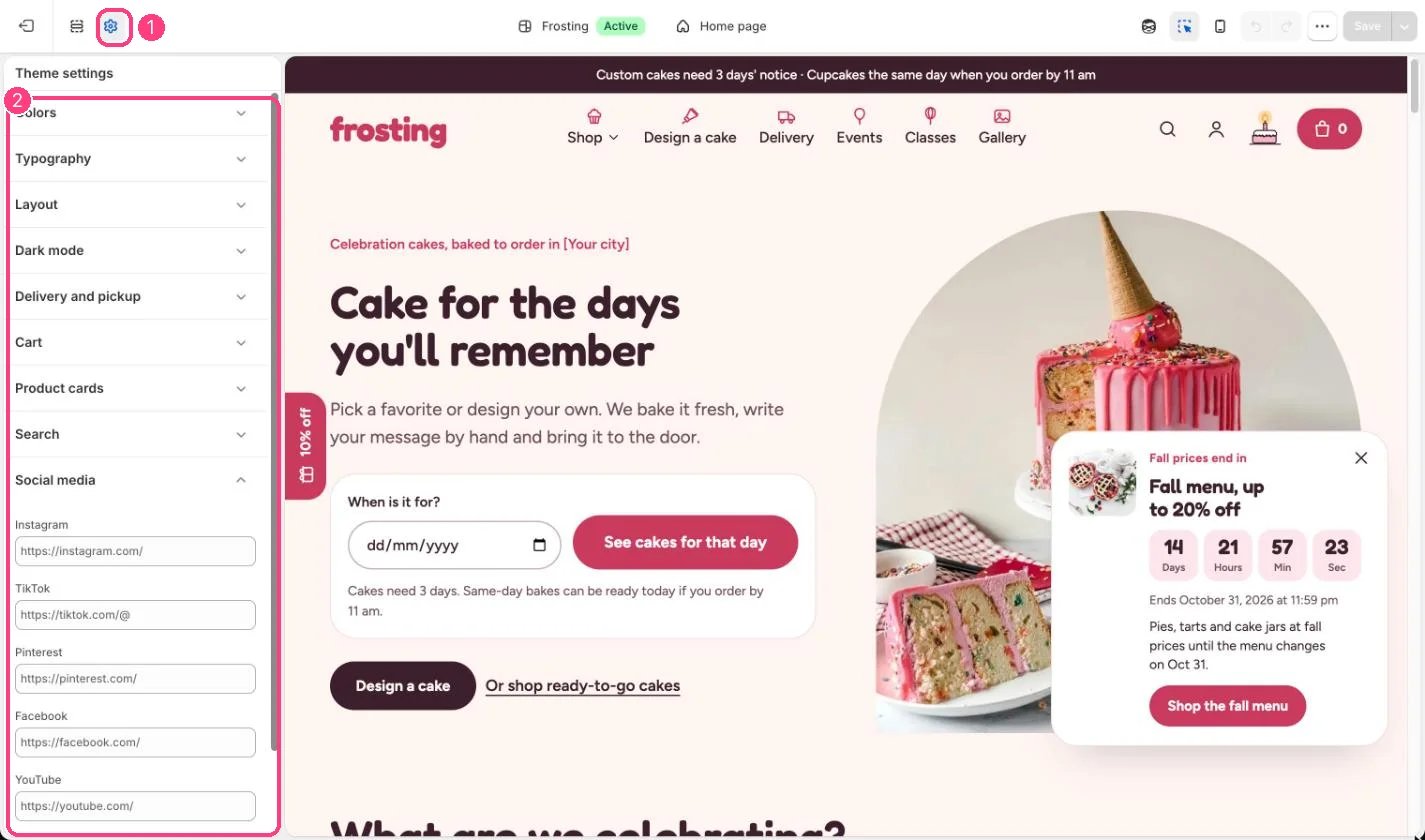
**Where:** in the theme editor, open **Theme settings** (the gear icon at the top of the left sidebar) and choose **Social media**.
 ## How it works
* Instagram, TikTok, Pinterest, Facebook and YouTube links show as text links in the footer and open in a new tab.
* Empty fields are left out.
## Edit it
* Paste the full address of each profile, for example [https://instagram.com/yourbakery](https://instagram.com/yourbakery).
## Settings
| Setting | What it does |
| - | - |
| **Instagram** | Text. |
| **TikTok** | Text. |
| **Pinterest** | Text. |
| **Facebook** | Text. |
| **YouTube** | Text. |
This documentation is built and hosted on [Mintlify](https://mintlify.com), a developer documentation platform.
## How it works
* Instagram, TikTok, Pinterest, Facebook and YouTube links show as text links in the footer and open in a new tab.
* Empty fields are left out.
## Edit it
* Paste the full address of each profile, for example [https://instagram.com/yourbakery](https://instagram.com/yourbakery).
## Settings
| Setting | What it does |
| - | - |
| **Instagram** | Text. |
| **TikTok** | Text. |
| **Pinterest** | Text. |
| **Facebook** | Text. |
| **YouTube** | Text. |
This documentation is built and hosted on [Mintlify](https://mintlify.com), a developer documentation platform.