> ## Documentation Index
> Fetch the complete documentation index at: https://docs.kwebby.com/llms.txt
> Use this file to discover all available pages before exploring further.
# Back in stock alerts
> Collect emails from shoppers who want to know when a sold-out size or color returns.
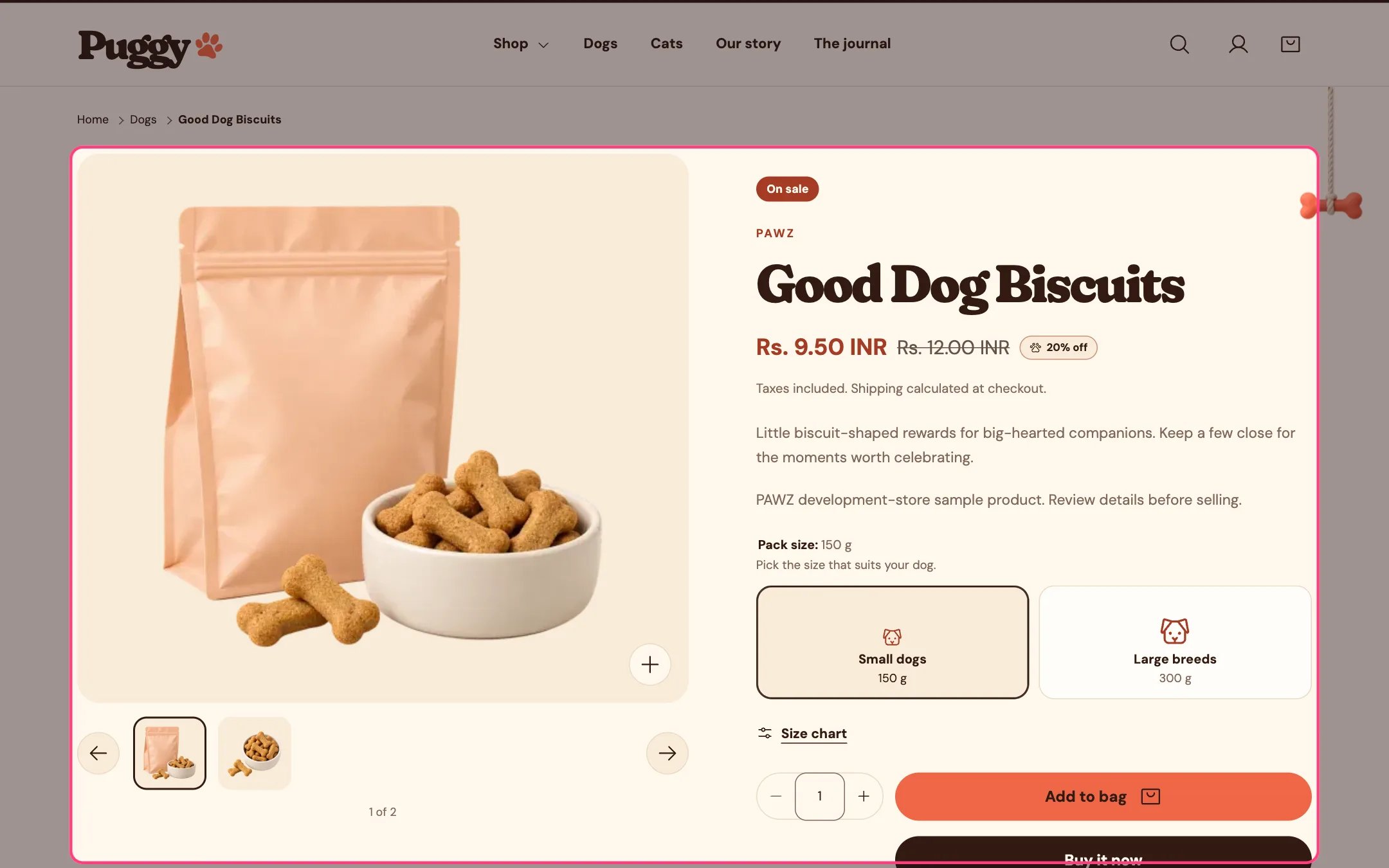 The **Back in stock alert** block in **Product information** shows a small email form on sold-out variants only. It is already in the default product template; add it with **Add block > Back in stock alert** if you removed it.
## What happens
1. A shopper on a sold-out variant enters their email and selects **Notify me**. Signed-in customers find their email filled in.
2. They see a thank-you message.
3. Shopify sends you a contact form email tagged `back-in-stock`, with the product name, the variant and a link to it.
Switching to an available variant hides the form again.
## Settings
Edit the block's **Heading** and **Text**. The other words, such as Notify me, live in **Edit default theme content**.
## Good to know
* The theme doesn't send the restock email for you. Reply to each request when the item is back, or install a back-in-stock app if you want automatic emails.
* A variant that has **Continue selling when out of stock** turned on is still available, so it shows Pre-order instead of this form.
This documentation is built and hosted on [Mintlify](https://mintlify.com), a developer documentation platform.
The **Back in stock alert** block in **Product information** shows a small email form on sold-out variants only. It is already in the default product template; add it with **Add block > Back in stock alert** if you removed it.
## What happens
1. A shopper on a sold-out variant enters their email and selects **Notify me**. Signed-in customers find their email filled in.
2. They see a thank-you message.
3. Shopify sends you a contact form email tagged `back-in-stock`, with the product name, the variant and a link to it.
Switching to an available variant hides the form again.
## Settings
Edit the block's **Heading** and **Text**. The other words, such as Notify me, live in **Edit default theme content**.
## Good to know
* The theme doesn't send the restock email for you. Reply to each request when the item is back, or install a back-in-stock app if you want automatic emails.
* A variant that has **Continue selling when out of stock** turned on is still available, so it shows Pre-order instead of this form.
This documentation is built and hosted on [Mintlify](https://mintlify.com), a developer documentation platform.