> ## Documentation Index
> Fetch the complete documentation index at: https://docs.kwebby.com/llms.txt
> Use this file to discover all available pages before exploring further.
# Badges and pre-orders
> Sale, sold out, new and custom badges on products, and how to sell items before they're in stock.
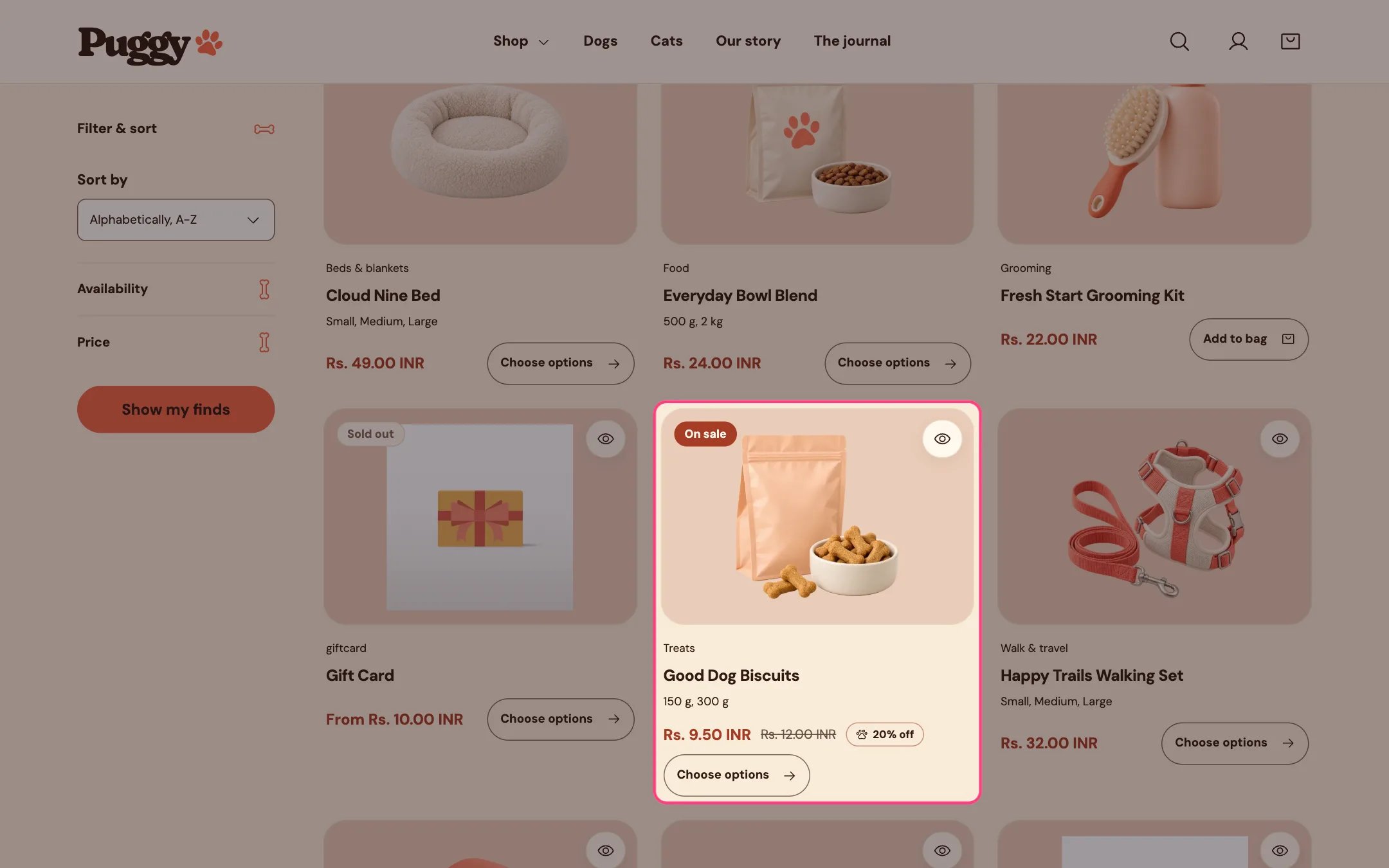
 Badges appear in the corner of product cards and in the **Product badges** block on the product page. Up to three show per product, in this order: Sold out, Pre-order, On sale, New, then your own badges.
## Built-in badges
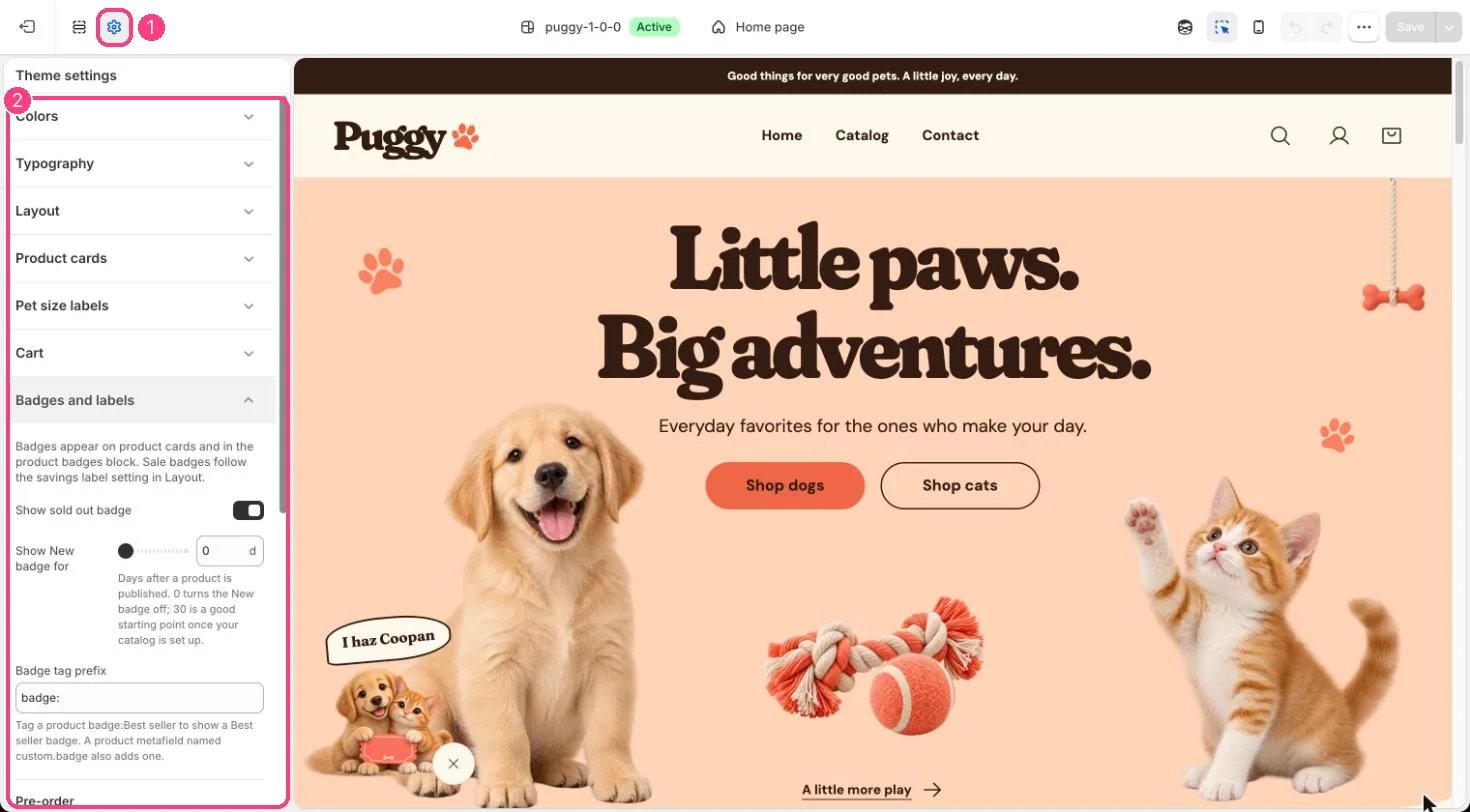
* **Sold out** shows on cards when no variant can be bought, and on the product page when the chosen variant is sold out. Turn it off with **Show sold out badge** in **Theme settings > Badges and labels**.
* **On sale** shows when the variant's compare-at price is higher than its price. On cards it only shows when all variants share one price. It follows **Theme settings > Layout > Show crossed-out compare-at prices** and **Savings label beside prices**.
* **New** shows for the number of days you set in **Show New badge for** (0 to 90) after a product is published. It starts at 0, which turns it off.
## Your own badges
* Add a tag that starts with the **Badge tag prefix**, for example `badge:Best seller` or `badge:Vet favorite`. The text after the prefix becomes the badge.
* Or add a product metafield definition named `custom.badge` (single line text) in **Settings > Metafields and metaobjects > Products**, then fill it on the product.
## Pre-orders
A product sells as a pre-order when:
* it has the **Pre-order tag** (default `pre-order`), or
* a variant tracks inventory, is at zero stock and has **Continue selling when out of stock** turned on, while **Show Pre-order for out-of-stock variants that keep selling** is on.
Shoppers then see **Pre-order** on the buy button, the sticky bar and the badges, and a note under the button. The default note reads *This item ships as soon as it's available*; write your own in **Pre-order note**. Each pre-order line in the order shows **Pre-order: Yes**, so you can spot it in Shopify admin.
For products sold with a deferred payment plan, the purchase option also shows how much is paid today and how much later.
This documentation is built and hosted on [Mintlify](https://mintlify.com), a developer documentation platform.
Badges appear in the corner of product cards and in the **Product badges** block on the product page. Up to three show per product, in this order: Sold out, Pre-order, On sale, New, then your own badges.
## Built-in badges
* **Sold out** shows on cards when no variant can be bought, and on the product page when the chosen variant is sold out. Turn it off with **Show sold out badge** in **Theme settings > Badges and labels**.
* **On sale** shows when the variant's compare-at price is higher than its price. On cards it only shows when all variants share one price. It follows **Theme settings > Layout > Show crossed-out compare-at prices** and **Savings label beside prices**.
* **New** shows for the number of days you set in **Show New badge for** (0 to 90) after a product is published. It starts at 0, which turns it off.
## Your own badges
* Add a tag that starts with the **Badge tag prefix**, for example `badge:Best seller` or `badge:Vet favorite`. The text after the prefix becomes the badge.
* Or add a product metafield definition named `custom.badge` (single line text) in **Settings > Metafields and metaobjects > Products**, then fill it on the product.
## Pre-orders
A product sells as a pre-order when:
* it has the **Pre-order tag** (default `pre-order`), or
* a variant tracks inventory, is at zero stock and has **Continue selling when out of stock** turned on, while **Show Pre-order for out-of-stock variants that keep selling** is on.
Shoppers then see **Pre-order** on the buy button, the sticky bar and the badges, and a note under the button. The default note reads *This item ships as soon as it's available*; write your own in **Pre-order note**. Each pre-order line in the order shows **Pre-order: Yes**, so you can spot it in Shopify admin.
For products sold with a deferred payment plan, the purchase option also shows how much is paid today and how much later.
This documentation is built and hosted on [Mintlify](https://mintlify.com), a developer documentation platform.