> ## Documentation Index
> Fetch the complete documentation index at: https://docs.kwebby.com/llms.txt
> Use this file to discover all available pages before exploring further.
# Customer accounts
> How sign-in and the account icon work in Puggy.
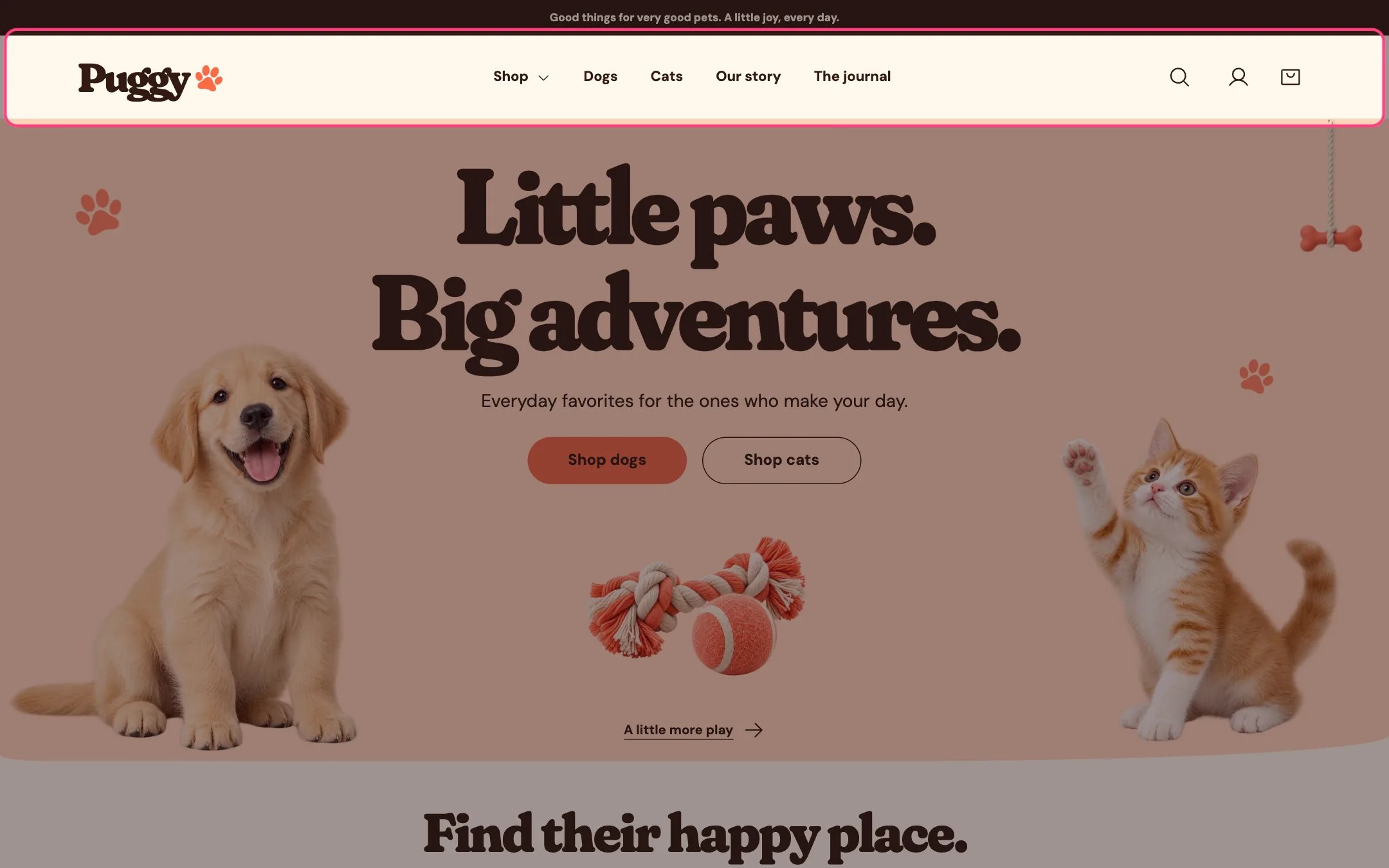 Puggy uses Shopify's customer accounts. Shopify hosts the sign-in, order history and profile pages, and the theme shows the account button in the header.
## Show the account icon
In Shopify admin, go to **Settings > Customer accounts** and turn accounts on. A person icon then appears in the header on desktop and on phones. Shopify's account button handles sign-in, including Sign in with Shop where available, and shows the shopper's account links once they're signed in.
## Add your own account links
Create a menu in **Content > Menus**, for example with Order tracking or Returns, then choose it in **Header > Customer account menu**.
## Good to know
* The look of the account pages is managed by Shopify in your admin, not in the theme.
* Puggy is built for Shopify's current customer accounts and doesn't include templates for legacy (classic) account pages.
* Signed-in customers find their name and email filled in on the contact form, and their email filled in on back in stock alerts.
This documentation is built and hosted on [Mintlify](https://mintlify.com), a developer documentation platform.
Puggy uses Shopify's customer accounts. Shopify hosts the sign-in, order history and profile pages, and the theme shows the account button in the header.
## Show the account icon
In Shopify admin, go to **Settings > Customer accounts** and turn accounts on. A person icon then appears in the header on desktop and on phones. Shopify's account button handles sign-in, including Sign in with Shop where available, and shows the shopper's account links once they're signed in.
## Add your own account links
Create a menu in **Content > Menus**, for example with Order tracking or Returns, then choose it in **Header > Customer account menu**.
## Good to know
* The look of the account pages is managed by Shopify in your admin, not in the theme.
* Puggy is built for Shopify's current customer accounts and doesn't include templates for legacy (classic) account pages.
* Signed-in customers find their name and email filled in on the contact form, and their email filled in on back in stock alerts.
This documentation is built and hosted on [Mintlify](https://mintlify.com), a developer documentation platform.