> ## Documentation Index
> Fetch the complete documentation index at: https://docs.kwebby.com/llms.txt
> Use this file to discover all available pages before exploring further.
# Email signups, forms and consent
> Which forms collect what, how to add SMS or multi-field signups with Shopify Forms, and how cookie choices work.
 ## Puggy's own forms
| Form | Where | What it does |
| - | - | - |
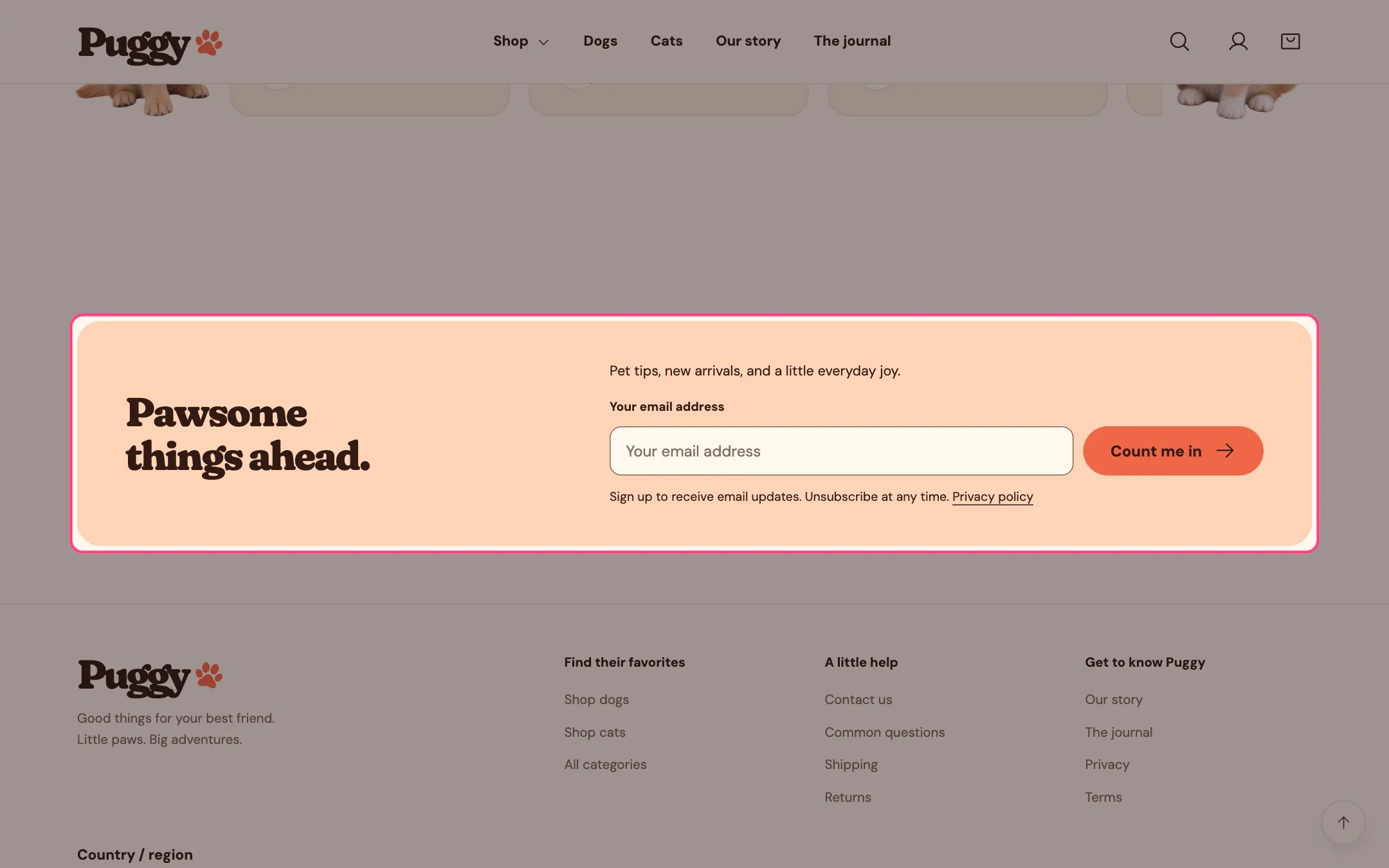
| Newsletter | Footer area, or any page | Adds an email subscriber to Customers, tagged `newsletter` |
| Offer and signup popup | Promotions and privacy | Same email signup inside the offer popup |
| Password page signup | Password page | Adds an email subscriber, tagged `prospect` and `password page` |
| Contact form | Contact page | Emails the message to you; no marketing signup |
| Back in stock alert | Product page | Emails you a request tagged `back-in-stock`; no marketing signup |
These are Shopify's native forms, so no app is needed. They collect email only. The contact form's optional phone field is for the inquiry and doesn't sign anyone up for SMS.
## SMS, WhatsApp or multi-field signups with Shopify Forms
1. Install Shopify Forms, turn on its app embed in the theme editor and create a form.
2. Choose a popup or inline form, the email or phone fields you need and the consent choice for each channel. Email consent needs an email field; SMS and WhatsApp consent need a phone field. Consent for one channel doesn't cover another.
3. Write clear consent text and set up any double opt-in your sending tools require.
4. Add an inline form with the **Apps** section, preview and translate it, then activate it.
5. If the form is a popup, turn off **Open popup after a delay** in **Offer and signup popup** so shoppers don't see two popups.
Shopify Forms is optional. Its layout, field limits and consent records are managed in the app, not the theme.
## Cookie choices
* Set your cookie banner regions and content in **Settings > Customer privacy**, and publish a privacy policy.
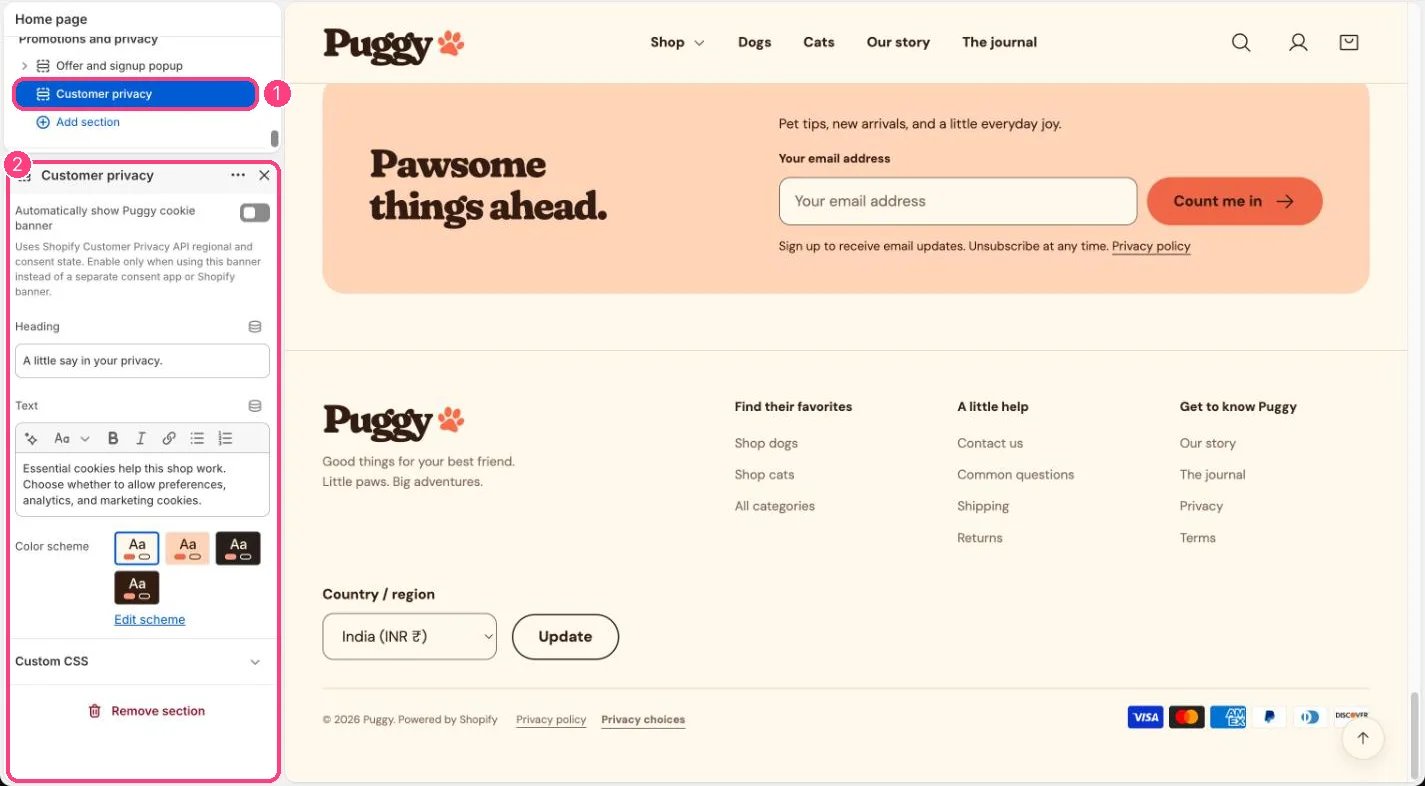
* Use one banner only: either Shopify's banner, a consent app, or Puggy's **Customer privacy** panel with **Automatically show Puggy cookie banner** turned on (it starts off).
* The footer's **Privacy choices** link reopens the choices at any time.
* Cookie choices are separate from email or SMS marketing permission.
This documentation is built and hosted on [Mintlify](https://mintlify.com), a developer documentation platform.
## Puggy's own forms
| Form | Where | What it does |
| - | - | - |
| Newsletter | Footer area, or any page | Adds an email subscriber to Customers, tagged `newsletter` |
| Offer and signup popup | Promotions and privacy | Same email signup inside the offer popup |
| Password page signup | Password page | Adds an email subscriber, tagged `prospect` and `password page` |
| Contact form | Contact page | Emails the message to you; no marketing signup |
| Back in stock alert | Product page | Emails you a request tagged `back-in-stock`; no marketing signup |
These are Shopify's native forms, so no app is needed. They collect email only. The contact form's optional phone field is for the inquiry and doesn't sign anyone up for SMS.
## SMS, WhatsApp or multi-field signups with Shopify Forms
1. Install Shopify Forms, turn on its app embed in the theme editor and create a form.
2. Choose a popup or inline form, the email or phone fields you need and the consent choice for each channel. Email consent needs an email field; SMS and WhatsApp consent need a phone field. Consent for one channel doesn't cover another.
3. Write clear consent text and set up any double opt-in your sending tools require.
4. Add an inline form with the **Apps** section, preview and translate it, then activate it.
5. If the form is a popup, turn off **Open popup after a delay** in **Offer and signup popup** so shoppers don't see two popups.
Shopify Forms is optional. Its layout, field limits and consent records are managed in the app, not the theme.
## Cookie choices
* Set your cookie banner regions and content in **Settings > Customer privacy**, and publish a privacy policy.
* Use one banner only: either Shopify's banner, a consent app, or Puggy's **Customer privacy** panel with **Automatically show Puggy cookie banner** turned on (it starts off).
* The footer's **Privacy choices** link reopens the choices at any time.
* Cookie choices are separate from email or SMS marketing permission.
This documentation is built and hosted on [Mintlify](https://mintlify.com), a developer documentation platform.