> ## Documentation Index
> Fetch the complete documentation index at: https://docs.kwebby.com/llms.txt
> Use this file to discover all available pages before exploring further.
# Mega menu and menu promos
> Show your menu as dropdowns or a full-width mega menu, and add image promos inside it.
 ## Build the menu
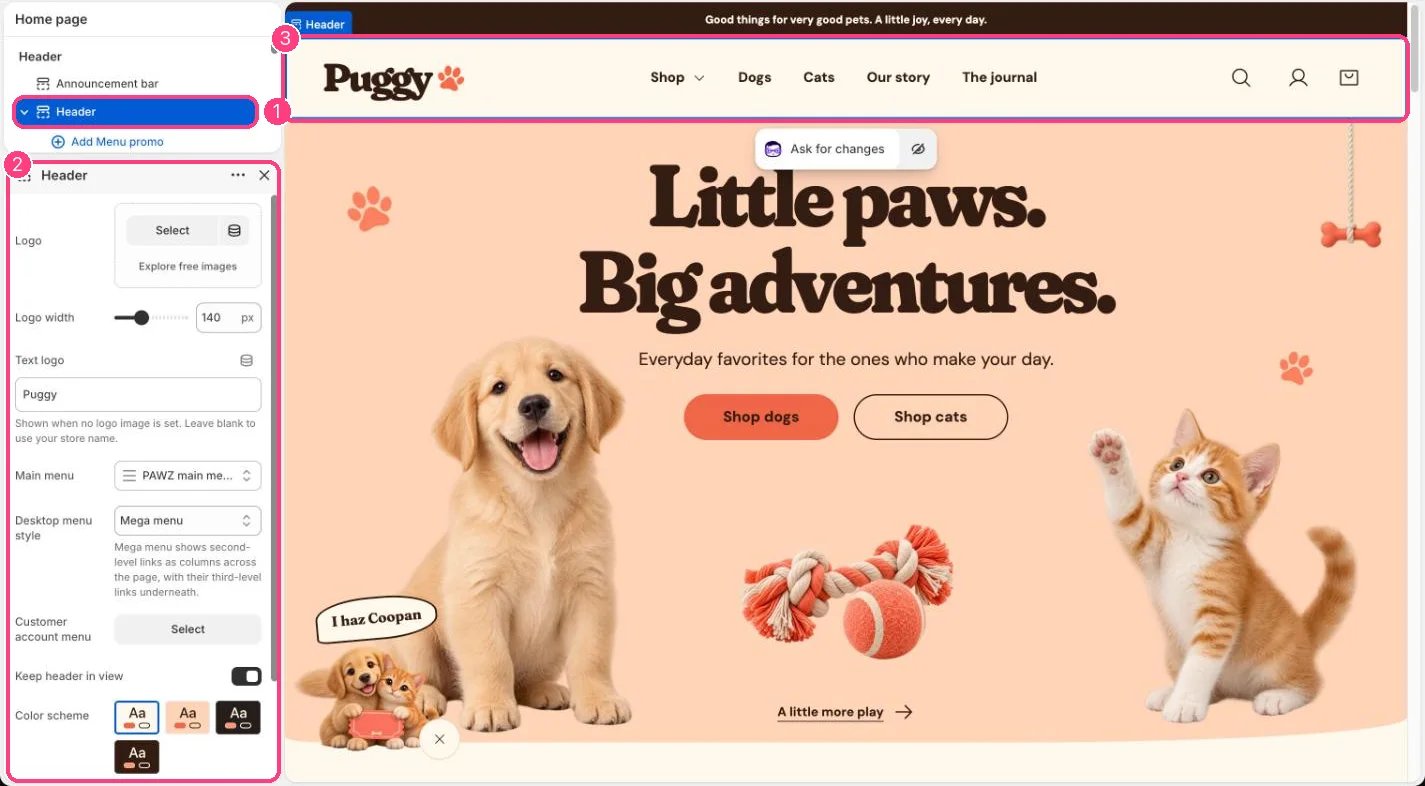
In Shopify admin, go to **Content > Menus** and build your main menu. Puggy shows up to three levels: drag a link under another to nest it. Then, in the theme editor, select **Header** and choose it in **Main menu**.
## Choose a style
* **Dropdown**: selecting a top-level item opens a list that starts with **View all** and shows third-level links indented below their parent.
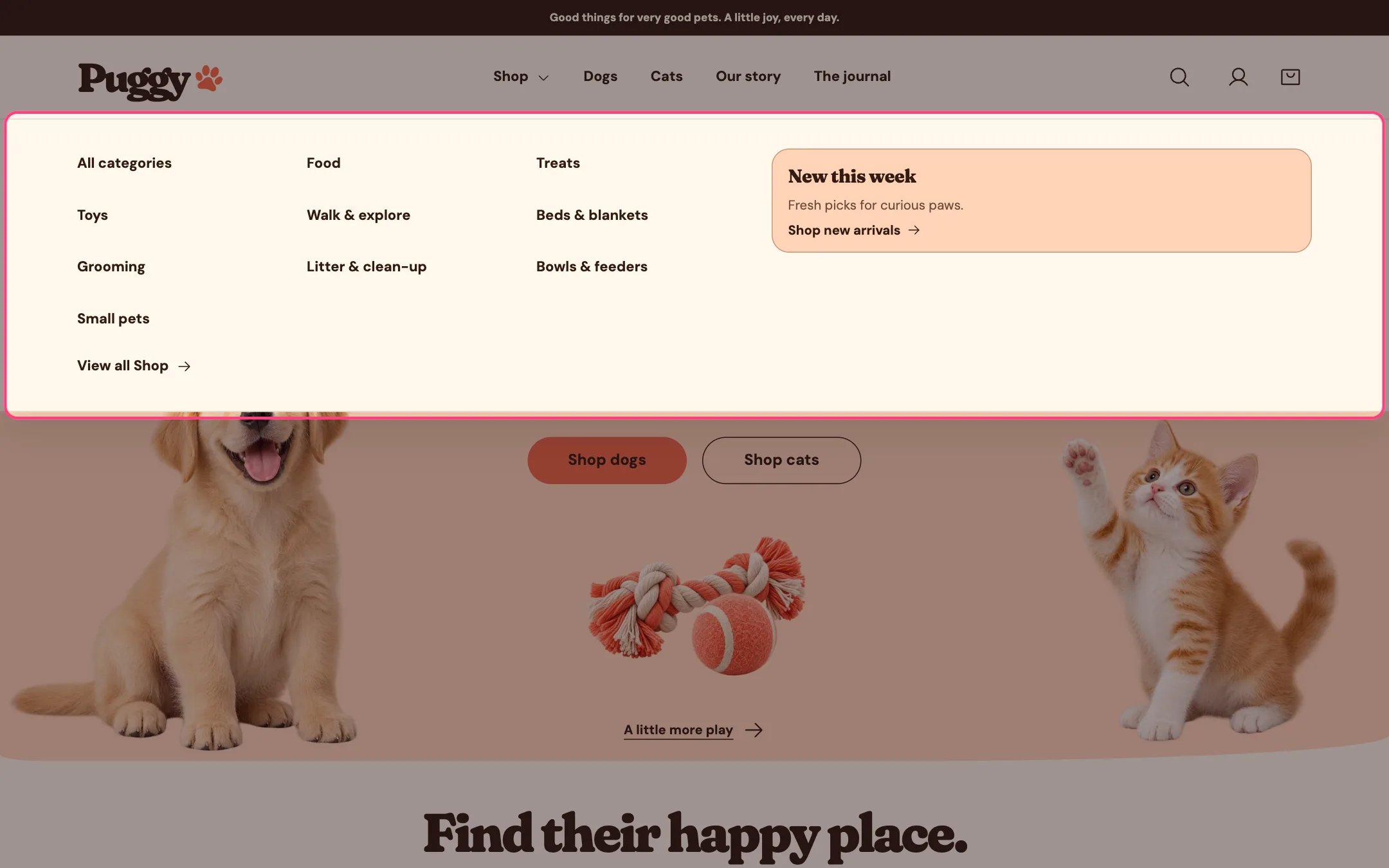
* **Mega menu**: selecting a top-level item opens a full-width panel. Second-level links become column headings with their third-level links underneath, and a **View all** link sits at the end.
Set this in **Header > Desktop menu style**. Menus open when selected and close with Escape or a click elsewhere, so they work with a mouse, touch and keyboard. On screens up to 760 px wide, the whole menu moves behind the menu button.
## Add a menu promo
1. Select **Header**, then click **Add block > Menu promo** (up to 4).
2. In **Menu item**, type the title of a top-level menu item that has links under it, for example *Shop*. Capital letters and extra spaces don't matter, but the words must match.
3. Add an **Image** (optional), **Heading**, **Text**, **Link label**, **Link** and **Color scheme**. Without a Link, the promo goes to the menu item's own link.
The promo appears inside that item's dropdown or mega menu panel, and under the same item in the mobile menu. A promo whose Menu item doesn't match any top-level item with links under it doesn't show.
## Collection navigation
For links between related collections on collection pages, use the **Menu** setting in **Collection products** instead. It shows the menu in the sidebar or above the products.
This documentation is built and hosted on [Mintlify](https://mintlify.com), a developer documentation platform.
## Build the menu
In Shopify admin, go to **Content > Menus** and build your main menu. Puggy shows up to three levels: drag a link under another to nest it. Then, in the theme editor, select **Header** and choose it in **Main menu**.
## Choose a style
* **Dropdown**: selecting a top-level item opens a list that starts with **View all** and shows third-level links indented below their parent.
* **Mega menu**: selecting a top-level item opens a full-width panel. Second-level links become column headings with their third-level links underneath, and a **View all** link sits at the end.
Set this in **Header > Desktop menu style**. Menus open when selected and close with Escape or a click elsewhere, so they work with a mouse, touch and keyboard. On screens up to 760 px wide, the whole menu moves behind the menu button.
## Add a menu promo
1. Select **Header**, then click **Add block > Menu promo** (up to 4).
2. In **Menu item**, type the title of a top-level menu item that has links under it, for example *Shop*. Capital letters and extra spaces don't matter, but the words must match.
3. Add an **Image** (optional), **Heading**, **Text**, **Link label**, **Link** and **Color scheme**. Without a Link, the promo goes to the menu item's own link.
The promo appears inside that item's dropdown or mega menu panel, and under the same item in the mobile menu. A promo whose Menu item doesn't match any top-level item with links under it doesn't show.
## Collection navigation
For links between related collections on collection pages, use the **Menu** setting in **Collection products** instead. It shows the menu in the sidebar or above the products.
This documentation is built and hosted on [Mintlify](https://mintlify.com), a developer documentation platform.