> ## Documentation Index
> Fetch the complete documentation index at: https://docs.kwebby.com/llms.txt
> Use this file to discover all available pages before exploring further.
# Pet size labels
> Show size options as cards that say which pet each size suits, with a dog or cat silhouette that grows with the size.
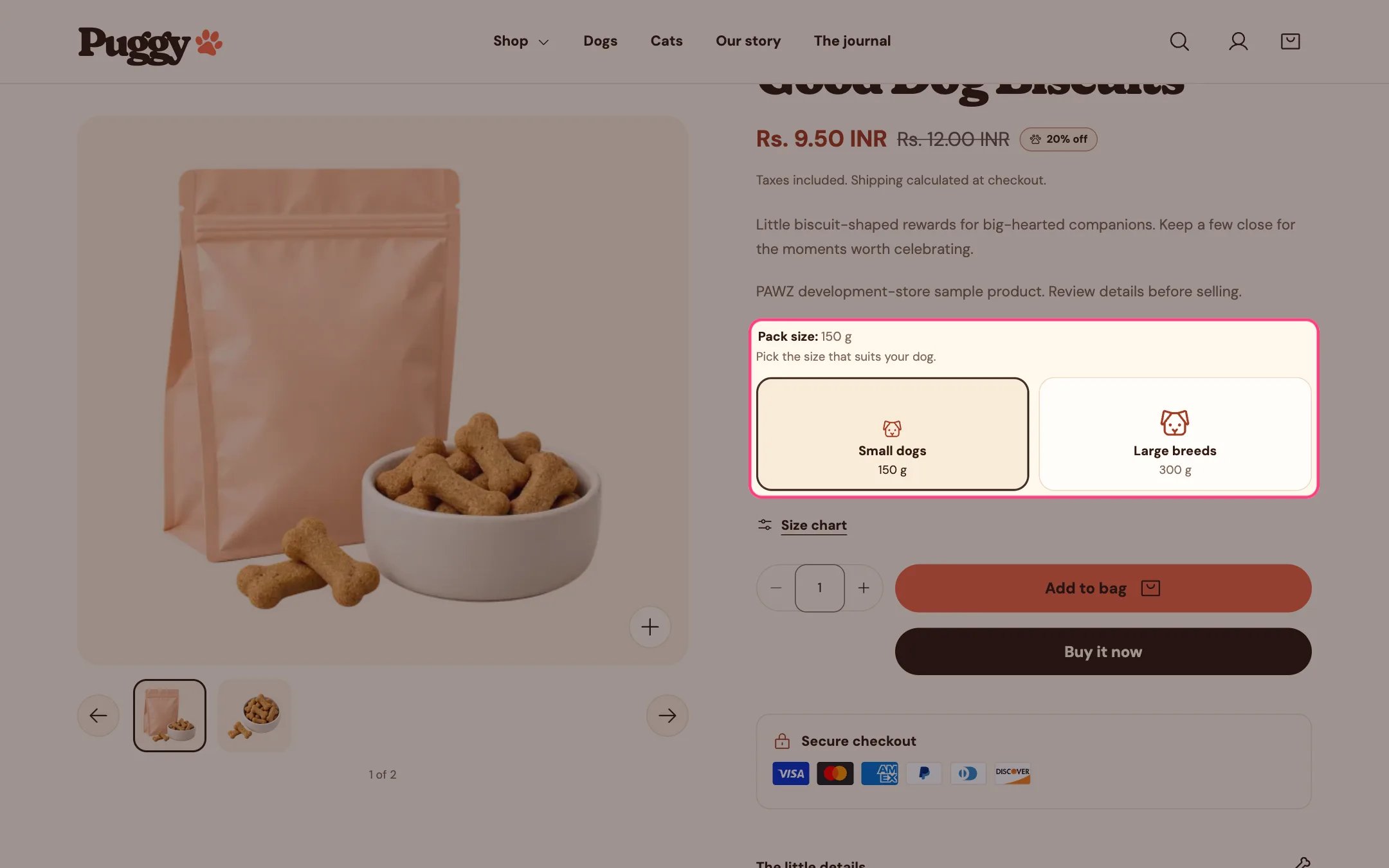
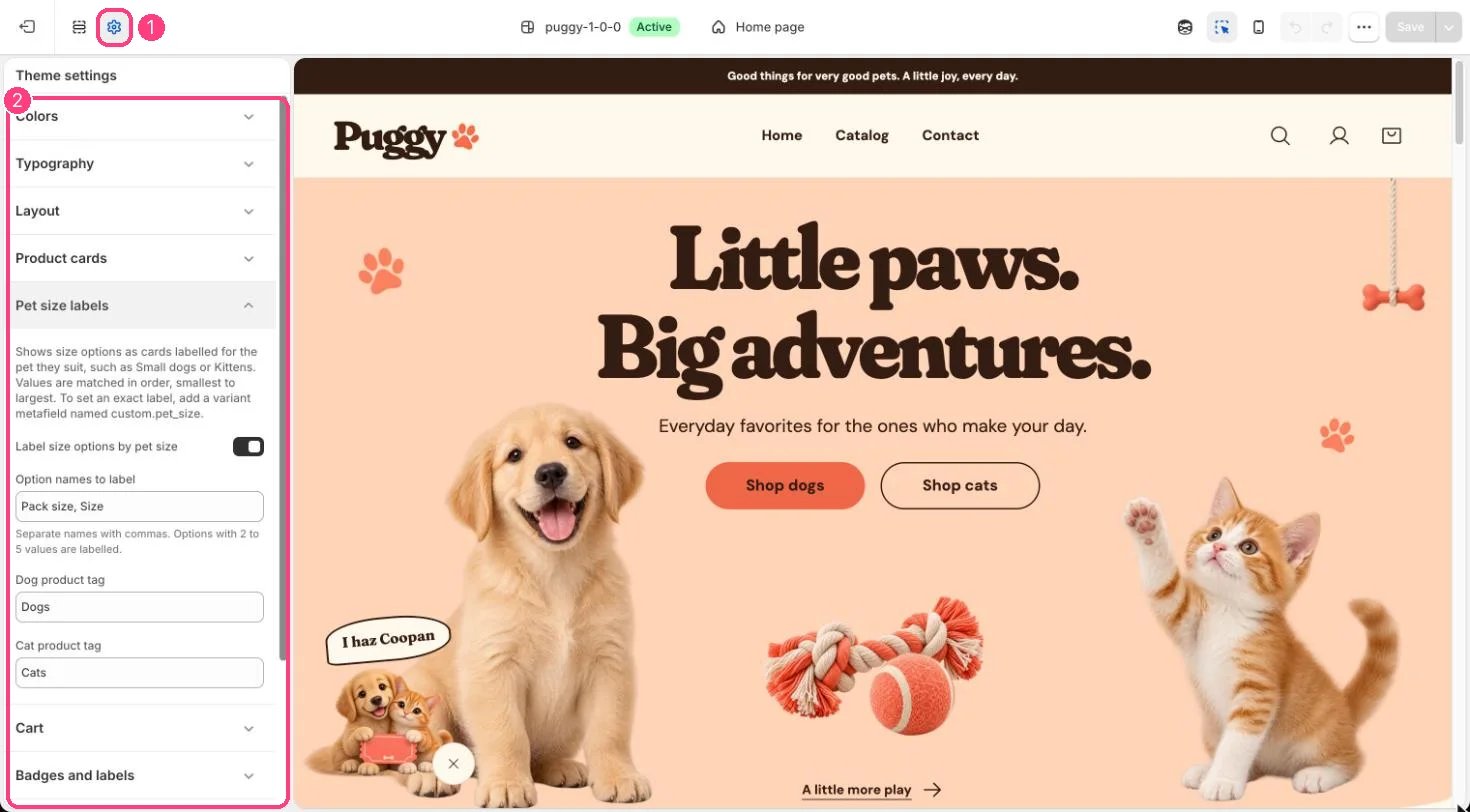 Puggy can turn a size option into cards labeled for the pet it suits, such as **Small dogs** or **Kittens**. Each card shows a dog or cat silhouette that grows with the size, plus your own value (for example 300 g) underneath.
## When the cards appear
* The option name is listed in **Theme settings > Pet size labels > Option names to label** (default `Pack size, Size`).
* The option has 2 to 5 values and no color or image swatches.
* The product is tagged with the **Dog product tag** (default `Dogs`), the **Cat product tag** (default `Cats`), or both. Capital letters don't matter.
* **Label size options by pet size** is turned on.
Any other option keeps the standard picker. The cards appear on product pages, in the Featured product section and in quick view.
## How values are matched
Values are read in the order they appear on the product, so list them smallest first in Shopify admin.
| Number of values | Sizes used |
| - | - |
| 2 | Small, Large |
| 3 | Small, Medium, Large |
| 4 | Small, Medium, Large, Giant |
| 5 | Toy, Small, Medium, Large, Giant |
| Size | Dogs | Cats | Dogs and cats |
| - | - | - | - |
| Toy | Toy breeds | Kittens | Tiny dogs & kittens |
| Small | Small dogs | Kittens & small cats | Small dogs & cats |
| Medium | Medium dogs | Adult cats | Medium dogs & cats |
| Large | Large breeds | Large cats | Large dogs & cats |
| Giant | Giant breeds | Multi-cat homes | Giant breeds |
Products tagged with both tags use the shared wording and show both silhouettes. A hint such as *Pick the size that suits your dog* appears above the cards. Sold-out sizes stay visible but are faded and crossed out.
## Set an exact label for one value
1. In Shopify admin, go to **Settings > Metafields and metaobjects > Variants** and add a definition with the namespace and key `custom.pet_size`, type **Single line text**.
2. Open the product, select the variant and type the label you want, for example *Up to 10 kg*.
3. That variant's card now shows your label instead of the automatic one.
## Change the wording
In Shopify admin, go to **Online Store > Themes**, open the **...** menu beside Puggy and choose **Edit default theme content**. Search for **Pet size** (under Commerce) to edit the labels and hints, in every language you publish.
## Turn it off
Untick **Label size options by pet size** in **Theme settings > Pet size labels**. Size options then use the standard dropdown or buttons.
This documentation is built and hosted on [Mintlify](https://mintlify.com), a developer documentation platform.
Puggy can turn a size option into cards labeled for the pet it suits, such as **Small dogs** or **Kittens**. Each card shows a dog or cat silhouette that grows with the size, plus your own value (for example 300 g) underneath.
## When the cards appear
* The option name is listed in **Theme settings > Pet size labels > Option names to label** (default `Pack size, Size`).
* The option has 2 to 5 values and no color or image swatches.
* The product is tagged with the **Dog product tag** (default `Dogs`), the **Cat product tag** (default `Cats`), or both. Capital letters don't matter.
* **Label size options by pet size** is turned on.
Any other option keeps the standard picker. The cards appear on product pages, in the Featured product section and in quick view.
## How values are matched
Values are read in the order they appear on the product, so list them smallest first in Shopify admin.
| Number of values | Sizes used |
| - | - |
| 2 | Small, Large |
| 3 | Small, Medium, Large |
| 4 | Small, Medium, Large, Giant |
| 5 | Toy, Small, Medium, Large, Giant |
| Size | Dogs | Cats | Dogs and cats |
| - | - | - | - |
| Toy | Toy breeds | Kittens | Tiny dogs & kittens |
| Small | Small dogs | Kittens & small cats | Small dogs & cats |
| Medium | Medium dogs | Adult cats | Medium dogs & cats |
| Large | Large breeds | Large cats | Large dogs & cats |
| Giant | Giant breeds | Multi-cat homes | Giant breeds |
Products tagged with both tags use the shared wording and show both silhouettes. A hint such as *Pick the size that suits your dog* appears above the cards. Sold-out sizes stay visible but are faded and crossed out.
## Set an exact label for one value
1. In Shopify admin, go to **Settings > Metafields and metaobjects > Variants** and add a definition with the namespace and key `custom.pet_size`, type **Single line text**.
2. Open the product, select the variant and type the label you want, for example *Up to 10 kg*.
3. That variant's card now shows your label instead of the automatic one.
## Change the wording
In Shopify admin, go to **Online Store > Themes**, open the **...** menu beside Puggy and choose **Edit default theme content**. Search for **Pet size** (under Commerce) to edit the labels and hints, in every language you publish.
## Turn it off
Untick **Label size options by pet size** in **Theme settings > Pet size labels**. Size options then use the standard dropdown or buttons.
This documentation is built and hosted on [Mintlify](https://mintlify.com), a developer documentation platform.