> ## Documentation Index
> Fetch the complete documentation index at: https://docs.kwebby.com/llms.txt
> Use this file to discover all available pages before exploring further.
# Announcement bar
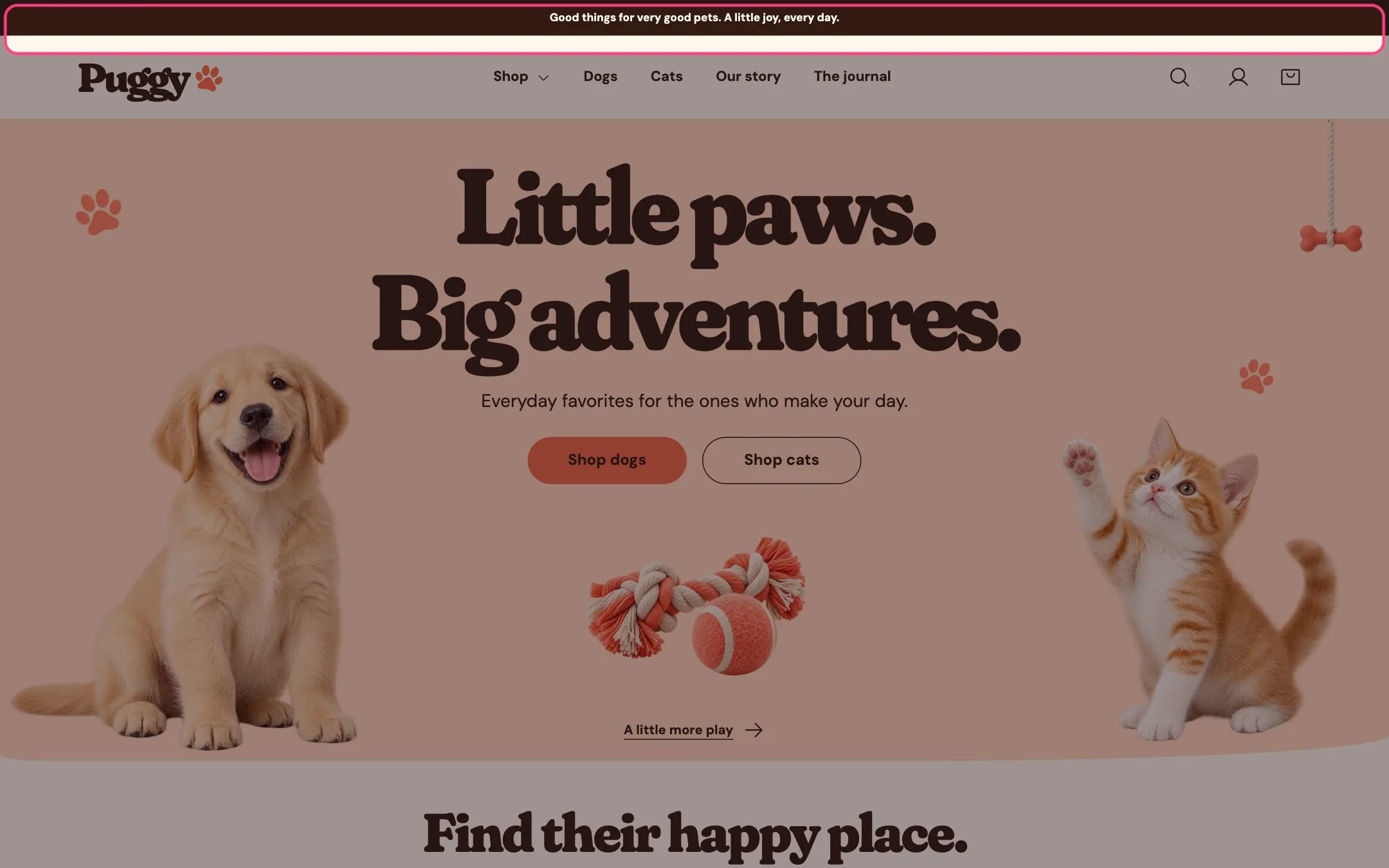
> A slim bar above the header for one short message, such as a delivery note or a seasonal hello. Add a link and the whole bar becomes clickable.
 ## Where to find it
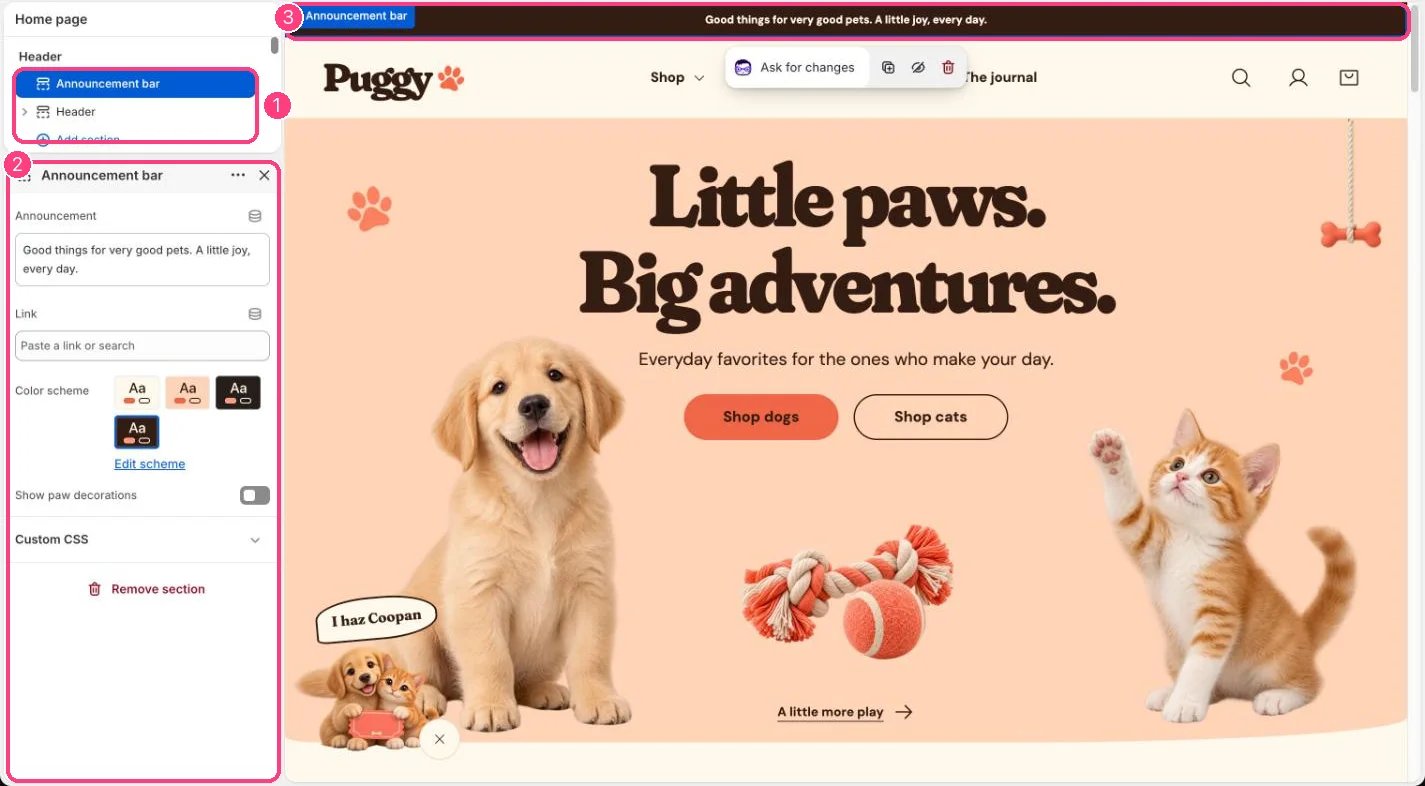
Every page, at the very top. In the theme editor, select Announcement bar in the Header area of the sidebar. If you removed it, click Add section in the Header area and choose Announcement bar.
## How it works
* Shows one line of text. When Link is set, the whole message becomes a link.
* Optional paw decorations sit on both sides of the text.
* Uses its own color scheme, so it can contrast with the header. The default is Scheme 4, the dark cocoa scheme.
* When the header is set to stay in view, the announcement bar scrolls away and only the header stays pinned at the top.
* Each Announcement bar section shows a single message; there is no rotation. To show a second message, add another Announcement bar section and they stack.
## Where to find it
Every page, at the very top. In the theme editor, select Announcement bar in the Header area of the sidebar. If you removed it, click Add section in the Header area and choose Announcement bar.
## How it works
* Shows one line of text. When Link is set, the whole message becomes a link.
* Optional paw decorations sit on both sides of the text.
* Uses its own color scheme, so it can contrast with the header. The default is Scheme 4, the dark cocoa scheme.
* When the header is set to stay in view, the announcement bar scrolls away and only the header stays pinned at the top.
* Each Announcement bar section shows a single message; there is no rotation. To show a second message, add another Announcement bar section and they stack.
 ## Edit it
* Type your message in Announcement. Short messages read best on phones.
* Choose a page or paste a URL in Link to make the bar clickable. Leave it blank for plain text.
* Turn on Show paw decorations to add the paw icons.
* Pick a Color scheme with strong contrast between text and background.
* To take it down for a while, hide the section with the eye icon in the sidebar instead of deleting it.
## Settings
| Setting | What it does |
| - | - |
| **Announcement** | Text. Default: Good things for very good pets. A little joy, every day. |
| **Link** | Link: a page, product, collection or web address. |
| **Color scheme** | Color scheme for this area (edit the schemes in Theme settings → Colors). Default: Scheme 4. |
| **Show paw decorations** | On or off. Default: off. |
This documentation is built and hosted on [Mintlify](https://mintlify.com), a developer documentation platform.
## Edit it
* Type your message in Announcement. Short messages read best on phones.
* Choose a page or paste a URL in Link to make the bar clickable. Leave it blank for plain text.
* Turn on Show paw decorations to add the paw icons.
* Pick a Color scheme with strong contrast between text and background.
* To take it down for a while, hide the section with the eye icon in the sidebar instead of deleting it.
## Settings
| Setting | What it does |
| - | - |
| **Announcement** | Text. Default: Good things for very good pets. A little joy, every day. |
| **Link** | Link: a page, product, collection or web address. |
| **Color scheme** | Color scheme for this area (edit the schemes in Theme settings → Colors). Default: Scheme 4. |
| **Show paw decorations** | On or off. Default: off. |
This documentation is built and hosted on [Mintlify](https://mintlify.com), a developer documentation platform.