> ## Documentation Index
> Fetch the complete documentation index at: https://docs.kwebby.com/llms.txt
> Use this file to discover all available pages before exploring further.
# Better together
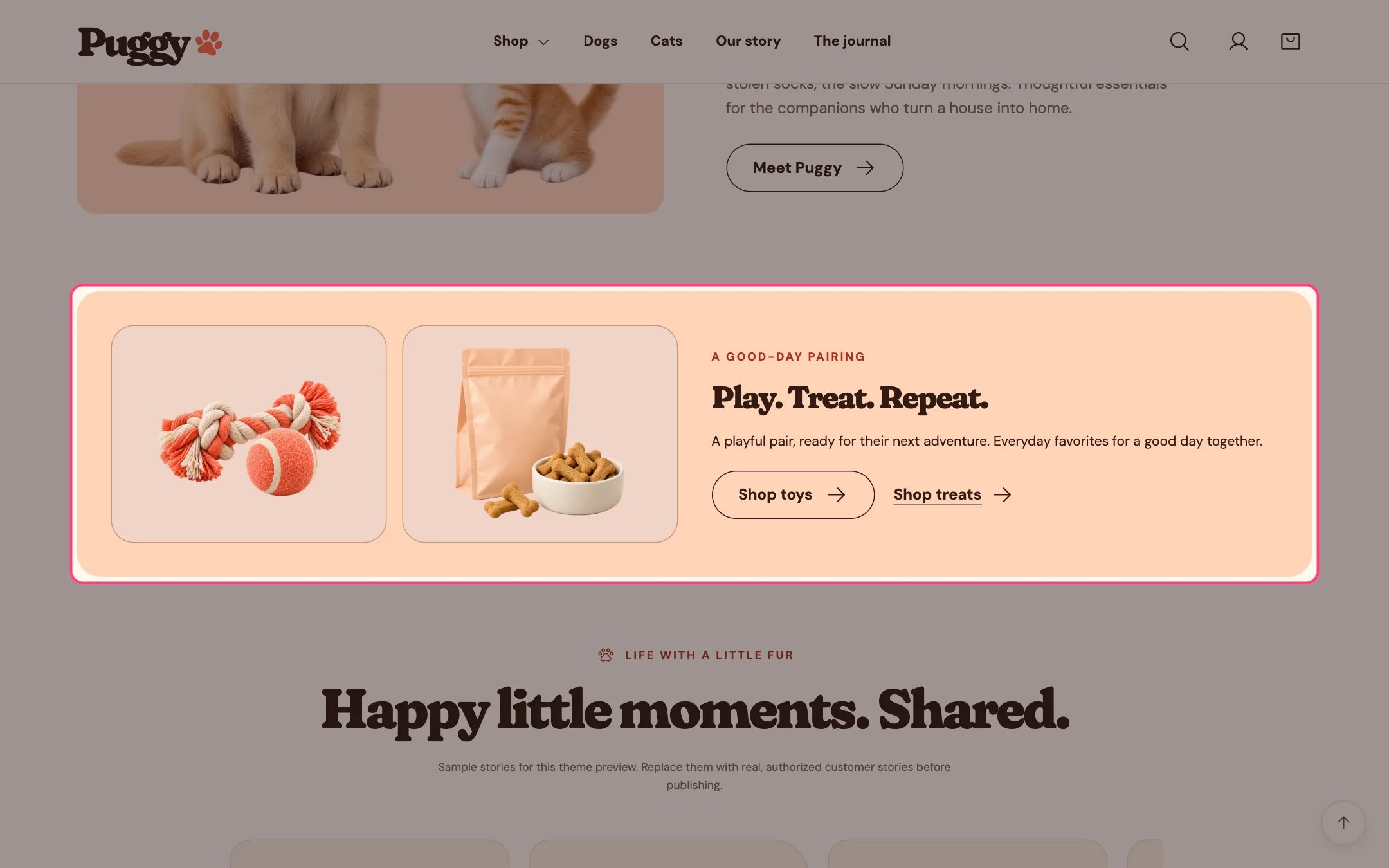
> A peach strip with two product images and a short message that points shoppers to two related collections or pages.
 ## Where to find it
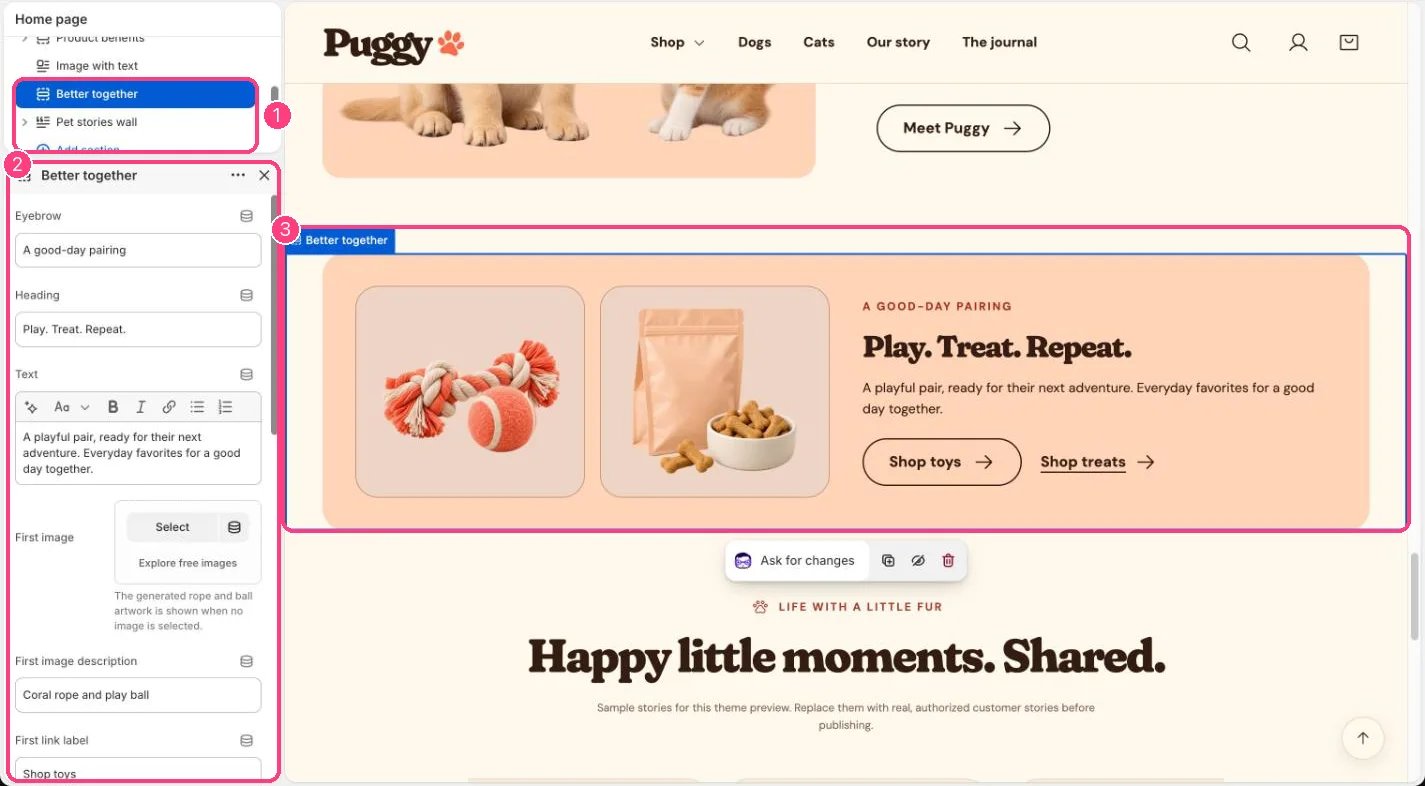
Home page. Choose Home page in the top page selector, then select Better together. Add it elsewhere with Add section > Better together.
## How it works
* Shows two images side by side next to the eyebrow, heading and text. On phones the text moves below the images.
* Without images, the built-in rope and ball and treats artwork appears.
* The first link shows as a button and the second as a text link. Each appears only when both its label and its link are set.
* It only links to your pages. It doesn't add products to the bag or create a bundle price.
## Where to find it
Home page. Choose Home page in the top page selector, then select Better together. Add it elsewhere with Add section > Better together.
## How it works
* Shows two images side by side next to the eyebrow, heading and text. On phones the text moves below the images.
* Without images, the built-in rope and ball and treats artwork appears.
* The first link shows as a button and the second as a text link. Each appears only when both its label and its link are set.
* It only links to your pages. It doesn't add products to the bag or create a bundle price.
 ## Edit it
* Upload First image and Second image, and write an image description for each.
* Set First link label with First link, and Second link label with Second link.
* Choose Product image background (Soft tinted panel, Peach or Transparent) for the two image panels.
* Spacing starts at 0. Raise Top spacing or Bottom spacing to separate it from neighboring sections.
## Settings
| Setting | What it does |
| - | - |
| **Eyebrow** | Text. Default: A good-day pairing. |
| **Heading** | Text. Default: Play. Treat. Repeat. |
| **Text** | Formatted text. |
| **First image** | Image: upload one or choose from Content → Files. The generated rope and ball artwork is shown when no image is selected. |
| **First image description** | Text. Default: Coral rope and play ball. |
| **First link label** | Text. Default: Shop toys. |
| **First link** | Link: a page, product, collection or web address. |
| **Second image** | Image: upload one or choose from Content → Files. The generated treats artwork is shown when no image is selected. |
| **Second image description** | Text. Default: Treat pouch and dog biscuits. |
| **Second link label** | Text. Default: Shop treats. |
| **Second link** | Link: a page, product, collection or web address. |
| **Product image background** | Options: Soft tinted panel, Peach, Transparent. Default: Soft tinted panel. |
| **Color scheme** | Color scheme for this area (edit the schemes in Theme settings → Colors). Default: Scheme 2. |
| **Top spacing** | Slider from 0 to 120 px, in steps of 4. Default: 0 px. |
| **Bottom spacing** | Slider from 0 to 120 px, in steps of 4. Default: 0 px. |
This documentation is built and hosted on [Mintlify](https://mintlify.com), a developer documentation platform.
## Edit it
* Upload First image and Second image, and write an image description for each.
* Set First link label with First link, and Second link label with Second link.
* Choose Product image background (Soft tinted panel, Peach or Transparent) for the two image panels.
* Spacing starts at 0. Raise Top spacing or Bottom spacing to separate it from neighboring sections.
## Settings
| Setting | What it does |
| - | - |
| **Eyebrow** | Text. Default: A good-day pairing. |
| **Heading** | Text. Default: Play. Treat. Repeat. |
| **Text** | Formatted text. |
| **First image** | Image: upload one or choose from Content → Files. The generated rope and ball artwork is shown when no image is selected. |
| **First image description** | Text. Default: Coral rope and play ball. |
| **First link label** | Text. Default: Shop toys. |
| **First link** | Link: a page, product, collection or web address. |
| **Second image** | Image: upload one or choose from Content → Files. The generated treats artwork is shown when no image is selected. |
| **Second image description** | Text. Default: Treat pouch and dog biscuits. |
| **Second link label** | Text. Default: Shop treats. |
| **Second link** | Link: a page, product, collection or web address. |
| **Product image background** | Options: Soft tinted panel, Peach, Transparent. Default: Soft tinted panel. |
| **Color scheme** | Color scheme for this area (edit the schemes in Theme settings → Colors). Default: Scheme 2. |
| **Top spacing** | Slider from 0 to 120 px, in steps of 4. Default: 0 px. |
| **Bottom spacing** | Slider from 0 to 120 px, in steps of 4. Default: 0 px. |
This documentation is built and hosted on [Mintlify](https://mintlify.com), a developer documentation platform.