> ## Documentation Index
> Fetch the complete documentation index at: https://docs.kwebby.com/llms.txt
> Use this file to discover all available pages before exploring further.
# Category grid
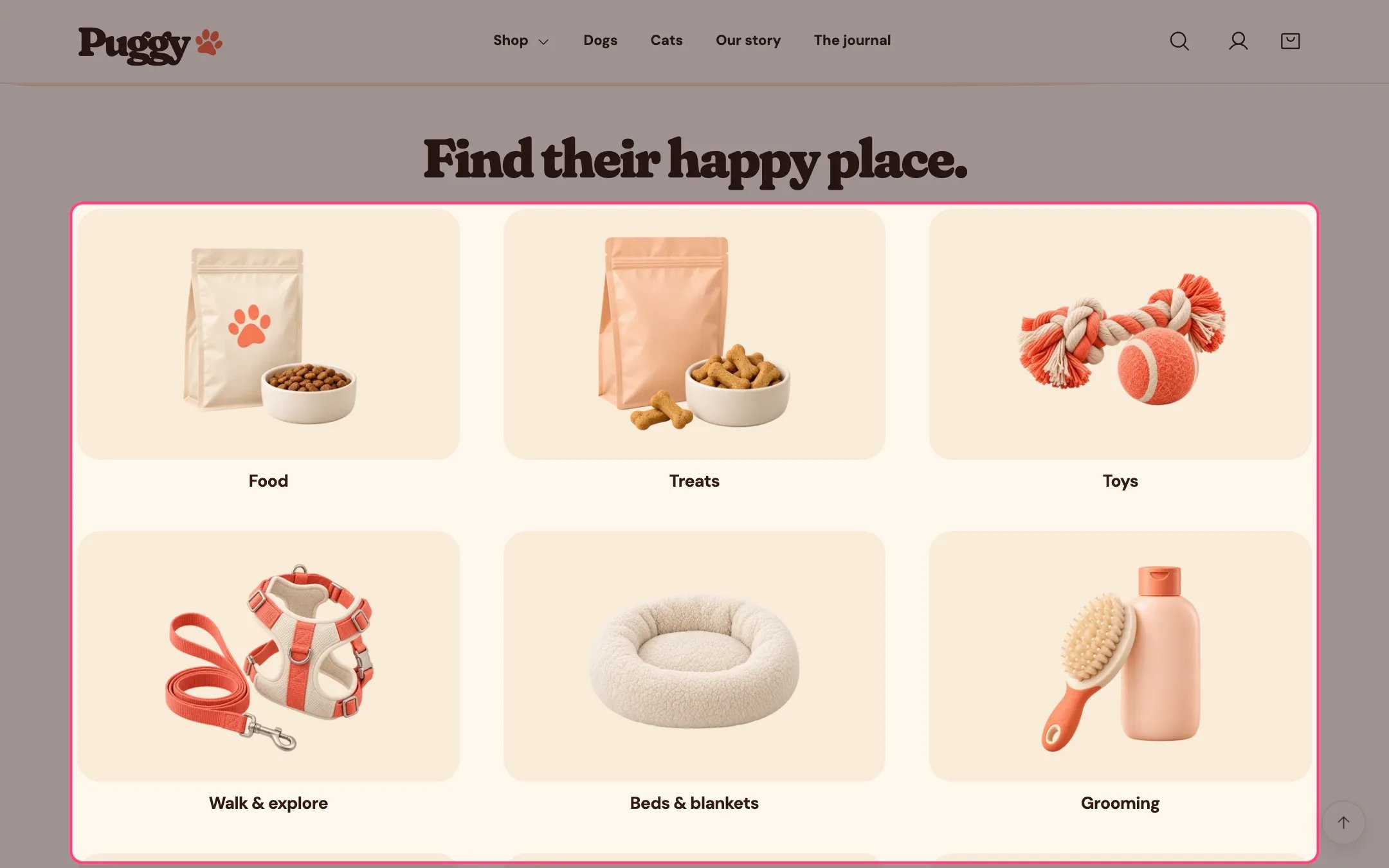
> Round category tiles, each linking to a collection, so shoppers can jump straight to food, toys, beds and more.
 ## Where to find it
Home page. Choose Home page in the top page selector, then select Category grid. Add it to other pages with Add section > Category grid.
## How it works
* Each Category block becomes a tile with an image and a label that links to its collection.
* The tile image is the block's Image, then the collection's own image, then the chosen fallback artwork.
* The label is the block's Label, or the collection title when Label is blank.
* A tile without a collection links to your collections list page.
* Tiles sit three across on every screen size and fade in as they scroll into view when scroll animations are on.
* The eyebrow, introduction and tile descriptions are hidden by default.
## Where to find it
Home page. Choose Home page in the top page selector, then select Category grid. Add it to other pages with Add section > Category grid.
## How it works
* Each Category block becomes a tile with an image and a label that links to its collection.
* The tile image is the block's Image, then the collection's own image, then the chosen fallback artwork.
* The label is the block's Label, or the collection title when Label is blank.
* A tile without a collection links to your collections list page.
* Tiles sit three across on every screen size and fade in as they scroll into view when scroll animations are on.
* The eyebrow, introduction and tile descriptions are hidden by default.
 ## Edit it
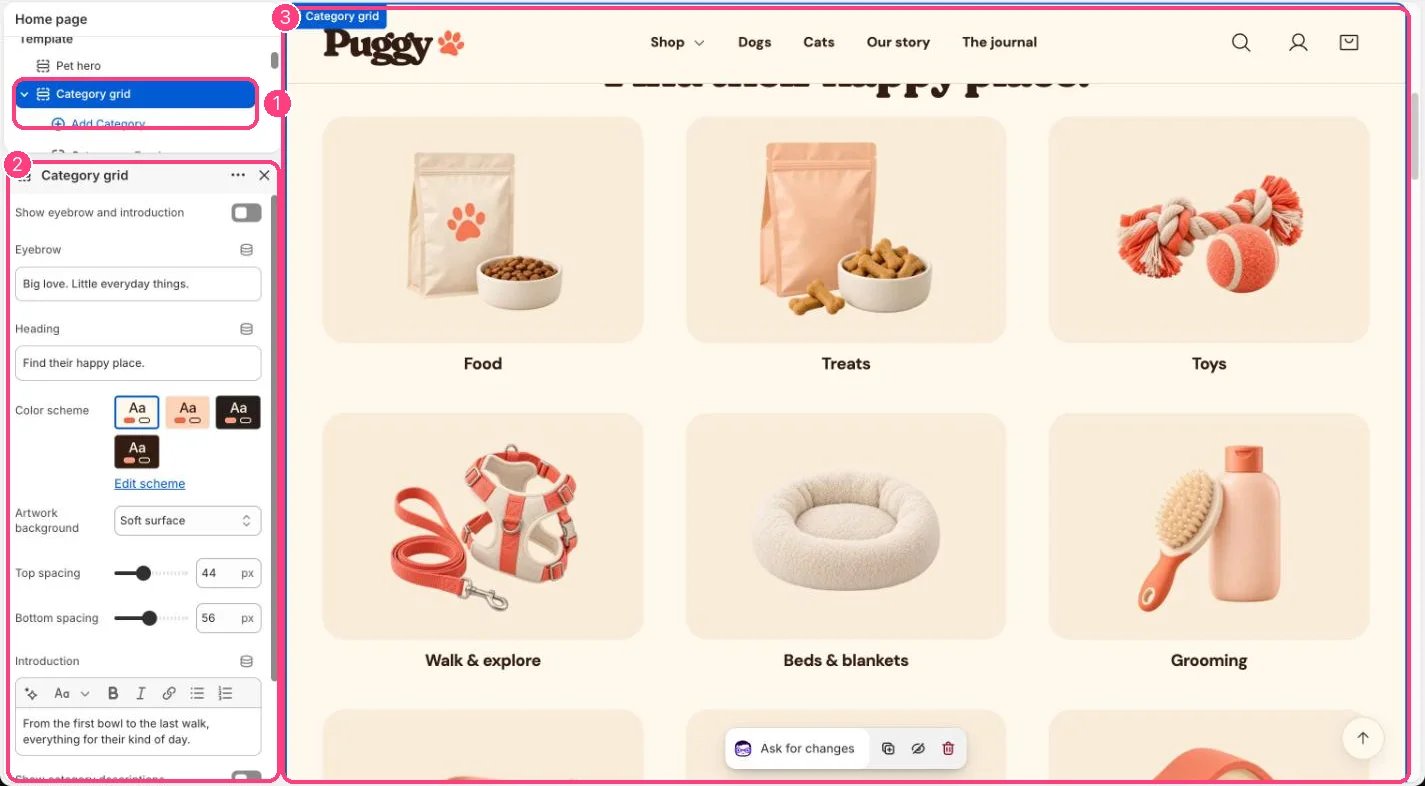
* To add a category, click Add block > Category, then choose a Collection.
* Pick Fallback artwork for collections without an image: Food, Treats, Toys, Walk & explore, Beds & blankets, Grooming, Litter & clean-up, Bowls & feeders, or Small pets.
* Choose Artwork background: Soft surface, Peach surface or Transparent.
* Turn on Show eyebrow and introduction and Show category descriptions to add more text.
* Drag blocks to reorder the tiles, and remove the ones you don't sell. The preset starts with nine categories.
## Settings
| Setting | What it does |
| - | - |
| **Show eyebrow and introduction** | On or off. Default: off. |
| **Eyebrow** | Text. Default: Big love. Little everyday things. |
| **Heading** | Text. Default: Find their happy place. |
| **Color scheme** | Color scheme for this area (edit the schemes in Theme settings → Colors). Default: Scheme 1. |
| **Artwork background** | Options: Soft surface, Peach surface, Transparent. Default: Soft surface. |
| **Top spacing** | Slider from 0 to 120 px, in steps of 4. Default: 64 px. |
| **Bottom spacing** | Slider from 0 to 120 px, in steps of 4. Default: 64 px. |
| **Introduction** | Formatted text. |
| **Show category descriptions** | On or off. Default: off. |
## Blocks
Add a block with **Add block** under the section in the sidebar; drag blocks to reorder them.
### Category
| Setting | What it does |
| - | - |
| **Collection** | Choose a collection. |
| **Label** | Text. |
| **Image** | Image: upload one or choose from Content → Files. |
| **Fallback artwork** | Options: Food, Treats, Toys, Walk & explore, Beds & blankets, Grooming, Litter & clean-up, Bowls & feeders, Small pets. Default: Toys. |
| **Description** | Text. |
This documentation is built and hosted on [Mintlify](https://mintlify.com), a developer documentation platform.
## Edit it
* To add a category, click Add block > Category, then choose a Collection.
* Pick Fallback artwork for collections without an image: Food, Treats, Toys, Walk & explore, Beds & blankets, Grooming, Litter & clean-up, Bowls & feeders, or Small pets.
* Choose Artwork background: Soft surface, Peach surface or Transparent.
* Turn on Show eyebrow and introduction and Show category descriptions to add more text.
* Drag blocks to reorder the tiles, and remove the ones you don't sell. The preset starts with nine categories.
## Settings
| Setting | What it does |
| - | - |
| **Show eyebrow and introduction** | On or off. Default: off. |
| **Eyebrow** | Text. Default: Big love. Little everyday things. |
| **Heading** | Text. Default: Find their happy place. |
| **Color scheme** | Color scheme for this area (edit the schemes in Theme settings → Colors). Default: Scheme 1. |
| **Artwork background** | Options: Soft surface, Peach surface, Transparent. Default: Soft surface. |
| **Top spacing** | Slider from 0 to 120 px, in steps of 4. Default: 64 px. |
| **Bottom spacing** | Slider from 0 to 120 px, in steps of 4. Default: 64 px. |
| **Introduction** | Formatted text. |
| **Show category descriptions** | On or off. Default: off. |
## Blocks
Add a block with **Add block** under the section in the sidebar; drag blocks to reorder them.
### Category
| Setting | What it does |
| - | - |
| **Collection** | Choose a collection. |
| **Label** | Text. |
| **Image** | Image: upload one or choose from Content → Files. |
| **Fallback artwork** | Options: Food, Treats, Toys, Walk & explore, Beds & blankets, Grooming, Litter & clean-up, Bowls & feeders, Small pets. Default: Toys. |
| **Description** | Text. |
This documentation is built and hosted on [Mintlify](https://mintlify.com), a developer documentation platform.