> ## Documentation Index
> Fetch the complete documentation index at: https://docs.kwebby.com/llms.txt
> Use this file to discover all available pages before exploring further.
# Collection list page
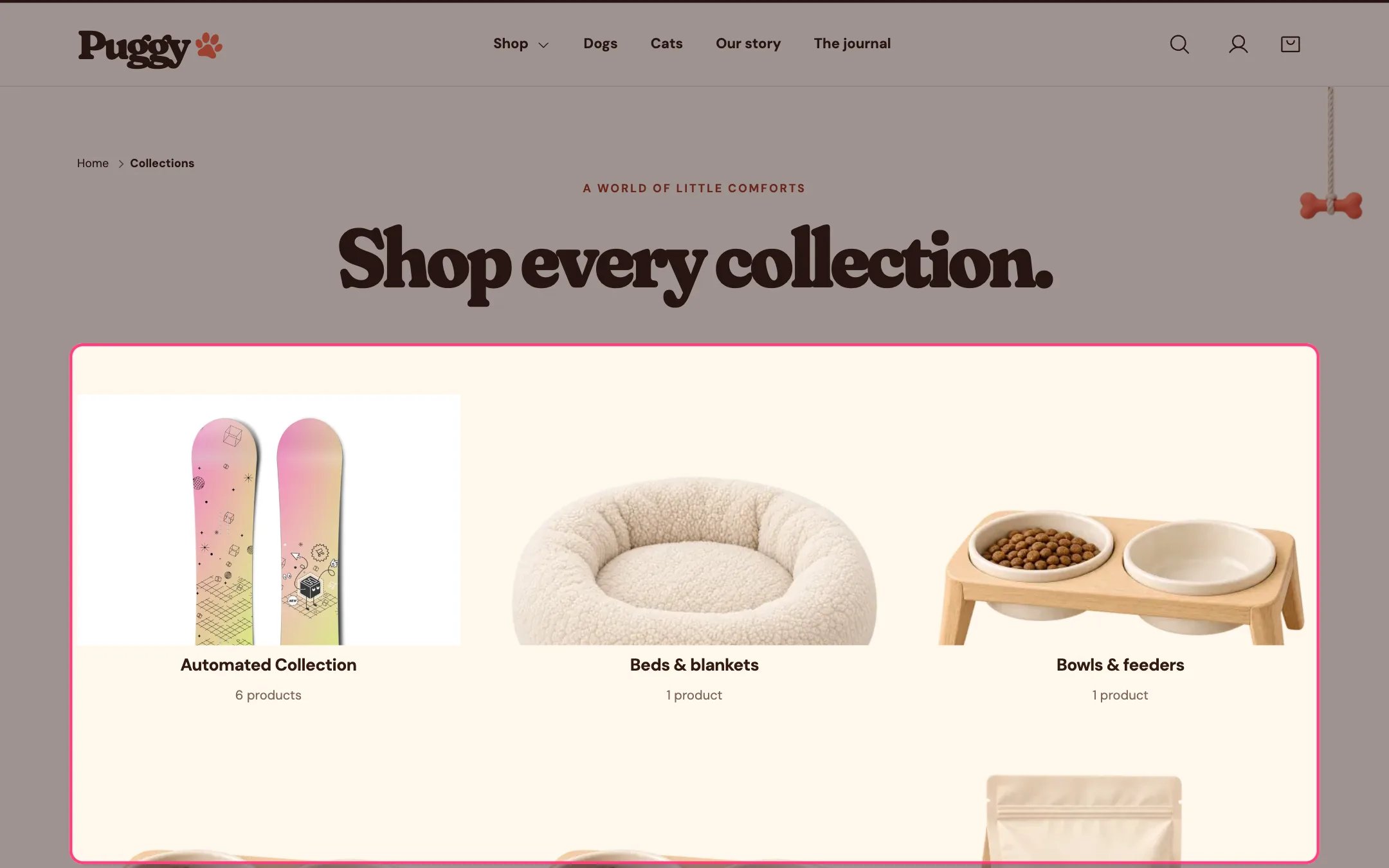
> The page that lists your collections as image cards, either all of them or a hand-picked set.
 ## Where to find it
The collections list page at /collections. Choose Collections list in the top page selector, then select Collection list page.
## How it works
* Without blocks, every collection is shown, with page numbers when there are more than fit on one page.
* Add Collection blocks to show only the collections you choose, in your order. Up to 24.
* Each card uses the Image override, then the collection image, then the image of the collection's first product.
* The product count shows under each title when turned on.
## Where to find it
The collections list page at /collections. Choose Collections list in the top page selector, then select Collection list page.
## How it works
* Without blocks, every collection is shown, with page numbers when there are more than fit on one page.
* Add Collection blocks to show only the collections you choose, in your order. Up to 24.
* Each card uses the Image override, then the collection image, then the image of the collection's first product.
* The product count shows under each title when turned on.
 ## Edit it
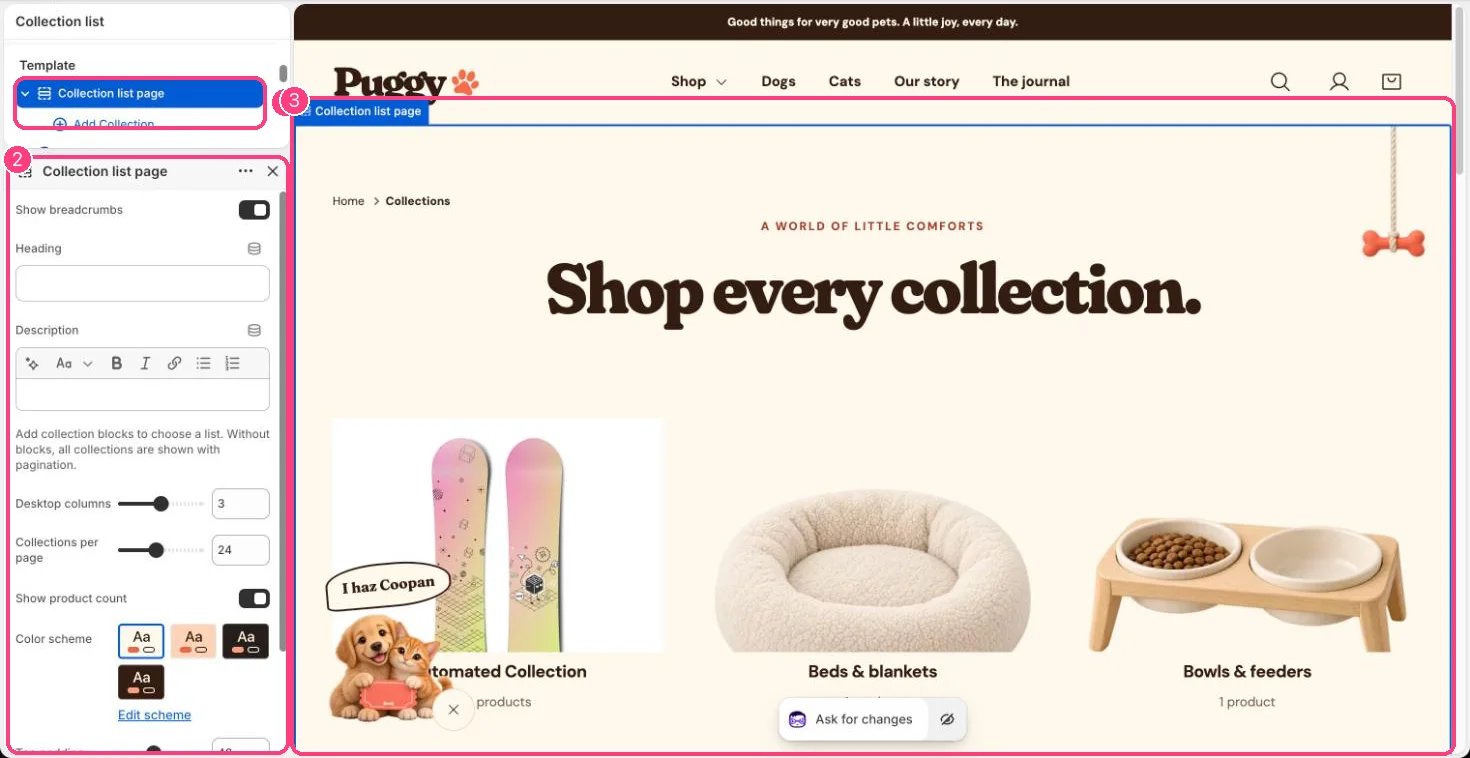
* Set Heading and Description. When Heading is blank, the page reads Shop every collection.
* Click Add block > Collection, choose a collection, and optionally add an Image override and Heading override.
* Set Desktop columns (2 to 4), Collections per page (6 to 48), Show product count and Show breadcrumbs.
## Settings
| Setting | What it does |
| - | - |
| **Show breadcrumbs** | On or off. Default: on. |
| **Heading** | Text. |
| **Description** | Formatted text. |
Add collection blocks to choose a list. Without blocks, all collections are shown with pagination.
| Setting | What it does |
| - | - |
| **Desktop columns** | Slider from 2 to 4. Default: 3. |
| **Collections per page** | Slider from 6 to 48, in steps of 6. Default: 24. |
| **Show product count** | On or off. Default: on. |
| **Color scheme** | Color scheme for this area (edit the schemes in Theme settings → Colors). Default: Scheme 1. |
| **Top padding** | Slider from 0 to 120, in steps of 4. Default: 48. |
| **Bottom padding** | Slider from 0 to 120, in steps of 4. Default: 80. |
## Blocks
Up to 24 blocks. Add a block with **Add block** under the section in the sidebar; drag blocks to reorder them.
### Collection
| Setting | What it does |
| - | - |
| **Collection** | Choose a collection. |
| **Image override** | Image: upload one or choose from Content → Files. |
| **Heading override** | Text. |
This documentation is built and hosted on [Mintlify](https://mintlify.com), a developer documentation platform.
## Edit it
* Set Heading and Description. When Heading is blank, the page reads Shop every collection.
* Click Add block > Collection, choose a collection, and optionally add an Image override and Heading override.
* Set Desktop columns (2 to 4), Collections per page (6 to 48), Show product count and Show breadcrumbs.
## Settings
| Setting | What it does |
| - | - |
| **Show breadcrumbs** | On or off. Default: on. |
| **Heading** | Text. |
| **Description** | Formatted text. |
Add collection blocks to choose a list. Without blocks, all collections are shown with pagination.
| Setting | What it does |
| - | - |
| **Desktop columns** | Slider from 2 to 4. Default: 3. |
| **Collections per page** | Slider from 6 to 48, in steps of 6. Default: 24. |
| **Show product count** | On or off. Default: on. |
| **Color scheme** | Color scheme for this area (edit the schemes in Theme settings → Colors). Default: Scheme 1. |
| **Top padding** | Slider from 0 to 120, in steps of 4. Default: 48. |
| **Bottom padding** | Slider from 0 to 120, in steps of 4. Default: 80. |
## Blocks
Up to 24 blocks. Add a block with **Add block** under the section in the sidebar; drag blocks to reorder them.
### Collection
| Setting | What it does |
| - | - |
| **Collection** | Choose a collection. |
| **Image override** | Image: upload one or choose from Content → Files. |
| **Heading override** | Text. |
This documentation is built and hosted on [Mintlify](https://mintlify.com), a developer documentation platform.