> ## Documentation Index
> Fetch the complete documentation index at: https://docs.kwebby.com/llms.txt
> Use this file to discover all available pages before exploring further.
# Footer
> The bottom of every page: logo, short description, social icons, menu and text columns, country and language selectors, policy links, payment icons and Follow on Shop.
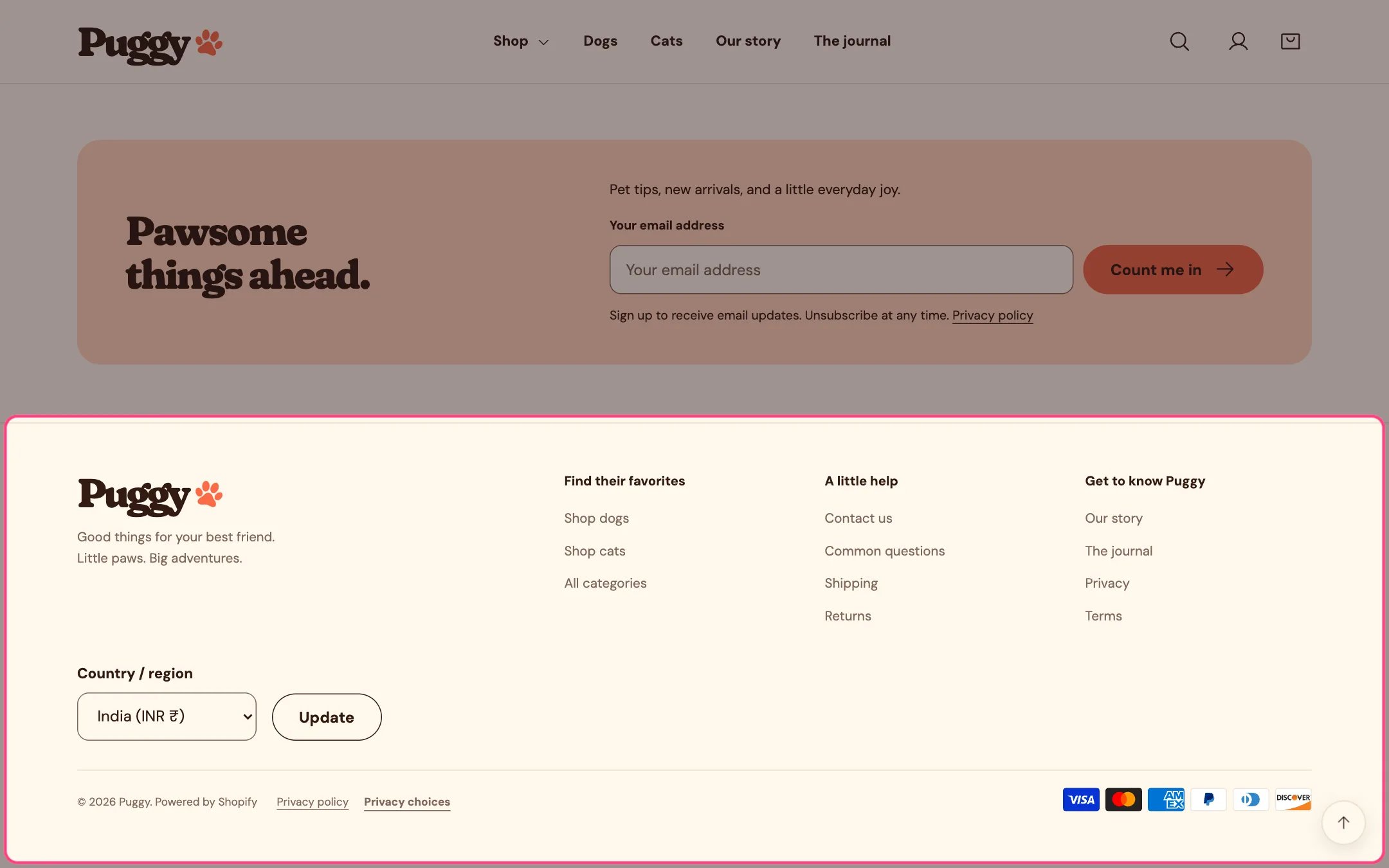 ## Where to find it
Every page. In the theme editor, select Footer in the Footer area of the sidebar.
## How it works
* Has its own logo setting, so you can use a version that reads well on the footer colors. Without one, it shows the text logo or your store name.
* Social icons appear for every profile URL you fill in under Theme settings > Social links.
* Menu blocks list the links of a chosen menu under a heading. Text blocks show a heading and formatted text. A Menu block with no menu chosen shows only its heading.
* Country and language selectors appear only when your store has more than one country or language available. Shoppers choose and select Update.
* Policy links come from Settings > Policies; only policies with content are listed. A Privacy choices link next to them reopens the cookie choices panel.
* Payment icons reflect the payment methods enabled for your store.
* Follow on Shop shows Shopify's Follow button so shoppers can follow your store in the Shop app.
## Where to find it
Every page. In the theme editor, select Footer in the Footer area of the sidebar.
## How it works
* Has its own logo setting, so you can use a version that reads well on the footer colors. Without one, it shows the text logo or your store name.
* Social icons appear for every profile URL you fill in under Theme settings > Social links.
* Menu blocks list the links of a chosen menu under a heading. Text blocks show a heading and formatted text. A Menu block with no menu chosen shows only its heading.
* Country and language selectors appear only when your store has more than one country or language available. Shoppers choose and select Update.
* Policy links come from Settings > Policies; only policies with content are listed. A Privacy choices link next to them reopens the cookie choices panel.
* Payment icons reflect the payment methods enabled for your store.
* Follow on Shop shows Shopify's Follow button so shoppers can follow your store in the Shop app.
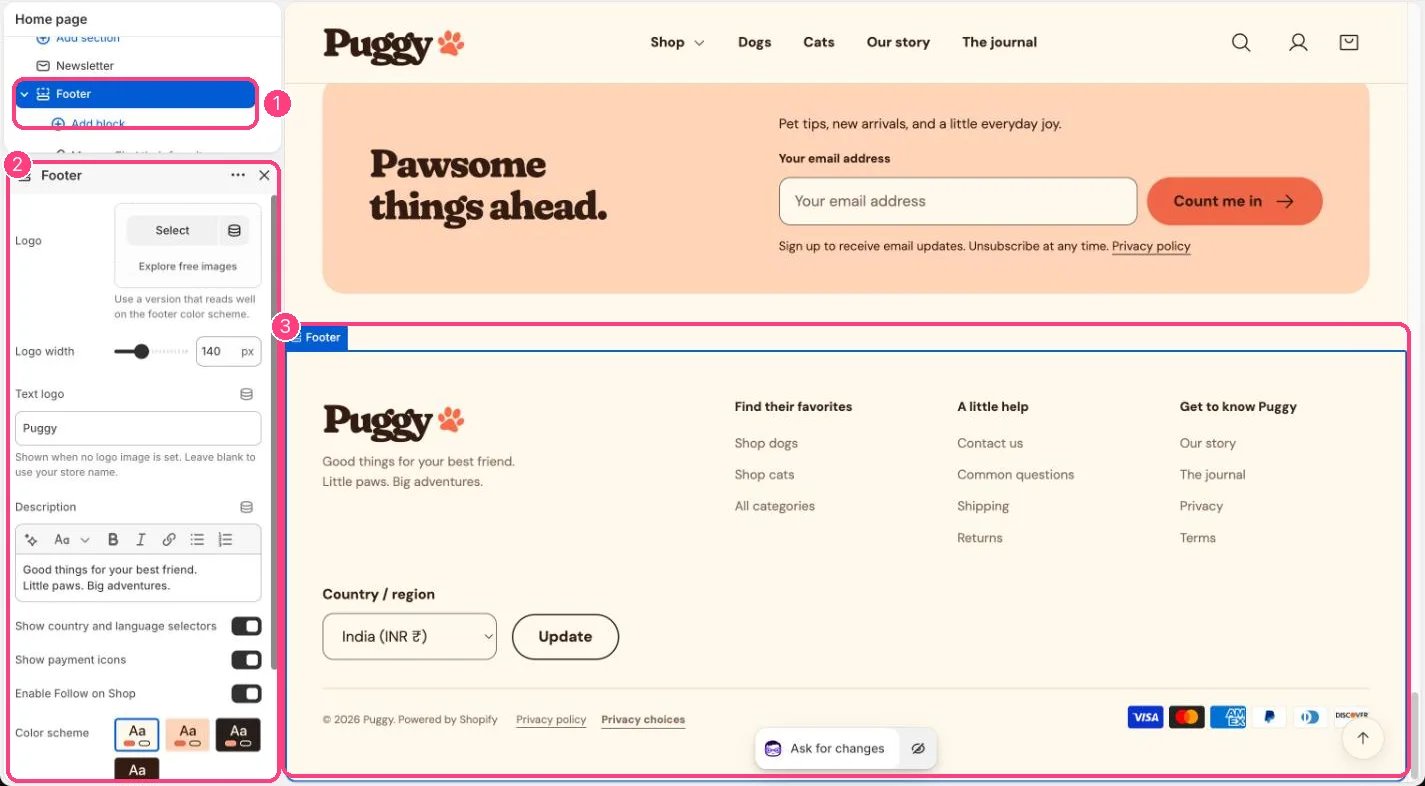 ## Edit it
* Click Add block to add a Menu, Text, Custom Liquid or app block, then drag blocks to reorder the columns.
* Edit Description for the short text under the logo.
* Upload a footer Logo and set Logo width (60 to 300 px), or fill Text logo.
* Turn Show country and language selectors, Show payment icons and Enable Follow on Shop on or off.
* Pick a Color scheme for the whole footer.
## Settings
| Setting | What it does |
| - | - |
| **Logo** | Image: upload one or choose from Content → Files. Use a version that reads well on the footer color scheme. |
| **Logo width** | Slider from 60 to 300 px, in steps of 5. Default: 140 px. |
| **Text logo** | Text. Shown when no logo image is set. Leave blank to use your store name. |
| **Description** | Formatted text. |
| **Show country and language selectors** | On or off. Default: on. |
| **Show payment icons** | On or off. Default: on. |
| **Enable Follow on Shop** | On or off. Default: on. |
| **Color scheme** | Color scheme for this area (edit the schemes in Theme settings → Colors). Default: Scheme 2. |
## Blocks
Add a block with **Add block** under the section in the sidebar; drag blocks to reorder them.
### Menu
| Setting | What it does |
| - | - |
| **Heading** | Text. Default: Explore. |
| **Menu** | Choose a menu. |
### Text
| Setting | What it does |
| - | - |
| **Heading** | Text. Default: A little hello. |
| **Text** | Formatted text. |
### App blocks
Blocks from apps you have installed, such as reviews or subscriptions. Click **Add block** and choose one from the Apps tab; its settings come from the app.
### Custom Liquid
| Setting | What it does |
| - | - |
| **Custom Liquid** | Liquid code. |
The Privacy choices link opens the panel from the Customer privacy section in Promotions and privacy. Keep that section in place, even with its banner turned off, or the link has nothing to open.
Shopify shows the Follow on Shop button only when your store is eligible for it, for example with Shop Pay turned on.
This documentation is built and hosted on [Mintlify](https://mintlify.com), a developer documentation platform.
## Edit it
* Click Add block to add a Menu, Text, Custom Liquid or app block, then drag blocks to reorder the columns.
* Edit Description for the short text under the logo.
* Upload a footer Logo and set Logo width (60 to 300 px), or fill Text logo.
* Turn Show country and language selectors, Show payment icons and Enable Follow on Shop on or off.
* Pick a Color scheme for the whole footer.
## Settings
| Setting | What it does |
| - | - |
| **Logo** | Image: upload one or choose from Content → Files. Use a version that reads well on the footer color scheme. |
| **Logo width** | Slider from 60 to 300 px, in steps of 5. Default: 140 px. |
| **Text logo** | Text. Shown when no logo image is set. Leave blank to use your store name. |
| **Description** | Formatted text. |
| **Show country and language selectors** | On or off. Default: on. |
| **Show payment icons** | On or off. Default: on. |
| **Enable Follow on Shop** | On or off. Default: on. |
| **Color scheme** | Color scheme for this area (edit the schemes in Theme settings → Colors). Default: Scheme 2. |
## Blocks
Add a block with **Add block** under the section in the sidebar; drag blocks to reorder them.
### Menu
| Setting | What it does |
| - | - |
| **Heading** | Text. Default: Explore. |
| **Menu** | Choose a menu. |
### Text
| Setting | What it does |
| - | - |
| **Heading** | Text. Default: A little hello. |
| **Text** | Formatted text. |
### App blocks
Blocks from apps you have installed, such as reviews or subscriptions. Click **Add block** and choose one from the Apps tab; its settings come from the app.
### Custom Liquid
| Setting | What it does |
| - | - |
| **Custom Liquid** | Liquid code. |
The Privacy choices link opens the panel from the Customer privacy section in Promotions and privacy. Keep that section in place, even with its banner turned off, or the link has nothing to open.
Shopify shows the Follow on Shop button only when your store is eligible for it, for example with Shop Pay turned on.
This documentation is built and hosted on [Mintlify](https://mintlify.com), a developer documentation platform.