> ## Documentation Index
> Fetch the complete documentation index at: https://docs.kwebby.com/llms.txt
> Use this file to discover all available pages before exploring further.
# Our story
> An About page story with an introduction and a timeline of up to 12 dated milestones, or a simple one-column story.
 ## Where to find it
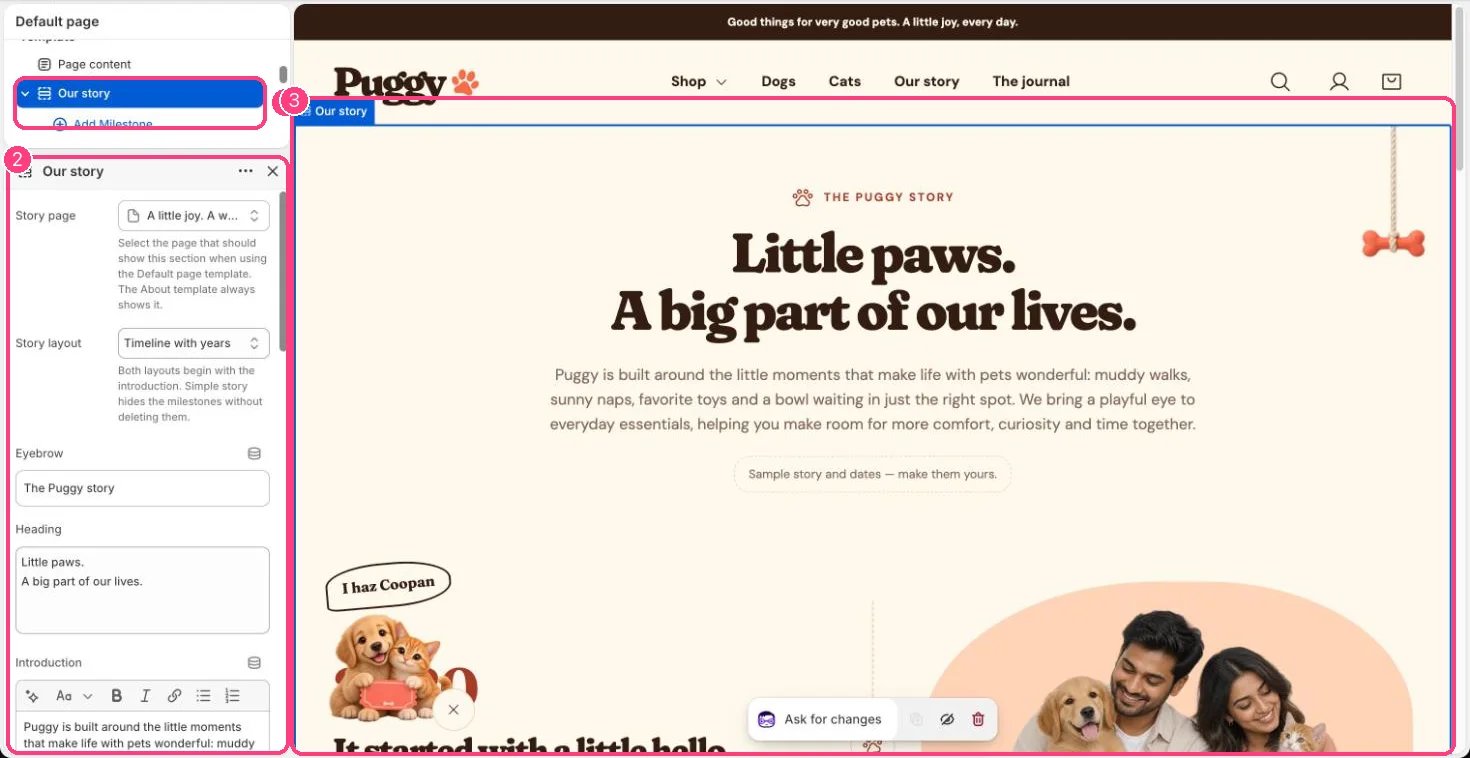
The About page. Assign the about template to your page in Online Store > Pages, then in the theme editor choose Pages > about in the top page selector and select Our story. It can only be added to page templates, once per template.
## How it works
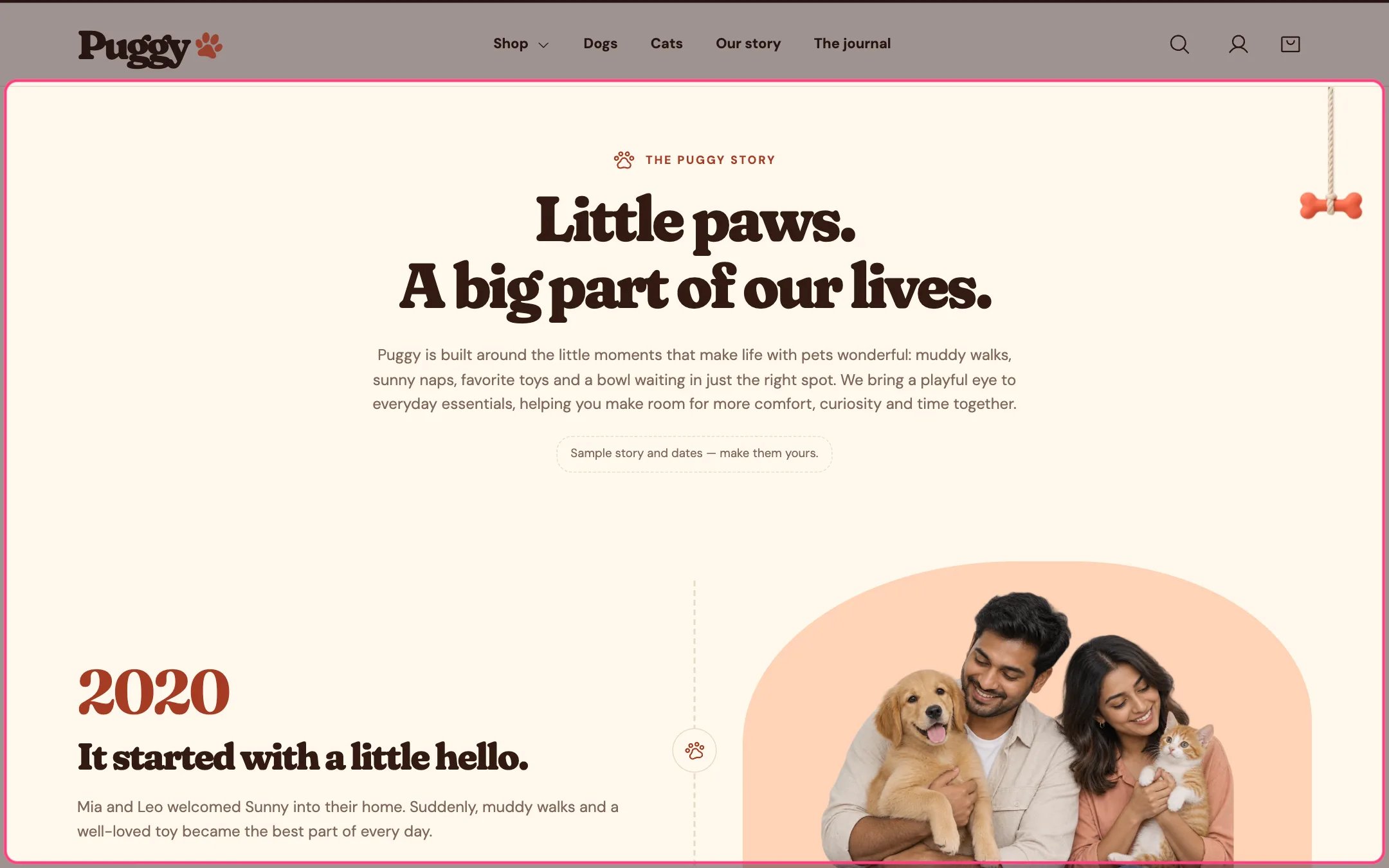
* Starts with an eyebrow, the page heading, an introduction, a short story note and an optional image.
* Timeline with years shows each Milestone with its date, heading, story and image along a paw-marked line. Images alternate sides unless you turn that off or set a side per milestone. On phones the line runs down the side.
* Simple story shows one block of formatted text instead. Milestones are kept but hidden.
* Milestones without an image show built-in artwork (family, dog or cat), or none when No artwork is chosen.
* A closing button appears when both its label and link are set.
* On the About template it always shows. On the Default page template it shows only on the page chosen in Story page.
## Where to find it
The About page. Assign the about template to your page in Online Store > Pages, then in the theme editor choose Pages > about in the top page selector and select Our story. It can only be added to page templates, once per template.
## How it works
* Starts with an eyebrow, the page heading, an introduction, a short story note and an optional image.
* Timeline with years shows each Milestone with its date, heading, story and image along a paw-marked line. Images alternate sides unless you turn that off or set a side per milestone. On phones the line runs down the side.
* Simple story shows one block of formatted text instead. Milestones are kept but hidden.
* Milestones without an image show built-in artwork (family, dog or cat), or none when No artwork is chosen.
* A closing button appears when both its label and link are set.
* On the About template it always shows. On the Default page template it shows only on the page chosen in Story page.
 ## Edit it
* Choose Story layout: Timeline with years or Simple story.
* Edit Eyebrow, Heading, Introduction and Story note. Clear Story note once the story is real.
* Click Add block > Milestone and fill Year or date, Heading, Story, Image and Image description.
* Use a milestone's Image side to override Alternate milestone images.
* Set Color scheme, Image background scheme, Closing button label and Closing button link.
## Settings
| Setting | What it does |
| - | - |
| **Story page** | Choose a page. Select the page that should show this section when using the Default page template. The About template always shows it. |
| **Story layout** | Options: Timeline with years, Simple story. Both layouts begin with the introduction. Simple story hides the milestones without deleting them. Default: Timeline with years. |
| **Eyebrow** | Text. Default: The Puggy story. |
| **Heading** | Text (several lines). Default: Little paws. A big part of our lives. |
| **Introduction** | Formatted text. |
| **Simple story content** | Formatted text. |
| **Story note** | Text. Default: Sample story and dates — make them yours. |
| **Show introduction image** | On or off. Default: off. |
| **Introduction image** | Image: upload one or choose from Content → Files. The generated fictional family artwork appears when no image is selected. |
| **Introduction image description** | Text. Default: A fictional family with a cheerful dog and curious cat. |
| **Alternate milestone images** | On or off. Default: on. |
| **Color scheme** | Color scheme for this area (edit the schemes in Theme settings → Colors). Default: Scheme 1. |
| **Image background scheme** | Color scheme for this area (edit the schemes in Theme settings → Colors). Default: Scheme 2. |
| **Top spacing** | Slider from 0 to 120 px, in steps of 4. Default: 64 px. |
| **Bottom spacing** | Slider from 0 to 120 px, in steps of 4. Default: 64 px. |
| **Closing button label** | Text. Default: Find their favorites. |
| **Closing button link** | Link: a page, product, collection or web address. |
## Blocks
Up to 12 blocks. Add a block with **Add block** under the section in the sidebar; drag blocks to reorder them.
### Milestone
| Setting | What it does |
| - | - |
| **Year or date** | Text. Default: 2026. |
| **Heading** | Text. Default: A little moment worth remembering. |
| **Story** | Formatted text. |
| **Image** | Image: upload one or choose from Content → Files. |
| **Image description** | Text. Default: A cheerful fictional pet. |
| **Fallback artwork** | Options: Fictional family, Dog saying hello, Cat saying hello, No artwork. Default: Dog saying hello. |
| **Image side** | Options: Follow section setting, Left, Right. Default: Follow section setting. |
The default names, years and family artwork are fictional samples. Replace them with your own true story before you launch.
This documentation is built and hosted on [Mintlify](https://mintlify.com), a developer documentation platform.
## Edit it
* Choose Story layout: Timeline with years or Simple story.
* Edit Eyebrow, Heading, Introduction and Story note. Clear Story note once the story is real.
* Click Add block > Milestone and fill Year or date, Heading, Story, Image and Image description.
* Use a milestone's Image side to override Alternate milestone images.
* Set Color scheme, Image background scheme, Closing button label and Closing button link.
## Settings
| Setting | What it does |
| - | - |
| **Story page** | Choose a page. Select the page that should show this section when using the Default page template. The About template always shows it. |
| **Story layout** | Options: Timeline with years, Simple story. Both layouts begin with the introduction. Simple story hides the milestones without deleting them. Default: Timeline with years. |
| **Eyebrow** | Text. Default: The Puggy story. |
| **Heading** | Text (several lines). Default: Little paws. A big part of our lives. |
| **Introduction** | Formatted text. |
| **Simple story content** | Formatted text. |
| **Story note** | Text. Default: Sample story and dates — make them yours. |
| **Show introduction image** | On or off. Default: off. |
| **Introduction image** | Image: upload one or choose from Content → Files. The generated fictional family artwork appears when no image is selected. |
| **Introduction image description** | Text. Default: A fictional family with a cheerful dog and curious cat. |
| **Alternate milestone images** | On or off. Default: on. |
| **Color scheme** | Color scheme for this area (edit the schemes in Theme settings → Colors). Default: Scheme 1. |
| **Image background scheme** | Color scheme for this area (edit the schemes in Theme settings → Colors). Default: Scheme 2. |
| **Top spacing** | Slider from 0 to 120 px, in steps of 4. Default: 64 px. |
| **Bottom spacing** | Slider from 0 to 120 px, in steps of 4. Default: 64 px. |
| **Closing button label** | Text. Default: Find their favorites. |
| **Closing button link** | Link: a page, product, collection or web address. |
## Blocks
Up to 12 blocks. Add a block with **Add block** under the section in the sidebar; drag blocks to reorder them.
### Milestone
| Setting | What it does |
| - | - |
| **Year or date** | Text. Default: 2026. |
| **Heading** | Text. Default: A little moment worth remembering. |
| **Story** | Formatted text. |
| **Image** | Image: upload one or choose from Content → Files. |
| **Image description** | Text. Default: A cheerful fictional pet. |
| **Fallback artwork** | Options: Fictional family, Dog saying hello, Cat saying hello, No artwork. Default: Dog saying hello. |
| **Image side** | Options: Follow section setting, Left, Right. Default: Follow section setting. |
The default names, years and family artwork are fictional samples. Replace them with your own true story before you launch.
This documentation is built and hosted on [Mintlify](https://mintlify.com), a developer documentation platform.