> ## Documentation Index
> Fetch the complete documentation index at: https://docs.kwebby.com/llms.txt
> Use this file to discover all available pages before exploring further.
# Page content
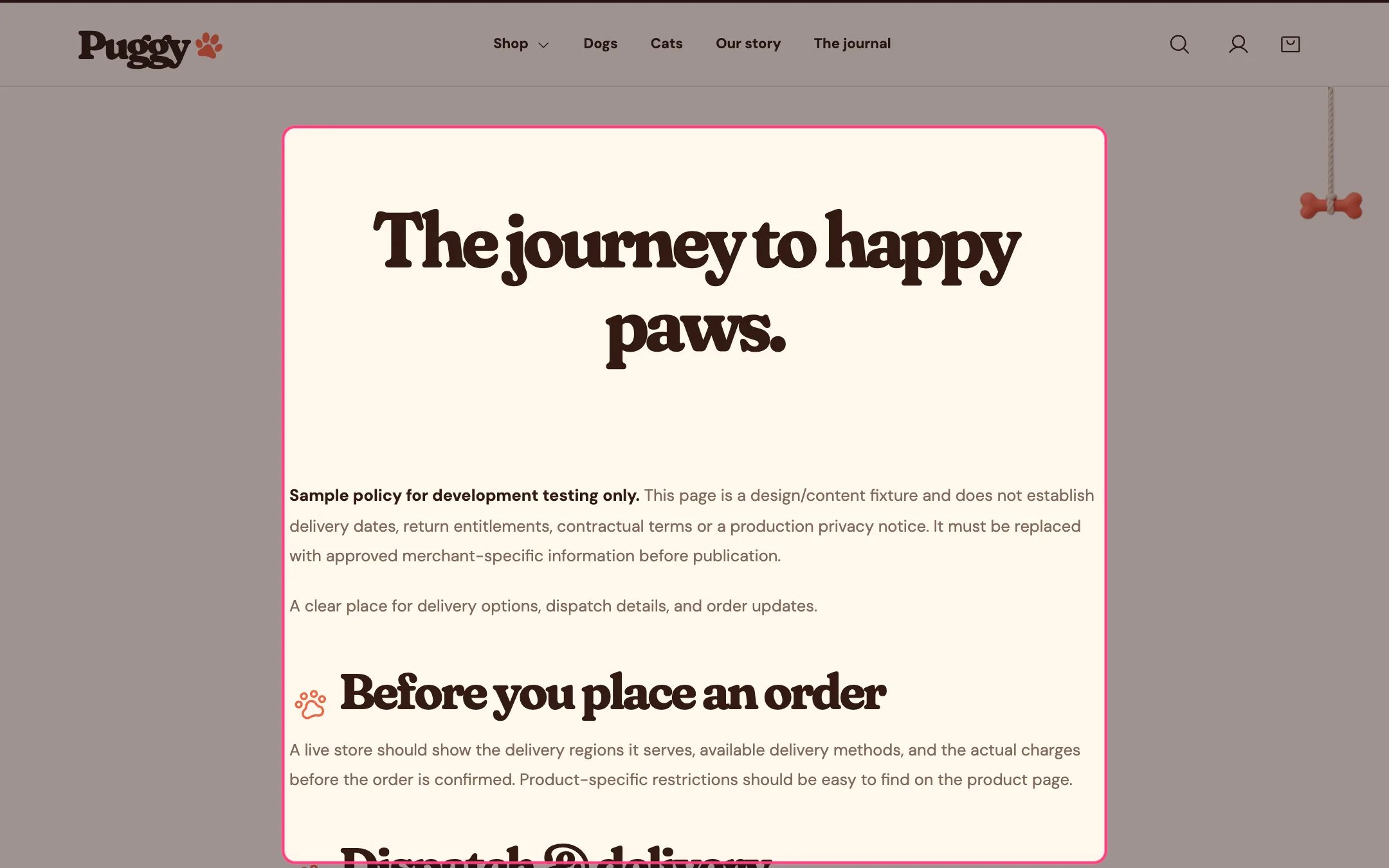
> Shows a page's title and content from Shopify admin in a narrow or wide reading layout, with paw-decorated headings and lists.
 ## Where to find it
Standard pages such as shipping or returns. Choose Pages > Default page in the top page selector, then select Page content. The FAQ template uses it too, above the questions.
## How it works
* The title and content come from Online Store > Pages.
* Paw formatting adds a small paw before headings, list items and quotes in the content.
* Narrow keeps lines comfortable to read; Wide uses more of the page.
* On the page chosen in Page using the story layout, and on any page using the About template, the content is replaced by the Our story section.
## Where to find it
Standard pages such as shipping or returns. Choose Pages > Default page in the top page selector, then select Page content. The FAQ template uses it too, above the questions.
## How it works
* The title and content come from Online Store > Pages.
* Paw formatting adds a small paw before headings, list items and quotes in the content.
* Narrow keeps lines comfortable to read; Wide uses more of the page.
* On the page chosen in Page using the story layout, and on any page using the About template, the content is replaced by the Our story section.
 ## Edit it
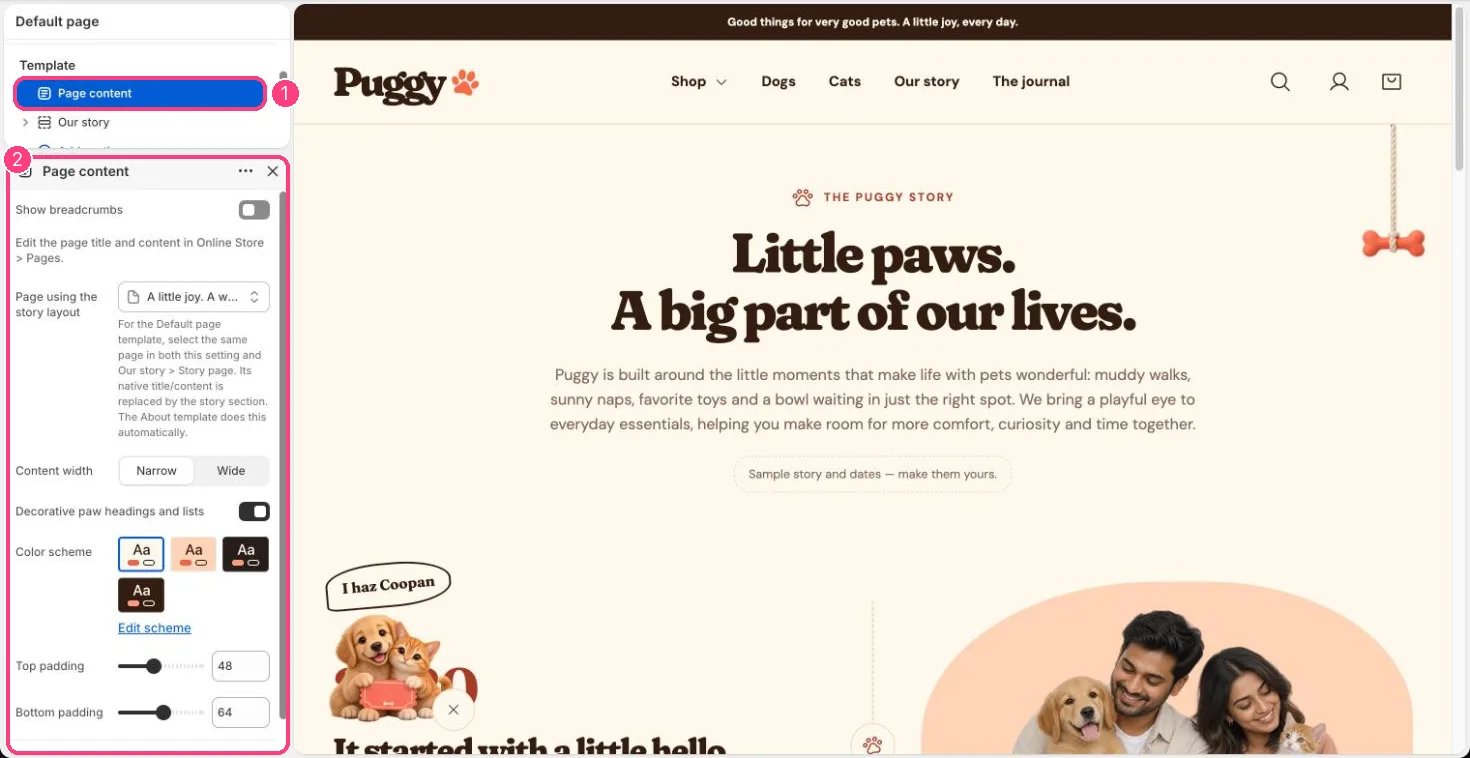
* Choose Content width and turn Decorative paw headings and lists on or off.
* Turn on Show breadcrumbs to show Home > page title above the content.
* Write real headings, lists and quotes in the page editor; the paws decorate those elements only.
* Page using the story layout: pick the page that should show Our story while it uses the Default page template, and pick the same page in Our story > Story page. Clear both to go back to normal page content.
## Settings
| Setting | What it does |
| - | - |
| **Show breadcrumbs** | On or off. Default: off. |
Edit the page title and content in Online Store > Pages.
| Setting | What it does |
| - | - |
| **Page using the story layout** | Choose a page. For the Default page template, select the same page in both this setting and Our story > Story page. Its native title/content is replaced by the story section. The About template does this automatically. |
| **Content width** | Options: Narrow, Wide. Default: Narrow. |
| **Decorative paw headings and lists** | On or off. Default: on. |
| **Color scheme** | Color scheme for this area (edit the schemes in Theme settings → Colors). Default: Scheme 1. |
| **Top padding** | Slider from 0 to 120, in steps of 4. Default: 48. |
| **Bottom padding** | Slider from 0 to 120, in steps of 4. Default: 64. |
This documentation is built and hosted on [Mintlify](https://mintlify.com), a developer documentation platform.
## Edit it
* Choose Content width and turn Decorative paw headings and lists on or off.
* Turn on Show breadcrumbs to show Home > page title above the content.
* Write real headings, lists and quotes in the page editor; the paws decorate those elements only.
* Page using the story layout: pick the page that should show Our story while it uses the Default page template, and pick the same page in Our story > Story page. Clear both to go back to normal page content.
## Settings
| Setting | What it does |
| - | - |
| **Show breadcrumbs** | On or off. Default: off. |
Edit the page title and content in Online Store > Pages.
| Setting | What it does |
| - | - |
| **Page using the story layout** | Choose a page. For the Default page template, select the same page in both this setting and Our story > Story page. Its native title/content is replaced by the story section. The About template does this automatically. |
| **Content width** | Options: Narrow, Wide. Default: Narrow. |
| **Decorative paw headings and lists** | On or off. Default: on. |
| **Color scheme** | Color scheme for this area (edit the schemes in Theme settings → Colors). Default: Scheme 1. |
| **Top padding** | Slider from 0 to 120, in steps of 4. Default: 48. |
| **Bottom padding** | Slider from 0 to 120, in steps of 4. Default: 64. |
This documentation is built and hosted on [Mintlify](https://mintlify.com), a developer documentation platform.