> ## Documentation Index
> Fetch the complete documentation index at: https://docs.kwebby.com/llms.txt
> Use this file to discover all available pages before exploring further.
# Quick order list
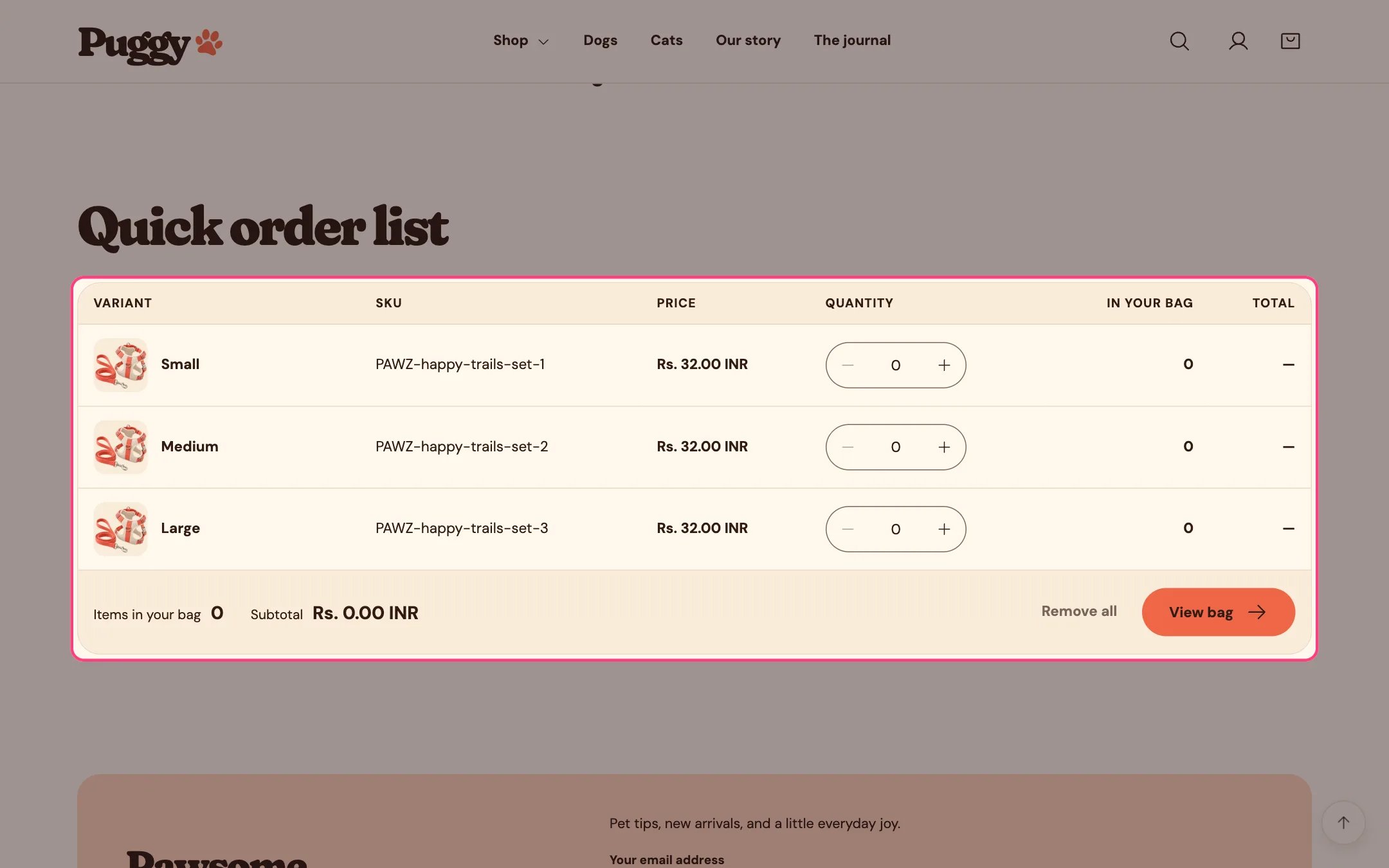
> A table of every variant of one product with quantity fields, so wholesale and bulk buyers can order many sizes or colors at once.
 ## Where to find it
Not on a default template. Choose Products > Default product (or an alternate product template) in the top page selector, then click Add section > Quick order list. It can also go on other pages once you choose a product. It can't be added to the header or footer.
## How it works
* Lists up to 50 variants per page, each with image, name, SKU, price, quantity stepper, how many are already in the bag and the line total.
* The bag updates a moment after a quantity changes; Enter saves right away. Update bag and Remove all buttons are also there.
* Respects B2B quantity rules (minimum, maximum and increments) and shows volume price breaks. An invalid amount gets a message on that row.
* Sold-out variants are listed but can't be changed.
* The footer shows the items and subtotal for this product, and View bag opens the cart drawer.
* Subscription-only products show a notice with a link to the product page instead.
* On tablets and phones, each variant becomes its own stacked card.
## Where to find it
Not on a default template. Choose Products > Default product (or an alternate product template) in the top page selector, then click Add section > Quick order list. It can also go on other pages once you choose a product. It can't be added to the header or footer.
## How it works
* Lists up to 50 variants per page, each with image, name, SKU, price, quantity stepper, how many are already in the bag and the line total.
* The bag updates a moment after a quantity changes; Enter saves right away. Update bag and Remove all buttons are also there.
* Respects B2B quantity rules (minimum, maximum and increments) and shows volume price breaks. An invalid amount gets a message on that row.
* Sold-out variants are listed but can't be changed.
* The footer shows the items and subtotal for this product, and View bag opens the cart drawer.
* Subscription-only products show a notice with a link to the product page instead.
* On tablets and phones, each variant becomes its own stacked card.
 ## Edit it
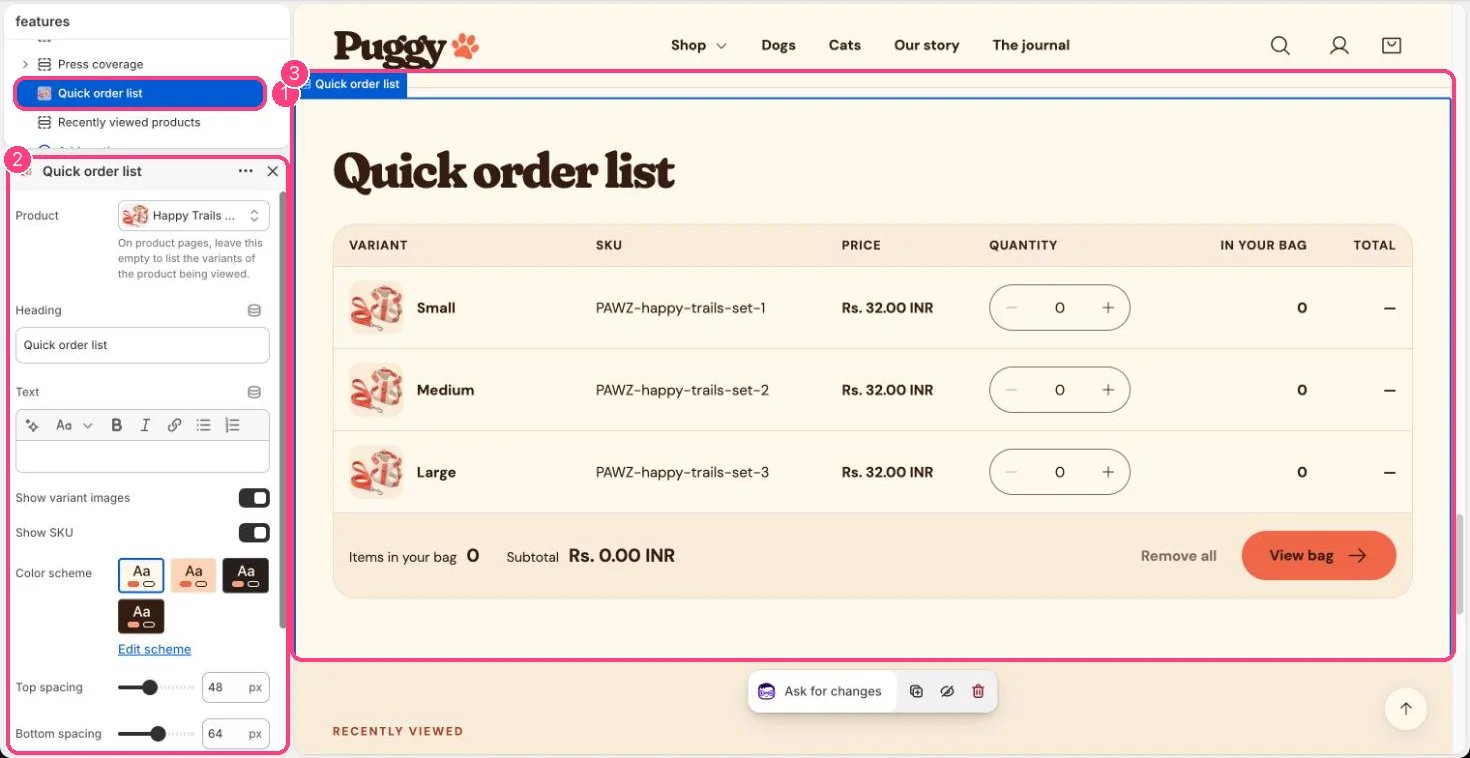
* On a product template, leave Product empty to list the variants of the product being viewed. On other pages, choose a Product.
* Edit Heading and Text.
* Turn Show variant images and Show SKU on or off.
## Settings
| Setting | What it does |
| - | - |
| **Product** | Choose a product. On product pages, leave this empty to list the variants of the product being viewed. |
| **Heading** | Text. Default: Stock up in one go. |
| **Text** | Formatted text. |
| **Show variant images** | On or off. Default: on. |
| **Show SKU** | On or off. Default: on. |
| **Color scheme** | Color scheme for this area (edit the schemes in Theme settings → Colors). Default: Scheme 1. |
| **Top spacing** | Slider from 0 to 120 px, in steps of 4. Default: 48 px. |
| **Bottom spacing** | Slider from 0 to 120 px, in steps of 4. Default: 64 px. |
Quantity rules and volume pricing come from B2B catalogs in Shopify admin, where your plan includes B2B. Without them, the list still works as a fast way to add several variants.
This documentation is built and hosted on [Mintlify](https://mintlify.com), a developer documentation platform.
## Edit it
* On a product template, leave Product empty to list the variants of the product being viewed. On other pages, choose a Product.
* Edit Heading and Text.
* Turn Show variant images and Show SKU on or off.
## Settings
| Setting | What it does |
| - | - |
| **Product** | Choose a product. On product pages, leave this empty to list the variants of the product being viewed. |
| **Heading** | Text. Default: Stock up in one go. |
| **Text** | Formatted text. |
| **Show variant images** | On or off. Default: on. |
| **Show SKU** | On or off. Default: on. |
| **Color scheme** | Color scheme for this area (edit the schemes in Theme settings → Colors). Default: Scheme 1. |
| **Top spacing** | Slider from 0 to 120 px, in steps of 4. Default: 48 px. |
| **Bottom spacing** | Slider from 0 to 120 px, in steps of 4. Default: 64 px. |
Quantity rules and volume pricing come from B2B catalogs in Shopify admin, where your plan includes B2B. Without them, the list still works as a fast way to add several variants.
This documentation is built and hosted on [Mintlify](https://mintlify.com), a developer documentation platform.