> ## Documentation Index
> Fetch the complete documentation index at: https://docs.kwebby.com/llms.txt
> Use this file to discover all available pages before exploring further.
# Search results
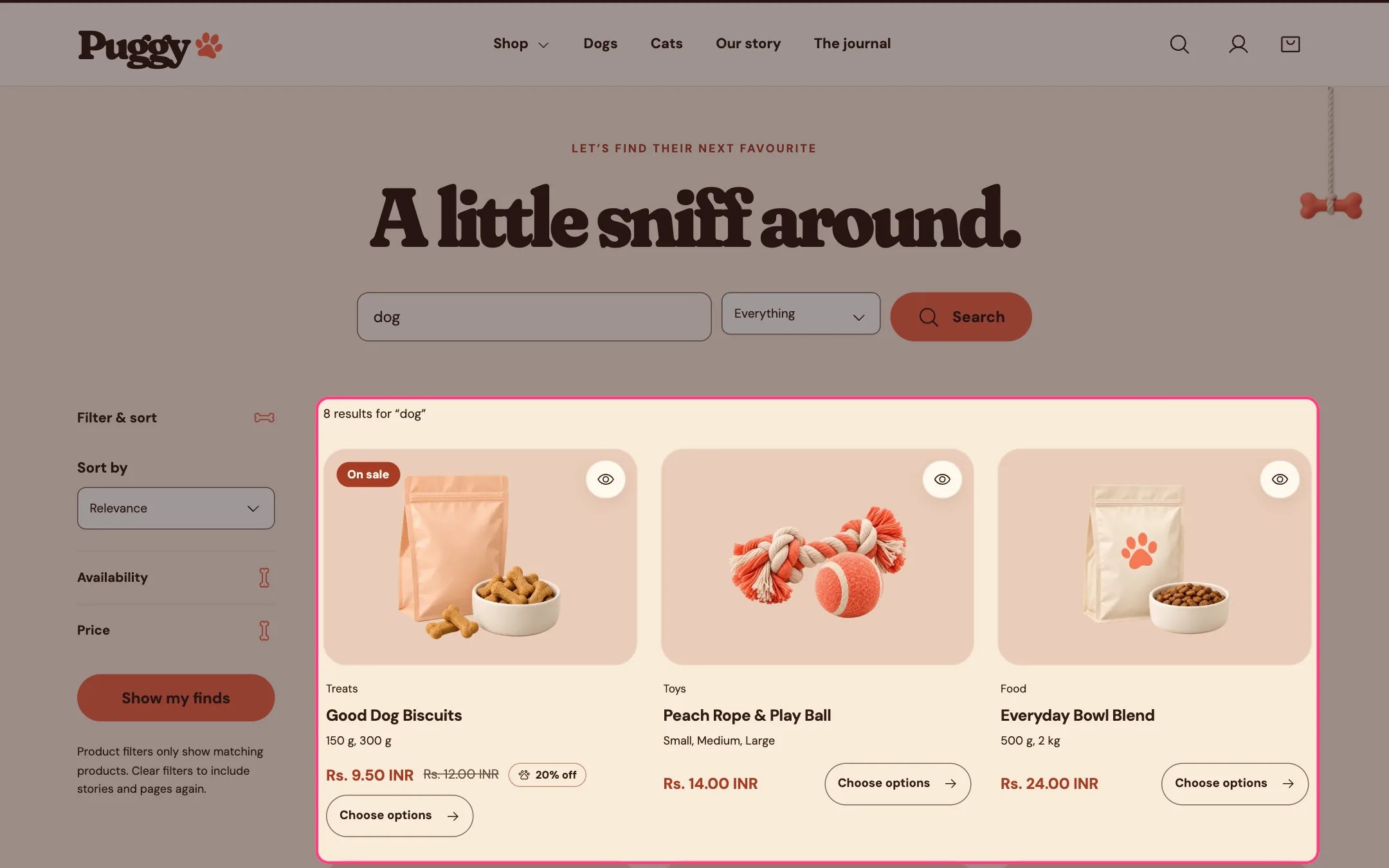
> The search page: a search box with a content type picker, product filters and sorting, and results for products, articles and pages.
 ## Where to find it
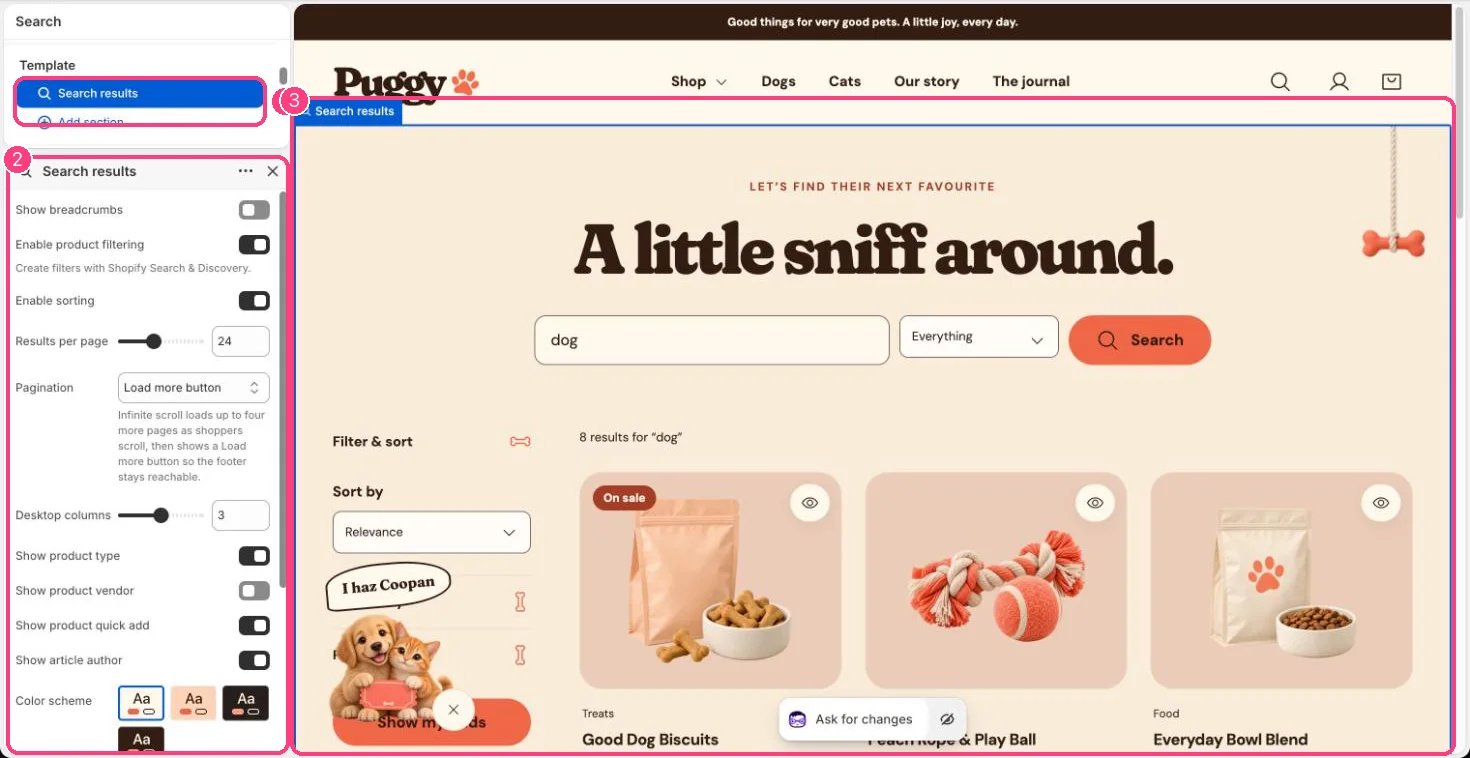
The search page. In the theme editor, choose Search in the top page selector, then select Search results.
## How it works
* Shoppers can search everything, or only Products, Stories (blog articles) or Pages.
* Products show as product cards, articles as story cards and pages as short text cards.
* Product filters and sorting work as on collection pages. While a filter is active only matching products show, and a hint explains how to bring stories and pages back.
* Pagination can be page numbers, Load more or infinite scroll (four automatic pages, then a button).
* No results shows a friendly message with a button to all products. Before a search, a short prompt invites shoppers to start.
* The header search shows instant suggestions while typing; pressing Enter there brings shoppers here.
## Where to find it
The search page. In the theme editor, choose Search in the top page selector, then select Search results.
## How it works
* Shoppers can search everything, or only Products, Stories (blog articles) or Pages.
* Products show as product cards, articles as story cards and pages as short text cards.
* Product filters and sorting work as on collection pages. While a filter is active only matching products show, and a hint explains how to bring stories and pages back.
* Pagination can be page numbers, Load more or infinite scroll (four automatic pages, then a button).
* No results shows a friendly message with a button to all products. Before a search, a short prompt invites shoppers to start.
* The header search shows instant suggestions while typing; pressing Enter there brings shoppers here.
 ## Edit it
* Set Results per page (8 to 48), Desktop columns (2 to 4) and Pagination.
* Turn Enable product filtering and Enable sorting on or off. Filters are created in the Shopify Search & Discovery app.
* Turn Show product type, Show product vendor, Show product quick add and Show article author on or off.
* Show breadcrumbs is off by default; turn it on if you want Home > Search above the results.
## Settings
| Setting | What it does |
| - | - |
| **Show breadcrumbs** | On or off. Default: off. |
| **Enable product filtering** | On or off. Create filters with Shopify Search & Discovery. Default: on. |
| **Enable sorting** | On or off. Default: on. |
| **Results per page** | Slider from 8 to 48, in steps of 4. Default: 24. |
| **Pagination** | Options: Page numbers, Load more button, Infinite scroll. Infinite scroll loads up to four more pages as shoppers scroll, then shows a Load more button so the footer stays reachable. Default: Load more button. |
| **Desktop columns** | Slider from 2 to 4. Default: 3. |
| **Show product type** | On or off. Default: on. |
| **Show product vendor** | On or off. Default: off. |
| **Show product quick add** | On or off. Default: on. |
| **Show article author** | On or off. Default: on. |
| **Color scheme** | Color scheme for this area (edit the schemes in Theme settings → Colors). Default: Scheme 1. |
| **Top padding** | Slider from 0 to 120, in steps of 4. Default: 48. |
| **Bottom padding** | Slider from 0 to 120, in steps of 4. Default: 80. |
This documentation is built and hosted on [Mintlify](https://mintlify.com), a developer documentation platform.
## Edit it
* Set Results per page (8 to 48), Desktop columns (2 to 4) and Pagination.
* Turn Enable product filtering and Enable sorting on or off. Filters are created in the Shopify Search & Discovery app.
* Turn Show product type, Show product vendor, Show product quick add and Show article author on or off.
* Show breadcrumbs is off by default; turn it on if you want Home > Search above the results.
## Settings
| Setting | What it does |
| - | - |
| **Show breadcrumbs** | On or off. Default: off. |
| **Enable product filtering** | On or off. Create filters with Shopify Search & Discovery. Default: on. |
| **Enable sorting** | On or off. Default: on. |
| **Results per page** | Slider from 8 to 48, in steps of 4. Default: 24. |
| **Pagination** | Options: Page numbers, Load more button, Infinite scroll. Infinite scroll loads up to four more pages as shoppers scroll, then shows a Load more button so the footer stays reachable. Default: Load more button. |
| **Desktop columns** | Slider from 2 to 4. Default: 3. |
| **Show product type** | On or off. Default: on. |
| **Show product vendor** | On or off. Default: off. |
| **Show product quick add** | On or off. Default: on. |
| **Show article author** | On or off. Default: on. |
| **Color scheme** | Color scheme for this area (edit the schemes in Theme settings → Colors). Default: Scheme 1. |
| **Top padding** | Slider from 0 to 120, in steps of 4. Default: 48. |
| **Bottom padding** | Slider from 0 to 120, in steps of 4. Default: 80. |
This documentation is built and hosted on [Mintlify](https://mintlify.com), a developer documentation platform.