> ## Documentation Index
> Fetch the complete documentation index at: https://docs.kwebby.com/llms.txt
> Use this file to discover all available pages before exploring further.
# Typography
> Heading and body fonts, and the overall size of headings.
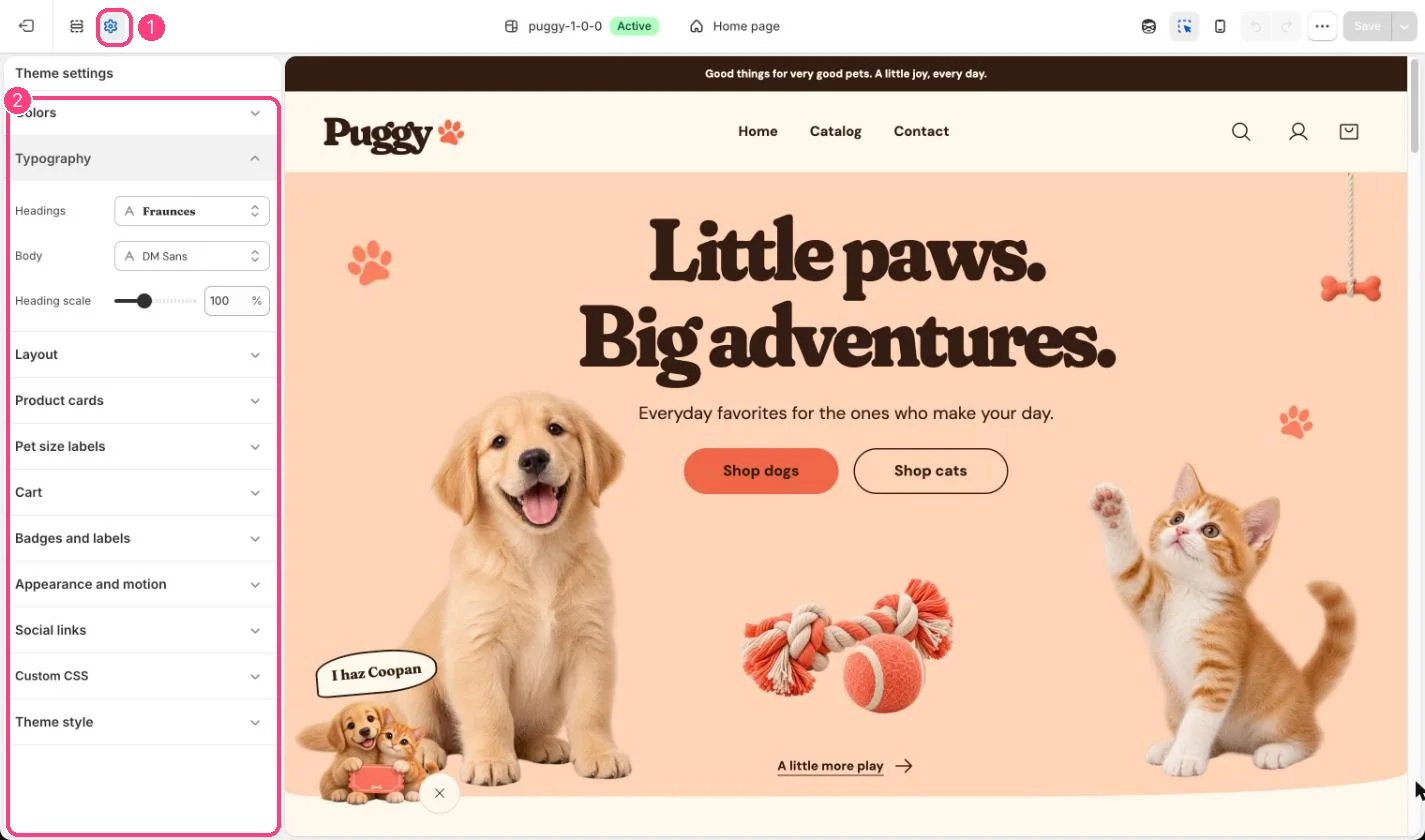
**Where:** in the theme editor, open **Theme settings** (the gear icon at the top of the left sidebar) and choose **Typography**.
 ## How it works
* Headings default to Fraunces ExtraBold and body text to DM Sans Regular, both from Shopify's font library.
* Bold and italic styles of each font load automatically.
* Heading scale (80 to 140 percent) grows or shrinks every heading together.
## Edit it
* Pick Headings and Body from the font picker.
* Adjust Heading scale, then check long product names and the hero heading on a phone.
## Settings
| Setting | What it does |
| - | - |
| **Headings** | Font from Shopify's font library. Default: fraunces\_n8. |
| **Body** | Font from Shopify's font library. Default: dm\_sans\_n4. |
| **Heading scale** | Slider from 80 to 140 %, in steps of 5. Default: 100 %. |
This documentation is built and hosted on [Mintlify](https://mintlify.com), a developer documentation platform.
## How it works
* Headings default to Fraunces ExtraBold and body text to DM Sans Regular, both from Shopify's font library.
* Bold and italic styles of each font load automatically.
* Heading scale (80 to 140 percent) grows or shrinks every heading together.
## Edit it
* Pick Headings and Body from the font picker.
* Adjust Heading scale, then check long product names and the hero heading on a phone.
## Settings
| Setting | What it does |
| - | - |
| **Headings** | Font from Shopify's font library. Default: fraunces\_n8. |
| **Body** | Font from Shopify's font library. Default: dm\_sans\_n4. |
| **Heading scale** | Slider from 80 to 140 %, in steps of 5. Default: 100 %. |
This documentation is built and hosted on [Mintlify](https://mintlify.com), a developer documentation platform.