
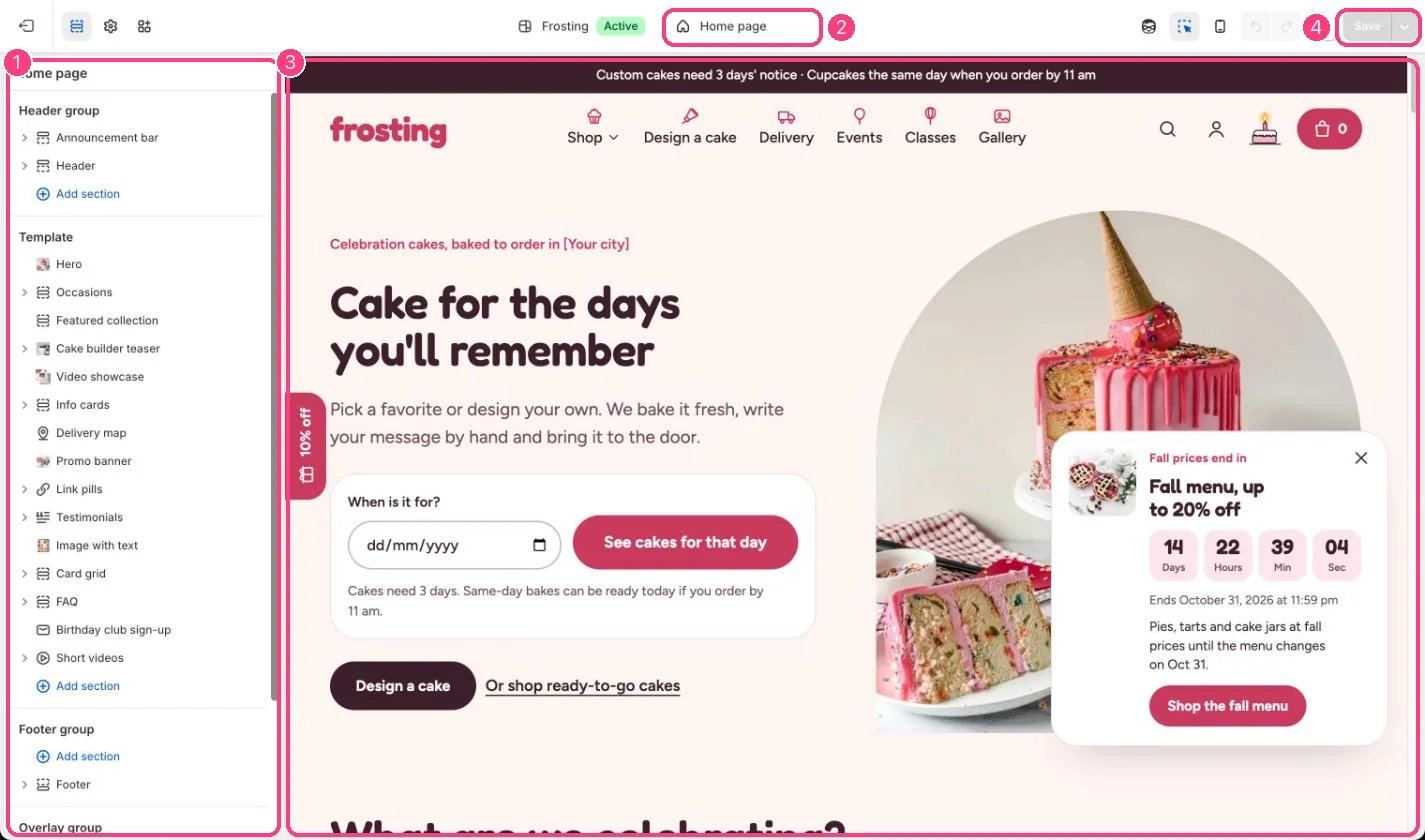
The theme editor: page selector, sidebar, preview and settings
Open the theme editor
Go to Online Store → Themes and click Customize next to Frosting.The parts of the editor
- Page selector (top of the screen): choose which page you are editing, such as Home page, Products, Collections, Pages or Cart. Each page type has its own template.
- Sidebar (left): the sections on that page, in order, with the Header group at the top and the Footer group at the bottom. The Overlay group holds the pop-ups: Local business, Sign-up popup and Sale timer.
- Preview (middle): your store as customers see it. Click anything in the preview to jump to its settings.
- Settings panel (right): the settings of whatever you selected.
Sections and blocks
- Add a section: click Add section in the sidebar where you want it, and pick one from the list.
- Add a block: some sections hold repeatable items, called blocks, such as slides, questions or delivery areas. Expand the section and click Add block.
- Reorder: drag the handle beside a section or block.
- Hide or remove: click the eye icon to hide it without losing its settings, or open it and click Remove section / Remove block.
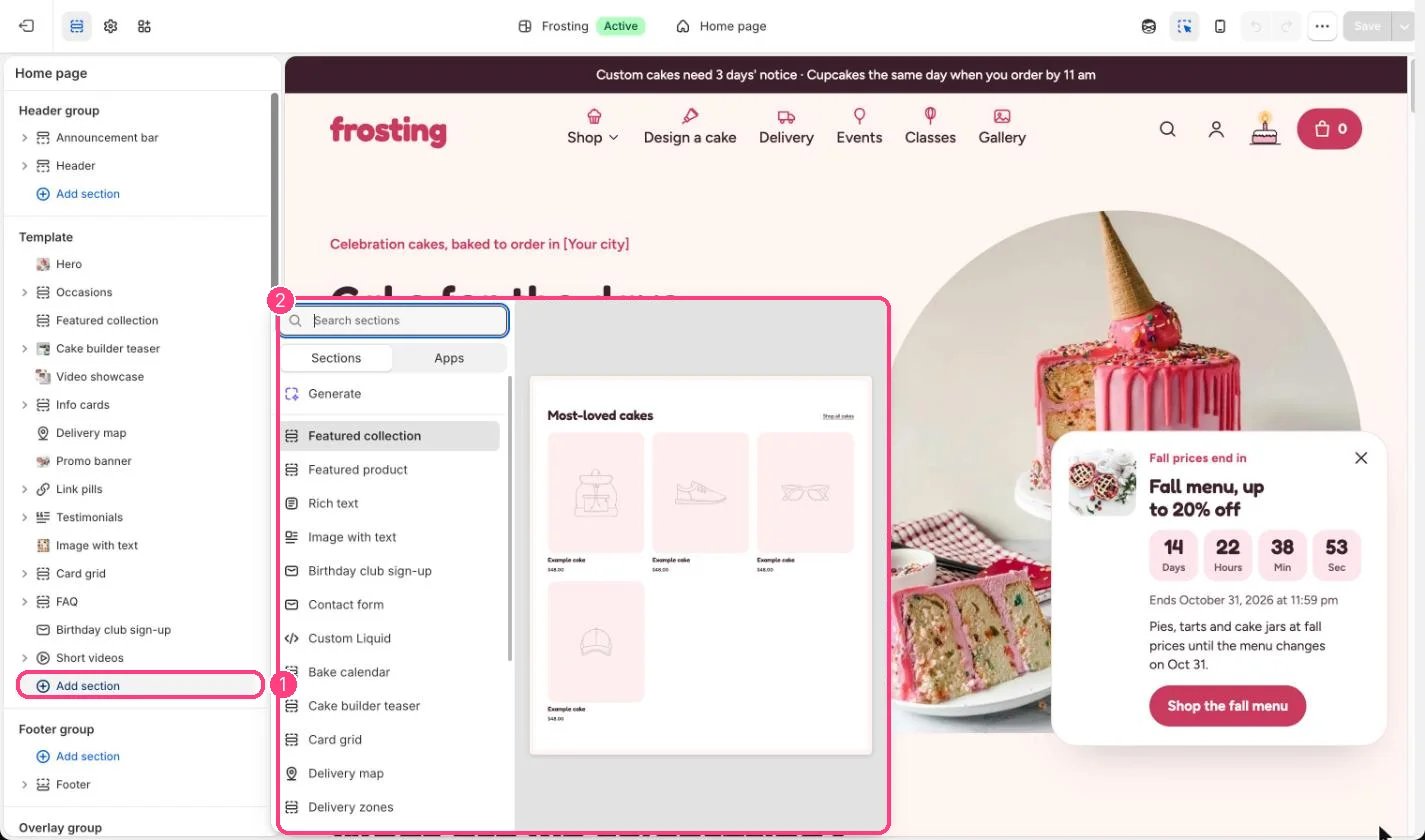
Add section opens the list of sections you can add
Theme settings
Click the gear icon (Theme settings) at the top of the left sidebar to change things that apply everywhere: colors (including the dark mode scheme), typography, layout (page width, favicon, logo text), dark mode, delivery and pickup, cart, product cards, search and social media.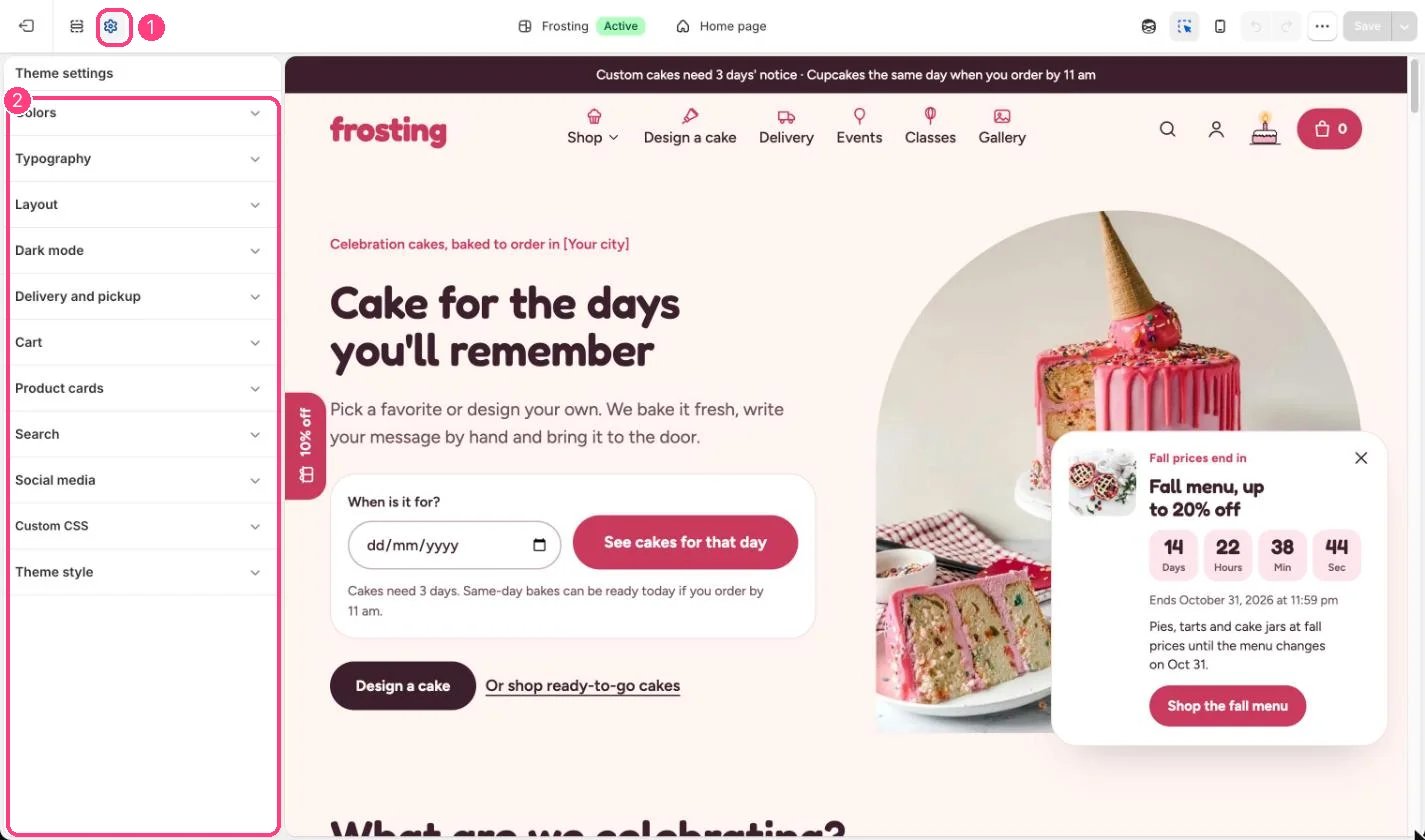
Theme settings: settings that apply to the whole store