
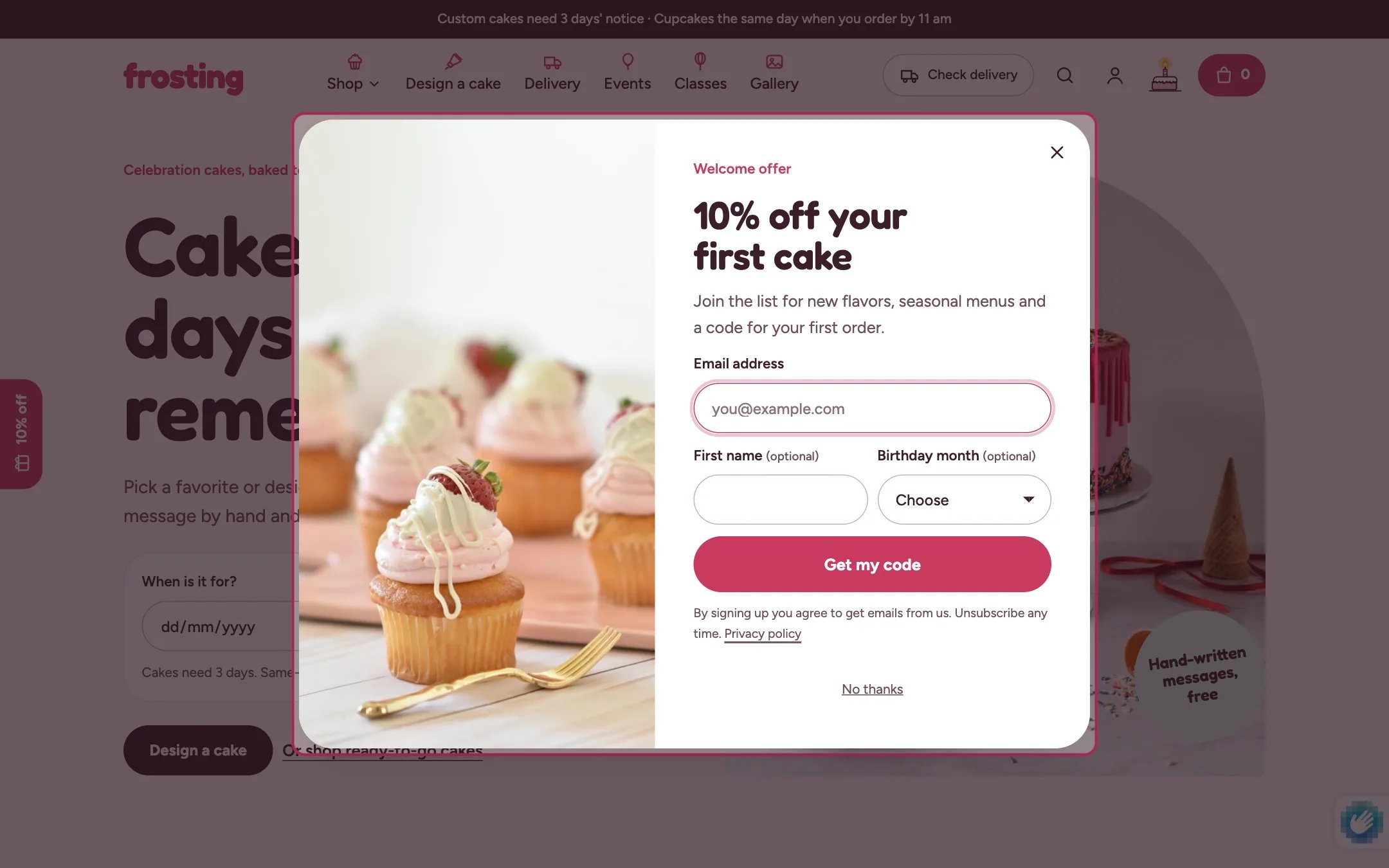
The sign-up popup

The sign-up popup

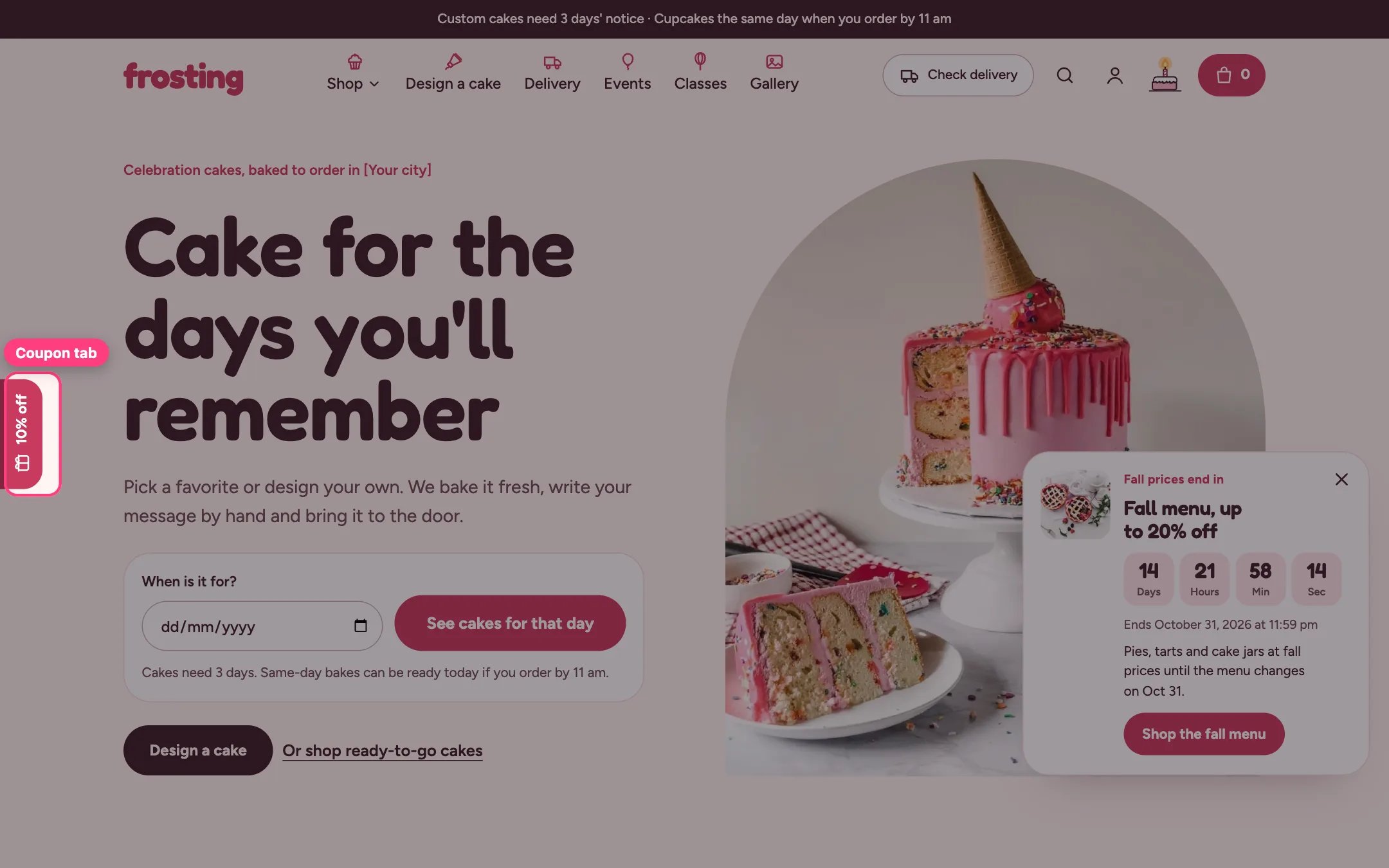
The coupon tab

The coupon tab on the left edge reopens the popup
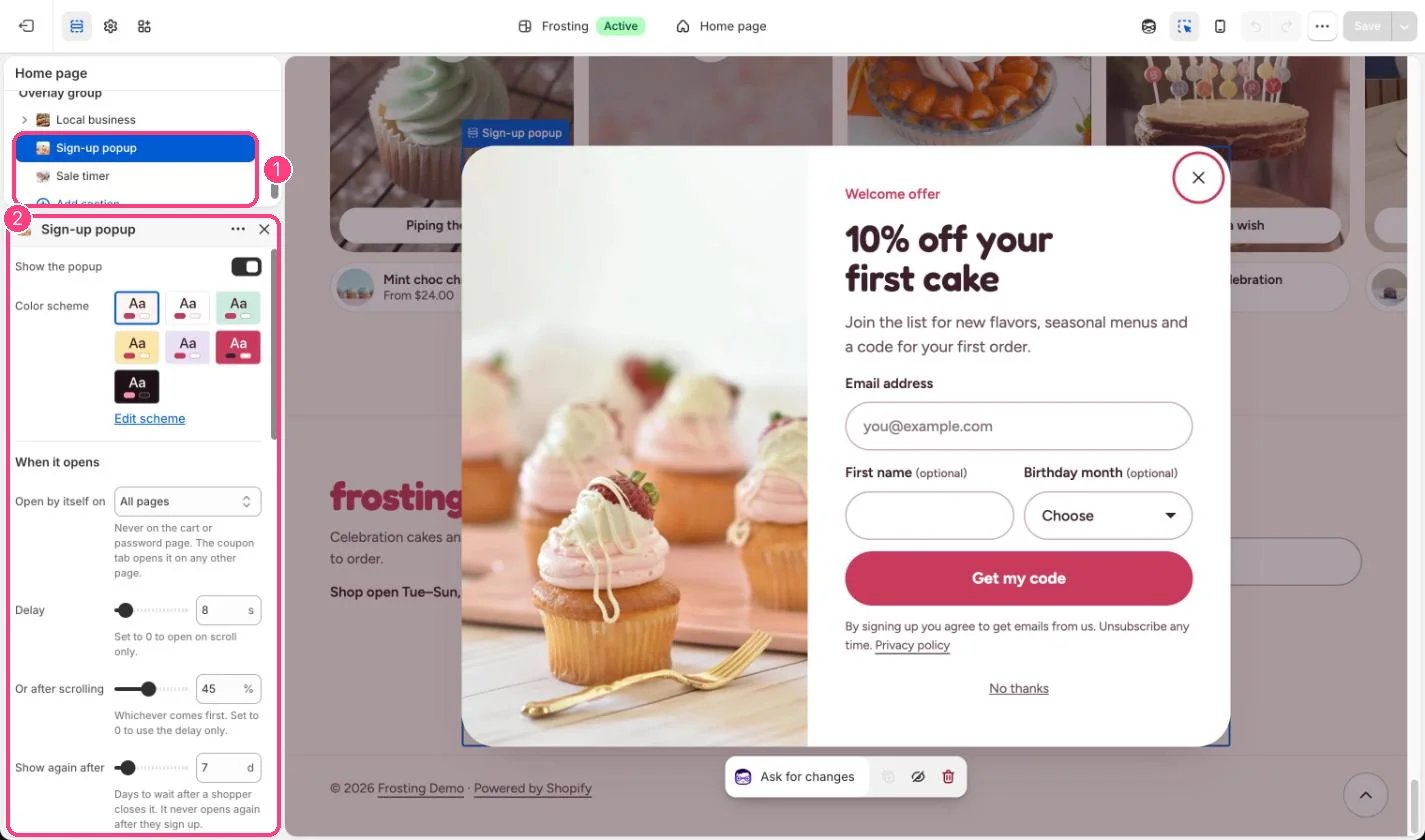
Sign-up popup settings

1 Sign-up popup in the Overlay group · 2 its settings · 3 the popup

1. Create the discount. In Shopify admin, Discounts, create the welcome offer, for example 10 percent off a first order over $40, with one use per customer. 2. Set up the popup. In the theme editor, select Sign-up popup under Overlay group. Type the same code in Discount code, then write the eyebrow, heading, text and terms. Add an image or leave it out for a text-only popup. 3. Decide when it opens. Open by itself on sets all pages or the home page only. It opens after Delay or Or after scrolling, whichever comes first. Show again after sets how many days it stays away once closed. It never opens by itself again after a sign-up, never on the cart or password page, and never over another window or while someone is typing. 4. What shoppers get. After signing up the popup shows the code with a Copy button and Shop with the code applied, which applies the discount and opens your products. The coupon tab on the left edge then reads Your code. Without a code the popup is a plain sign-up. 5. The coupon tab. The tab opens the popup from any page. It tucks away while shoppers scroll down, near the footer, and over the first screen on narrow screens. Untick Show coupon tab on the left edge to hide it. Where sign-ups go. Every sign-up form saves the shopper as a customer with email marketing, tagged so you know where they came from:
  • Sign-up popup: newsletter and popup, plus a month tag such as birthday-march when Ask for birthday month is on
  • Footer Email sign-up: newsletter and footer
  • Birthday club sign-up section and account hub: birthday-club and a month tag
  • Password page: newsletter and prelaunch
Use these tags in Shopify Email or Shopify Flow, for example to send a treat code in each customer’s birthday month.