
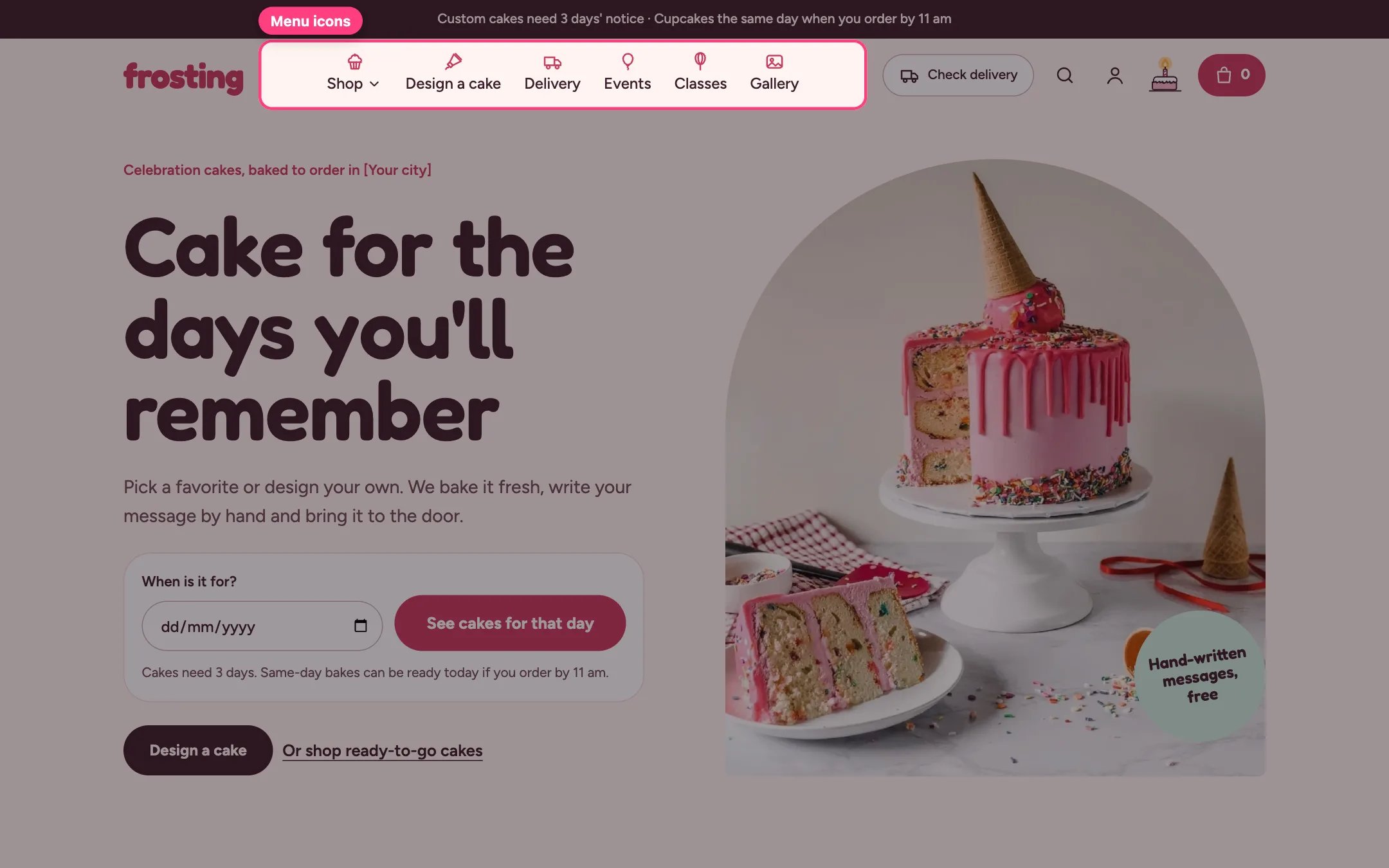
Menu icons in the header

Icons above each menu item
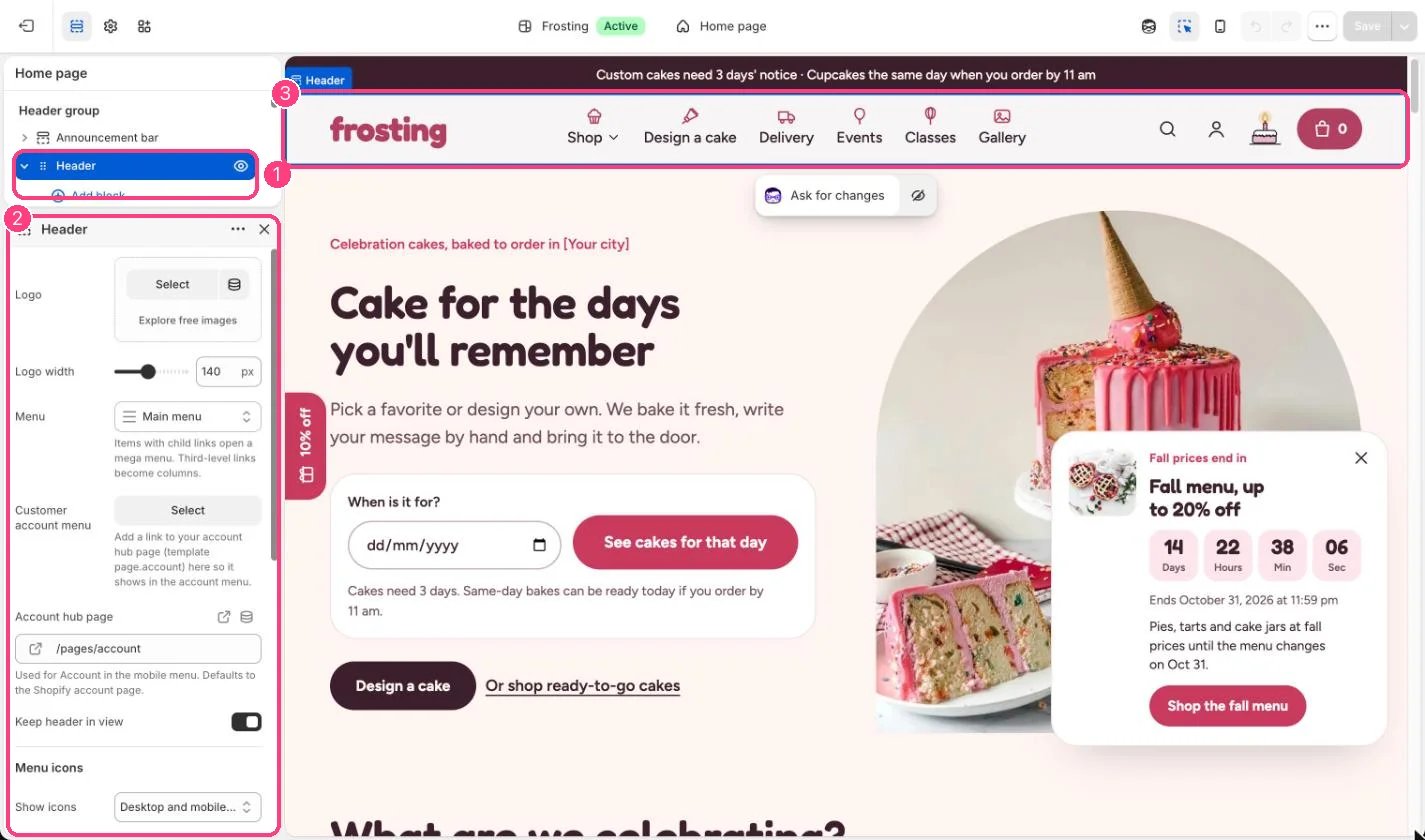
Header settings

1 the Header section · 2 its settings, including Menu icons

Frosting can show a small icon with each top-level menu item: above the label on desktop, so the menu needs no extra width, and as an icon tile in the mobile menu. Turn them on. In the theme editor select Header. Under Menu icons, set Show icons to Off, Mobile menu only, or Desktop and mobile menus. Automatic icons. With Choose icons from item titles ticked, each title is matched against these words, and the first match wins:
  • Home: home
  • Design, Build, Custom, Create: piping bag
  • Delivery, Pickup, Shipping: delivery van
  • Class, Workshop, Course, Lesson: whisk
  • Event, Wedding, Party, Celebrate, Catering: balloon
  • Gallery, Photo, Lookbook, Inspiration, Portfolio: photo
  • Contact, Support: speech bubble
  • FAQ, Help, Question, Allergen: information
  • About, Story, Team: heart
  • Blog, Journal, News, Recipe: book
  • Gift: gift
  • Visit, Location, Find us: map pin
  • Cupcake, Cake, Shop, Catalog, Product, Collection, Order, Bake: cupcake
  • Account: person
Because the order matters, Design a cake gets the piping bag, Cake delivery gets the delivery van and Wedding cakes gets the balloon. Choose an icon yourself. Add a Menu icon block, type the top-level item’s title exactly as it is spelled in Online Store, Navigation, and pick one of 19 icons or No icon. A block always wins over the automatic match. Good to know. Only top-level items get icons; links inside dropdowns do not. If the menu gets too long for the screen, the header moves it into the menu drawer instead of wrapping onto a second line.