
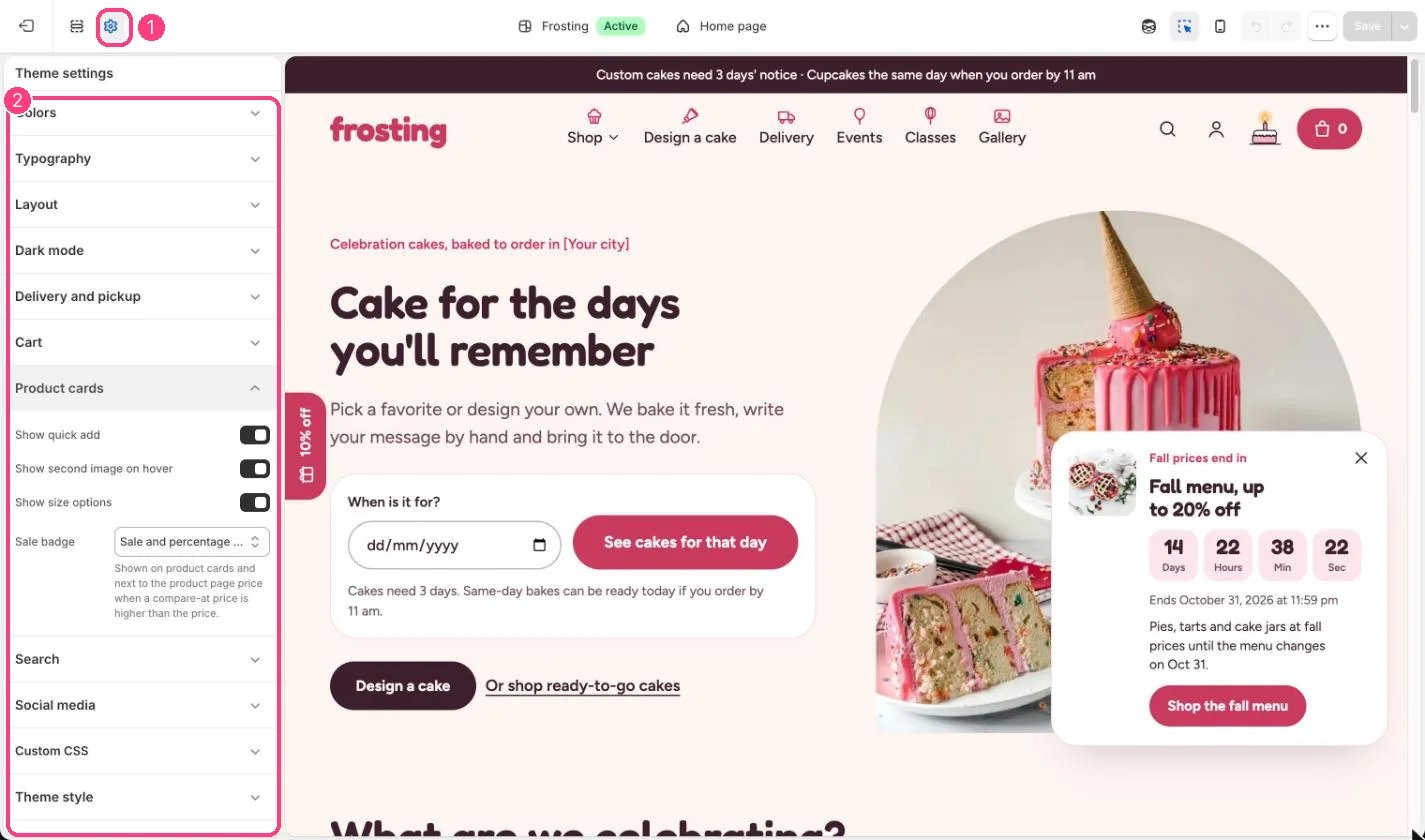
1 Theme settings (the gear icon) · 2 Product cards, opened in the sidebar
How it works
- Show quick add puts a plus button on the photo that adds the first available size.
- Show second image on hover swaps to the product’s second photo on desktop.
- Show size options lists up to 4 values of the first option, such as 6 in, 8 in.
- Sale badge shows when a compare-at price is higher than the price: Sale and percentage off, Percentage off, Amount saved, Sale, or None. When sizes are discounted differently, cards say Up to 20% off or Save up to.
- The sale badge also shows next to the price on the product page.
Edit it
- Turn off quick add if most products need a message or size choice first.
- Give every product a second photo, such as a slice, to use the hover image.