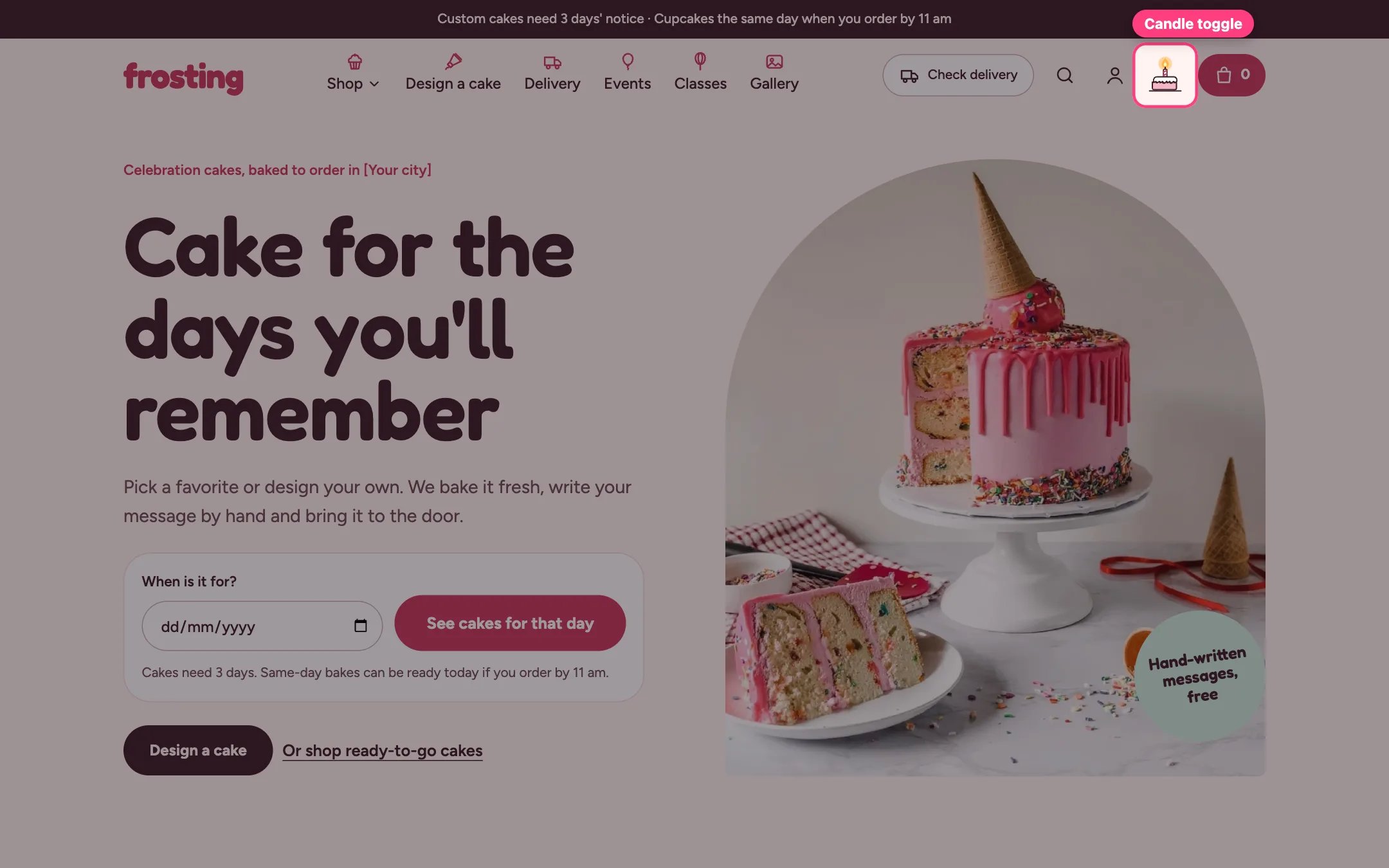
The candle toggle in the header

The candle in the header switches dark mode
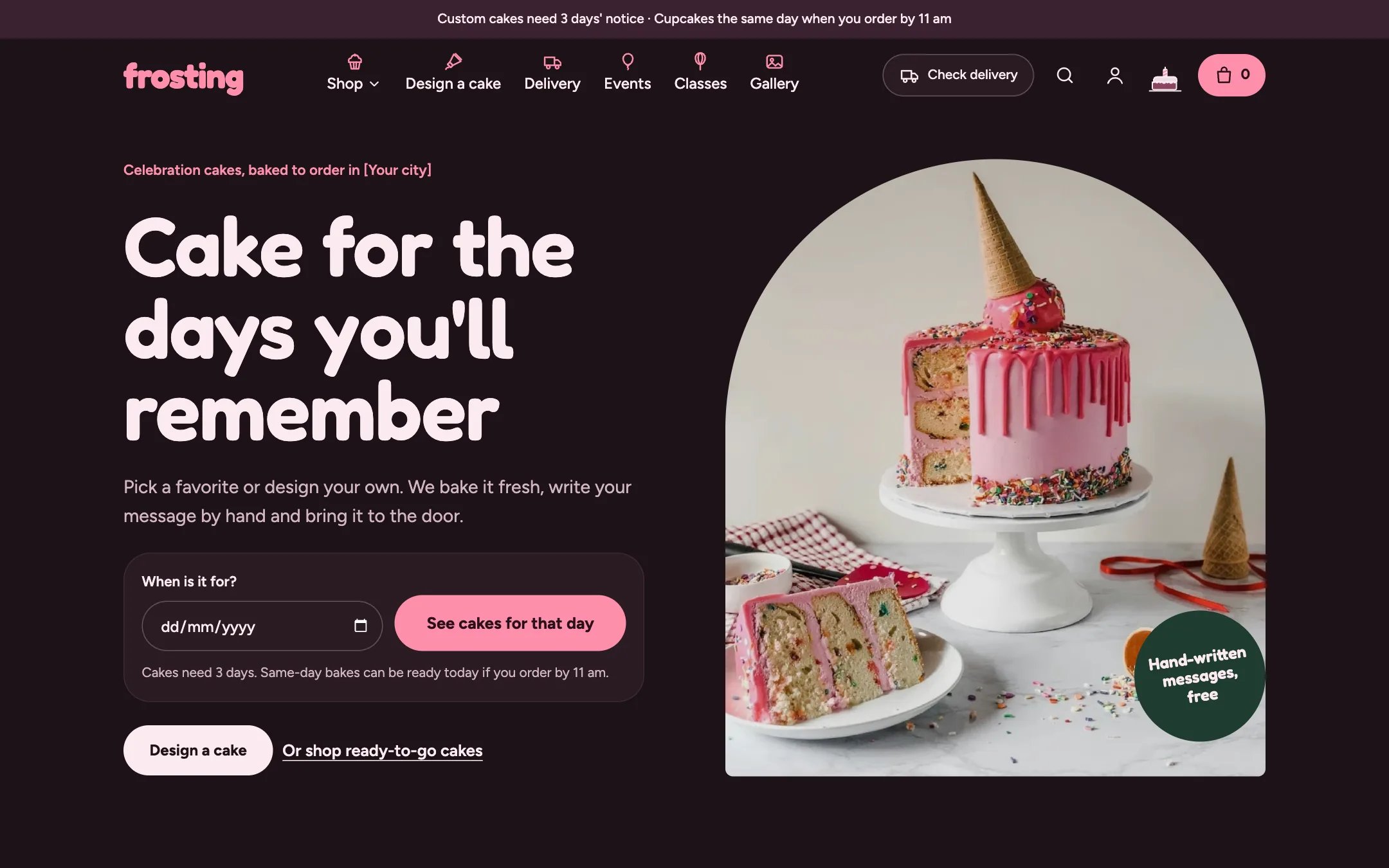
The home page in dark mode

The same page in dark mode

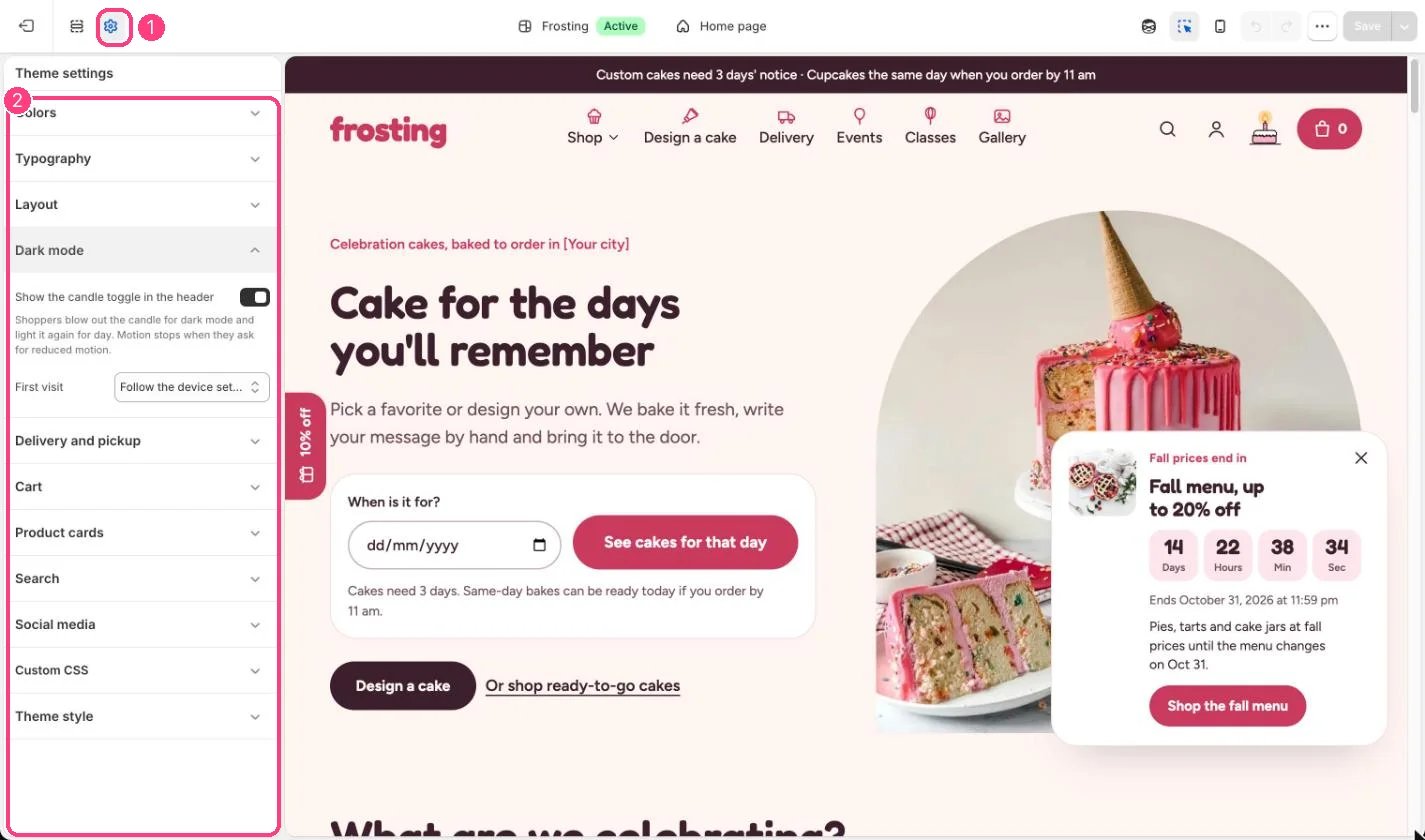
Dark mode settings

1 Theme settings · 2 Dark mode

Frosting has a full dark mode. Shoppers switch it with the candle on the little cake in the header: blowing it out turns the store dark, and lighting it again brings back the day look. The flame flickers in light mode and puffs out a wisp of smoke when blown out. What shoppers see.
  • The new look spreads out in a circle from the candle, in browsers that support it.
  • The choice is remembered on their device.
  • Shoppers who ask their device for reduced motion get an instant switch with no animation.
  • Photos are dimmed slightly at night so they do not glare.
Choose the first-visit look. In Theme settings, Dark mode, set First visit to Light, Dark, or Follow the device setting. With Follow the device setting the store matches the shopper’s phone or computer, and keeps following it until they use the candle. Color the night. In Theme settings, Colors, the Dark mode scheme (the night scheme by default) colors the whole page at night. You do not need to make a dark version of every scheme: each one gets a deep shade of its own color automatically, so mint sections stay recognizably mint at night and strong bands use the night accent. Hide the switch. Untick Show the candle toggle in the header. Shoppers then always see the First visit appearance. Good to know. Background gradients are not used in dark mode. The cake drawing in the cake builder keeps its real cake colors in both modes.