
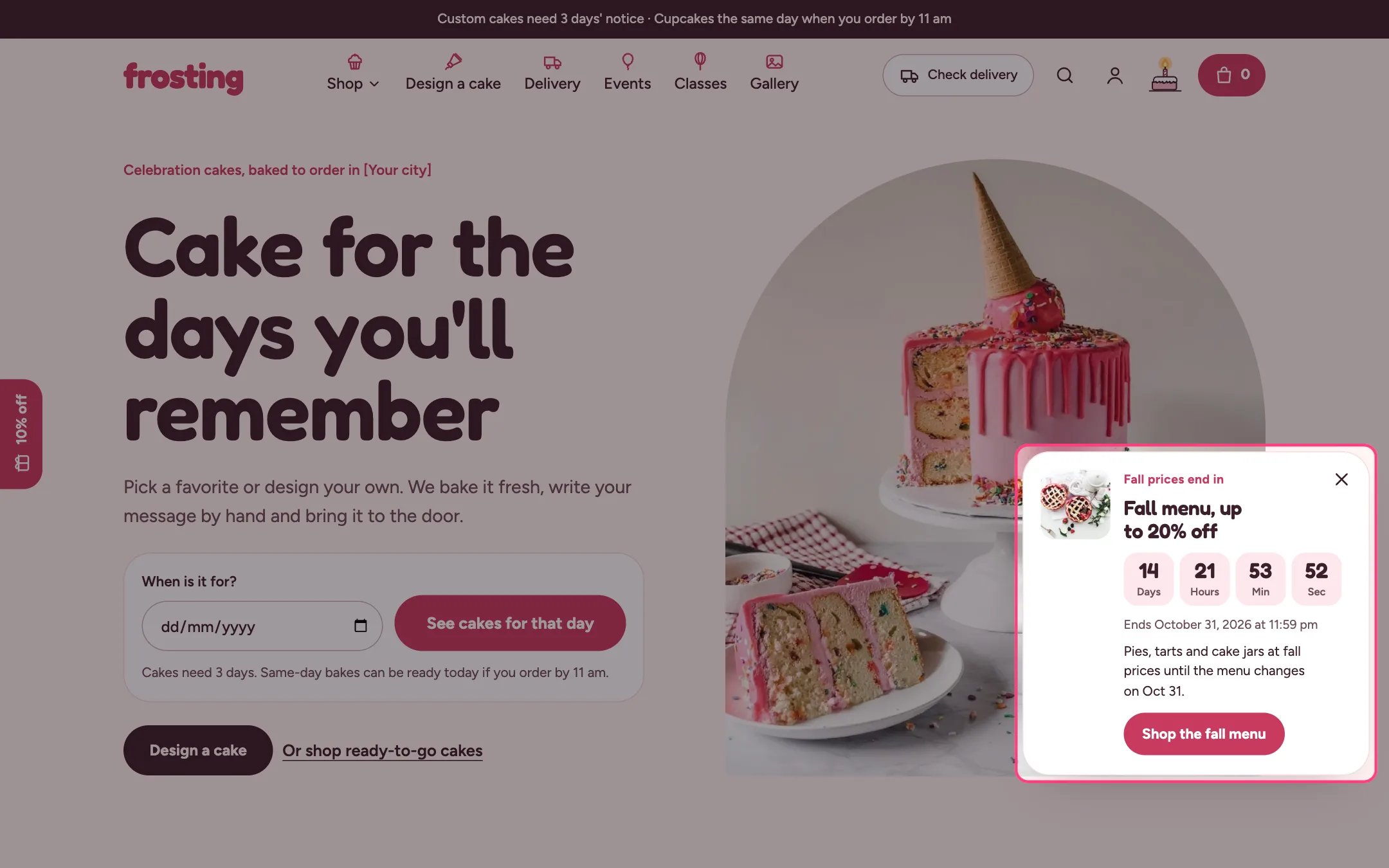
Sale timer, highlighted on the demo store
Where to find it
Every page, all shop pages or the home page only, in the Overlay group. In the theme editor select Sale timer under Overlay group; selecting it opens the card for preview. It is off by default.How it works
- Counts down to the end date and time you set, in your store’s time zone. It shows only between the start and end dates.
- It never restarts and is never reset per visitor, so it is honest urgency.
- The card slides in after the delay, and waits while another window is open or the shopper is typing.
- Closing the card leaves a small tab on the right edge that keeps counting; the choice lasts for the browsing session.
- When the time runs out the whole timer removes itself.
- The optional code has a Copy button.
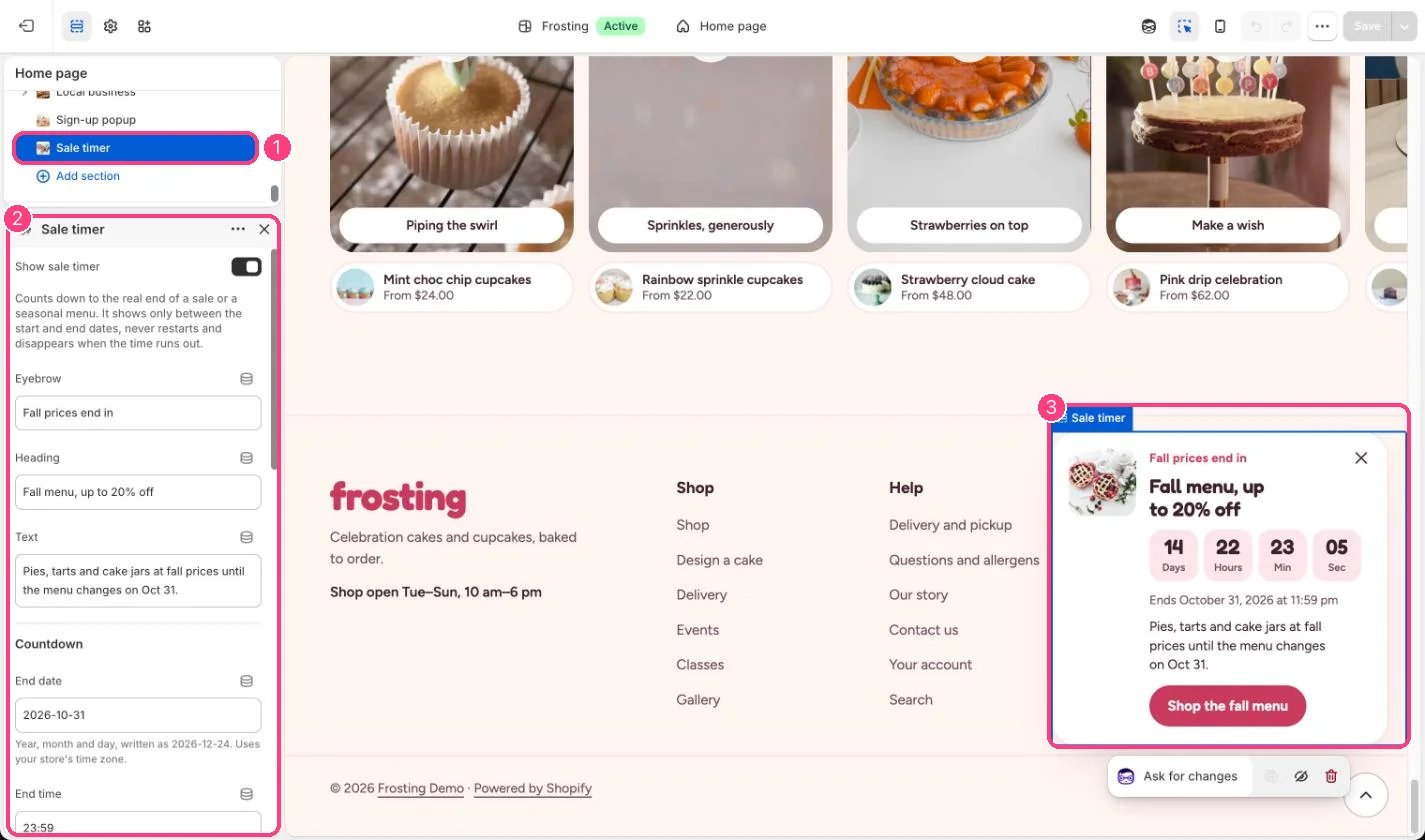
In the theme editor: 1 the section in the sidebar · 2 its settings · 3 the section in the preview
Edit it
- Tick Show sale timer.
- Type End date as 2026-12-24 and End time on the 24-hour clock, such as 18:00. Add a Start date if the sale starts later.
- Create the discount in Shopify admin with the same end date, then add its code.
- Link the button to the sale collection and add a small image.
- Choose Show on: All pages, Home, collection, product and search pages, or Home page only, and set Slide in after (0 to 30 s).
Settings
Countdown
Offer
Display
The timer only counts down. Prices change only through your compare-at prices or discounts.