
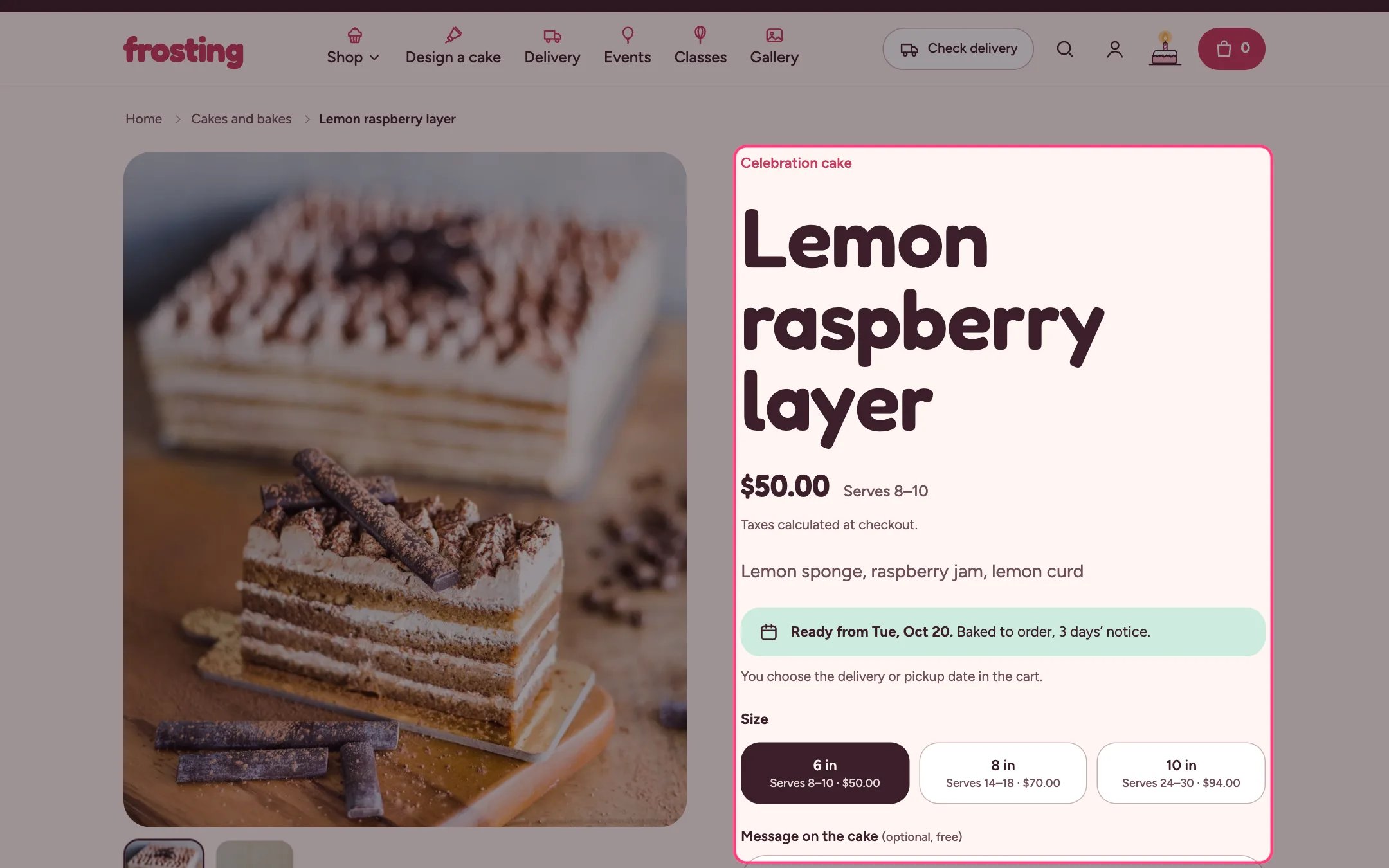
Product information, highlighted on the demo store
Where to find it
Every product that uses the default product template. In the theme editor choose Products, then Default product, and select Product information.How it works
- The gallery supports thumbnails, a zoom view, videos and 3D models, and swipes on phones.
- Price shows the struck compare-at price and the sale tags from Theme settings, Product cards, Sale badge, plus servings for the chosen size.
- Lead time shows the first day the product can be ready, from the product metafield custom.lead_days or the delivery settings. Same-day bakes say Ready today if you order by your cut-off.
- Variant picker shows the option named in Option shown as tiles with servings (default Size) as tiles with servings and price; other options show as pills or color swatches.
- Cake message adds a text field (limit 10 to 100 characters) whose answer appears in the cart and on the order. Up to 2 message blocks.
- Extras lets shoppers tick add-ons such as candles; they go in the cart with the cake and stay grouped under it, and the button total includes them.
- Collapsible rows show your text, the product description or the content of a page.
- On phones a sticky add to cart bar appears once the main button scrolls out of view.
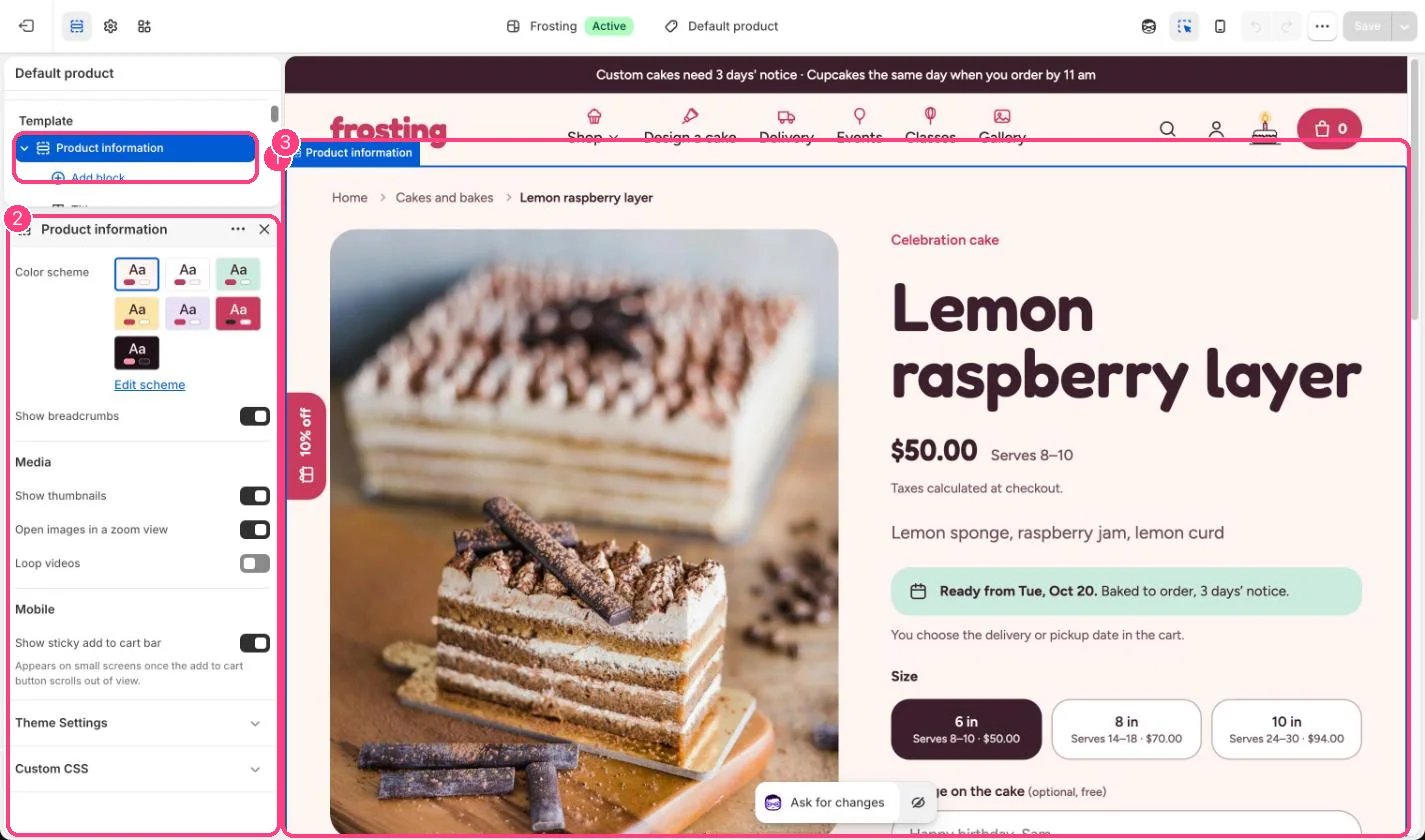
In the theme editor: 1 the section in the sidebar · 2 its settings · 3 the section in the preview
Edit it
- Reorder blocks by dragging. Keep Quantity directly above Buy buttons to show them side by side.
- Use the tag setting on Cake message and Extras to show them only on products with that tag.
- Choose Short in the Description block to show the custom.short_description metafield, or the start of the description.
- Add a Button block to link to the cake builder, for example Change the colors or toppings.
- Use Collapsible rows with a page for content shared by many products, such as allergens or cake care.
- Add app blocks for reviews or other apps from Add block, Apps.
Settings
Media
Mobile
Blocks
Add a block with Add block under the section in the sidebar; drag blocks to reorder them.App blocks
Blocks from apps you have installed, such as reviews or subscriptions. Click Add block and choose one from the Apps tab; its settings come from the app.Title (up to 1)
Price (up to 1)
Lead time (up to 1)
Text
Description
Variant picker (up to 1)
Purchase options (up to 1)
Quantity (up to 1)
Cake message (up to 2)
Extras (up to 1)
Buy buttons (up to 1)
Pickup availability (up to 1)
Button
Collapsible row
Custom Liquid
Share (up to 1)
Dynamic checkout buttons go straight to checkout, so no delivery date is collected for those orders. Turn them off in Buy buttons if every order needs a date.