
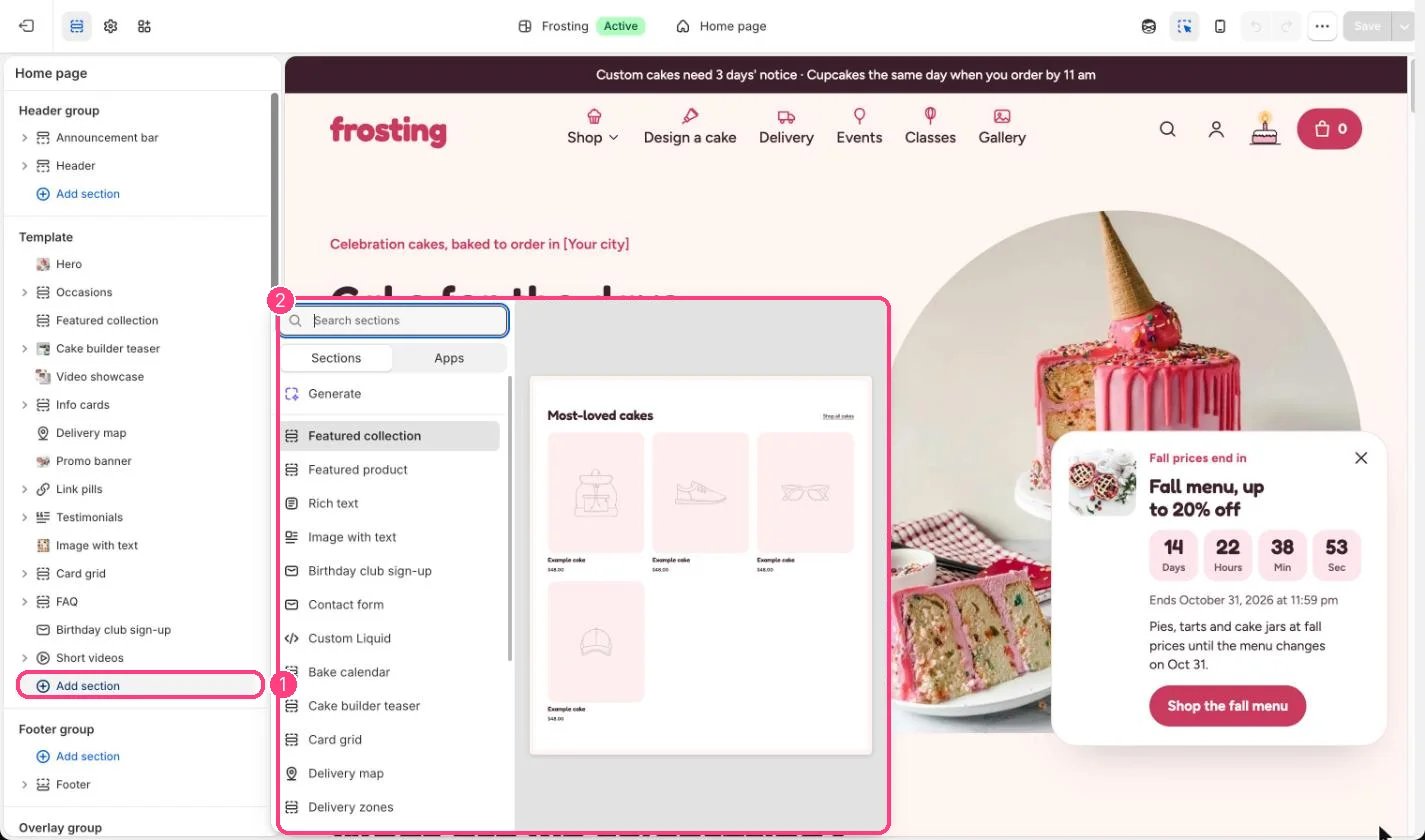
Not on the demo pages: add it with 1 Add section, then pick it in 2 the list
Where to find it
Not on any default template. Add it to the home page or any other page with Add section, Featured product. It cannot go in the header or footer.How it works
- Blocks: Title, Price, Lead time, Text, Variant picker, Purchase options, Quantity, Buy buttons and app blocks.
- Price shows servings and sale tags like the product page; the variant picker can show sizes as tiles with servings.
- Show link to the product page adds a link to the full details.
Edit it
- Pick the product, for example a seasonal special.
- Set Option shown as tiles with servings to your size option, usually Size.
- Reorder or remove blocks, and add app blocks from Add block, Apps.