
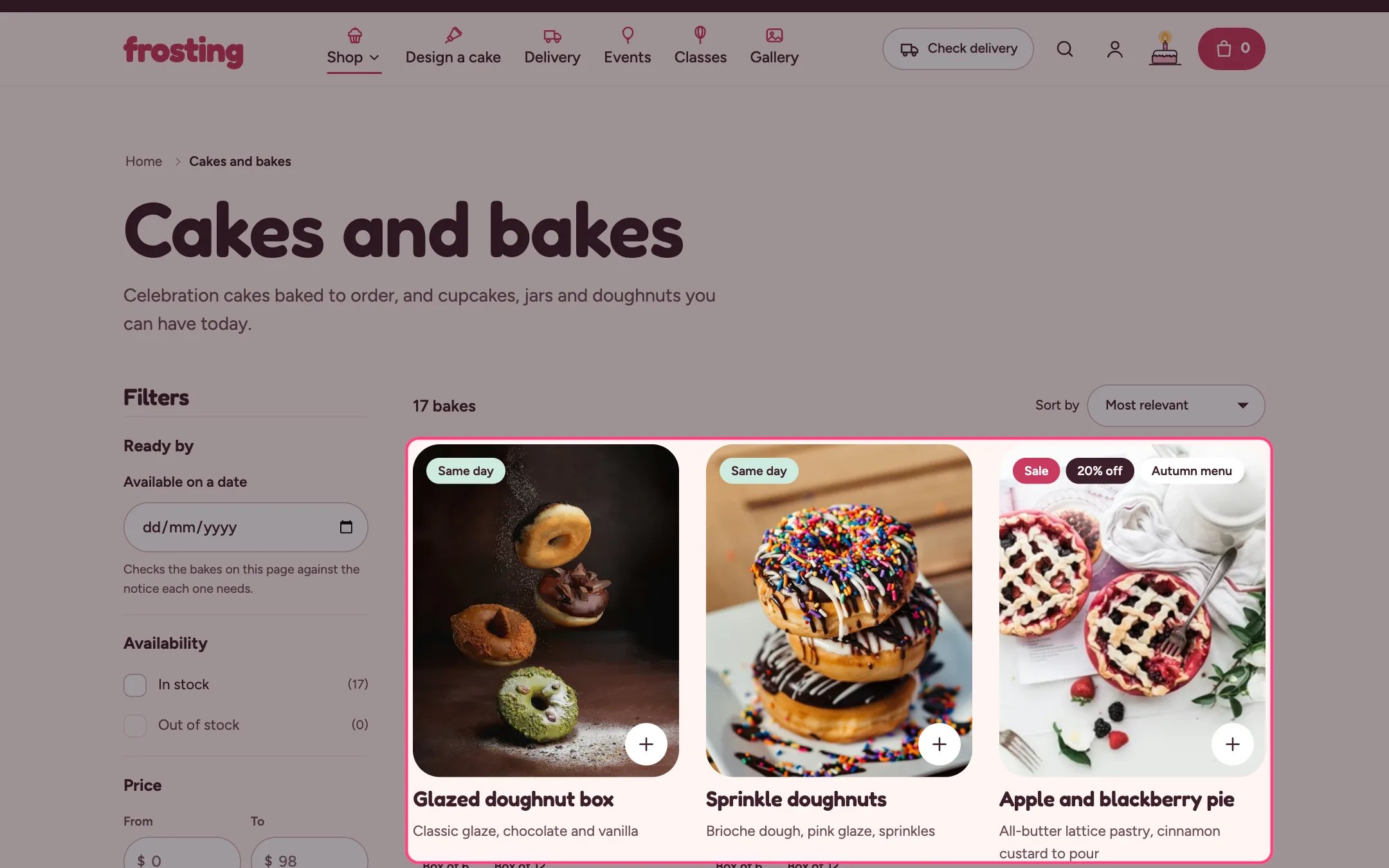
Collection, highlighted on the demo store
Where to find it
Every collection page. In the theme editor choose Collections, then Default collection, and select Collection.How it works
- Filters and sorting update the grid in place and keep the address in sync. On phones the filters open in a slide-in panel.
- The ready-by date filter hides products on the current page whose notice cannot make the chosen date. Links from the hero’s date check apply it automatically.
- Promo tiles sit at a chosen position in the grid on the first page only, and show in your store only once they have a link.
- Empty results offer a way out: clear the filters, or a button to the cake builder.
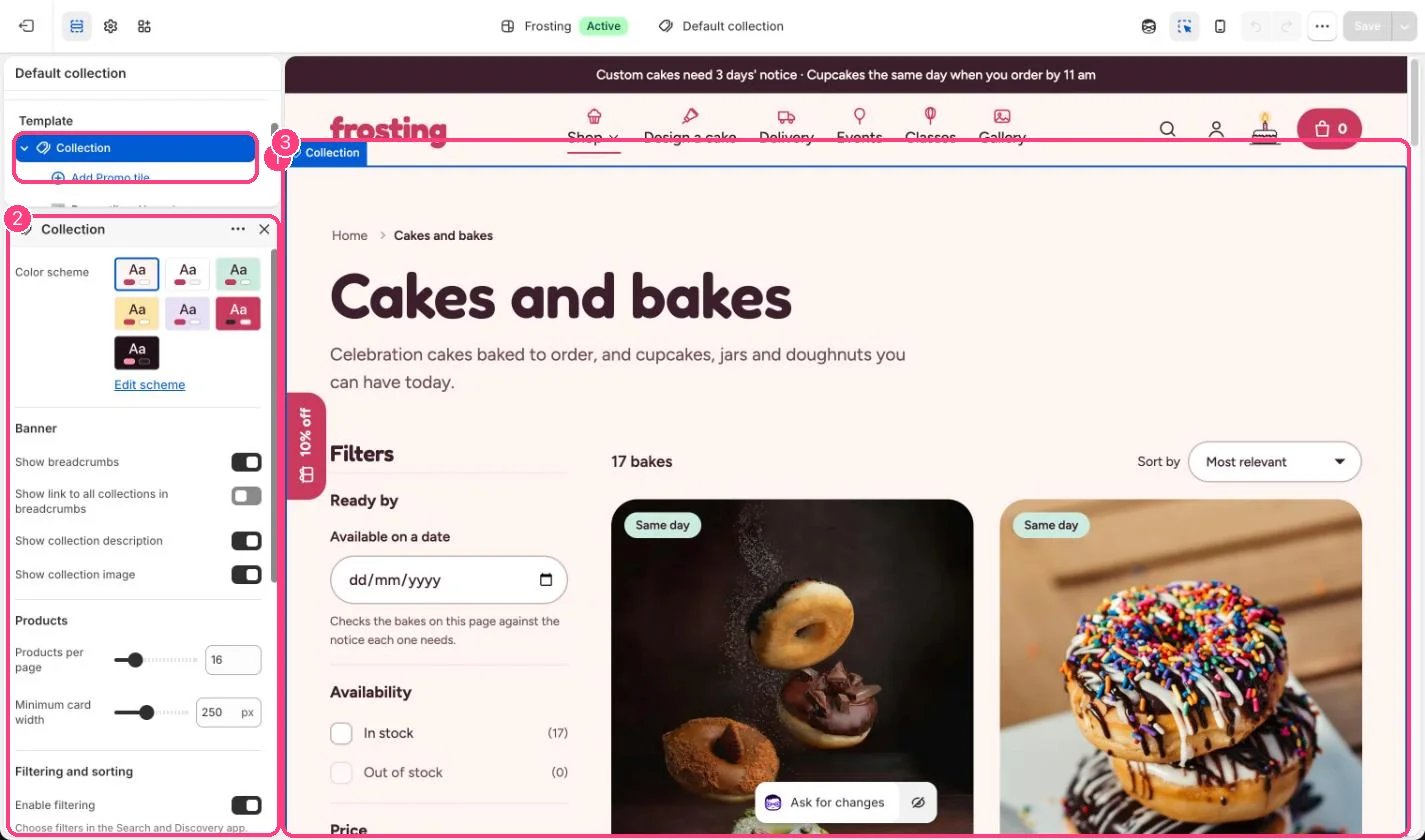
In the theme editor: 1 the section in the sidebar · 2 its settings · 3 the section in the preview
Edit it
- Choose which filters show in the Search and Discovery app.
- Set Products per page (8 to 48) and Minimum card width (200 to 320 px).
- Add up to 3 Promo tile blocks, set Position in the grid (1 to 24) and a link.
- Set the Cake builder link so shoppers who find nothing can design their own.
Settings
Banner
Products
Filtering and sorting
No results
Blocks
Add a block with Add block under the section in the sidebar; drag blocks to reorder them.Promo tile (up to 3)
The ready-by filter works on the products of the page being viewed, not on the whole collection at once.