
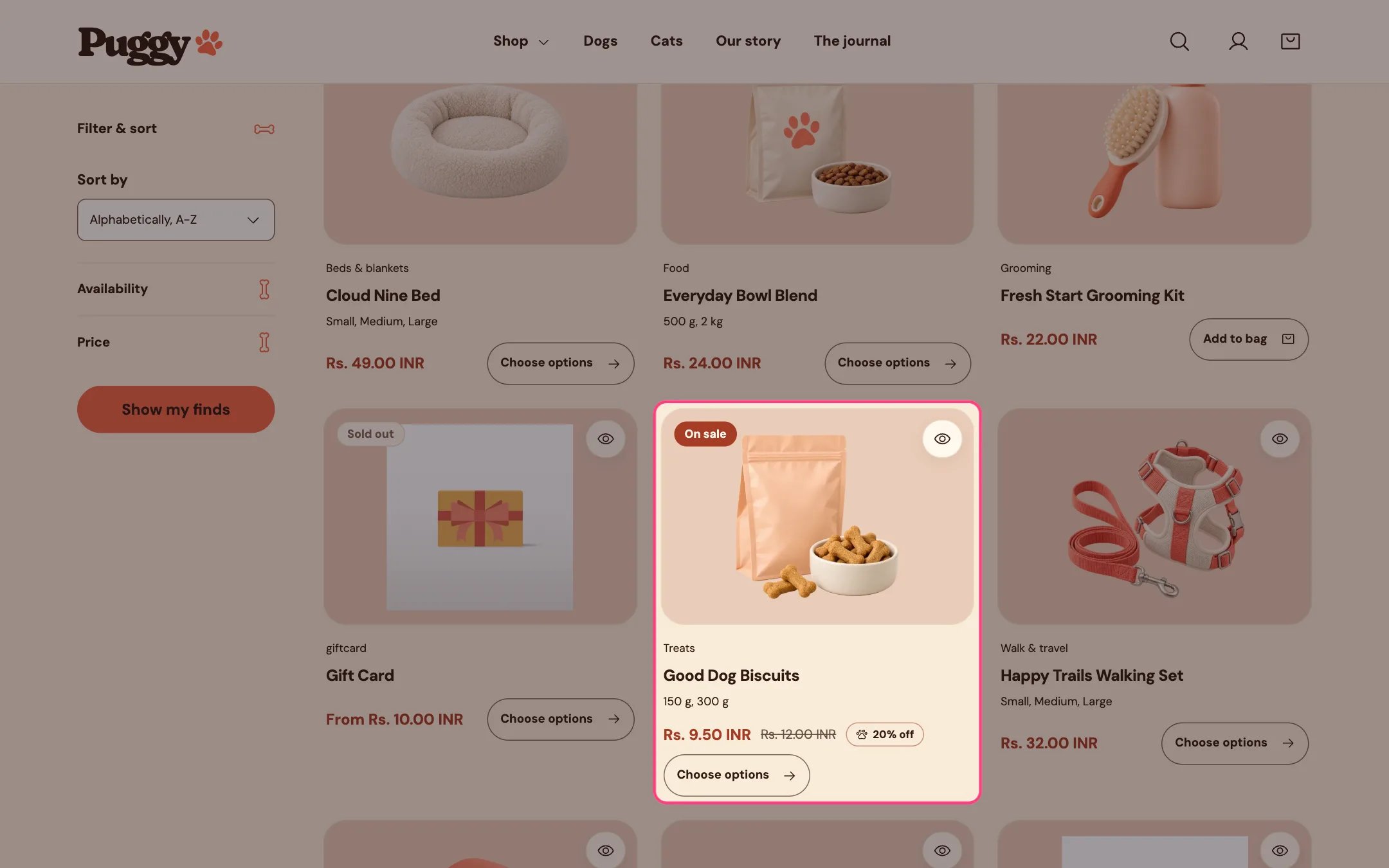
Badges on product cards
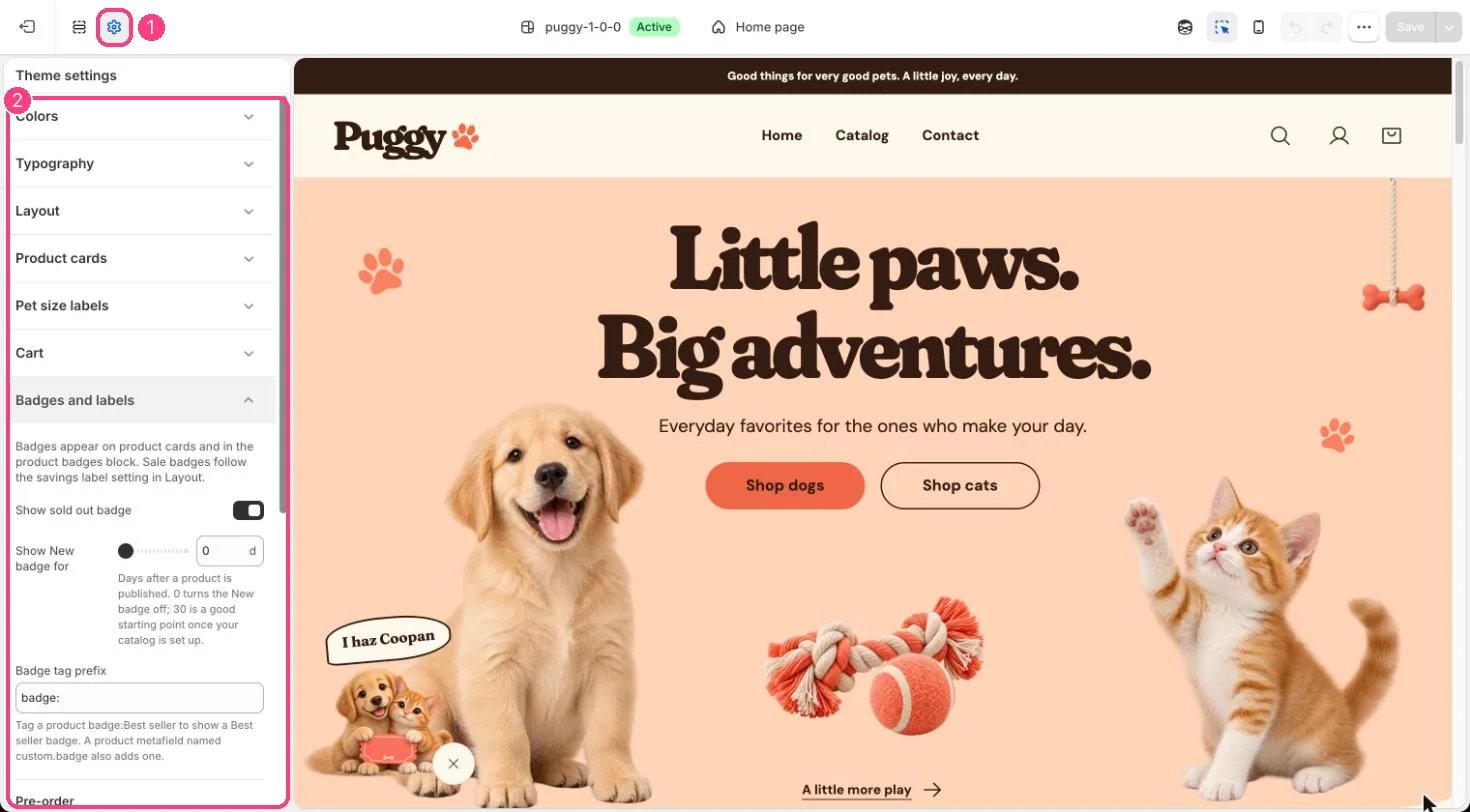
1 Theme settings · 2 Badges and labels
Built-in badges
- Sold out shows on cards when no variant can be bought, and on the product page when the chosen variant is sold out. Turn it off with Show sold out badge in Theme settings > Badges and labels.
- On sale shows when the variant’s compare-at price is higher than its price. On cards it only shows when all variants share one price. It follows Theme settings > Layout > Show crossed-out compare-at prices and Savings label beside prices.
- New shows for the number of days you set in Show New badge for (0 to 90) after a product is published. It starts at 0, which turns it off.
Your own badges
- Add a tag that starts with the Badge tag prefix, for example
badge:Best sellerorbadge:Vet favorite. The text after the prefix becomes the badge. - Or add a product metafield definition named
custom.badge(single line text) in Settings > Metafields and metaobjects > Products, then fill it on the product.
Pre-orders
A product sells as a pre-order when:- it has the Pre-order tag (default
pre-order), or - a variant tracks inventory, is at zero stock and has Continue selling when out of stock turned on, while Show Pre-order for out-of-stock variants that keep selling is on.