
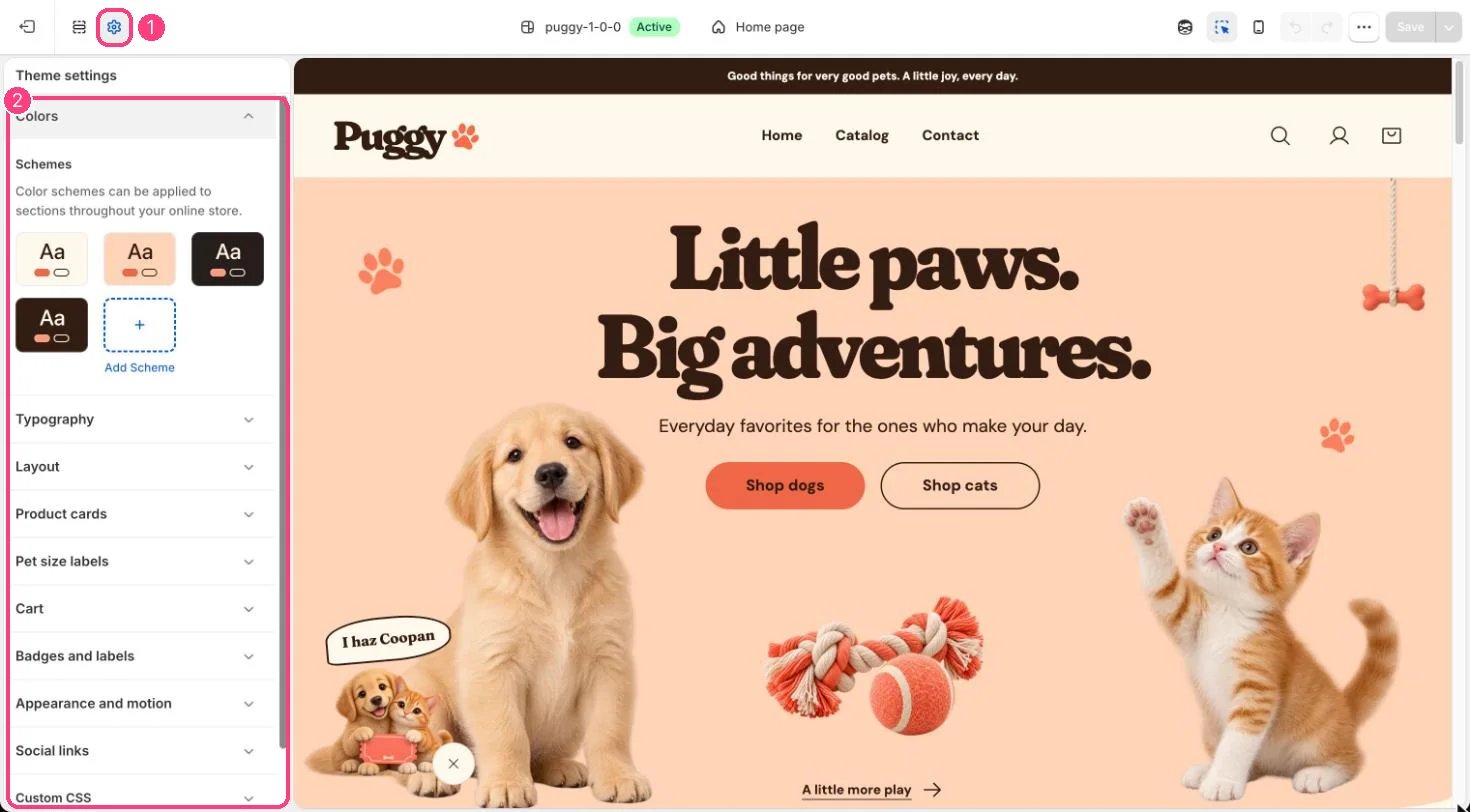
1 Theme settings (the gear icon) · 2 Colors, opened in the sidebar
How it works
- Puggy starts with four schemes: Scheme 1 (cream), Scheme 2 (peach), Scheme 3 (night) and Scheme 4 (cocoa).
- Each scheme sets Background, Text, Secondary text, Surface, Accent, Button, Button label, Secondary button label, Border, Shadow and an optional Background gradient.
- Scheme 3 doubles as the dark appearance. When a shopper switches to night, or Default appearance is Dark, every section uses Scheme 3’s colors.
- In light mode, Scheme 2’s background is the peach tint used by Peach image backgrounds and peach panels across the theme.
- Sections that show a product grid use their scheme’s Surface color as the section background.
- Background gradient is optional. When it’s blank, the plain Background color shows.
Edit it
- Open Theme settings > Colors, select a scheme and change its colors.
- Click Add scheme to create another one, then pick it in any section’s Color scheme setting.
- Keep Scheme 3 dark, because night mode shows it everywhere.
- After changing colors, check that text and buttons stay easy to read in both light and dark appearance.