
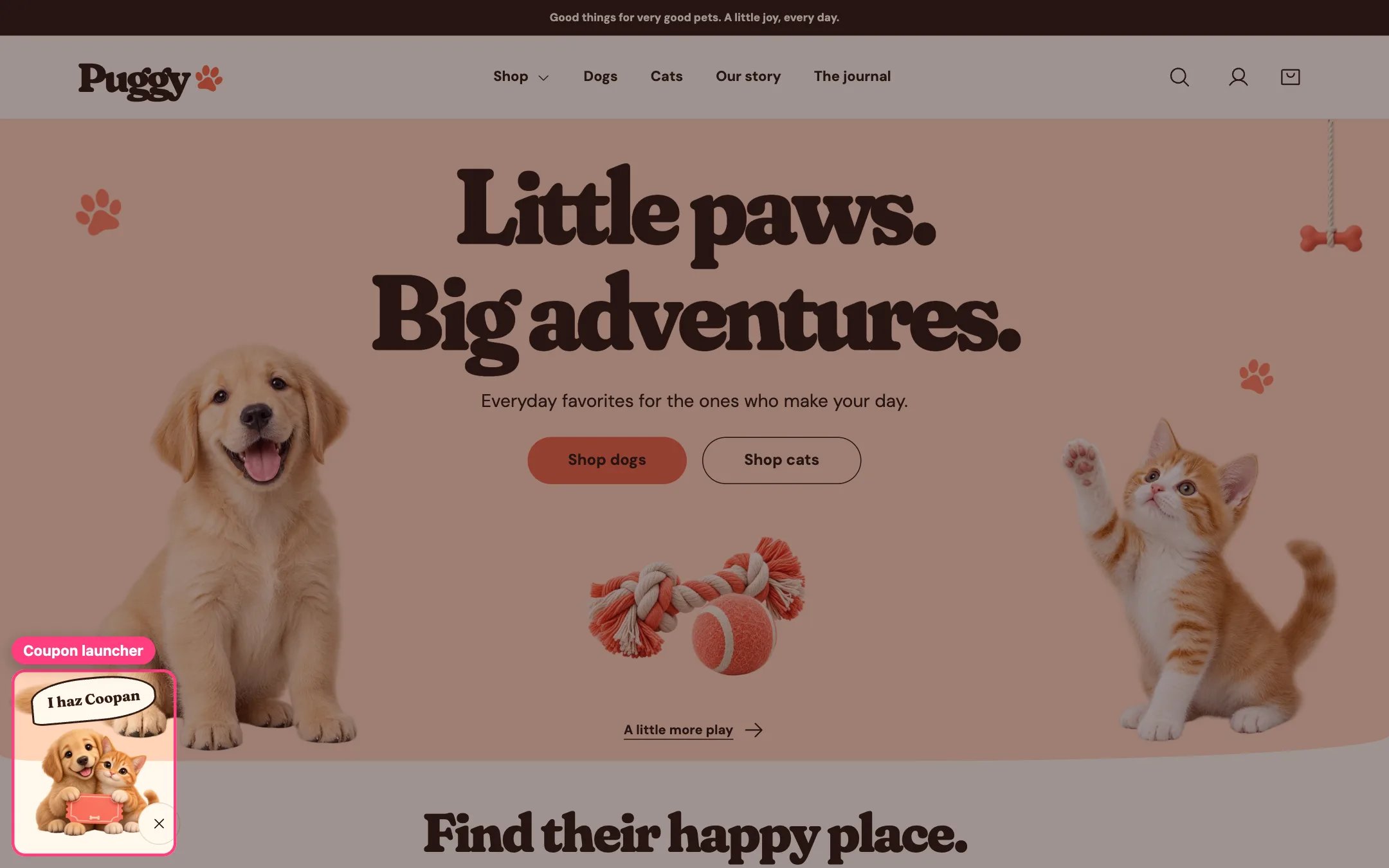
Offer and signup popup, highlighted on the demo store
Where to find it
Every page, in the Promotions and privacy area of the sidebar. Select Offer and signup popup; the popup opens in the preview while it’s selected. If you removed it, click Add section in Promotions and privacy (one per store).How it works
- Off by default. With Enable promotion on, a mascot with a speech bubble sits at the bottom left, and selecting it opens the popup.
- The mascot tucks away while shoppers scroll down or reach the footer, and they can dismiss it for the rest of their visit. It never shows on cart and account pages.
- With Open popup after a delay on, the popup opens by itself once per browser session after 5 to 120 seconds. It doesn’t open while a shopper is typing or another window is open, and never opens by itself on cart, account or content pages.
- Shows your discount code with a Copy code button.
- With a valid end time, a countdown shows days, hours, minutes and seconds. At zero it says the offer has ended and copying is turned off.
- The email signup uses Shopify’s customer form, like the Newsletter section. After a signup the page reloads and the popup reopens to show the confirmation or any error.
- App blocks and Custom Liquid blocks can add more content inside the popup.
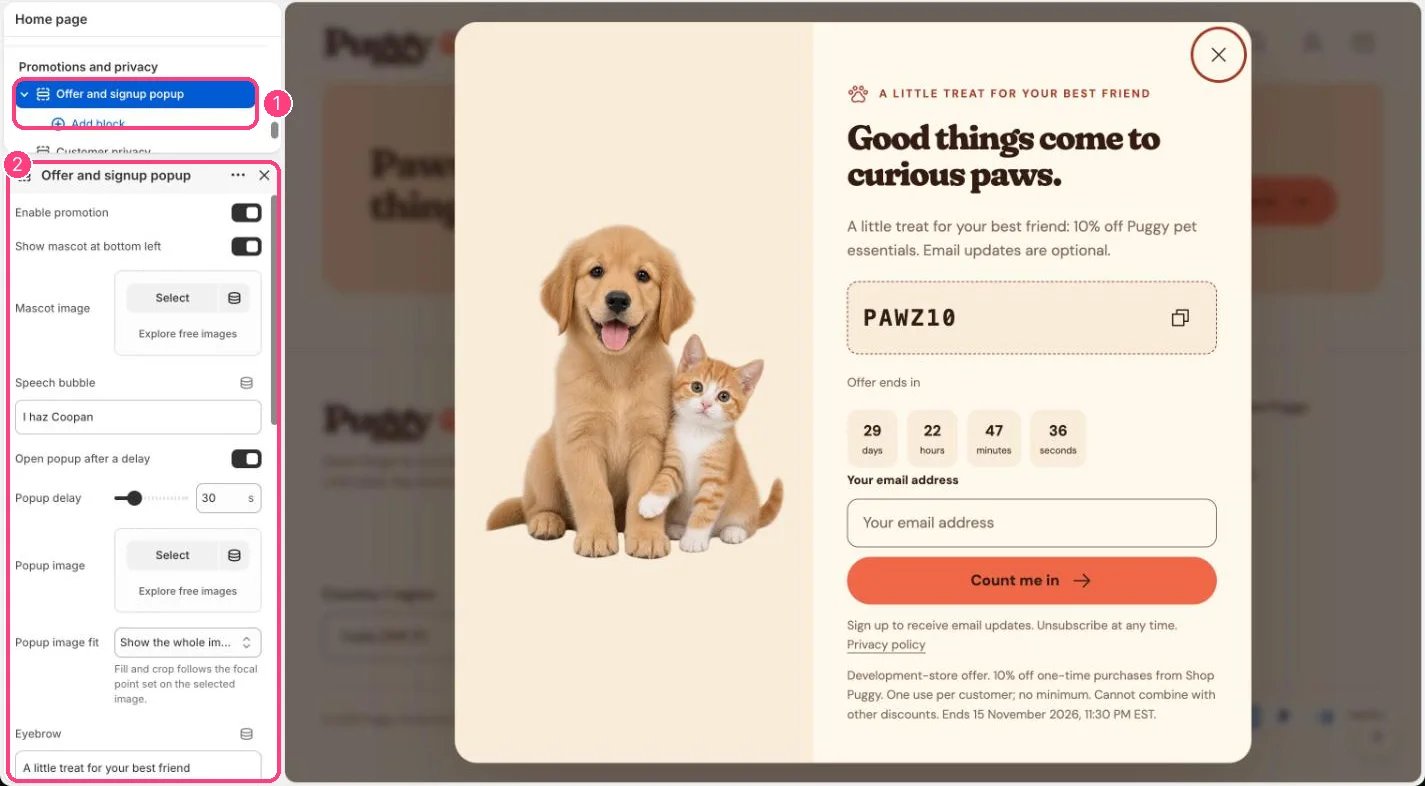
In the theme editor: 1 the section in the sidebar · 2 its settings · 3 the section in the preview
Edit it
- Create the discount first in Shopify admin under Discounts, then type the same code in Actual Shopify discount code.
- For a countdown, enter Actual offer end with a time zone, for example 2026-12-01T18:30:00+05:30, matching the discount’s end. Leave it blank for no countdown.
- Edit Speech bubble, Mascot image, Popup image, Popup image fit, Eyebrow, Heading, Text and Offer terms.
- Turn on Open popup after a delay and set Popup delay.
- Turn Show native email newsletter form on or off, and pick a Color scheme.
Settings
Blocks
Add a block with Add block under the section in the sidebar; drag blocks to reorder them.App blocks
Blocks from apps you have installed, such as reviews or subscriptions. Click Add block and choose one from the Apps tab; its settings come from the app.Custom Liquid
Only show real offers. The countdown must match a real end time and never restarts for each visitor.Showing a code here doesn’t create or check it. Shopify checks eligibility at checkout.If Shopify Forms or another app shows its own popup, turn off Open popup after a delay so shoppers don’t get two.