
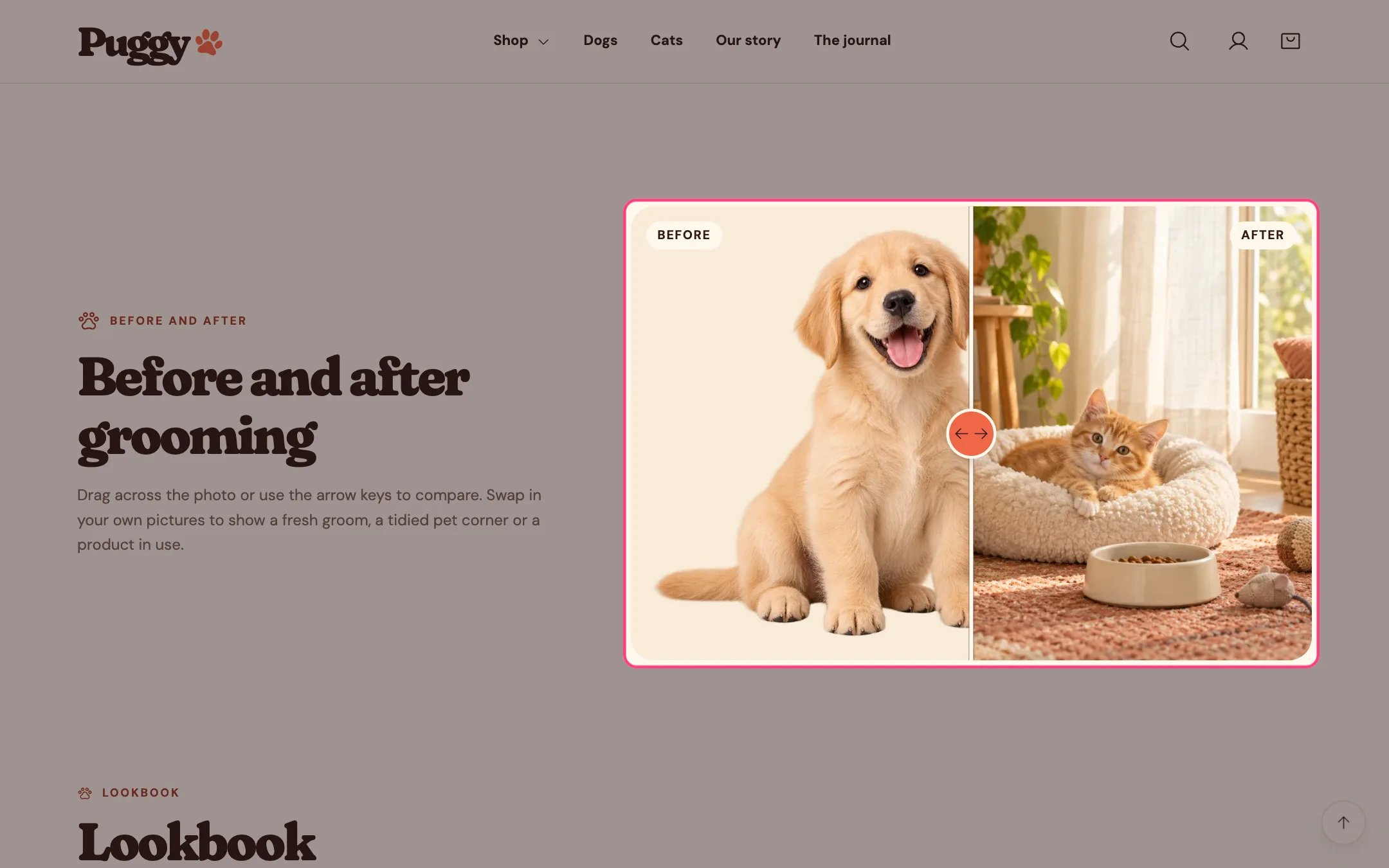
Before and after slider, highlighted on the demo store
Where to find it
Not on a default template. Add it to any page with Add section > Before and after slider.How it works
- Shoppers drag anywhere on the image, tap a spot to jump there, or use the arrow keys on the slider handle.
- On touch screens, swiping up and down still scrolls the page; sideways drags move the slider.
- A label marks each side, and the image opens at your starting position.
- Without images, built-in pet artwork shows the effect.
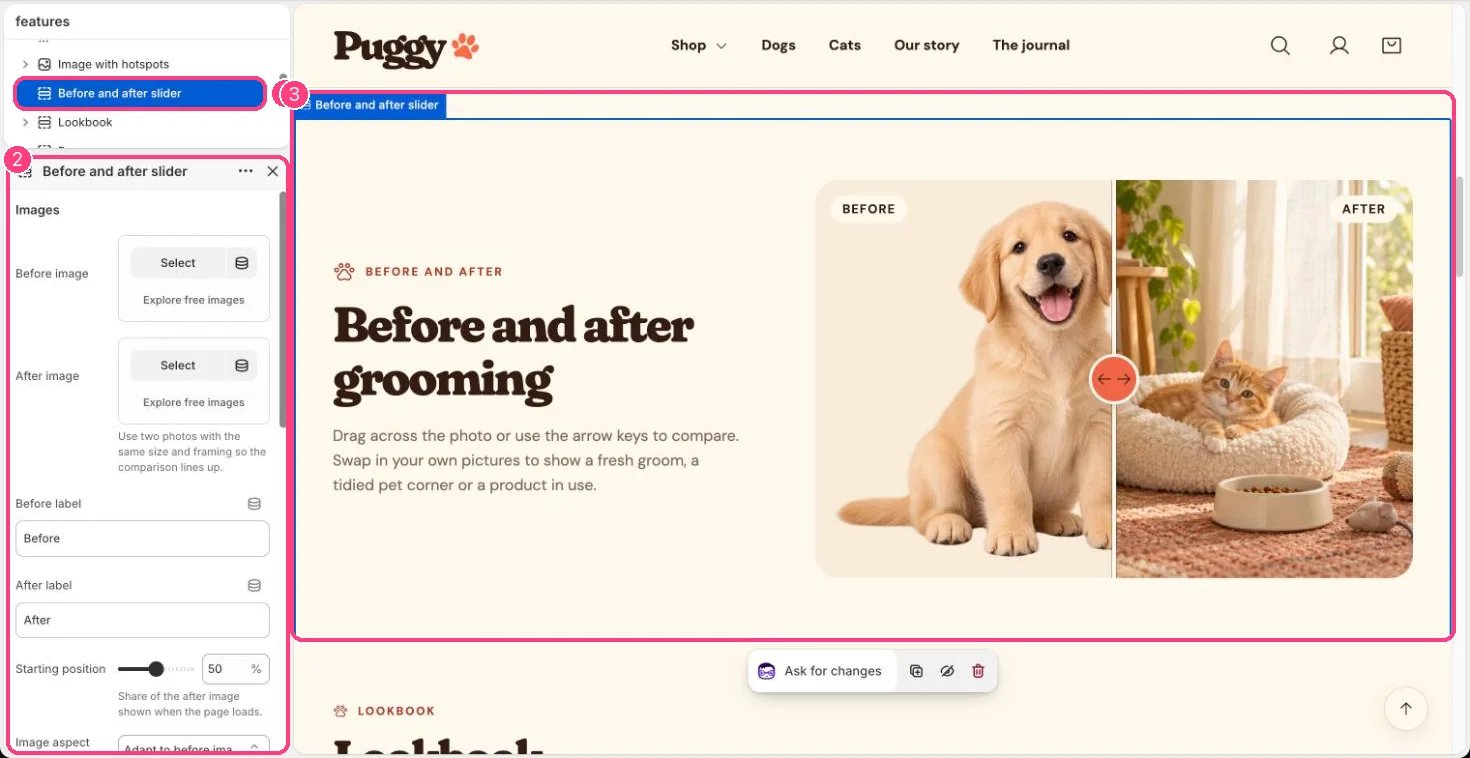
In the theme editor: 1 the section in the sidebar · 2 its settings · 3 the section in the preview
Edit it
- Upload a Before image and an After image with the same size and framing so they line up.
- Edit Before label and After label, and set Starting position (the share of the after image shown at first).
- Choose Image aspect ratio: Adapt to before image, Square, Landscape or Portrait.
- Edit Eyebrow, Heading and Text, and set Text position (Above images or Beside images).
Settings
Images
Text
Show honest comparisons. Don’t edit photos in a way that overstates what a product or service does.