
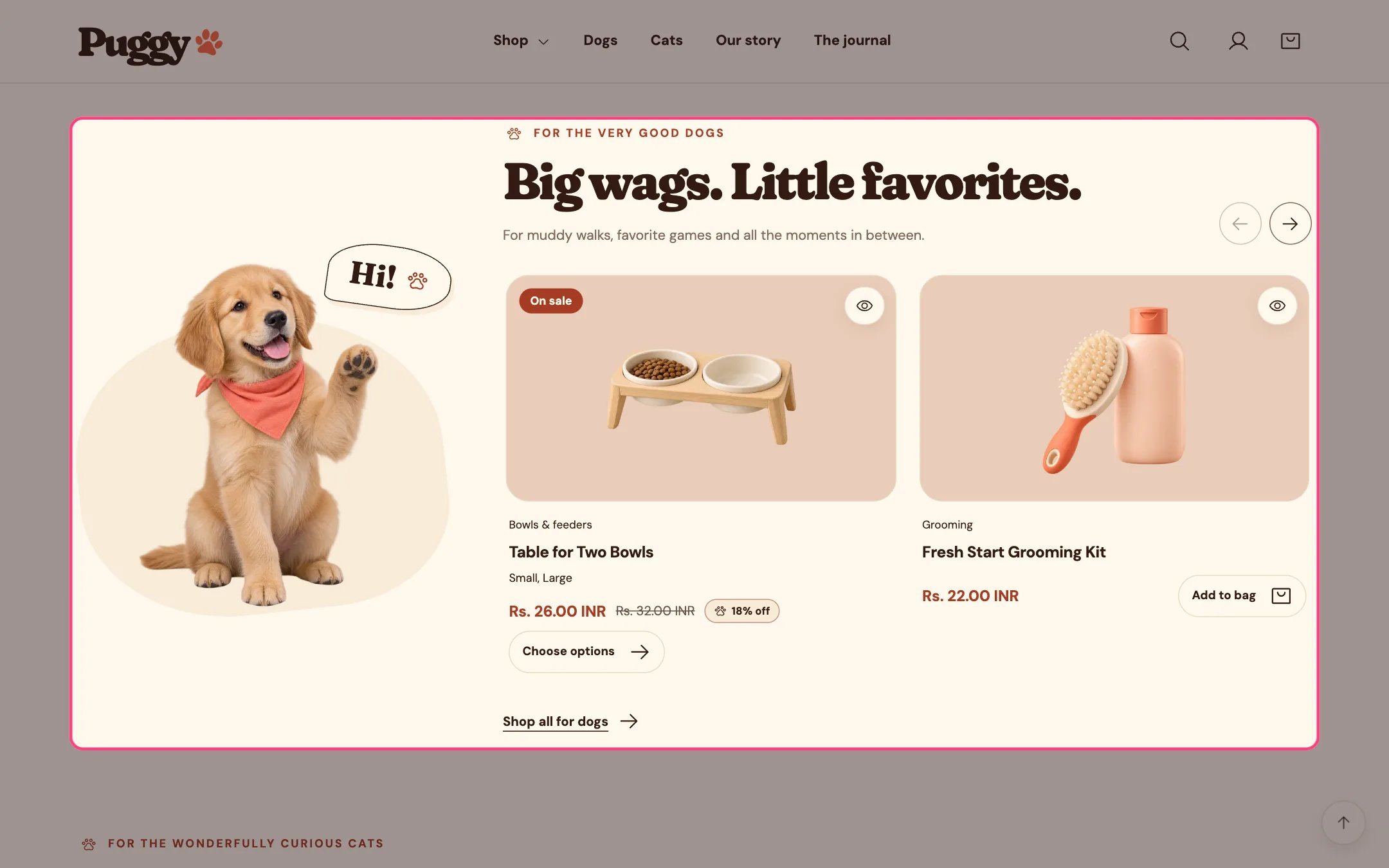
Pet collection, highlighted on the demo store
Where to find it
Home page. Choose Home page in the top page selector, then select the first Pet collection (dogs) or the second (cats). Each one has its own settings.How it works
- Shows 2 to 12 products in a sideways row with previous and next arrows. Shoppers can also swipe, or focus the row and use the arrow, Home and End keys.
- With Automatically slide products on, the row moves one product at a time and loops back to the start.
- Movement pauses on hover, on keyboard focus, when the row is off screen or the browser tab is hidden, and stops after a touch swipe. A pause button lets shoppers stop or resume it.
- Automatic movement never runs for shoppers who prefer reduced motion, or inside the theme editor.
- The arrows hide when every product already fits on screen.
- Without your own image, the built-in Puggy dog or cat appears. On desktop it sits on the left or right.
- If the collection is empty or not chosen, three placeholder cards and a friendly message appear.
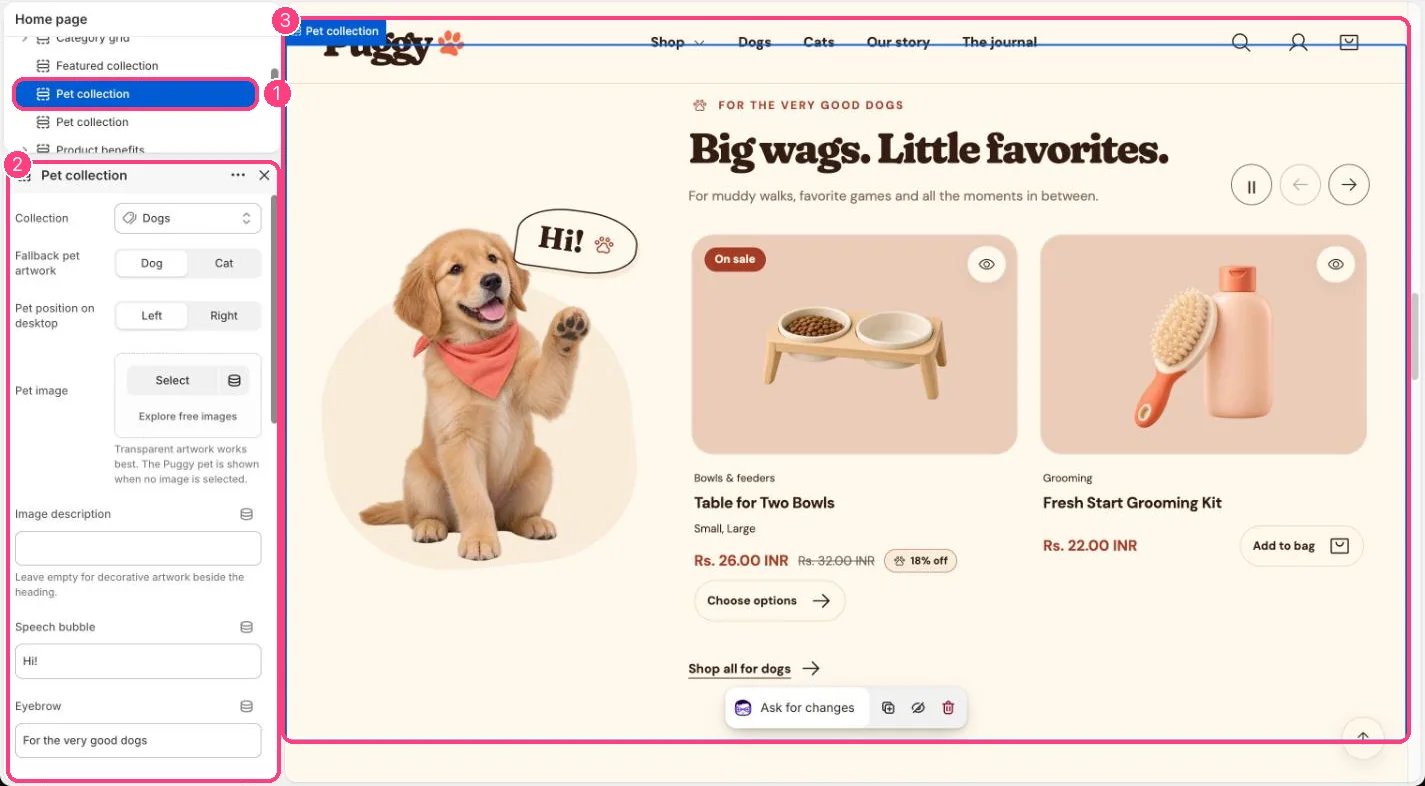
In the theme editor: 1 the section in the sidebar · 2 its settings · 3 the section in the preview
Edit it
- Choose the Collection, for example Dogs.
- Pick Fallback pet artwork (Dog or Cat), or upload your own Pet image. Transparent artwork works best.
- Fill Image description only when the image carries meaning; leave it empty for decorative art.
- Edit Speech bubble, Eyebrow, Heading, Introduction and Collection link label.
- Set Products (2 to 12), and turn Show product type, Show vendor and Show quick add on or off.
- Set Time between slides (3 to 12 seconds), or turn off Automatically slide products to keep only the arrows.
- Use Pet position on desktop to put the pet on the left or right.