
Where to find it
Every page, in the Promotions and privacy area of the sidebar. Select Customer privacy. If you removed it, click Add section in Promotions and privacy (one per store).How it works
- Offers Preferences, Analytics and Marketing choices with Accept all, Reject optional and Save choices. An option for the sale or sharing of data appears in regions where it applies.
- Choices are saved through Shopify’s customer privacy system, the same record Shopify’s own banner uses.
- Shoppers whose browser sends a Global Privacy Control signal can’t opt in to the sale of data here.
- The footer’s Privacy choices link opens the panel at any time.
- With Automatically show Puggy cookie banner on, the panel appears for visitors in regions where Shopify says a banner is needed and who haven’t chosen yet.
- When shoppers allow preferences, Puggy can remember their light or dark choice on later visits.
- If saving fails, a message asks the shopper to try again.
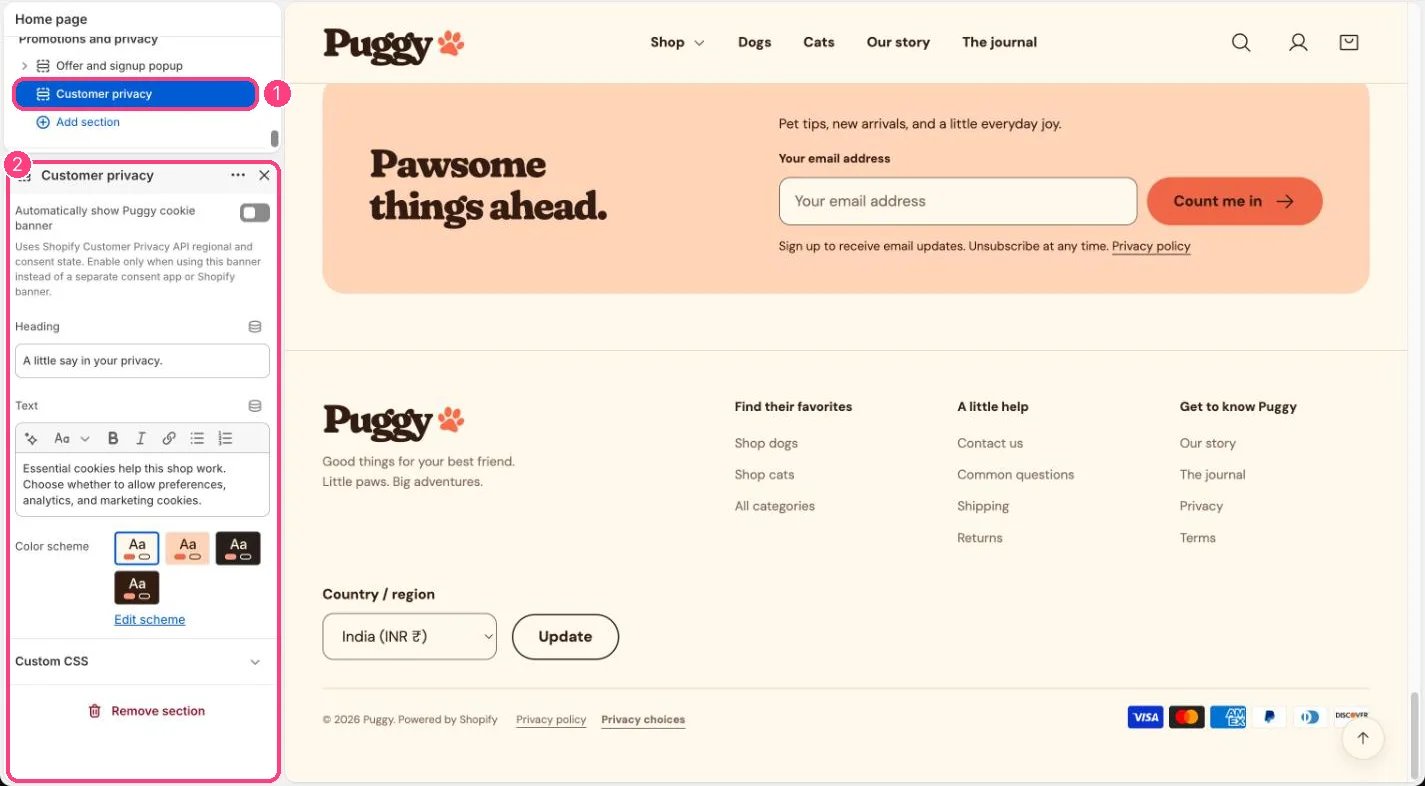
In the theme editor: 1 the section in the sidebar · 2 its settings · 3 the section in the preview
Edit it
- Edit Heading, Text and Color scheme.
- Leave Automatically show Puggy cookie banner off if you use Shopify’s cookie banner (Settings > Customer privacy) or a consent app.
- Publish your privacy policy in Settings > Policies; the panel links to it.
Settings
Use one cookie banner only. Two overlapping banners confuse shoppers.Whether a banner appears depends on the visitor’s region and your setup in Settings > Customer privacy.