
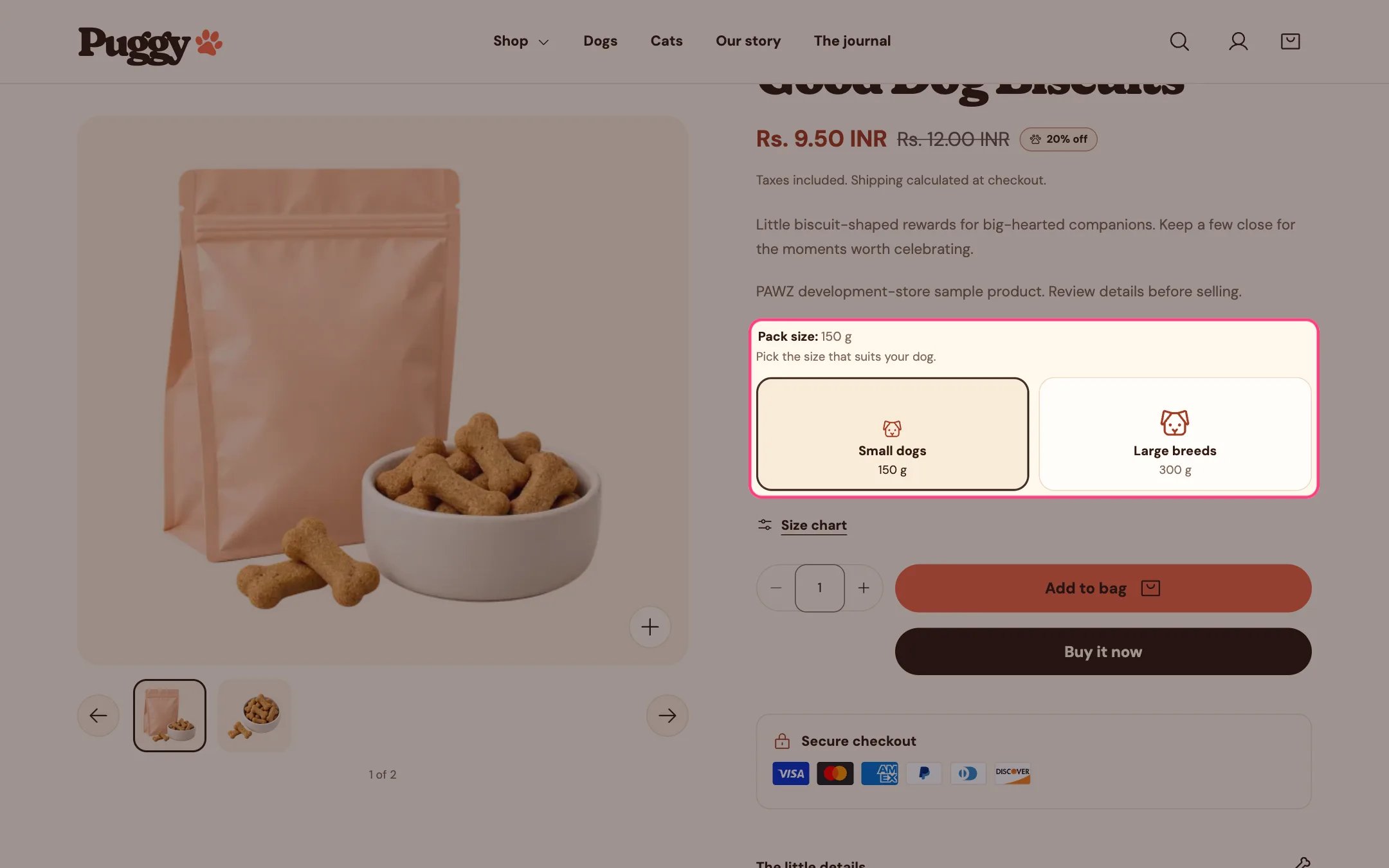
Size options shown as pet size cards
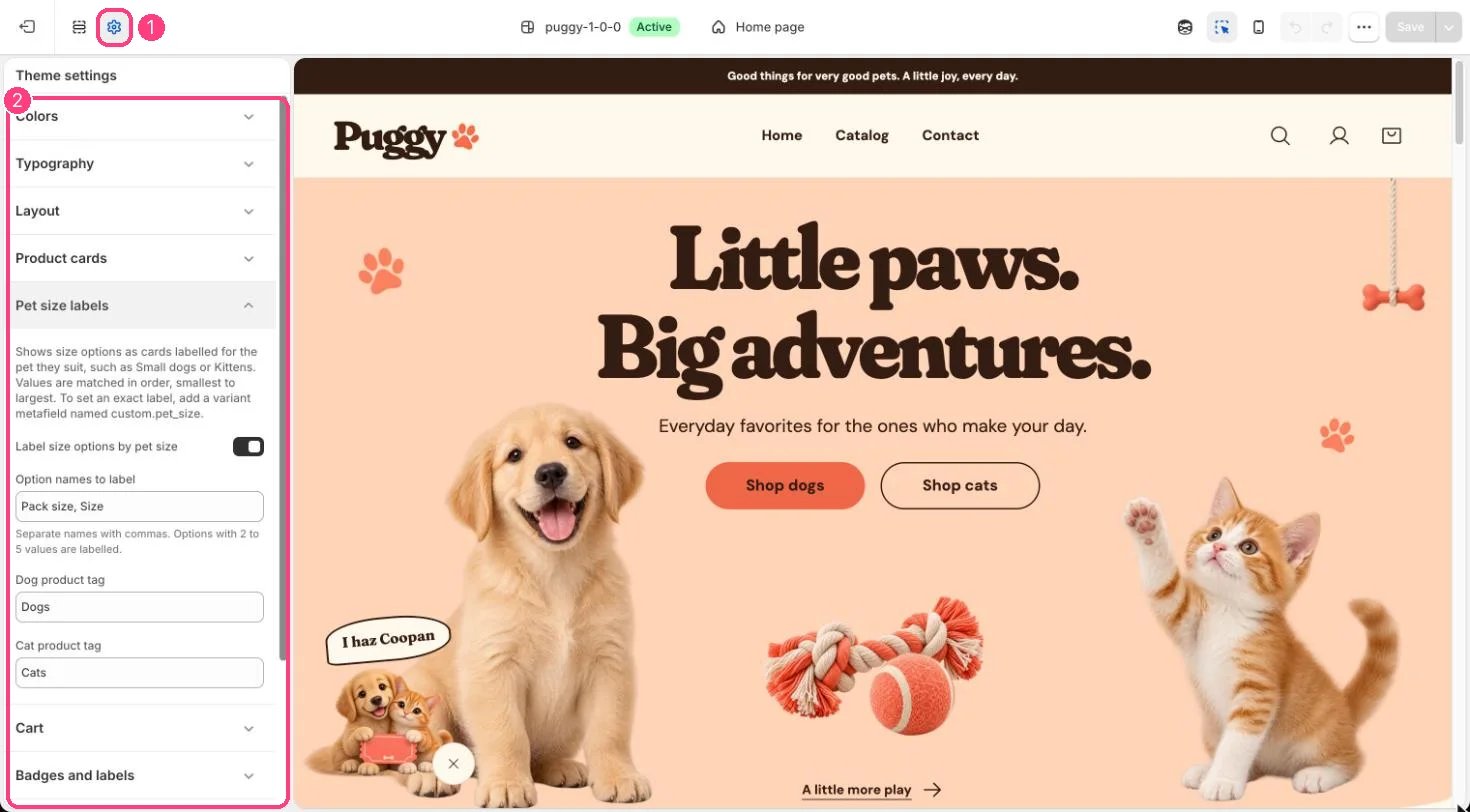
1 Theme settings · 2 Pet size labels
When the cards appear
- The option name is listed in Theme settings > Pet size labels > Option names to label (default
Pack size, Size). - The option has 2 to 5 values and no color or image swatches.
- The product is tagged with the Dog product tag (default
Dogs), the Cat product tag (defaultCats), or both. Capital letters don’t matter. - Label size options by pet size is turned on.
How values are matched
Values are read in the order they appear on the product, so list them smallest first in Shopify admin.
Products tagged with both tags use the shared wording and show both silhouettes. A hint such as Pick the size that suits your dog appears above the cards. Sold-out sizes stay visible but are faded and crossed out.
Set an exact label for one value
- In Shopify admin, go to Settings > Metafields and metaobjects > Variants and add a definition with the namespace and key
custom.pet_size, type Single line text. - Open the product, select the variant and type the label you want, for example Up to 10 kg.
- That variant’s card now shows your label instead of the automatic one.