
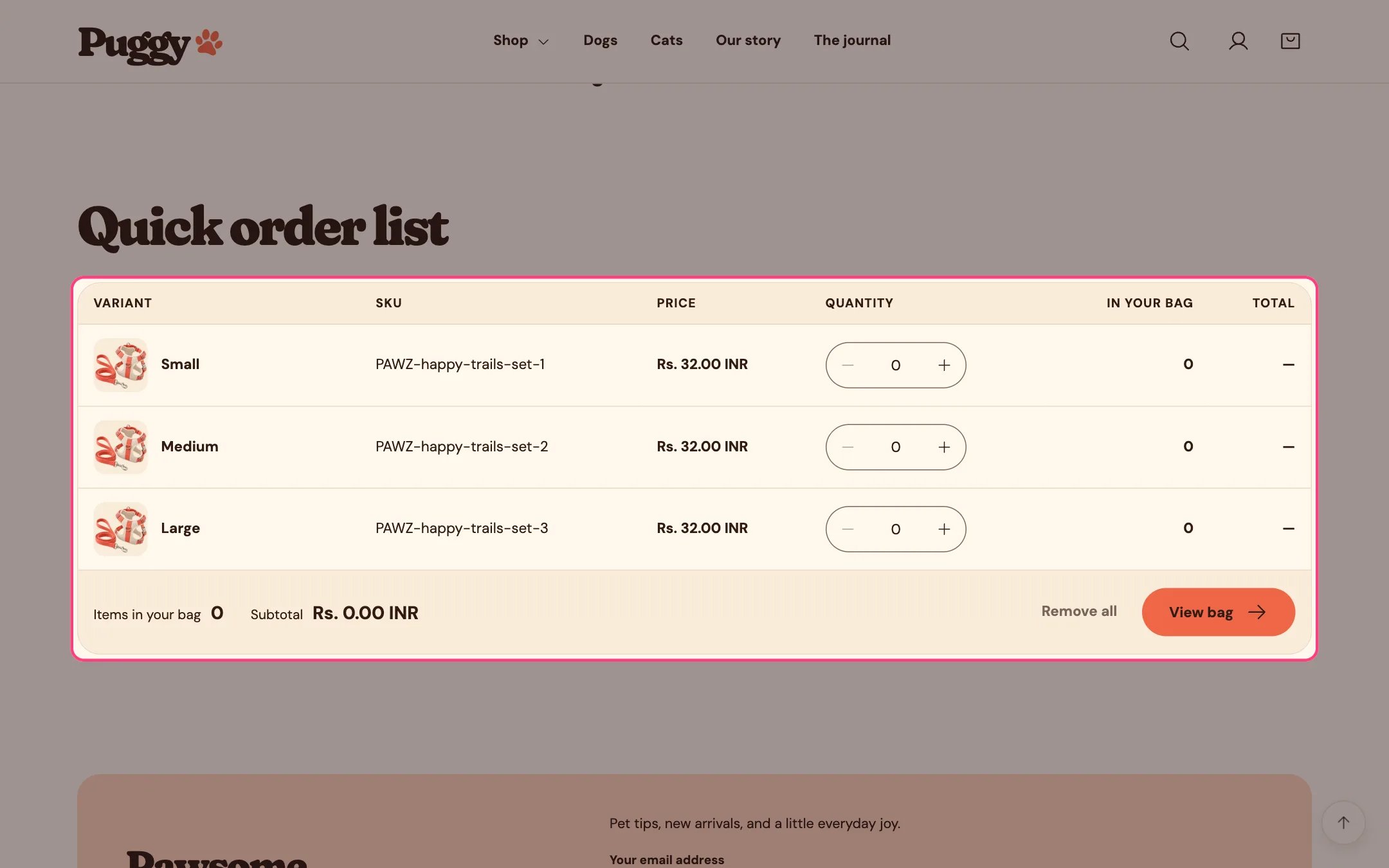
Quick order list, highlighted on the demo store
Where to find it
Not on a default template. Choose Products > Default product (or an alternate product template) in the top page selector, then click Add section > Quick order list. It can also go on other pages once you choose a product. It can’t be added to the header or footer.How it works
- Lists up to 50 variants per page, each with image, name, SKU, price, quantity stepper, how many are already in the bag and the line total.
- The bag updates a moment after a quantity changes; Enter saves right away. Update bag and Remove all buttons are also there.
- Respects B2B quantity rules (minimum, maximum and increments) and shows volume price breaks. An invalid amount gets a message on that row.
- Sold-out variants are listed but can’t be changed.
- The footer shows the items and subtotal for this product, and View bag opens the cart drawer.
- Subscription-only products show a notice with a link to the product page instead.
- On tablets and phones, each variant becomes its own stacked card.
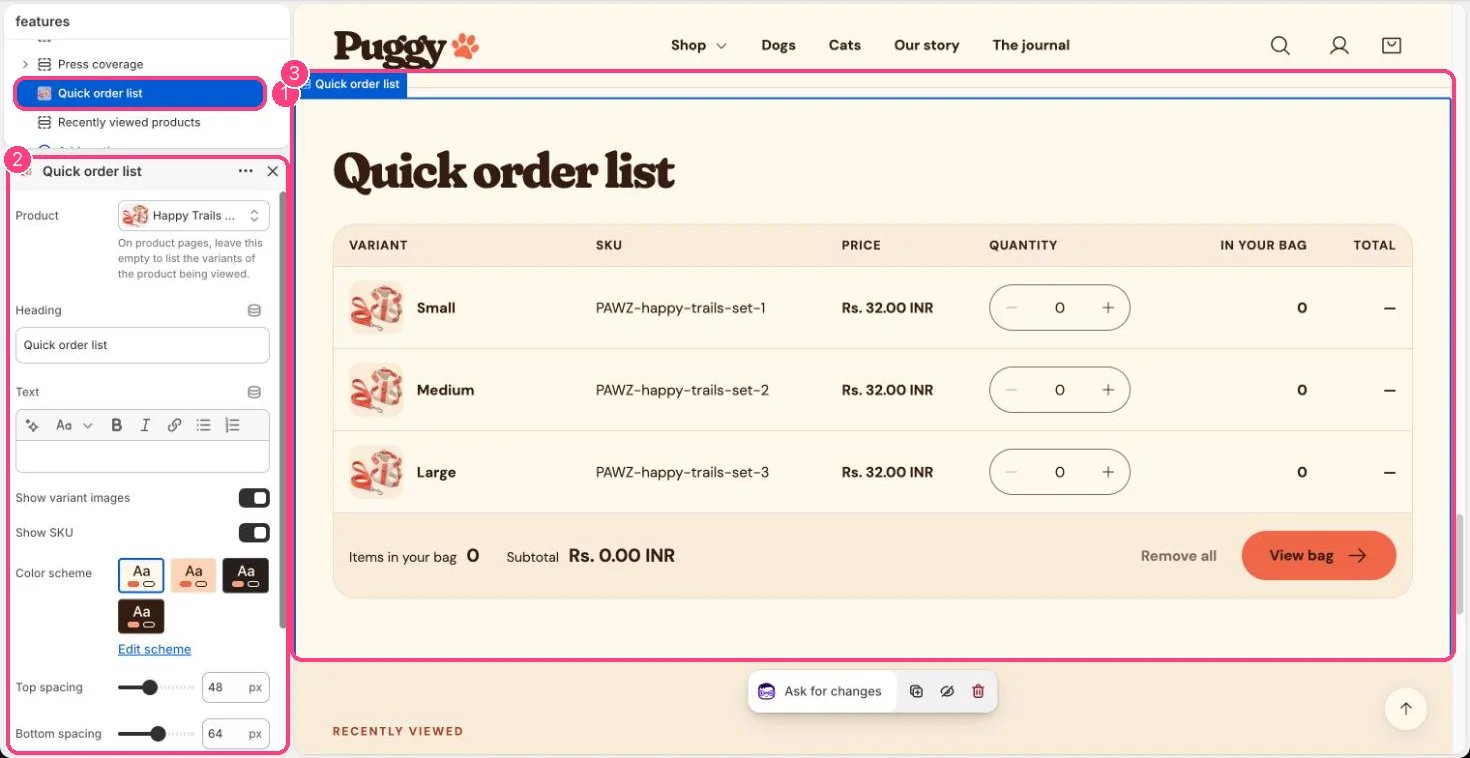
In the theme editor: 1 the section in the sidebar · 2 its settings · 3 the section in the preview
Edit it
- On a product template, leave Product empty to list the variants of the product being viewed. On other pages, choose a Product.
- Edit Heading and Text.
- Turn Show variant images and Show SKU on or off.
Settings
Quantity rules and volume pricing come from B2B catalogs in Shopify admin, where your plan includes B2B. Without them, the list still works as a fast way to add several variants.