
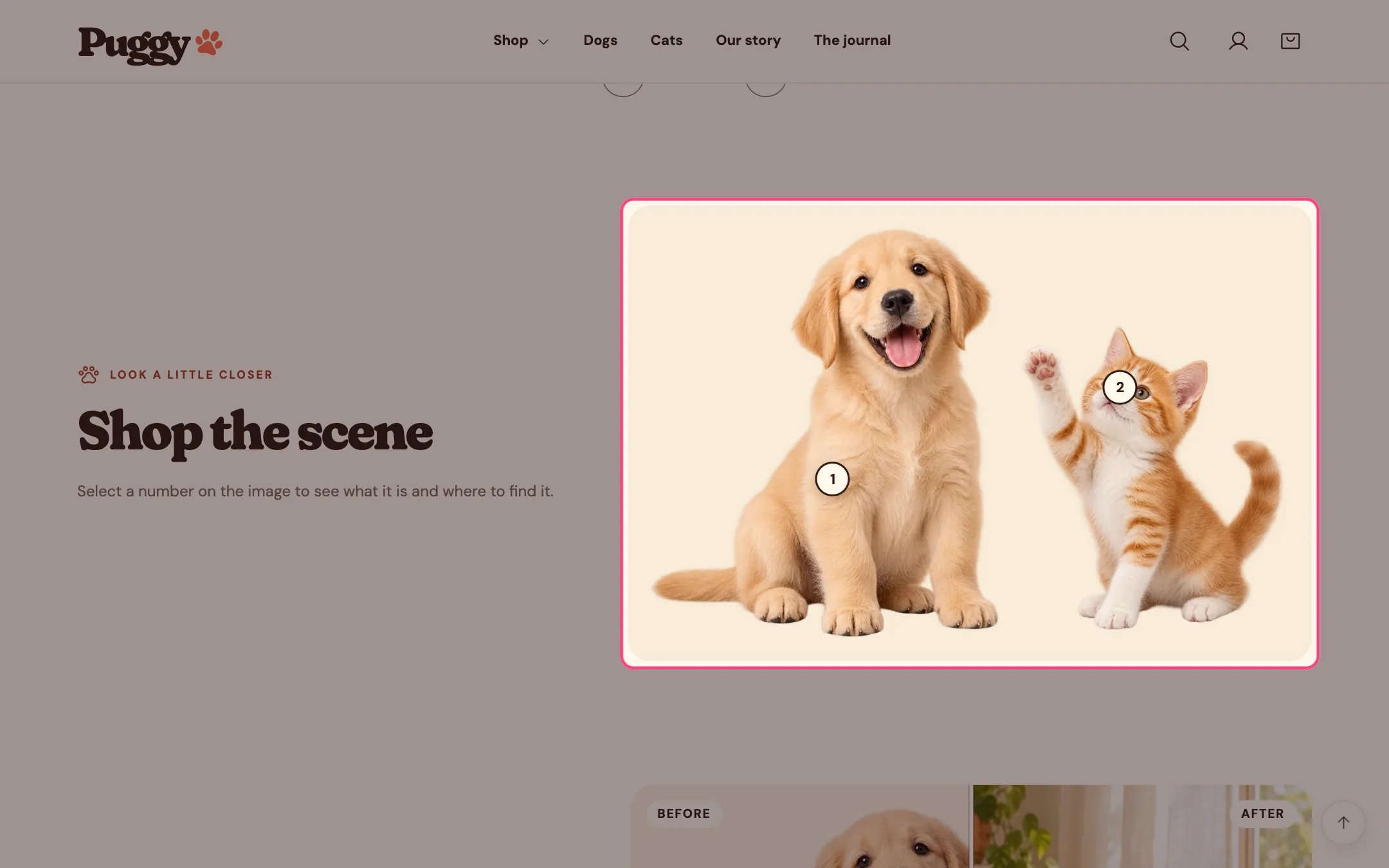
Image with hotspots, highlighted on the demo store
Where to find it
Not on a default template. Add it to any page with Add section > Image with hotspots.How it works
- Markers are placed by percentage, so they stay on the same spot at every screen size.
- Selecting a marker opens one card at a time: a product’s image, title, price and link, or your own heading, text and link.
- On larger screens the card pops up over the image; on phones it appears under the image.
- Markers pulse gently until the first one is opened, unless the shopper prefers reduced motion.
- Escape, the close button or a click elsewhere closes the card.
- Up to 8 hotspots. Without an image, built-in pet artwork appears.
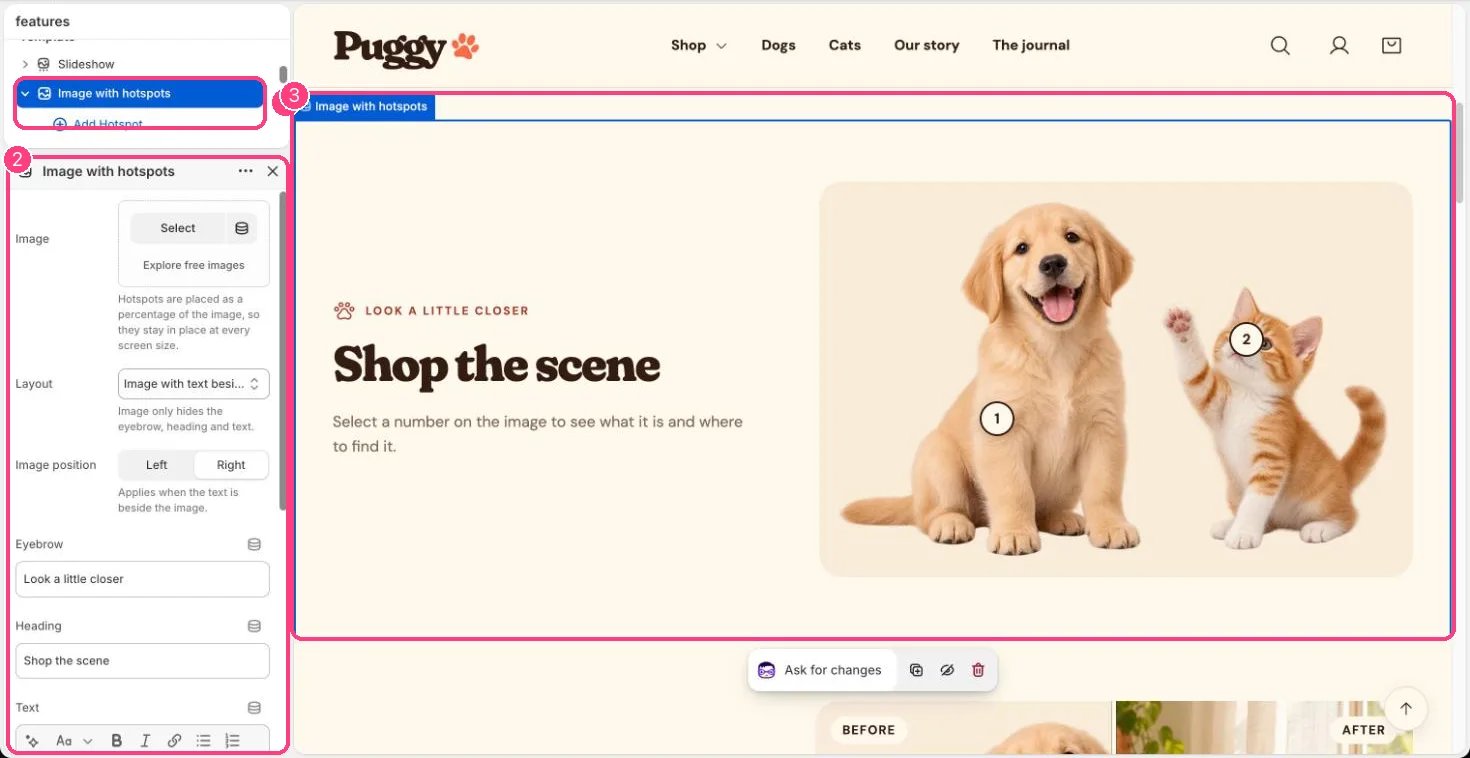
In the theme editor: 1 the section in the sidebar · 2 its settings · 3 the section in the preview
Edit it
- Choose the Image, then click Add block > Hotspot.
- Move each hotspot with Horizontal position and Vertical position (0 to 100 percent).
- Choose a Product, or leave it empty and fill Heading, Text, Link label and Link. A link without a label reads Learn more.
- Pick a Layout (Image only, or Image with text beside) and an Image position.
Settings
Blocks
Up to 8 blocks. Add a block with Add block under the section in the sidebar; drag blocks to reorder them.Hotspot
Without a product