
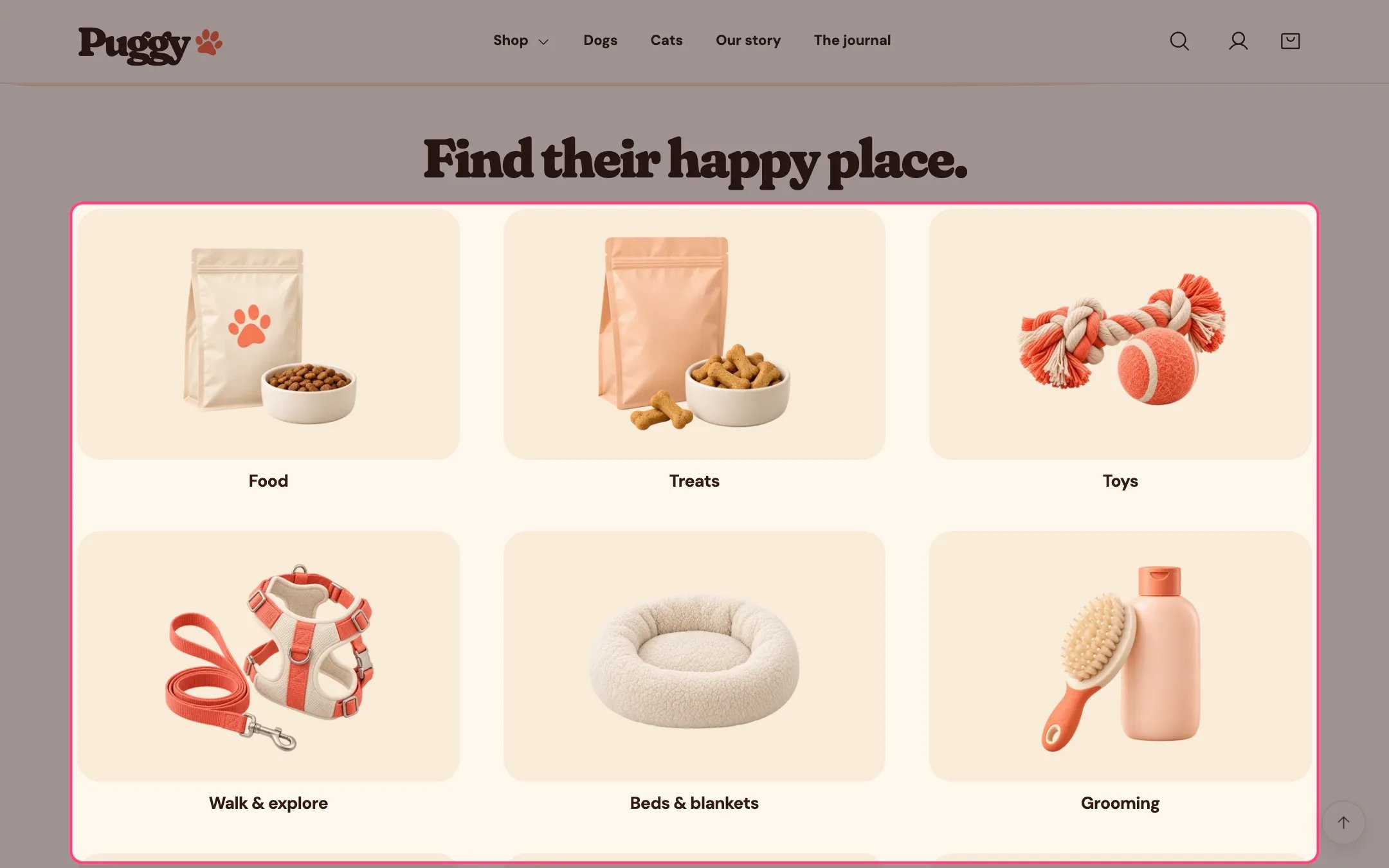
Category grid, highlighted on the demo store
Where to find it
Home page. Choose Home page in the top page selector, then select Category grid. Add it to other pages with Add section > Category grid.How it works
- Each Category block becomes a tile with an image and a label that links to its collection.
- The tile image is the block’s Image, then the collection’s own image, then the chosen fallback artwork.
- The label is the block’s Label, or the collection title when Label is blank.
- A tile without a collection links to your collections list page.
- Tiles sit three across on every screen size and fade in as they scroll into view when scroll animations are on.
- The eyebrow, introduction and tile descriptions are hidden by default.
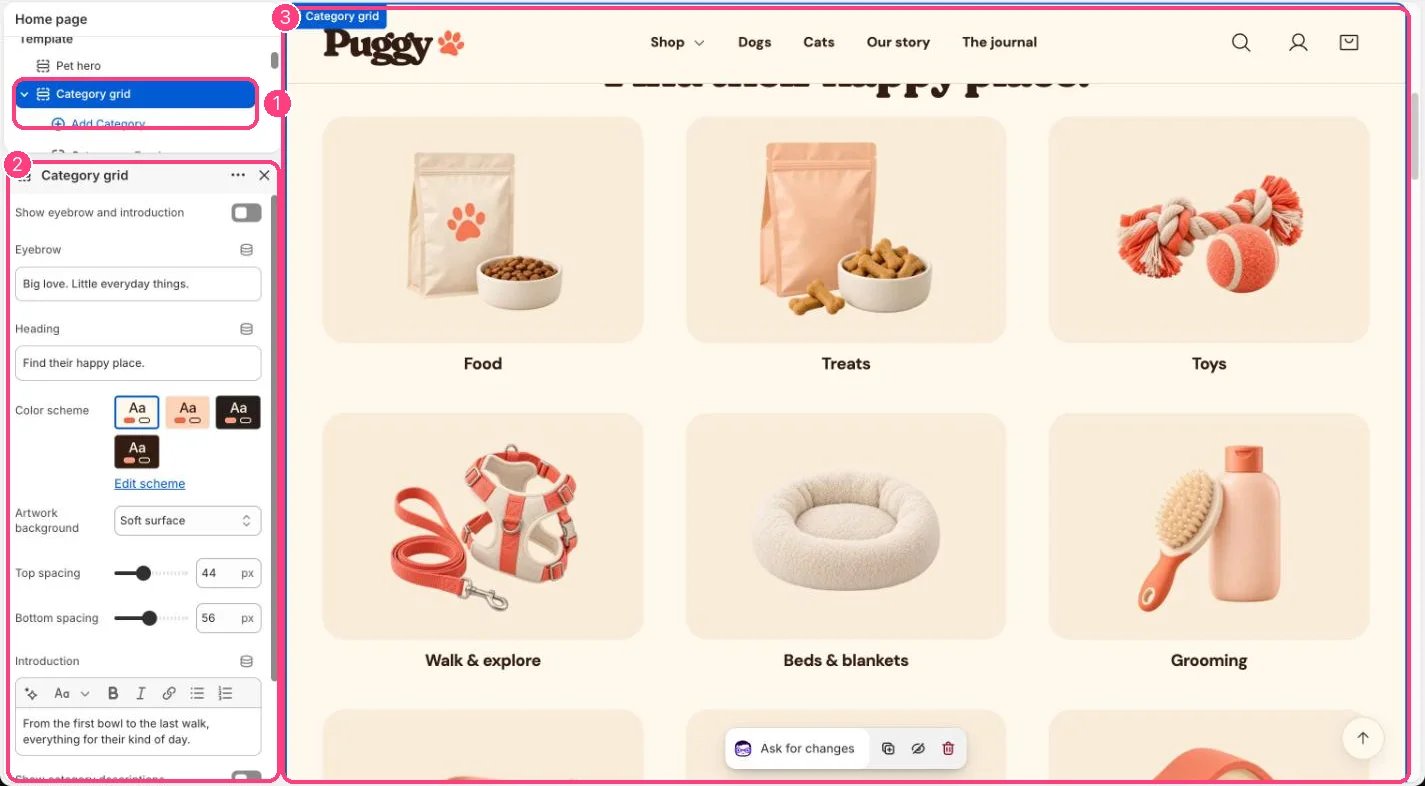
In the theme editor: 1 the section in the sidebar · 2 its settings · 3 the section in the preview
Edit it
- To add a category, click Add block > Category, then choose a Collection.
- Pick Fallback artwork for collections without an image: Food, Treats, Toys, Walk & explore, Beds & blankets, Grooming, Litter & clean-up, Bowls & feeders, or Small pets.
- Choose Artwork background: Soft surface, Peach surface or Transparent.
- Turn on Show eyebrow and introduction and Show category descriptions to add more text.
- Drag blocks to reorder the tiles, and remove the ones you don’t sell. The preset starts with nine categories.