
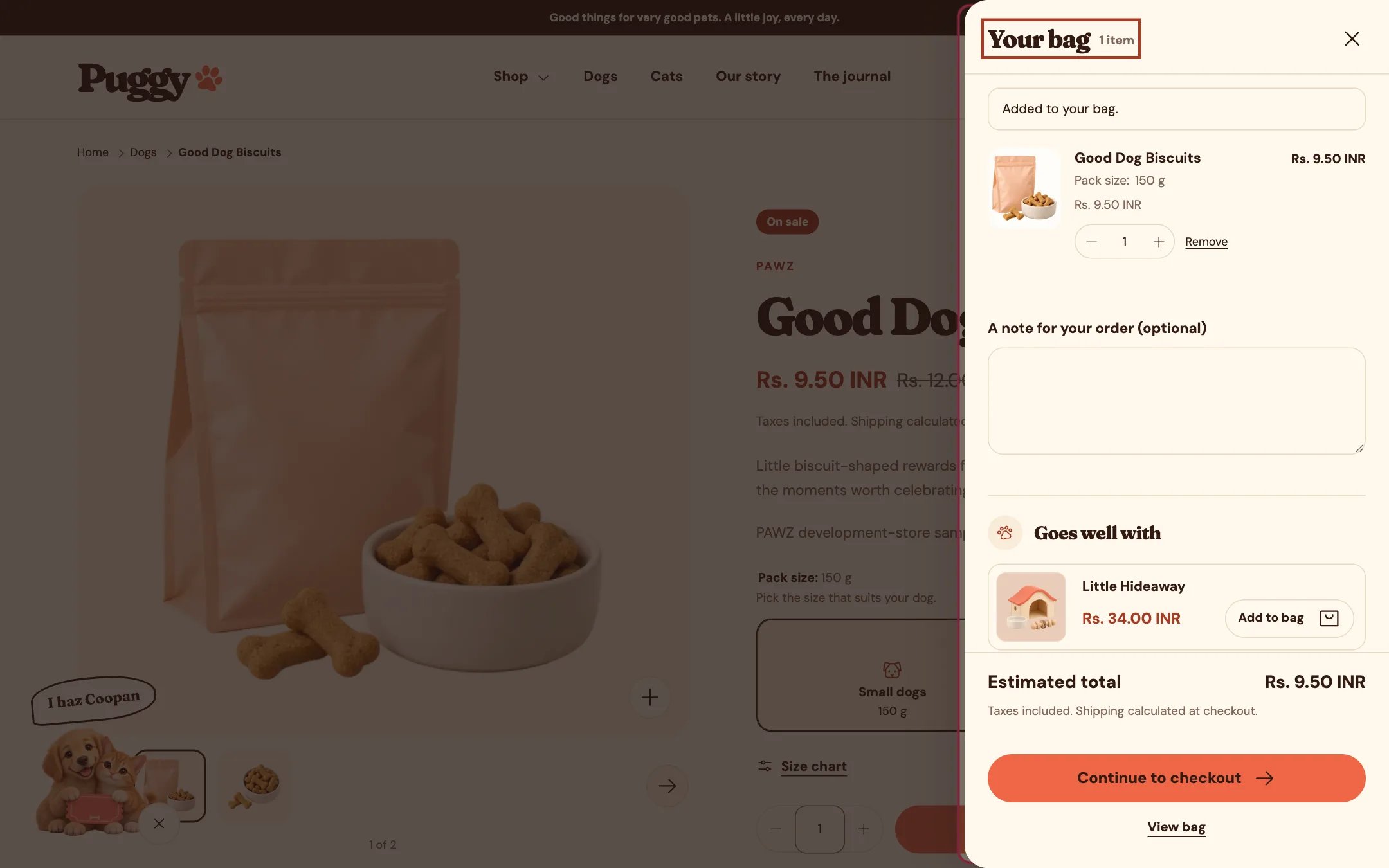
Cart drawer, highlighted on the demo store
Where to find it
Every page except the cart page, when Theme settings > Cart > Cart type is Drawer. In the theme editor, open any page other than Cart and select Cart drawer in the sidebar; the drawer opens in the preview while it’s selected.How it works
- Opens when a product is added anywhere (product page, product cards, quick view, featured product) or when the bag icon is selected, on phones and desktops alike.
- Shows the same items, quantity controls, discounts and totals as the cart page.
- Goes well with suggests products related to the newest item in the bag, or your own picks, never repeating items already in the bag.
- The gift wrap checkbox, gift message and order note appear when they are set up.
- Continue to checkout, express payment buttons and View bag (the full cart page) sit at the bottom.
- Problems such as not enough stock show under the add button that was used.
- Escape, the close button or a click outside closes it and returns focus to where the shopper was.
- It refreshes when shoppers come back to the page, so changes made in another tab show up.
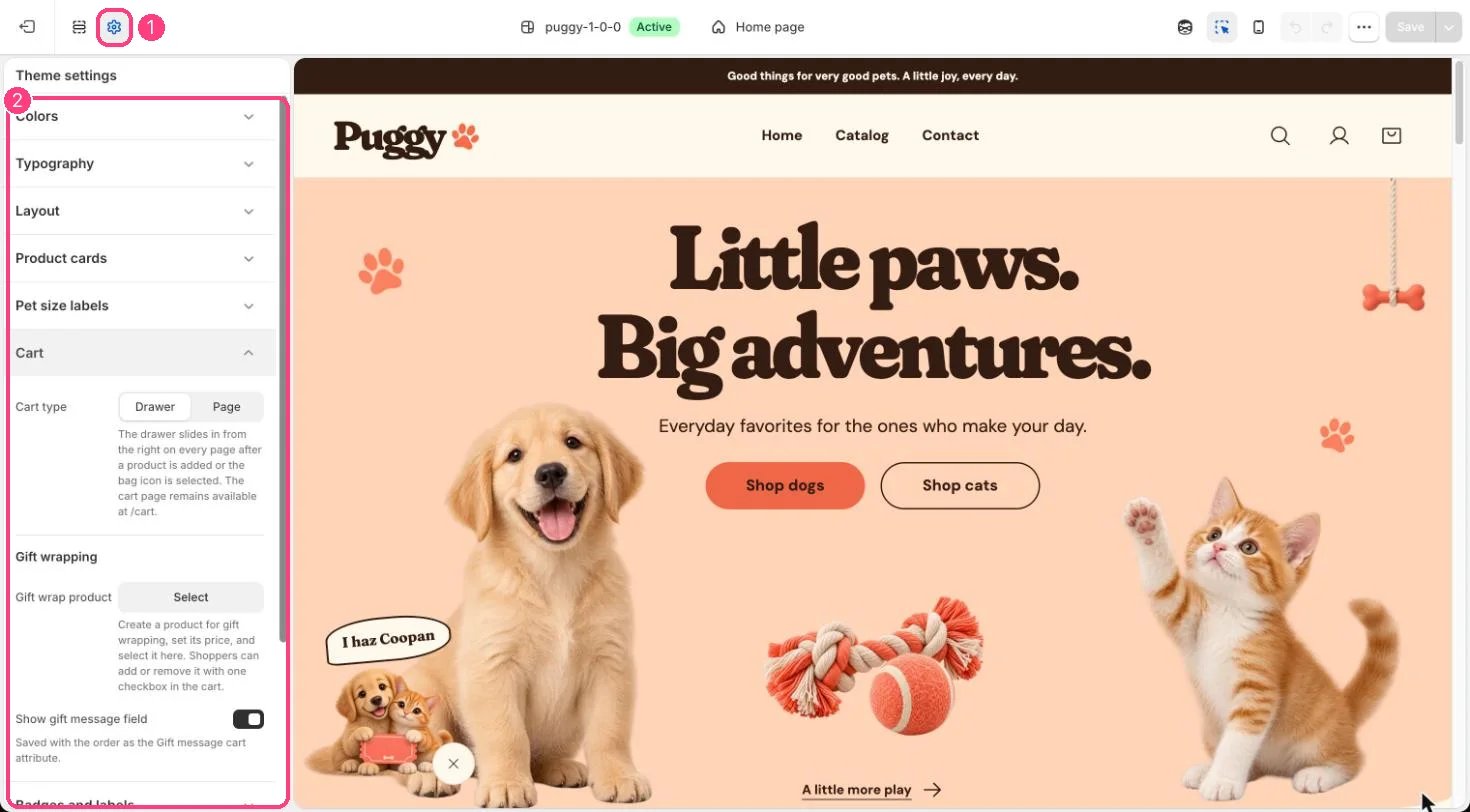
The cart drawer is set in 1 Theme settings · 2 Cart
Edit it
- Edit Heading, Color scheme and Empty bag image.
- Turn Show vendor, Show order note and Show accelerated checkout buttons on or off.
- Under Related products, choose Product source, Selected products or fallback, Fallback collection, Products to show (2 to 6) and Show add buttons, or turn off Show related products.
- To skip the drawer and send shoppers to the cart page instead, set Theme settings > Cart > Cart type to Page.
Settings
Related products
Express buttons appear only when an express payment method is active in Settings > Payments.