
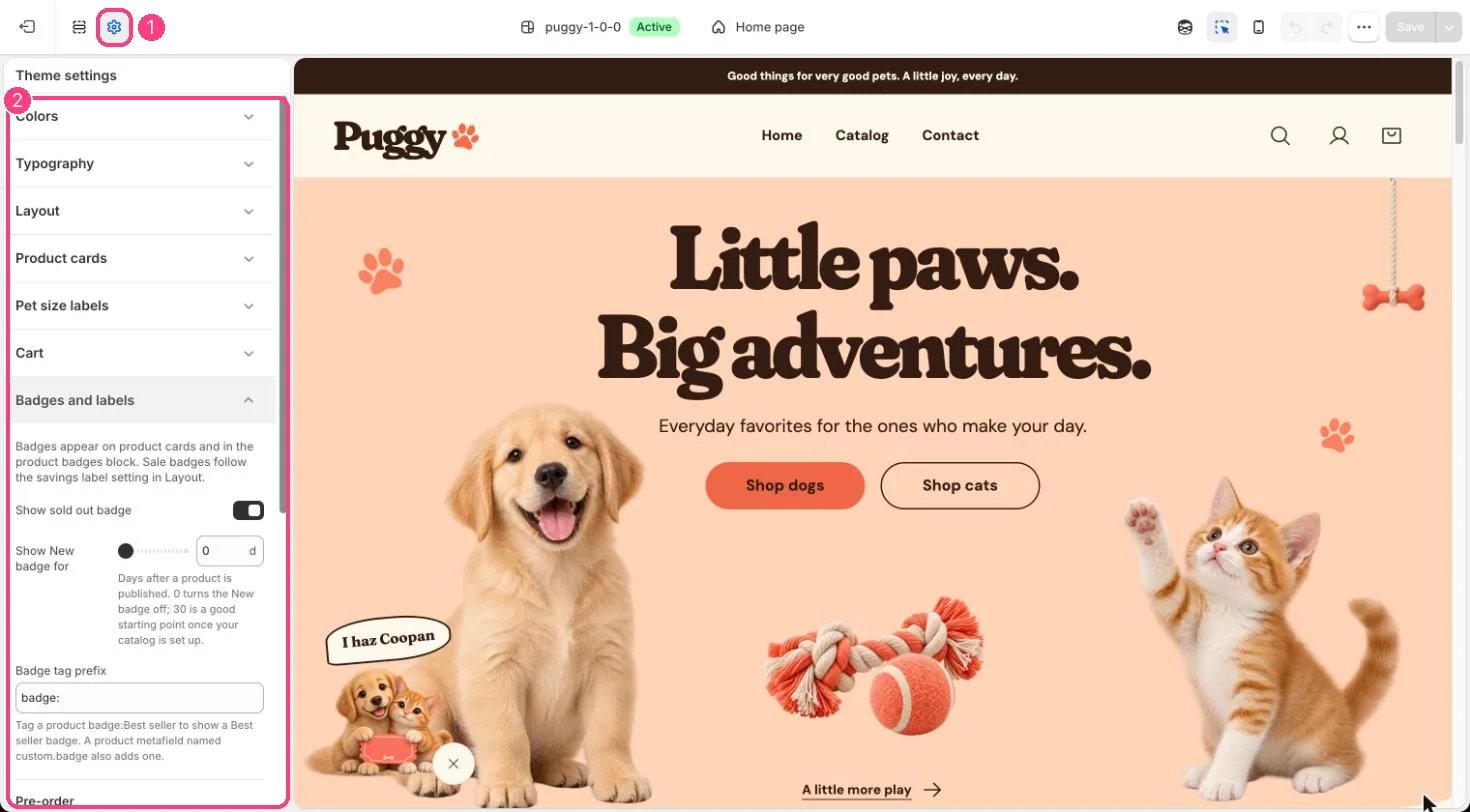
1 Theme settings (the gear icon) · 2 Badges and labels, opened in the sidebar
How it works
- Up to three badges show per product, in this order: Sold out, Pre-order, On sale, New, then your own badges.
- Sale badges follow the compare-at price and savings label settings in Theme settings > Layout.
- Show New badge for (0 to 90 days) marks products published within that many days. 0 turns it off.
- Tag a product with the Badge tag prefix plus your text, for example badge:Best seller, or fill a product metafield named custom.badge, to add your own badge.
- Products with the Pre-order tag, or tracked variants at zero stock that keep selling, show Pre-order instead of Add to bag, with a note under the button.
Edit it
- Turn Show sold out badge on or off.
- Set Show New badge for; 30 days is a good start once your catalog is set up.
- Change Badge tag prefix if you prefer a different prefix.
- Set the Pre-order tag, turn Show Pre-order for out-of-stock variants that keep selling on or off, and write a Pre-order note (leave it blank for the default).
Settings
Pre-order