
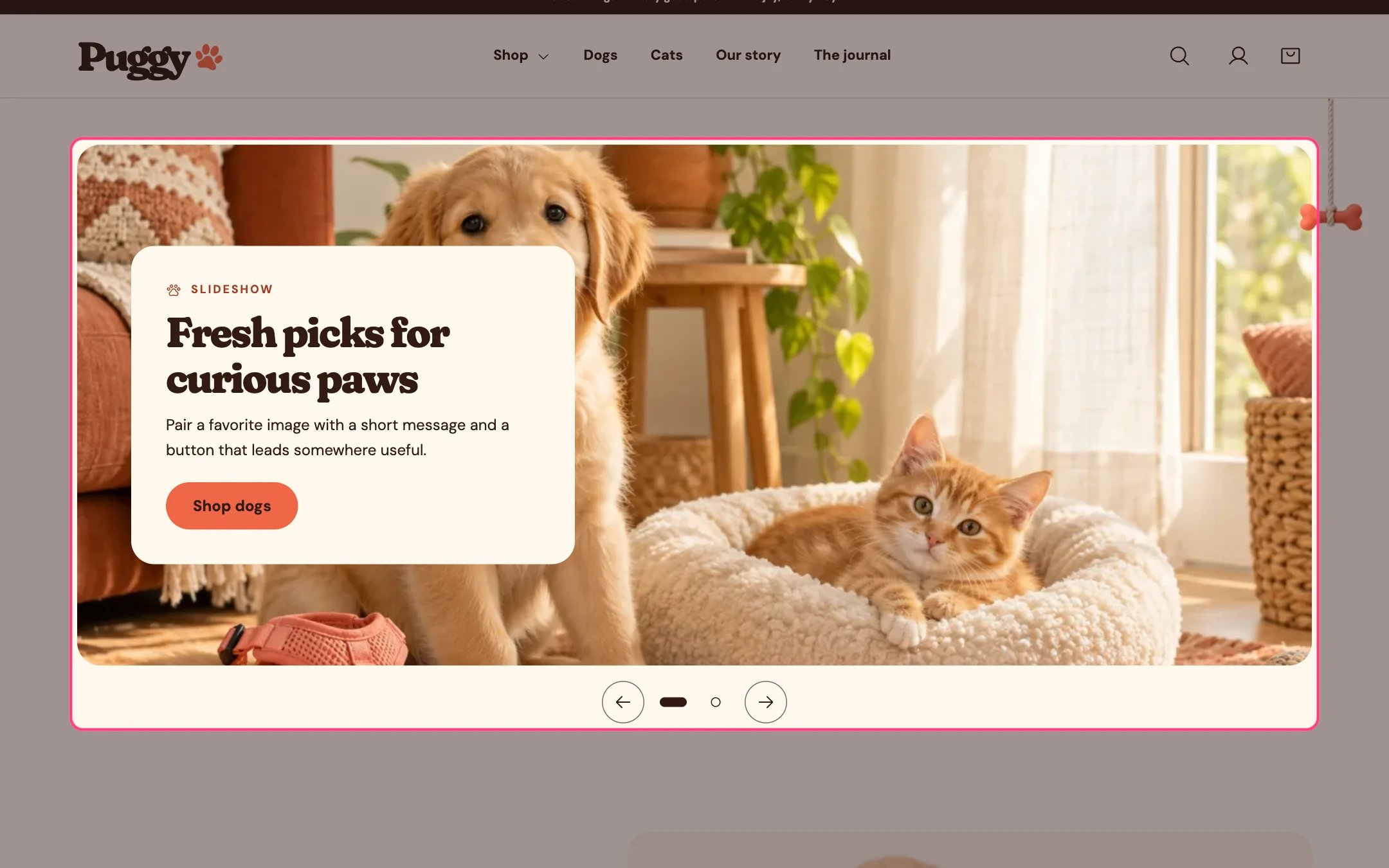
Slideshow, highlighted on the demo store
Where to find it
Not on a default template. Add it to the home page or any page with Add section > Slideshow. It can’t be added to the header or footer.How it works
- Shoppers move between slides with the arrows, the dots, by swiping, or with the arrow, Home and End keys.
- Auto-rotate is off by default. When on, slides change every 3 to 10 seconds and pause while shoppers hover, focus or swipe, and while the slideshow is off screen. A pause button is always shown, and rotation never runs for shoppers who prefer reduced motion.
- Each slide can have a separate mobile image for screens up to 760 px wide.
- Text sits on a panel or on the image with a tint for readability. On phones, panel text moves below the image.
- On phones, slideshows with more than three slides show a slide counter instead of dots.
- Slides without an image show built-in pet artwork.
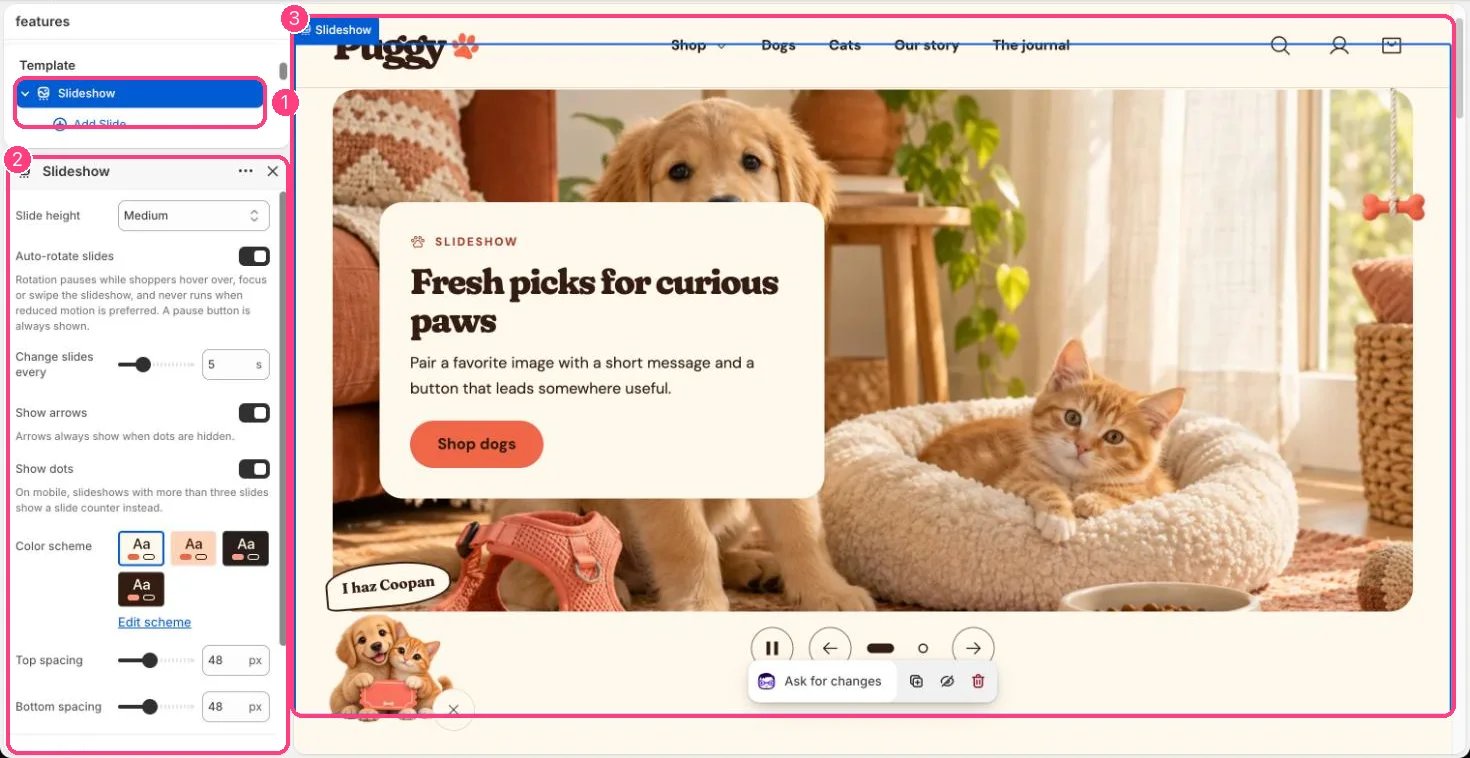
In the theme editor: 1 the section in the sidebar · 2 its settings · 3 the section in the preview
Edit it
- Click Add block > Slide, then add an Image (landscape images at least 3000 px wide stay sharp), an optional Mobile image, Eyebrow, Heading, Text, Button label and Button link. A blank Button link goes to all products.
- Set Text position (nine spots), Text alignment, Text background (Panel or Image overlay), Text color scheme and Image overlay opacity.
- Choose Slide height: Adapt to first image, Small, Medium or Large.
- Turn on Auto-rotate slides and set Change slides every. Turn Show arrows and Show dots on or off; arrows always show when dots are hidden.
Settings
Blocks
Up to 6 blocks. Add a block with Add block under the section in the sidebar; drag blocks to reorder them.Slide
Text layout