
- Mark each engravable product with the true or false product metafield custom.engravable (create it in Settings, Custom data, Products). Or set the Engraving block’s Show for to All products.
- Shoppers open the panel with the toggle (Add engraving, free by default), type up to the Character limit (default 12), and pick Roman capitals or Script when Offer lettering styles is on.
- Show engraving preview draws the text on a gold band as they type.
- The text is saved as the line item property Engraving, and the style as Lettering. Empty fields are left out of the order.
- Use the Note for your terms, for example that engraving adds three working days and engraved pieces cannot be returned.
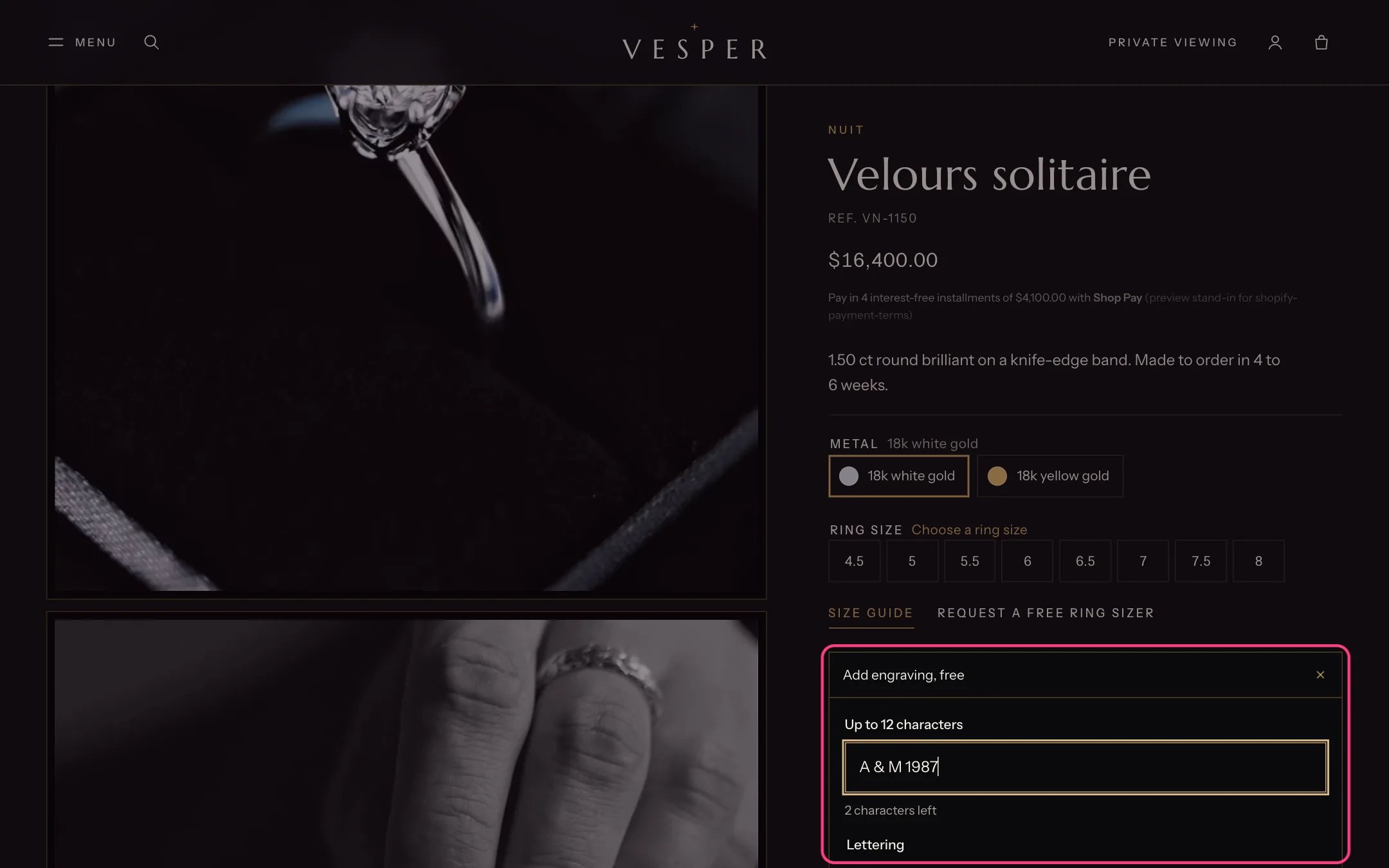
The engraving panel with its preview
- The Gift options block adds a checkbox, by default Gift presentation and a handwritten card, free.
- Ticking it saves the hidden line property _gift_box, which shows on the order but not in the cart.
- With Show gift message on, a message field opens with the checkbox (up to Message length, 50 to 250 characters) and is saved as Gift message.
In the theme editor
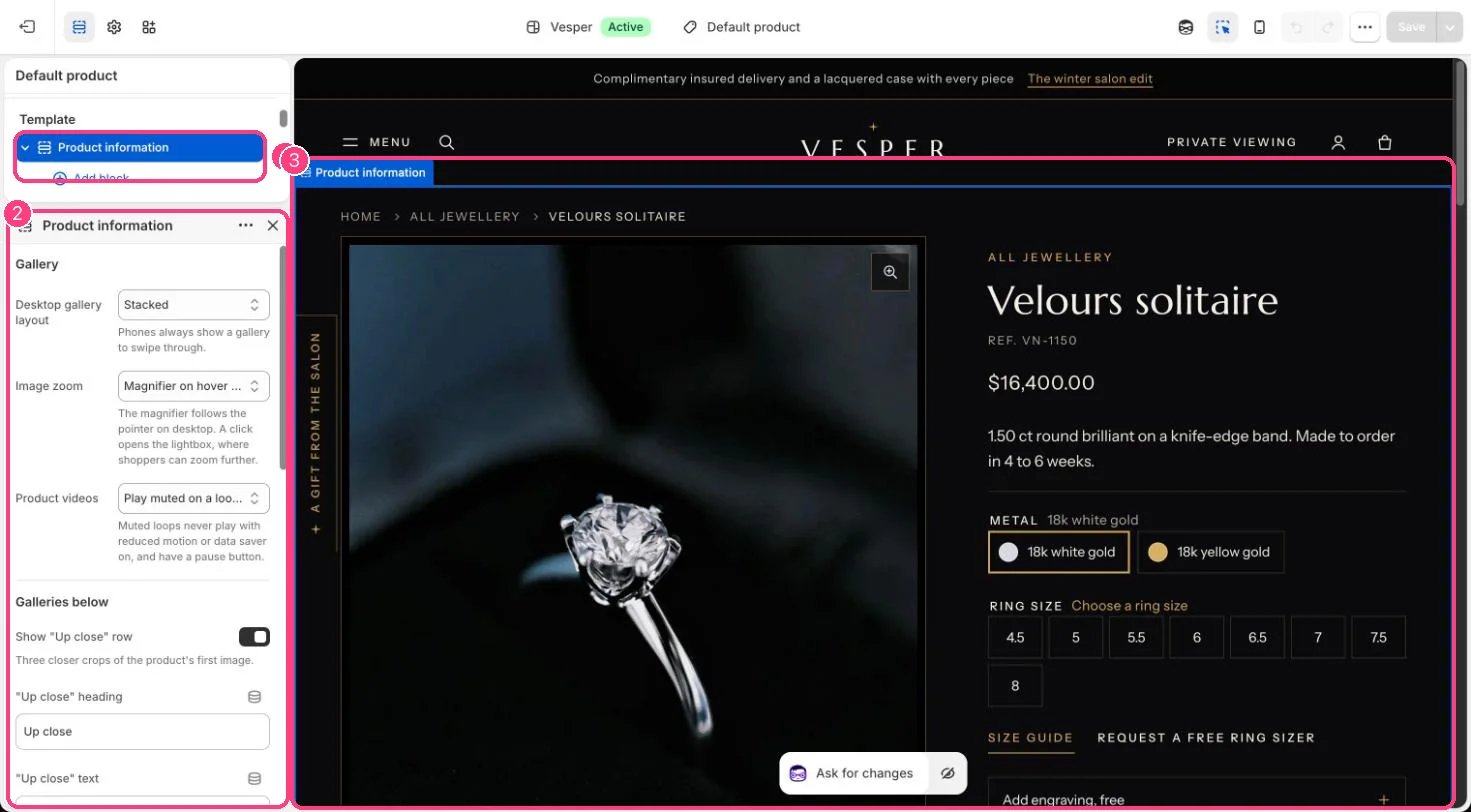
Engraving and gift options are blocks of 1 Product information · 2 its settings · 3 the preview