
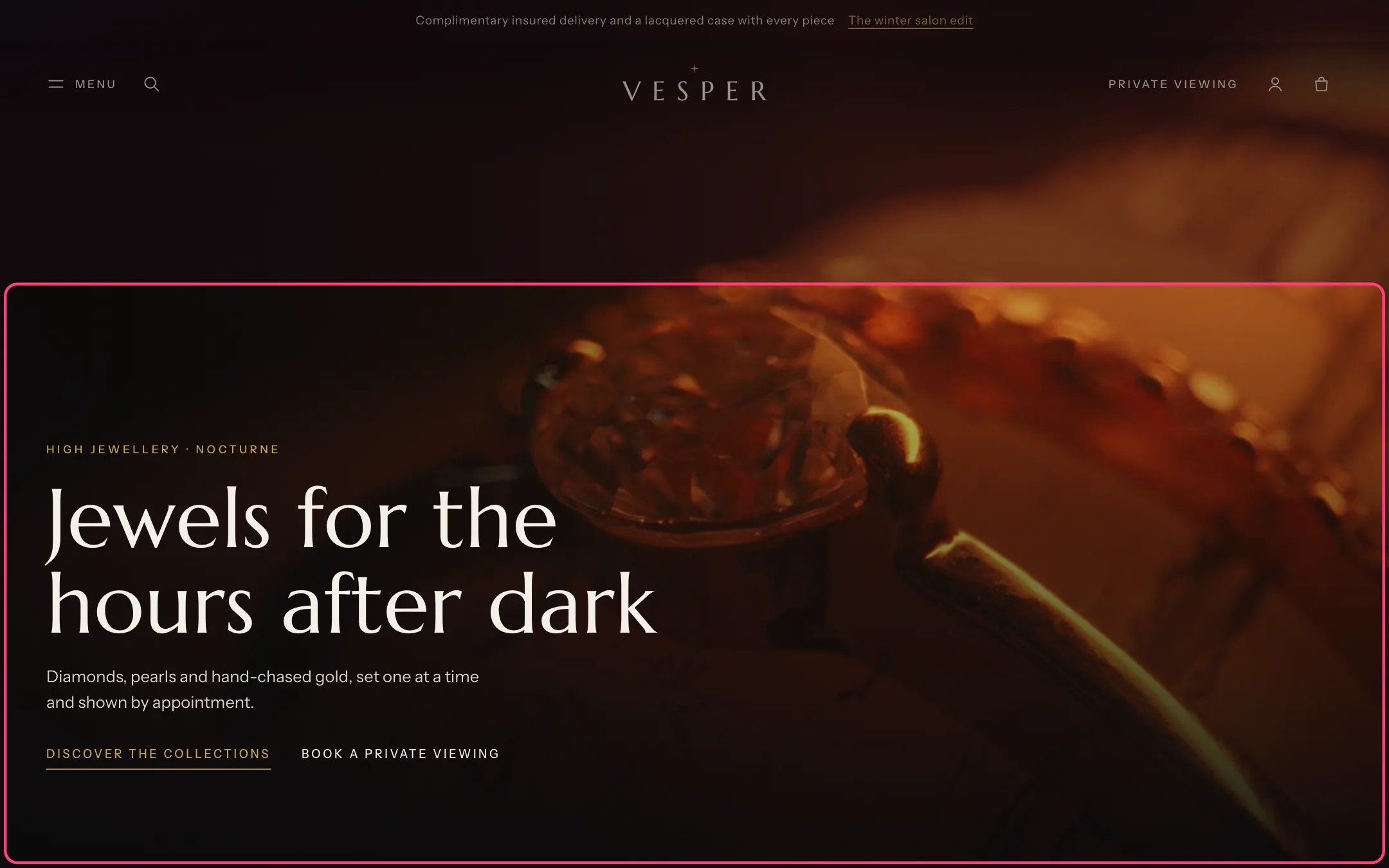
Hero film, highlighted with the demo content
Where to find it
Home page, first section. In the theme editor choose Home page in the page selector, then select Hero film. Only one per page.How it works
- An uploaded film plays muted on a loop, only while it is on screen. Visitors who ask for reduced motion or turn on data saving see the poster instead.
- The poster loads first, so the page appears quickly, and the film fades in over it once it plays. A Mobile poster can replace it on screens under 750 px wide.
- With a YouTube or Vimeo link instead of an uploaded film, the poster shows with a play button. The player loads only after a click, then fills the hero.
- The heading is the main heading (h1) of the home page.
- Overlay strength darkens the film behind the text, in the color of the section’s scheme, so a light scheme gets a light veil and dark text.
- The header floats over the hero until the shopper scrolls, when Float over the first section on the home page is on in the Header.
- A pause button for the film appears when a keyboard user tabs to it.
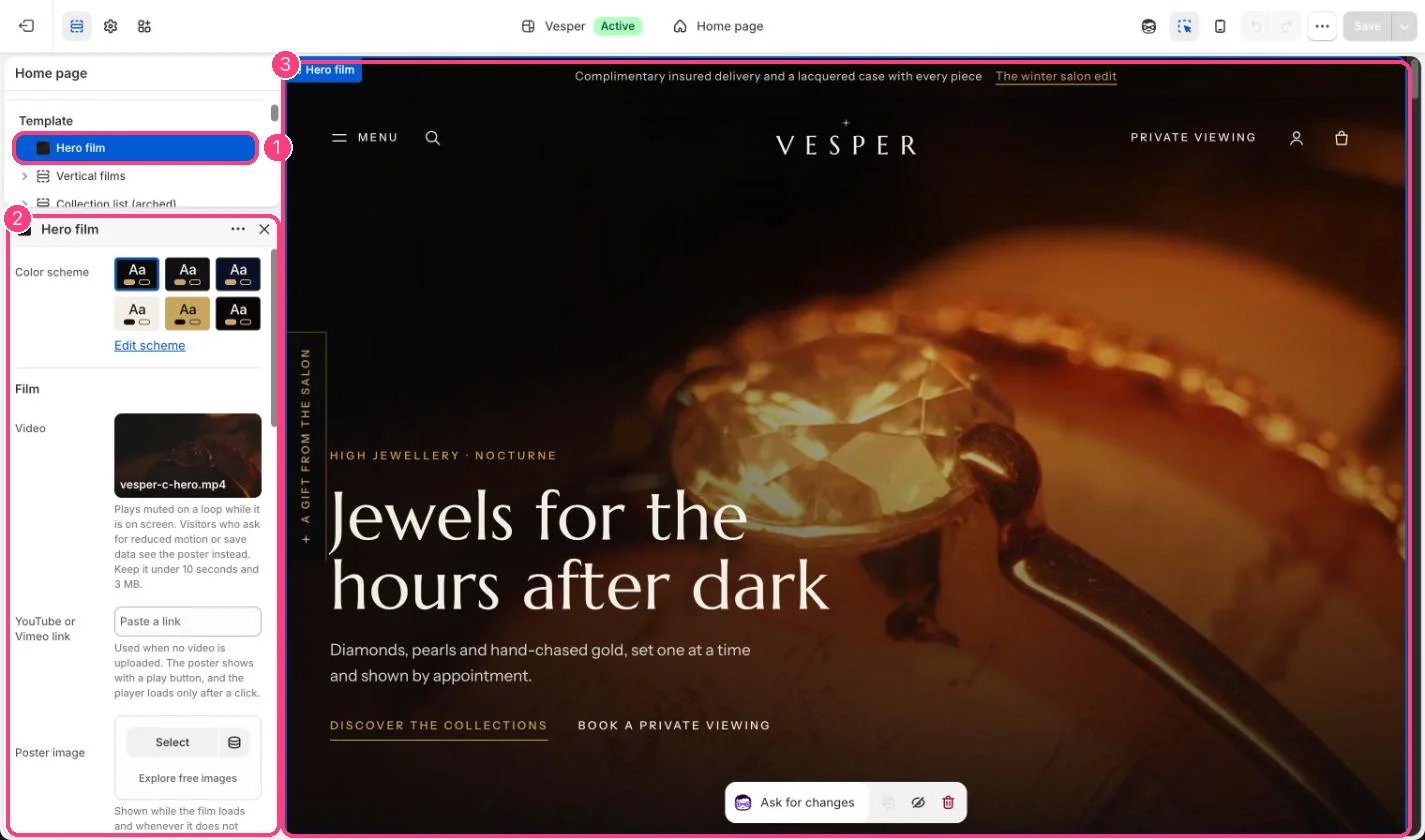
In the theme editor: 1 the section in the sidebar · 2 its settings · 3 the section in the preview
Edit it
- Upload a short film under Video: under 10 seconds and 3 MB, landscape. Then add a Poster image of 2400 x 1350 px or larger.
- Add a portrait Mobile poster image if the landscape poster crops badly on phones.
- Edit Eyebrow, Heading and Text. Keep the heading short: it is the first thing shoppers read.
- Set Link label and Link, for example Discover the collections to /collections. Add a Second link such as Book a private viewing to your contact page.
- Choose Text position and Height (Full screen, Large or Medium). Raise Overlay strength if the text is hard to read over light footage.
Settings
Film
Text
Layout
With no heading, the home page still gets a hidden main heading with your store name for screen readers and search engines.