
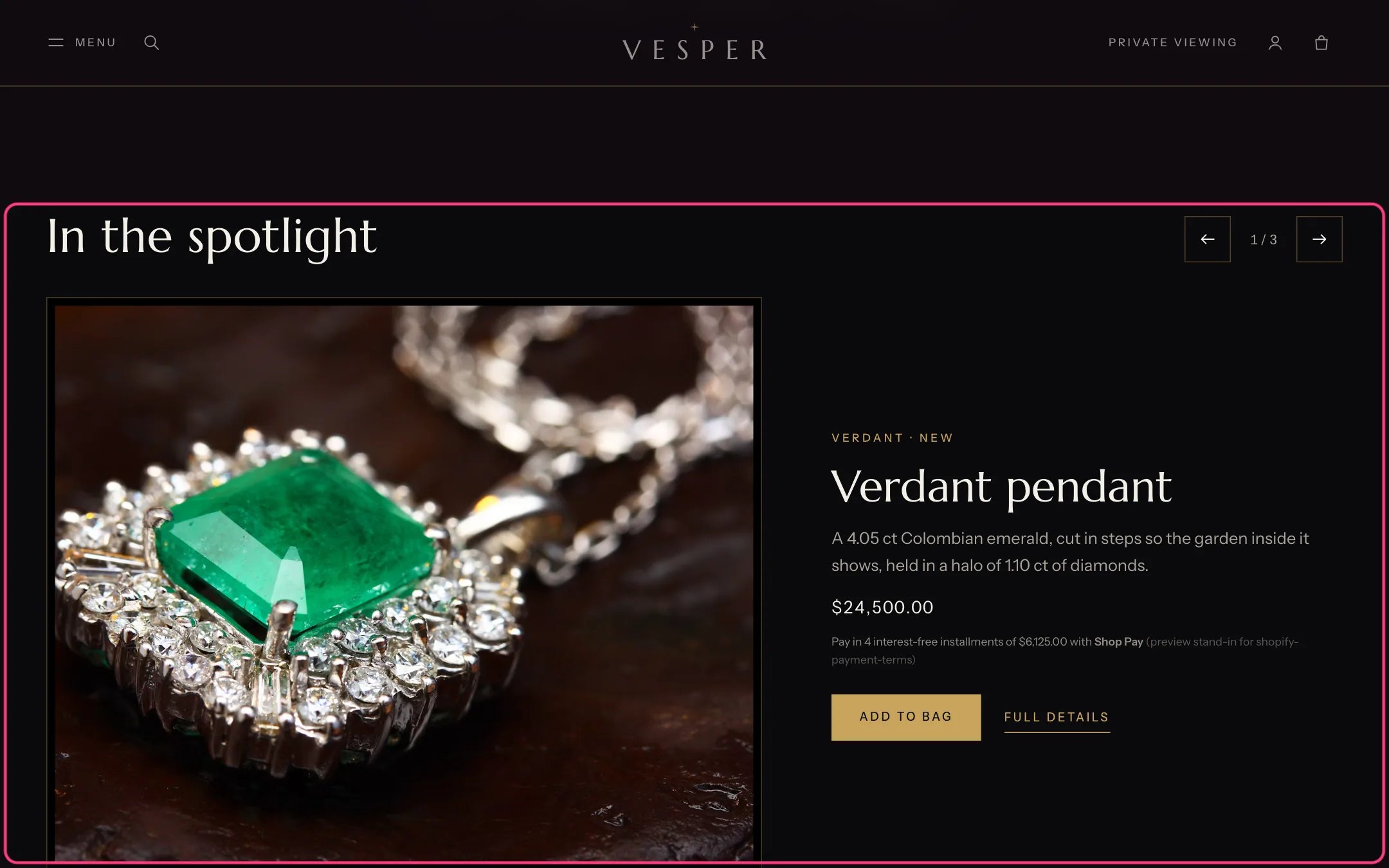
Slideshow, highlighted with the demo content
Where to find it
Home page. In the theme editor choose Home page, then select Slideshow.How it works
- Slides change only when a shopper uses the arrows, the dots, a swipe or the arrow keys. There is no timer.
- A Featured product slide shows the product image, price, Shop Pay Installments and an Add to bag button that adds it through the bag drawer.
- Products with more than one variant, pre-order products and products sold by appointment link to their product page instead of adding directly. Sold-out products show a disabled button.
- A Slide block shows an image with an eyebrow, heading, text, a button and a link.
- Up to 6 slides. Selecting a slide’s block in the theme editor shows that slide.
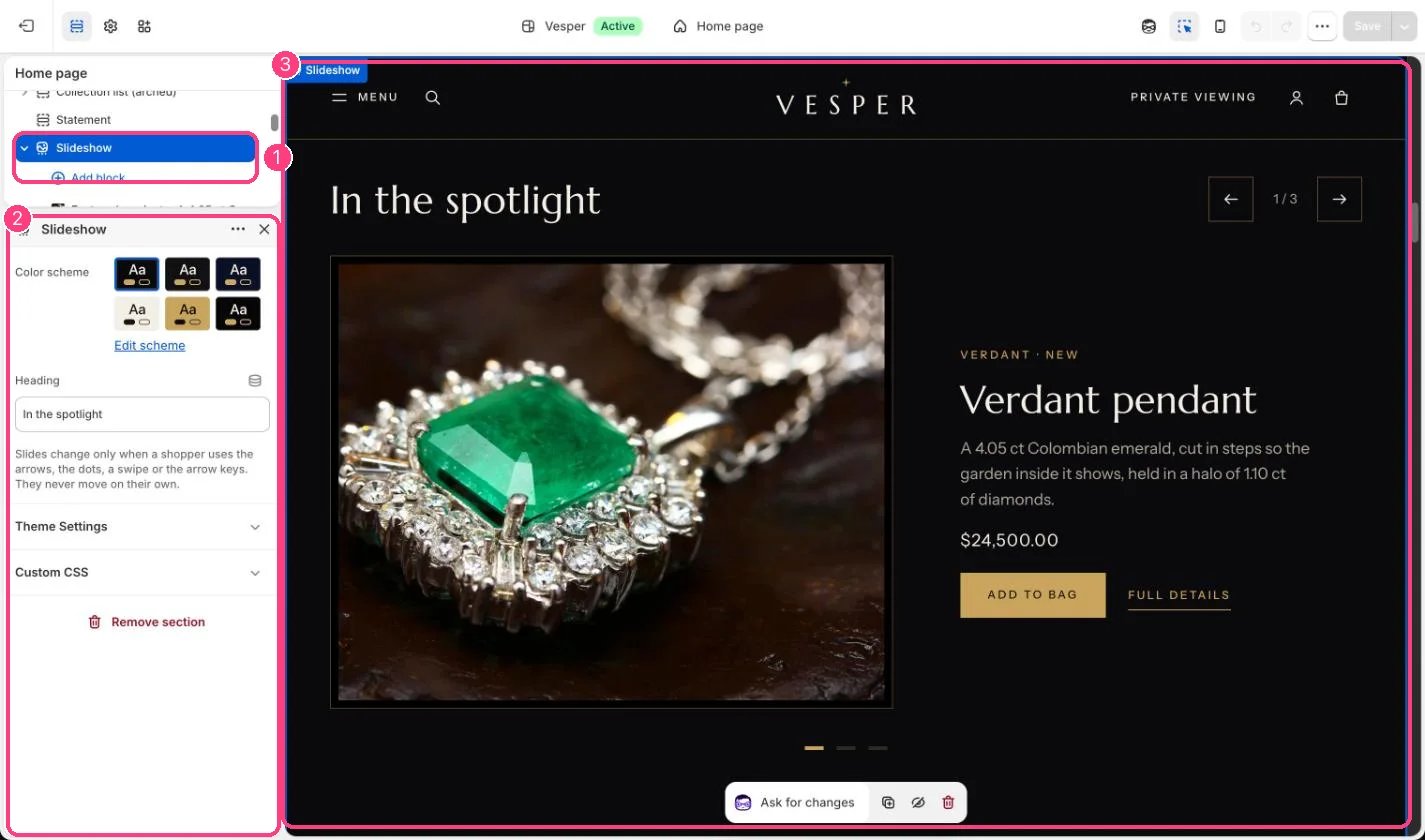
In the theme editor: 1 the section in the sidebar · 2 its settings · 3 the section in the preview
Edit it
- Add a Featured product block, choose the product, and optionally an image, eyebrow and text. Without text the start of the product description is used.
- Add a Slide block for an image slide and fill in its heading, text, button and link.
- Edit the section Heading.